
User Interface
TouchDRO's user interface consists of three screens:
- Main readout screen - displays the axis readouts in a traditional numeric format
- Graphical view - displays a 2D projection of the current workspace, with compact readouts beside it
- Application Settings - used to configure TouchDRO
Common Elements
The three screens share the toolbar across the top and the application menu drawer behind it.
Toolbar
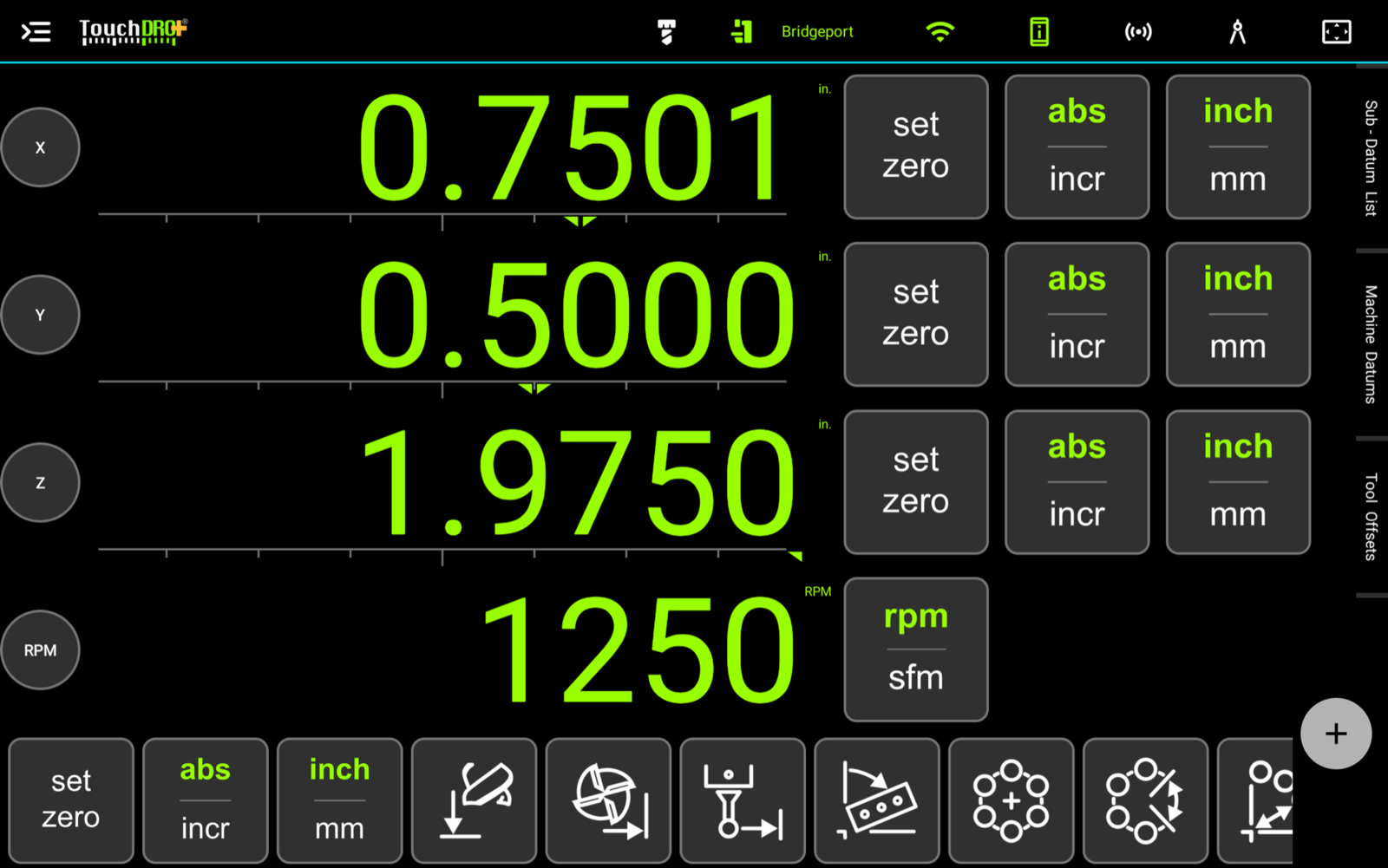
The toolbar is a narrow strip at the top of the screen that stays the same on every TouchDRO screen. From left to right it holds:
- The application menu button, which opens the menu drawer
- The TouchDRO logo
- The tool indicator: a cutter icon that is white while no tool is applied and amber, with the tool's name beside it, while one is. For a custom cutter the label shows the diameter and the cut direction instead. To open the "Tool Compensation" dialog on a mill, or the "Tool Offset" dialog on a lathe, tap the icon or the name
- The machine icon and the name of the current machine profile, in green. To switch profiles, tap the name; the "Machine Profiles" dialog will open. While a tool is applied, the name is tucked away to make room for the tool, and tapping the machine icon brings it back
- The connect button, which shows the connection type in use. It is covered in "Connecting to a Scale Adapter"
- The device-status button, which appears once an adapter is connected and opens the "DRO Adapter Details" dialog
- A streaming button, while live data streaming is turned on
- The measurement mode toggle, drawn as a drafting compass
- The graphical view toggle, which switches between the main readout screen and the graphical view
Application Menu Drawer
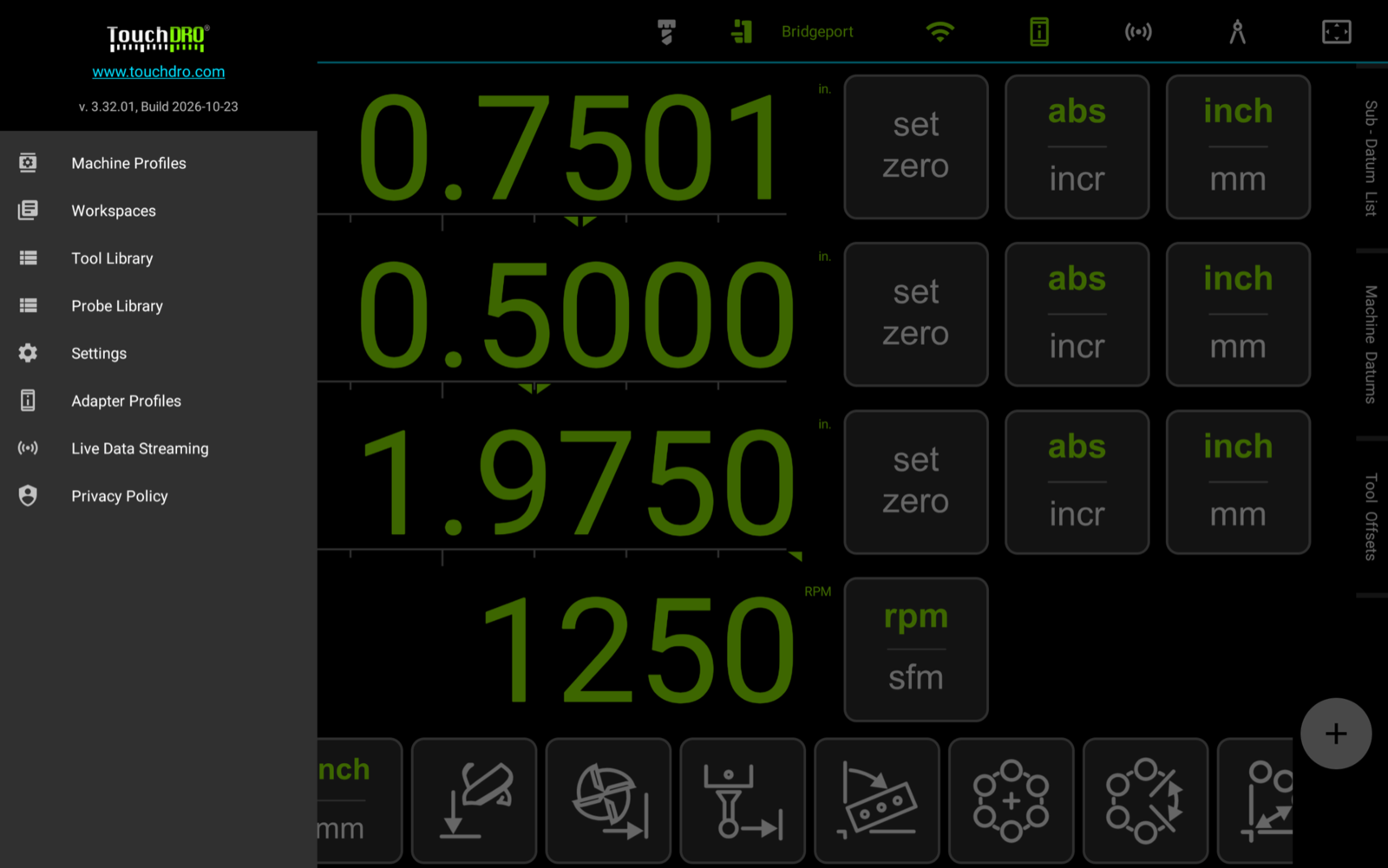
The menu drawer is hidden by default. To open it, press the application menu button, or swipe in from the left edge of the screen. It holds the TouchDRO version and build information and these items:
- "Machine Profiles", the list of machines this tablet is set up for, covered in "Machine Profiles"
- "Workspaces", the list of saved sub-datum sets for the current profile, covered in "Workspaces and Coordinate Entry"
- "Tool Library", covered in "Mill Tool Library" and "Managing Tool Offsets on a Lathe"
- "Probe Library", covered in "Probe Profiles"
- "Settings", which opens the Application Settings screen
- "Adapter Profiles", the list of adapters TouchDRO knows about, covered in "Encoder Settings"
- "Live Data Streaming", shown while streaming is enabled, covered in "Live Data Streaming"
- "Privacy Policy"
Main Readout Screen
When TouchDRO starts, it displays the main readout screen, which is designed to resemble a traditional digital readout display (Fig. 1). The readouts take up most of the screen, the side panel opens along the right edge, and the function strip runs along the bottom.
Axis Readouts
The readout display consists of one row per axis, as configured in the machine profile and the "Application Settings": up to three linear axes, an angular axis, and the RPM readout. Each linear row holds, from left to right:
- The axis label
- The position readout, with the position slider under it
- The "Set Zero" button, which sets the axis to zero in the current coordinate system
- The "abs/incr" button, which switches the axis between absolute and incremental coordinates
- The "inch/mm" button, which switches the axis between inches and millimeters. On an angular axis it switches between degrees and divisions
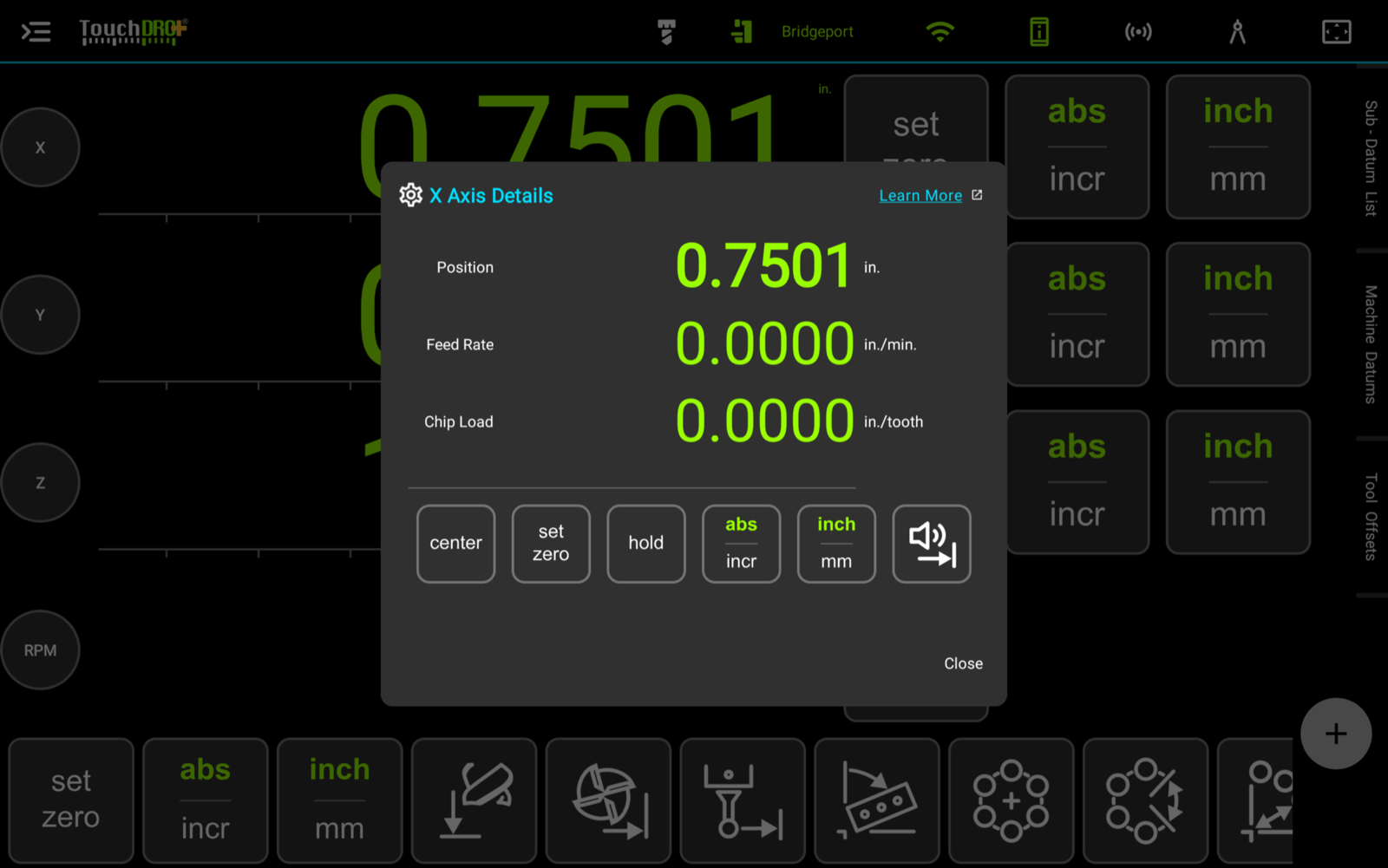
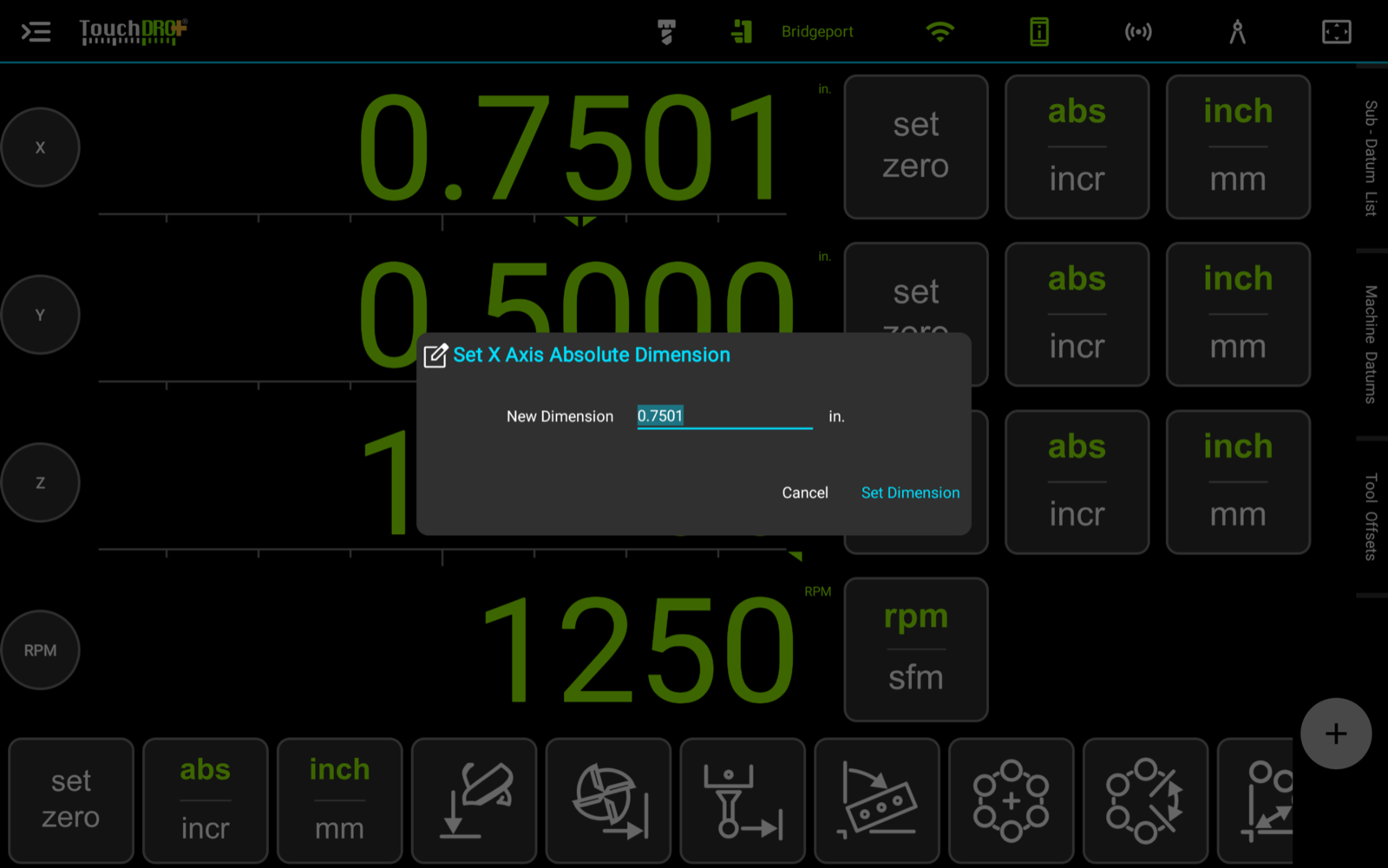
The readout itself responds to two gestures. To open the "Axis Details" dialog, with the feed rate, the chip load, and the per-axis buttons, tap the readout. To type a position in, long-press the readout; the "Set Dimension" dialog will open. Both are covered in "Axis Details Dialog".
The RPM row has a single button, which switches the readout between spindle speed and surface speed.
Side Panel
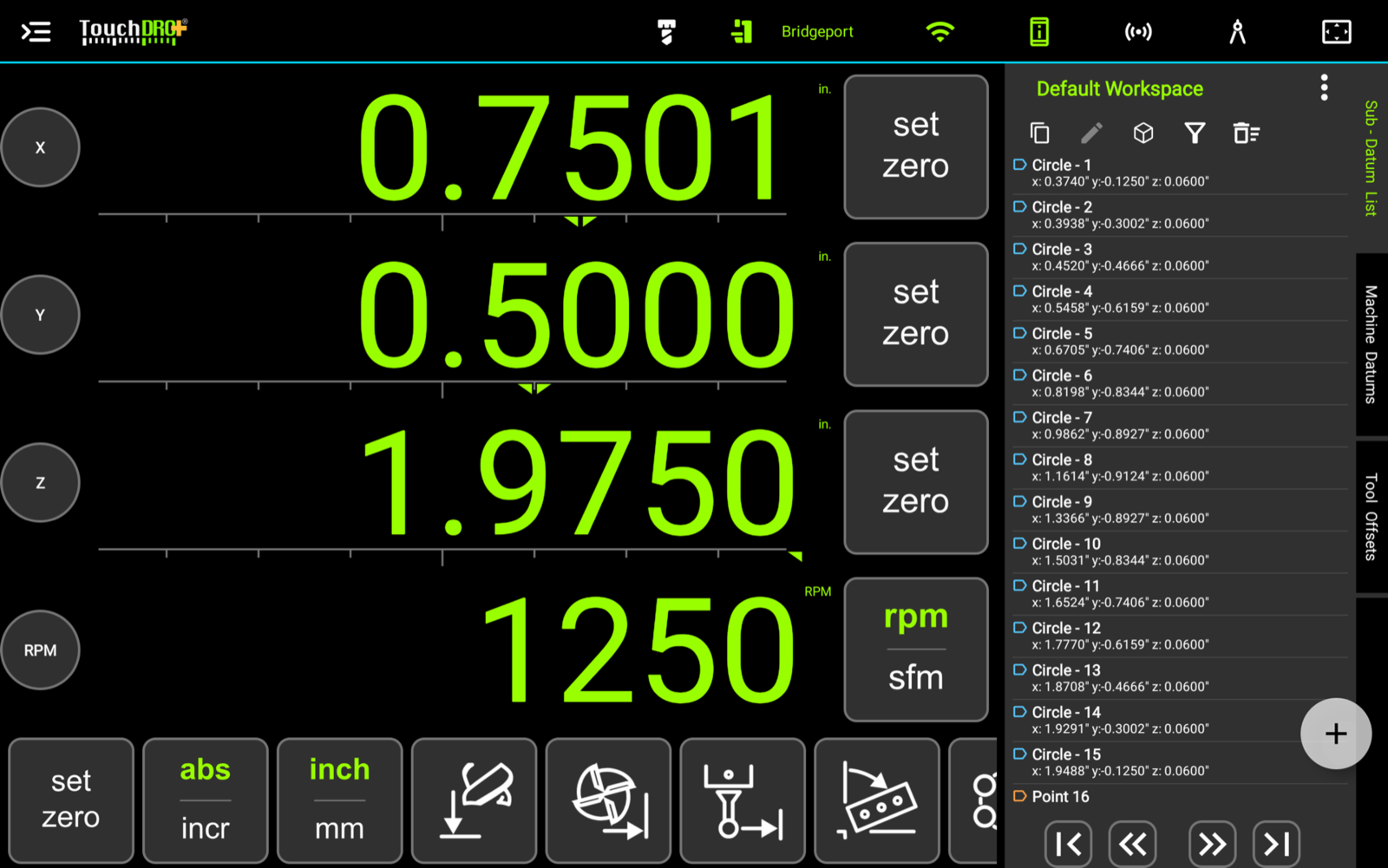
The right edge of the screen carries three tabs: "Sub - Datum List", "Machine Datums", and "Tool Offsets". To open a panel, tap its tab; the readouts narrow to make room. To collapse the panel again, tap the tab that is already selected. The "+" button in the lower-right corner adds a sub-datum at the current position, and it stays on screen whether the panel is open or collapsed.
The sub-datum panel is covered in "The Sub-Datum Panel", the machine datum panel in "Machine Datums", and the tool offset panel in "Mill Tool Library" and "Lathe Tool Offset Memory Basics".
Function Strip

The function strip runs along the bottom of the screen. The first buttons act on every axis at once:
- "Set Zero" sets all displayed axes to zero; long-pressing it sets the absolute origin
- "abs/incr" switches all displayed axes between absolute and incremental coordinates
- "inch/mm" switches all linear axes between inches and millimeters
- "rad/dia", on a lathe, switches the X readout between radius and diameter
The rest of the strip holds one button per function, and which ones you see depends on the machine type, on the mode, and on what you have switched on under "Function Strip Preferences". The "DRO Function Buttons" page is the legend for all of them: it shows every icon beside what it does.
Graphical View
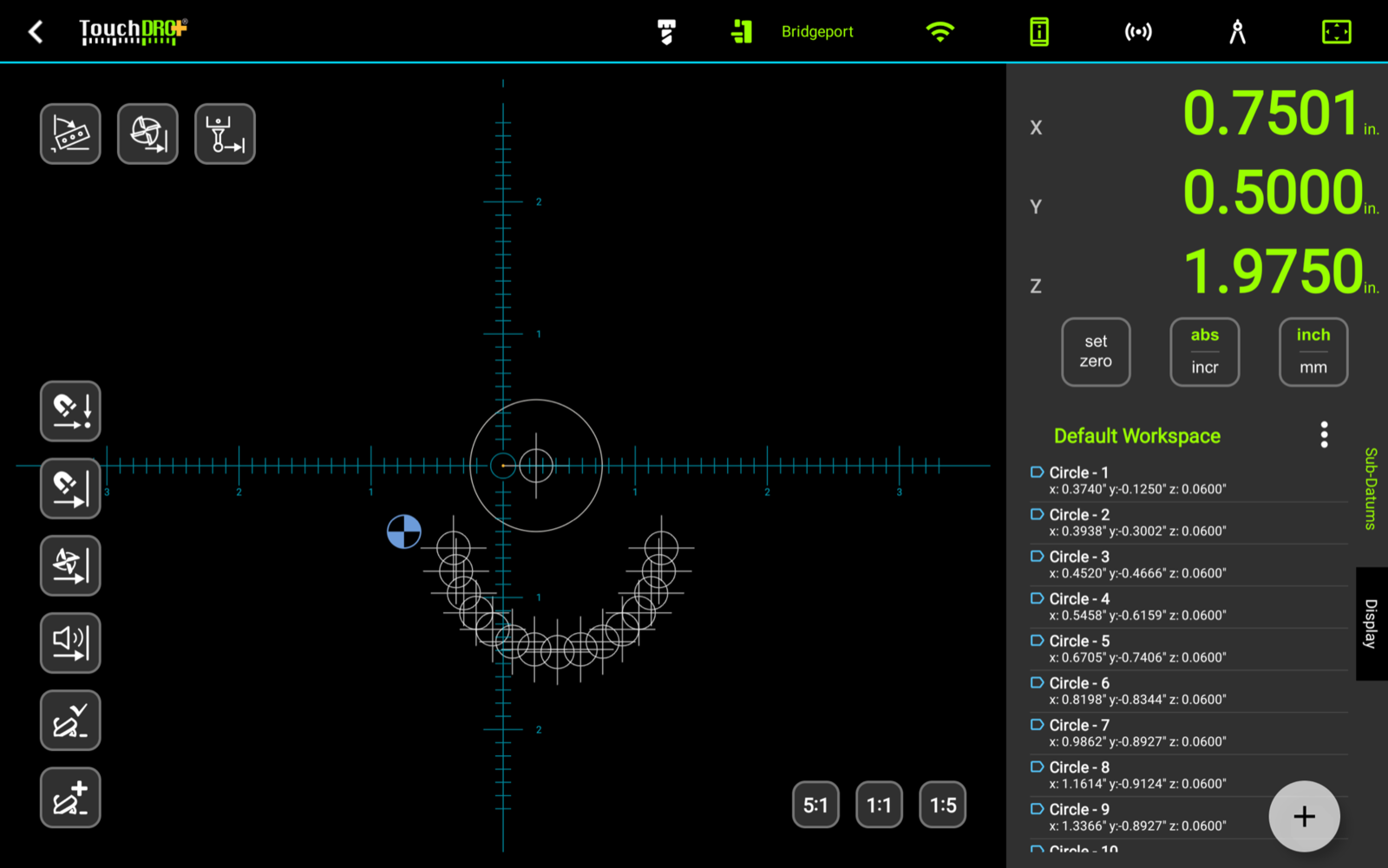
To switch to the graphical view, tap the graphical view toggle at the right end of the toolbar. The screen displays a 2-dimensional projection of the current workspace, on the X/Y plane on a mill and the Z/X plane on a lathe, with the saved sub-datums, the guides, any imported drawing, and the crosshairs that mark the spindle or the tool. Its purpose is to make work with saved coordinates visual: a set of holes can be worked through by watching the crosshairs approach each one rather than by reading numbers.
The screen has three areas:
- The projection fills the left of the screen. The scale buttons in its lower-right corner zoom it in and out, the buttons down its left edge toggle the display modes, and the quick row in its upper-left corner opens the functions you set a job up with. On a mill in cutting mode those are "Rotate Part", "Tool Compensation", and "Indicate Workpiece"
- The compact readouts take up the top of the right panel, with a global "Set Zero", "abs/incr", and "inch/mm" button under them. The readouts respond to the same gestures as on the main screen: a tap opens "Axis Details", and a long-press opens "Set Dimension"
- The sub-datum list fills the rest of the panel, under the workspace name and its menu button. The "Display" tab on the right edge swaps the list for the display settings panel
The "Graphical View Display" page covers every element of the screen.
Application Settings
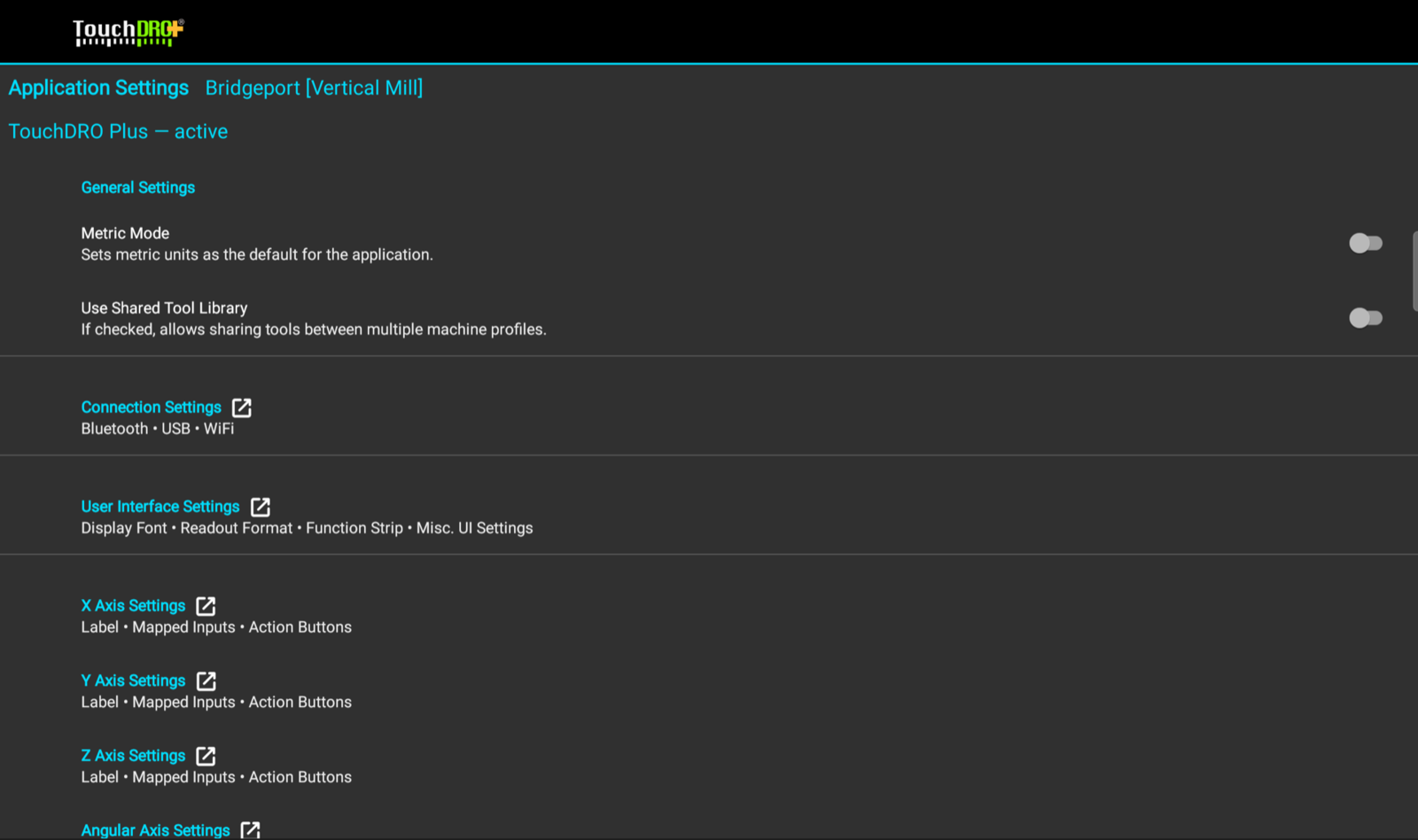
Most of TouchDRO's behavior is configured on the Application Settings screen, reached from "Settings" in the application menu. The screen title names the machine profile the settings belong to, with its type in brackets, since every profile keeps its own settings.
The screen is a scrollable list of settings organized into groups. The groups that hold more than a few settings are collapsed into a single row that summarizes what is inside; to open one, tap its row, and a settings sub-screen with the same kind of elements will open.
TouchDRO uses three main types of settings:
- "List" settings allow selecting a value from a predefined list
- "Text Entry" settings allow direct entry of text
- "Toggle" settings allow switching between "on" and "off" states
To change a setting, tap its row; this will either bring up a relevant dialog or flip the switch. There is no need to save the changes: they are applied as you make them. The settings are covered group by group, starting from "Application Settings".