
Linear (X,Y,Z) and Angular Axis Settings
TouchDRO can display up to five readouts on the main screen:
- Three linear axis readouts (X, Y, and Z) that represent a tool position within a standard Cartesian coordinate system. Each readout can be configured to receive position from any one scale, or sum-up positions from two scales
- One angular axis readout "α" that can display the angle of a rotary table or an indexing head. The readout can be configured to receive position from any one scale input.
- Tachometer readout that can display spindle rotations per minute (RPM) or cutting speed. Tachometer is hard-coded to display data from the "t" input; its settings are covered on the "Tachometer Settings" page.
A lathe profile replaces the Y axis with two lathe-specific inputs, covered at the end of this page: the "Auxiliary Readout" for a tailstock or compound slide scale, and the "Caliper/Micrometer Input". All of these screens open from the "Settings" screen.
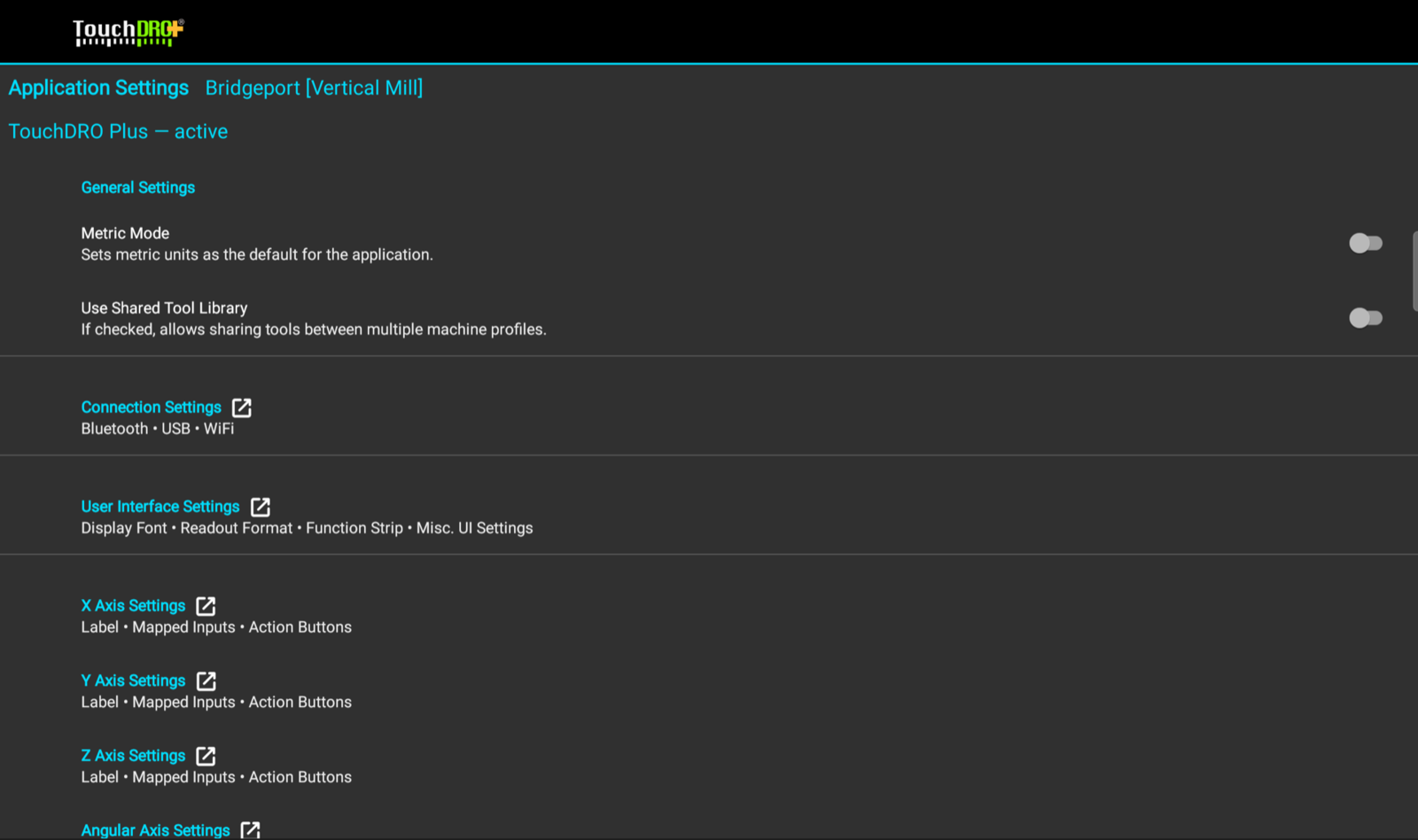
Each axis readout can be enabled/disabled and configured individually to suit particular machine configuration and user preferences.
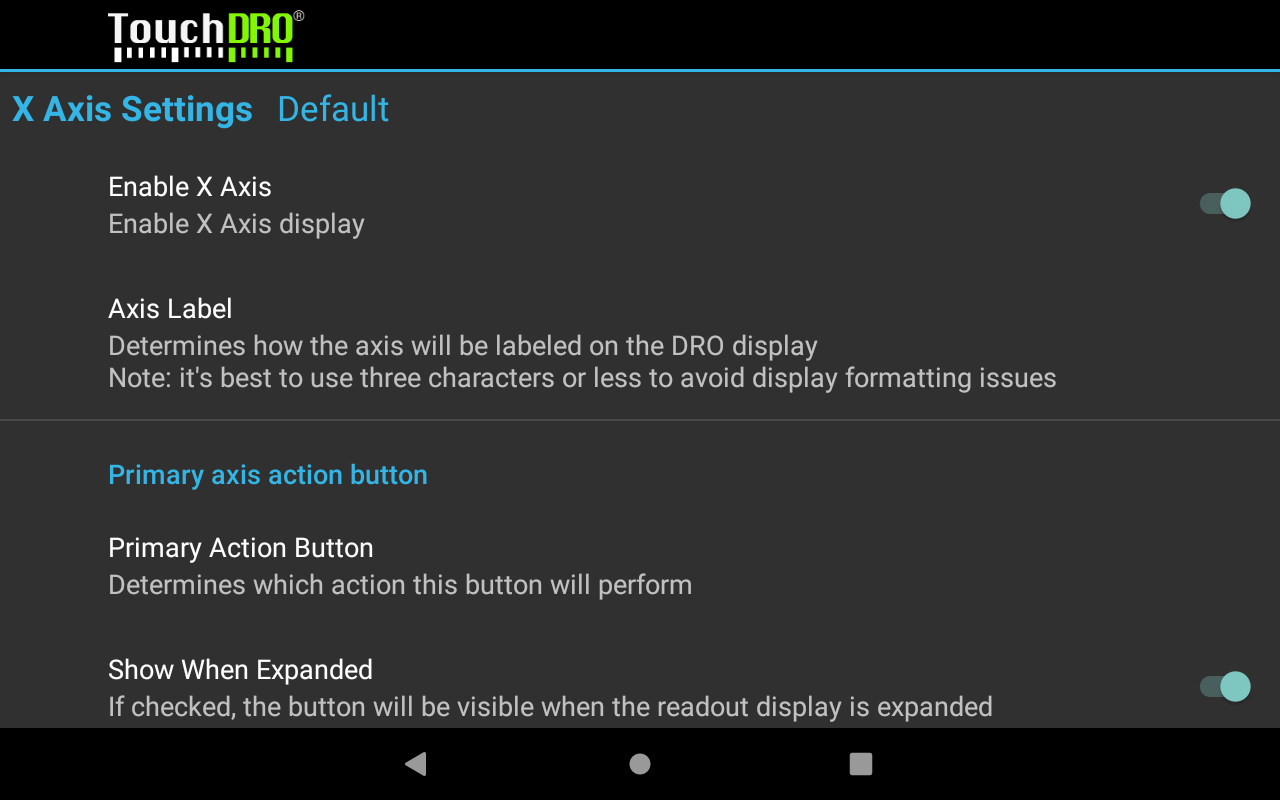
Enable Axis
Determines whether or not the axis output is enabled to suit a particular machine setup. For example, when used with a vertical milling machine, all three linear axes might be shown, while a surface grinder would likely not use the X axis; a lathe won't need Y axis readout.
Note 1: At least one axis must be enabled. As a result, TouchDRO will prevent the last enabled axis to be disabled and will show a warning stating so
Note 2: For the graphical view to work at least two linear axis outputs must be enabled; otherwise, the application will display a bank screen instead of the 2-dimensional workspace representation.
Axis Label
Label that will be shown next to each axis readout on the main screen. The application accepts labels that are 1-3 characters long.
Note: This setting will be deprecated in the future, so it's best to use the standard X,Y, and Z labels.
Axis Button Settings
Each linear axis can have up to three action buttons that appear on the main readout screen. The action that each of the three buttons will perform and whether or not it will be displayed when the side panel is visible or hidden can be configured using their respective [identical] configuration sections.
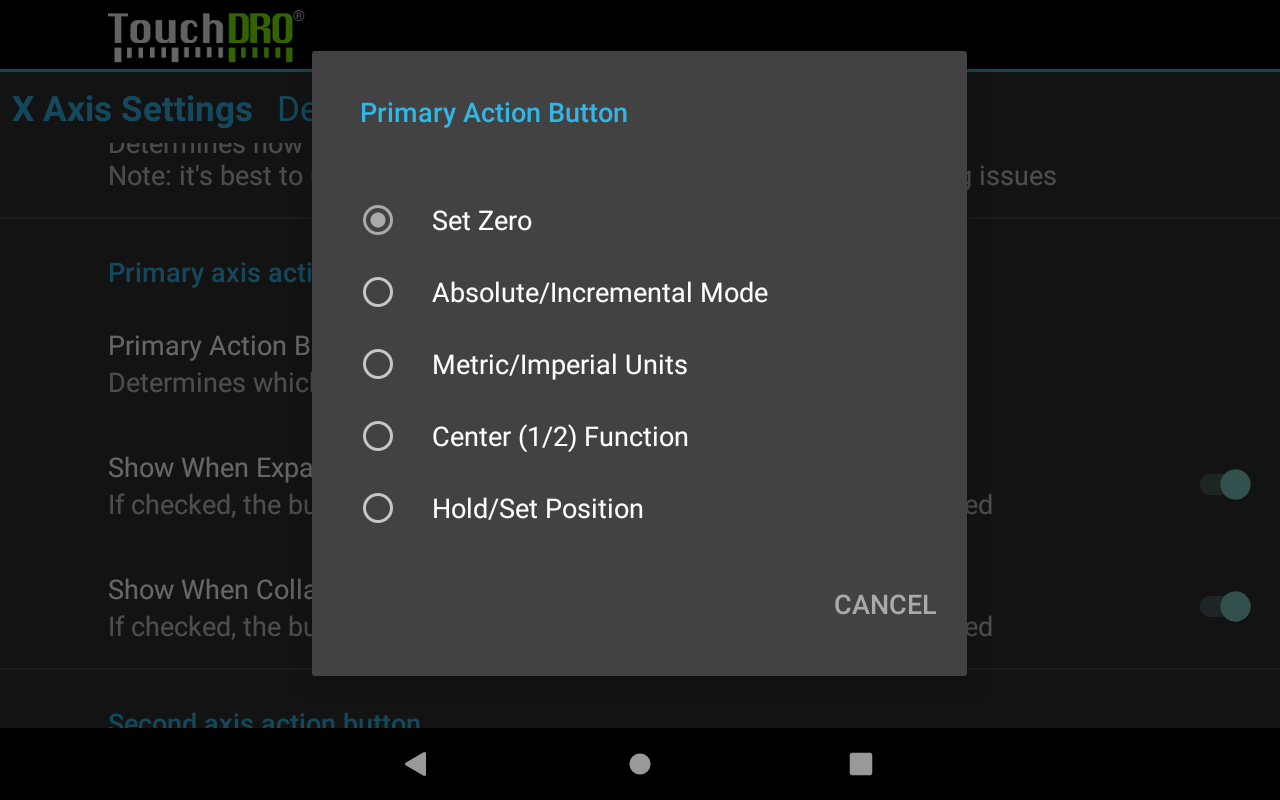
By default, the first button is configured to show "Set Zero" action and be shown when expanded and collapsed. The other two buttons are set to toggle between Absolute and Incremental coordinate systems and Inches and Millimeters respectively. Second and third buttons are configured to be shown in expanded mode, but for some wider screens, there might be enough space to show one or both of them in collapsed mode as well.
Button Action
Determines which action the button will perform when clicked.
Show When Expanded
When checked, the button will be visible when the readout display is expanded (i.e. the right panel is hidden)
Show When Collapsed
When checked, the button will be visible when the readout display is collapsed (i.e. the right panel is visible)
Input Settings
An input is a stream of data received from the TouchDRO adapter for a particular scale and consists of the input prefix (different from axis label) and the number that represents encoder steps. Each axis readout can receive position data from one or two inputs. By default each axis is configured to receive data from one input but when desired, a second input can be enabled, so the readout can combine readings from two scales (for example Z axis on a knee mill could combine input from a scale mounted to the knee and the quill).
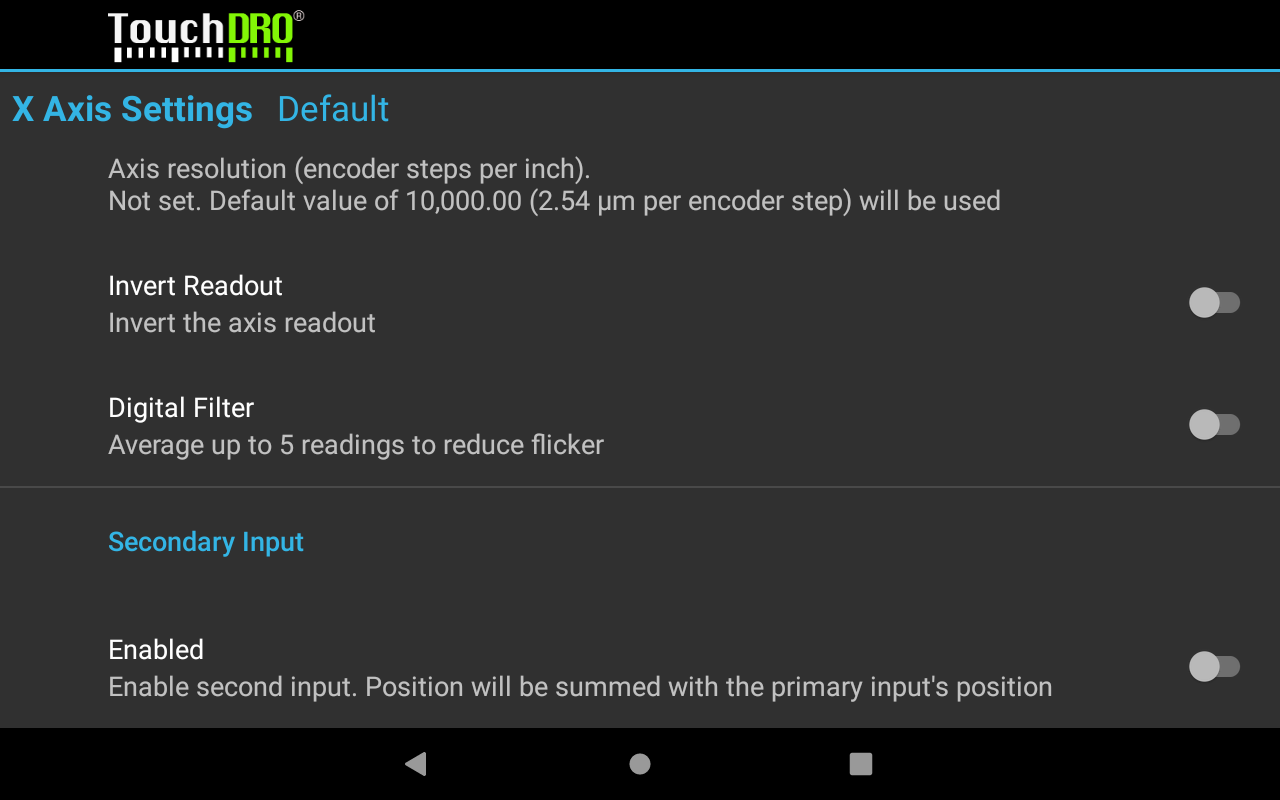
Enabled (Secondary Input Only)
Determines whether the secondary input will be used. When checked, the section will show settings similar to the primary input
Prefix
Determines which input stream should be used for this input. By default X, Y, Z, and Angular axis readouts are set to receive "x", "y", "z" and "w" inputs respectively.
This setting is what makes it unnecessary to move scales between adapter inputs. Any readout can be pointed at any input stream. A machine whose scales don't line up with the default assignment, or a combination machine whose coordinate system changes with the spindle in use, is handled by changing the Prefix rather than by re-plugging the scales.
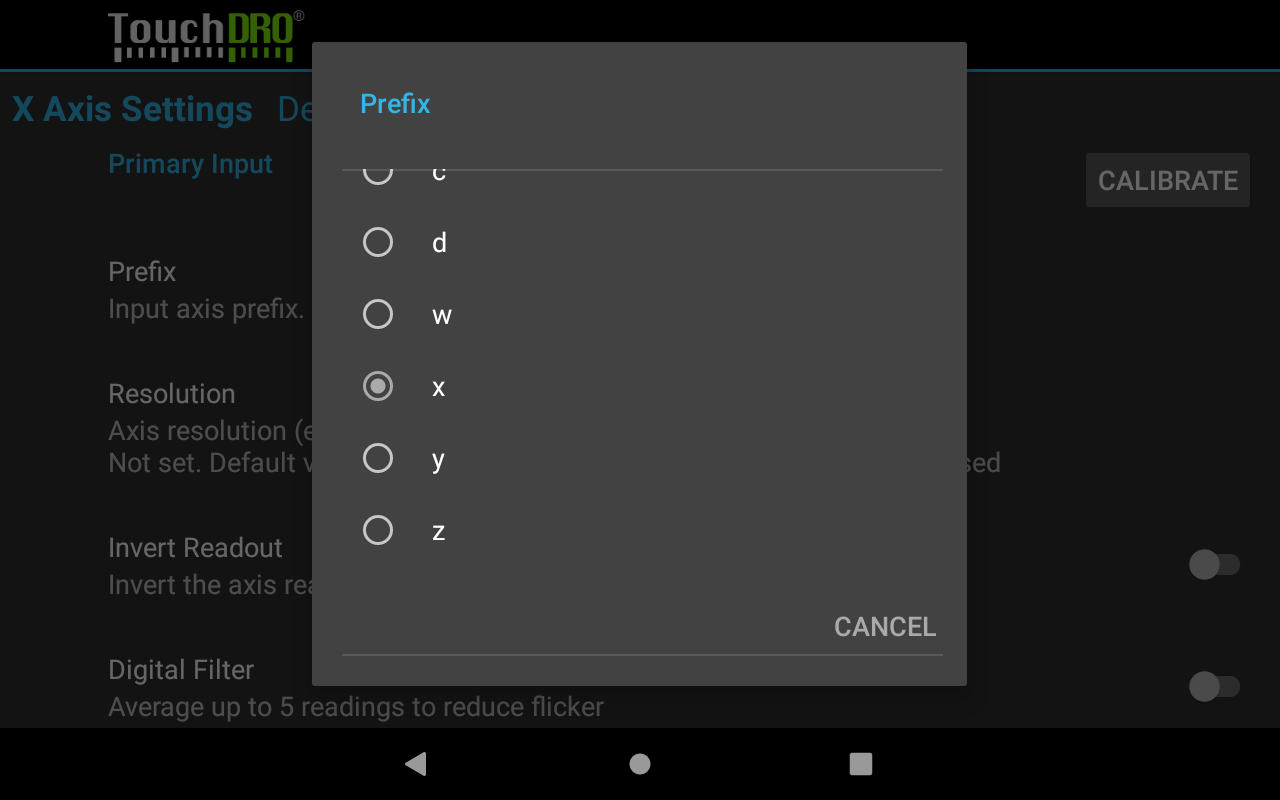
Note: The list offers twelve letters. "x", "y", "z", "w", "u", and "v" are the adapter's primary inputs, in the order the adapter numbers them, and "a" through "f" are spare channels for adapters that expose more inputs than that. The letter is only a wiring identifier; picking "a" instead of "x" changes which stream the readout listens to, not how it behaves. The same letter may be assigned to more than one readout on purpose, which is what a secondary input or the lathe's vectoring does, and TouchDRO warns when two readouts share a prefix so it isn't done by accident.
Invert Readout
When checked, the axis input will be inverted to account for scenarios where the scale has to be mounted backwards.
This switch belongs to the machine profile and applies to this profile only. The Calibration Wizard never changes it: when a scale counts backward, the wizard turns on the adapter's "Reverse counting direction" in the input's Encoder Settings instead, which follows the adapter to every profile that reads it.
Auxiliary Readout (Lathe)
On a lathe profile, the "Y Axis Settings" screen is replaced by "Auxiliary Readout Settings", the lathe's third readout. It carries the same label, action button, and input settings described above, plus three rows of its own that say what the scale is mounted on.
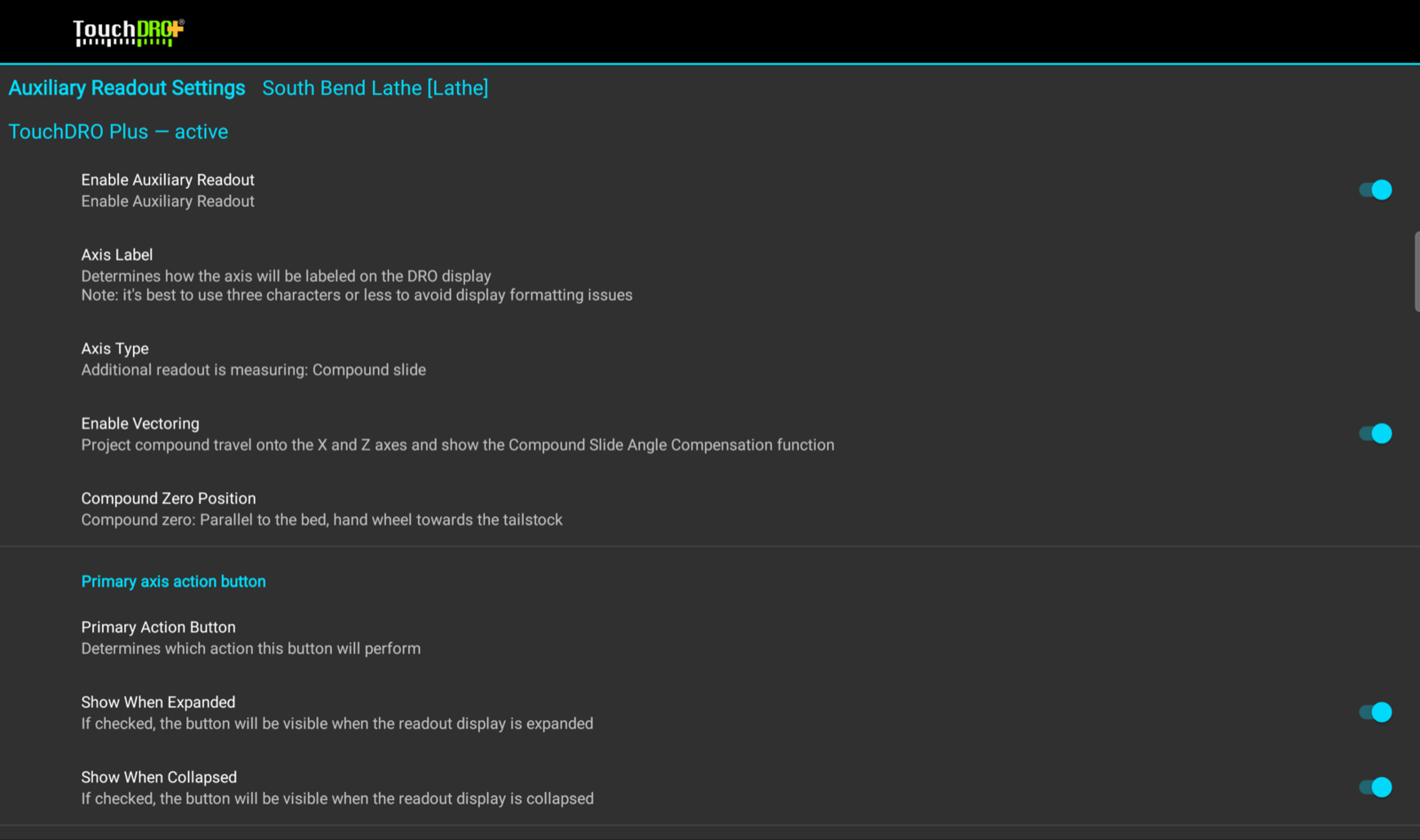
Axis Type
"Tailstock" (the default) is a scale on the tailstock quill, and behaves as a plain linear readout. "Compound slide" is a scale on the compound, and is the only type that can be projected onto X and Z. "Other" is anything else fitted with a scale, and behaves like Tailstock. A compound slide has one screw to read, so choosing it hides the secondary input section.
Enable Vectoring
Shown when the axis type is Compound slide. When on, travel along the angled compound is resolved into its X and Z components and added to those readouts, so you read true X and Z position while feeding along the compound. The projection is independent of the readout's own "Enable" switch, so the third readout can stay hidden while the compound still feeds X and Z. Using it at the machine is covered on "Compound Slide Angle Compensation".
Compound Zero Position
Shown when vectoring is on. This is not the angle you are cutting at. It tells TouchDRO where your lathe's compound protractor reads zero, so the angle you dial in can be translated correctly: "Parallel to the bed, hand wheel towards the tailstock", "Square to the bed, hand wheel towards the operator", or "Parallel to the bed, hand wheel towards the headstock".
Caliper/Micrometer Input
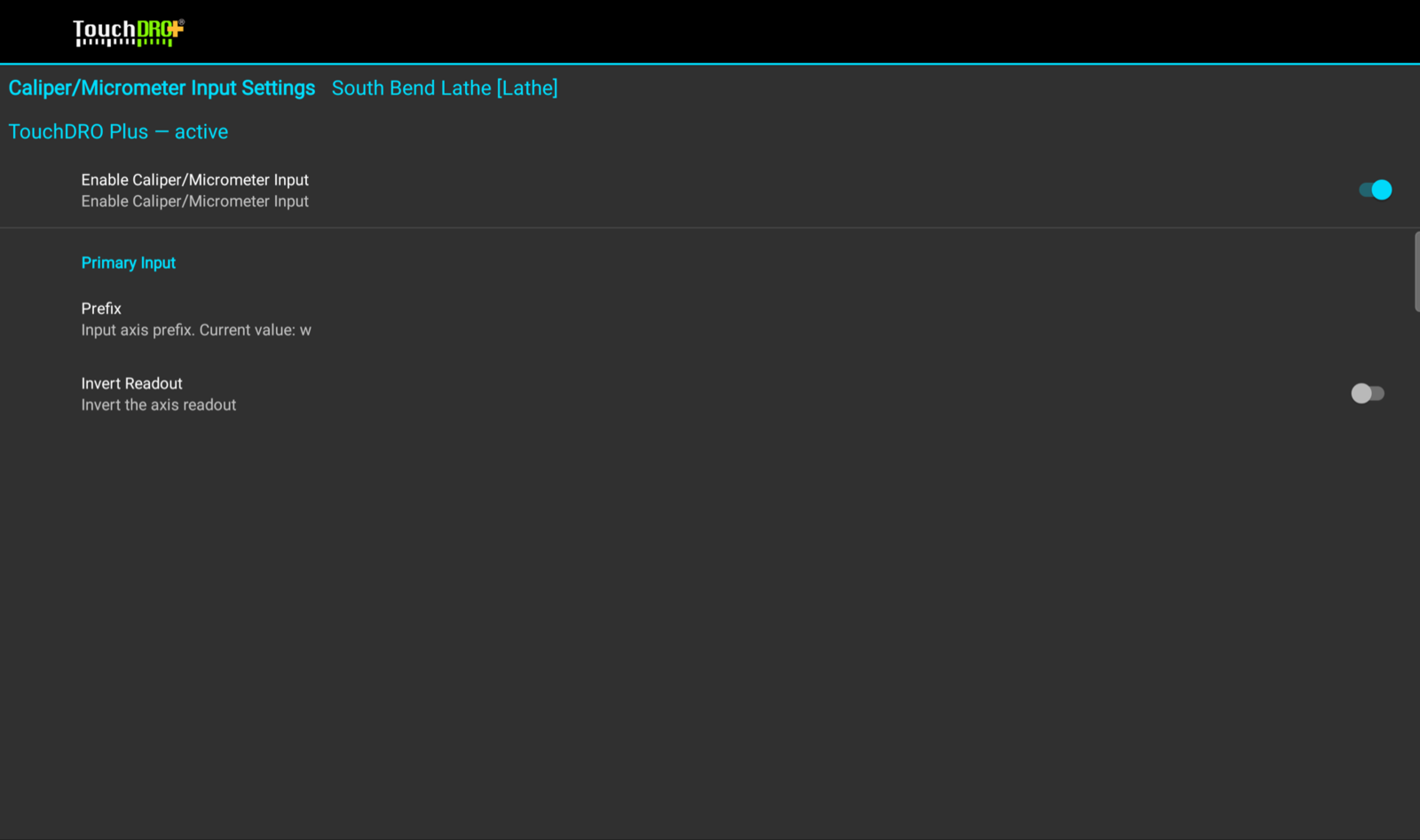
Also lathe only. "Caliper/Micrometer Input Settings" maps a digital caliper or micrometer, wired to the adapter through a converter, to a fourth linear input that the "Measure Dimension" function reads. It is the simplest of the inputs: "Enable Caliper/Micrometer Input" (off by default), a "Prefix" (default "w"), and "Invert Readout". There is no label, no action buttons, and no secondary input, because the reading never appears as an axis readout. The "Measure Dimension" button appears on the function strip once the input is enabled.
Resolution and Digital Filter
An input's resolution and digital filter describe the encoder rather than the machine profile, so they are set in the "Encoder Settings" dialog for that input, alongside its calibration. The "Encoder Settings" page covers every setting in that dialog.