
Set Z Reference Function
When machining three-dimensional parts, you often need to start by indicating the workpiece and establishing the Z axis datum. In other words, the DRO needs to know where the zero point for the Z axis is. There are several ways to do this: you can use a feeler gauge (or even a piece of cigarette paper) between the cutter and the part, a manual tool height setter, or an electronic tool height setter. It's even possible to use a touch probe, provided you have a holder for it that can repeatedly return it to the same Z offset.
The "Set Z Reference" function is there to help you quickly apply the correct offsets when using any of the methods mentioned above.
A tool change is a different job from setting the datum, and TouchDRO has two routes for it. With a tool height setter, the "Hold" function freezes the readout while the tool is swapped, which is covered in "How to Use a Tool Height Setter". With tool holders that return each cutter to the same height, the Z offsets stored in the "tool library" do the same job without the setter.
To open the dialog, press the "Set Z Reference" button on the function strip, drawn as a tool over a surface. The button is shown on milling machine profiles in cutting mode, and the "Show Tool Height Setter" switch under "Function Strip Preferences" hides it.
User Interface Overview
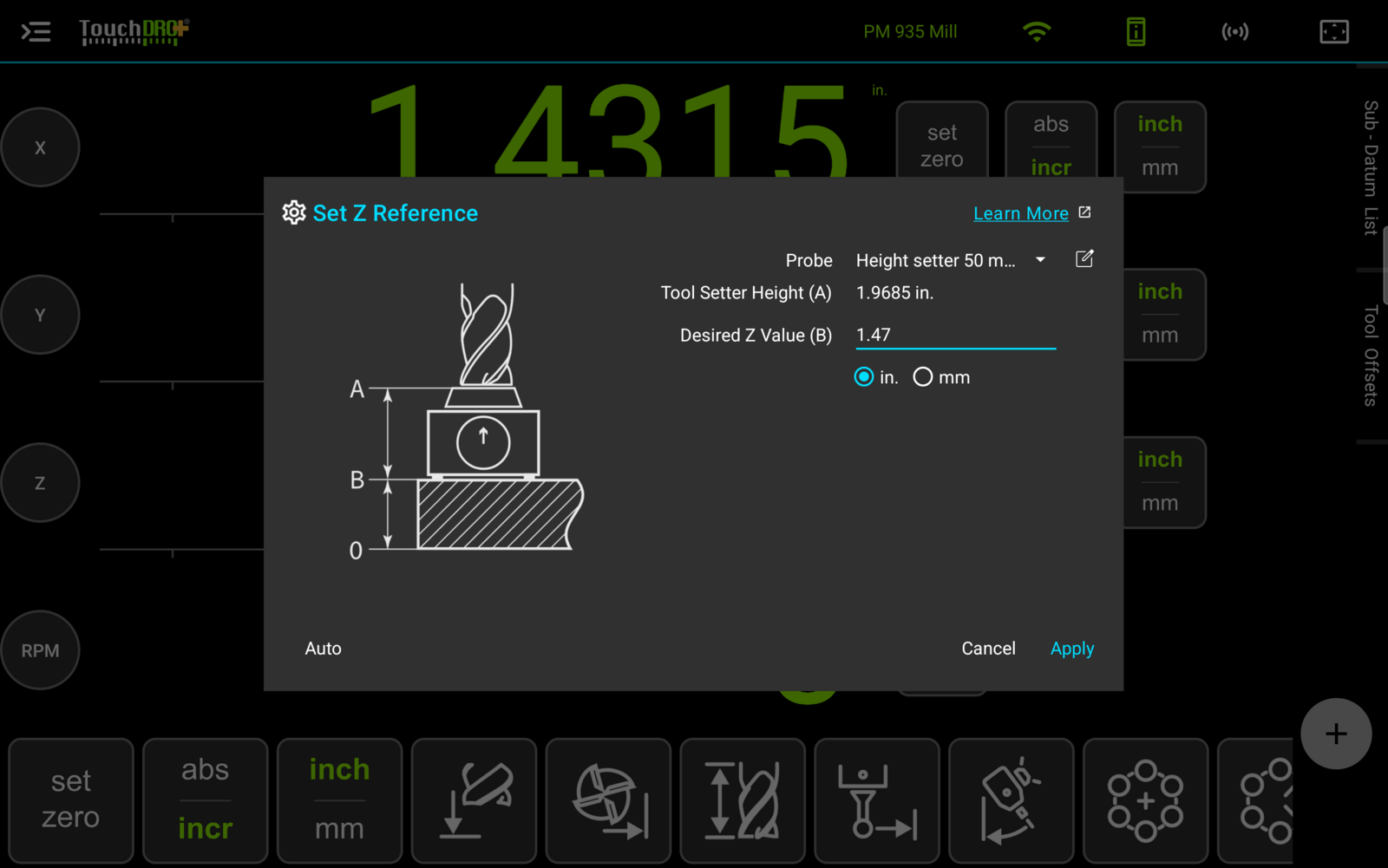
Probe Selector
The "Probe" selector lists the profiles stored in the "Probe Library". If no profile has been chosen yet, the selector will show "No probe selected". The last entry, "New profile…", adds an instrument to the Probe Library. Next to the selector there is an edit shortcut that will open the selected probe profile for editing. Profiles themselves are covered on the probe profiles page.
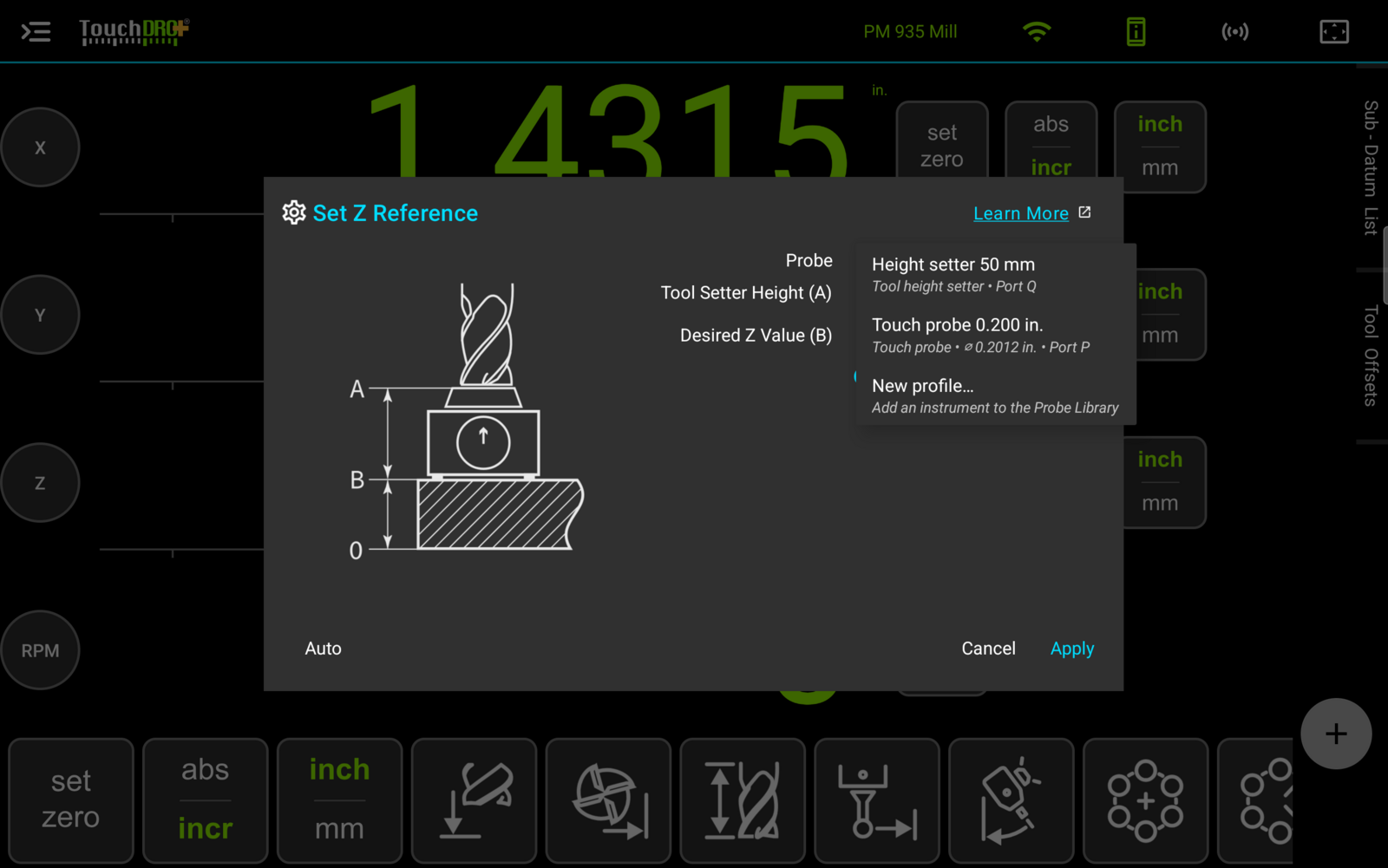
Only two profile types can be used to set the Z reference: "Touch probe" and "Tool height setter". Profiles of the "Edge finder (2D)" and "Camera / microscope" types are meant for the Indicate Workpiece function and can't be used here. For a "Tool height setter" profile, the height used by this function is stored in the profile as its "Setter height".
Tool Setter Height (A)
This read-only value shows the height of the selected setter, filled in from the probe profile. The height is a property of the hardware: you record it once, when the profile is set up, and the dialog pulls it from there. It is not entered in this dialog.
Desired Z Value (B)
This field holds the Z value you want assigned to the surface the setter is standing on. In most cases you will stand the setter on top of the part and enter the part's thickness. That way the bottom surface reads zero. The field has its own inch/millimeter unit selection.
Dialog Buttons
The dialog has three buttons. The "Apply" button sets the reference using the current Z position; it is meant for manual touch-off, where you decide when the tool is in contact. The "Auto" button arms the probe so that TouchDRO can capture the position at the instant of electrical contact. The "Cancel" button closes the dialog without changing the datum.
Using the Set Z Reference Function
Manual Touch-Off
Manual touch-off works with any setter or probe, including one that has no electrical connection to the TouchDRO adapter. You bring the tool into contact with the setter yourself and tell the application when the touch has happened:
- Select the setter or probe profile in the "Probe" selector
- Enter the desired reading into the "Desired Z Value (B)" field and select the units
- Place the setter on the reference surface
- Lower the tool until it contacts the top of the setter
- Press the "Apply" button; TouchDRO will set the Z readout to "Tool Setter Height (A)" plus "Desired Z Value (B)"
Automatic Touch-Off
The manual procedure leaves one judgment call: deciding the exact moment the tool is touching the setter. When the selected probe has an electrical input, the "Auto" mode removes that judgment. TouchDRO will watch the probe input and record the Z position at the exact instant the setter triggers, not when you decide the contact looks right.
The "Auto" button is enabled only when the selected profile has an electrical input; for a profile without one, the button will stay disabled and manual touch-off remains the way to set the reference. The check is live: if the selection changes to a profile that can't be armed while the dialog is open, "Auto" will switch itself off.
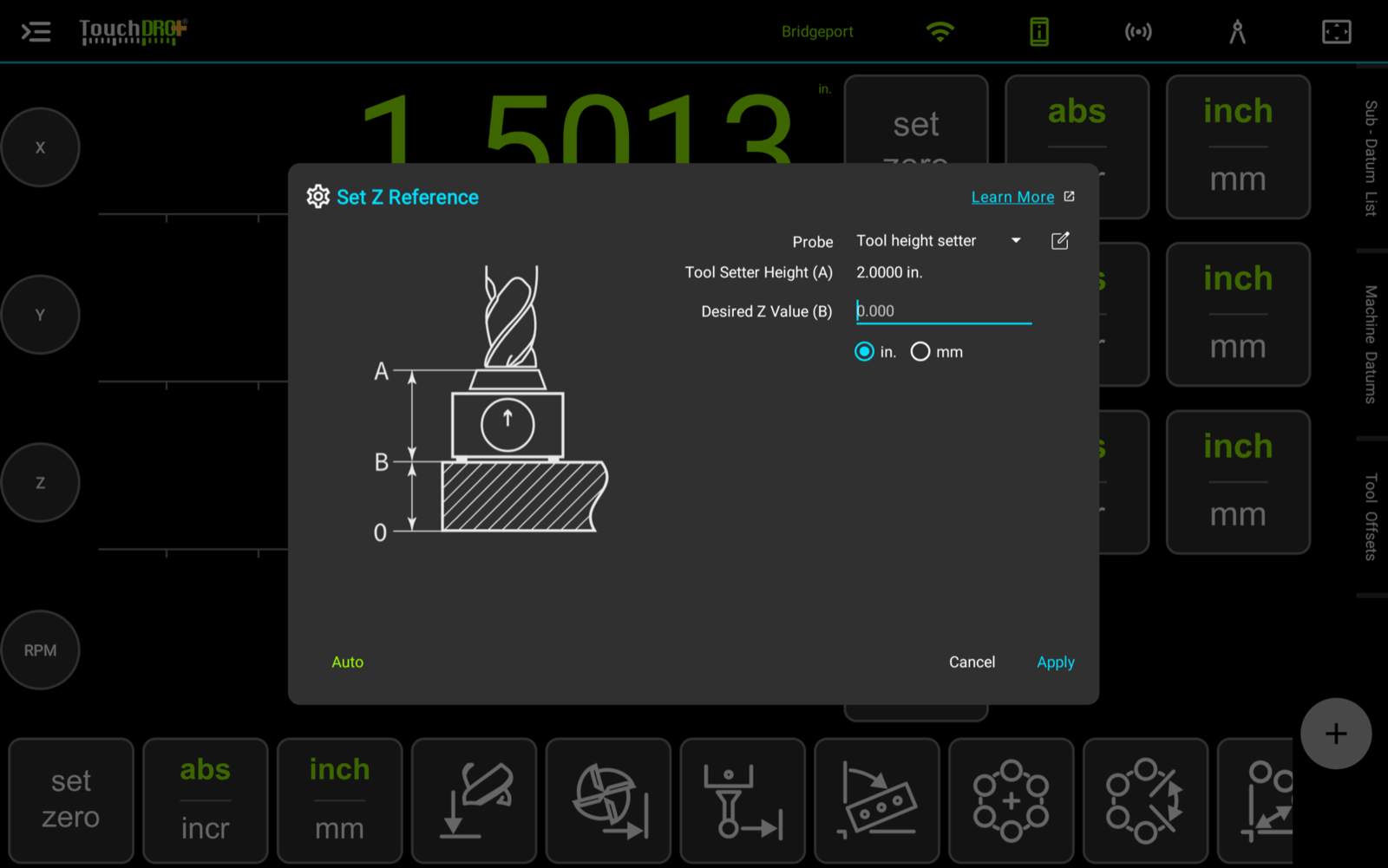
- Select the setter or probe profile and enter the desired Z value, as described above
- Place the setter on the reference surface and position the tool above it
- Press the "Auto" button; TouchDRO will arm the probe and wait for the setter to trigger
- Lower the tool slowly until the setter triggers; TouchDRO will capture the Z position at the instant of contact and set the readout to A + B
Error Messages
The function checks several preconditions and will refuse to proceed, showing one of the following messages, when something is missing:
- "Z readout must be enabled" - the Z axis readout is not enabled, so there is nothing for the function to set
- "TouchDRO must be connected" - the application is not connected to the scale adapter
- "A probe must be selected" - the "Probe" selector still shows "No probe selected"
- "Desired Z value is required" - the "Desired Z Value (B)" field is empty
- "Could not read the Z position at the moment of contact. Try again." - the Z position couldn't be read at the instant the setter triggered; the reference is not set and the touch-off needs to be repeated