
TouchDRO Plus Digital Readout App
TouchDRO is a digital readout (DRO) for manual milling machines and lathes that uses an Android tablet as the display instead of a dedicated console.
The TouchDRO Android app is the core of the system: it displays the position readouts and provides the on-screen functions you use at the machine. You can download it from the Google Play Store or the Amazon Appstore.
The app connects over Bluetooth, USB, or WiFi to a TouchDRO scale interface adapter, a compact box that reads your DRO scales and transmits position data to the tablet. Together, they give you a full-featured digital readout (DRO) with standard functions (bolt circles, hole patterns, sub-datums, saved zeros) plus graphical tools that traditional consoles don't offer.
The app comes in two tiers. TouchDRO Plus is included with current-generation TouchDRO adapters and adds the workflow features this page describes; TouchDRO Community is the free tier for DIY builds, third-party hardware, and older TouchDRO adapters.
Where TouchDRO Helps in the Shop
TouchDRO covers the standard DRO functions (unit/mode toggles, bolt circles, sub-datums, tool offsets, axis summing), and the comparison table below covers those feature by feature. Here, let's talk about where TouchDRO helps you get more done, and actually enjoy your time at the machine.
When building TouchDRO Plus, we focused on removing the things that pull your attention away from the cut, such as extra screen taps, mental math, and tedious setup steps, so that you make fewer mistakes and spend more of your shop time actually cutting metal.
See where you are, not just the numbers
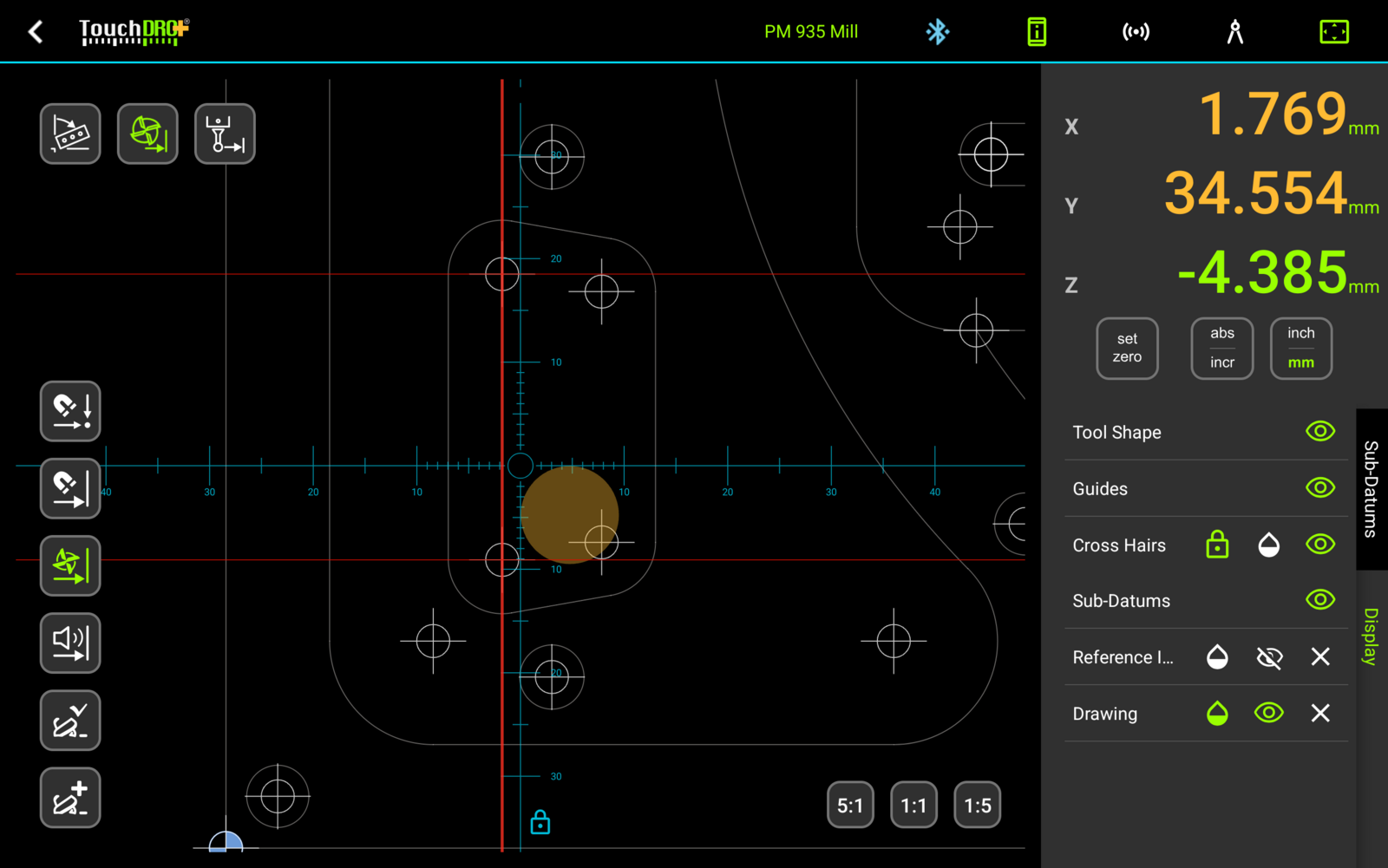
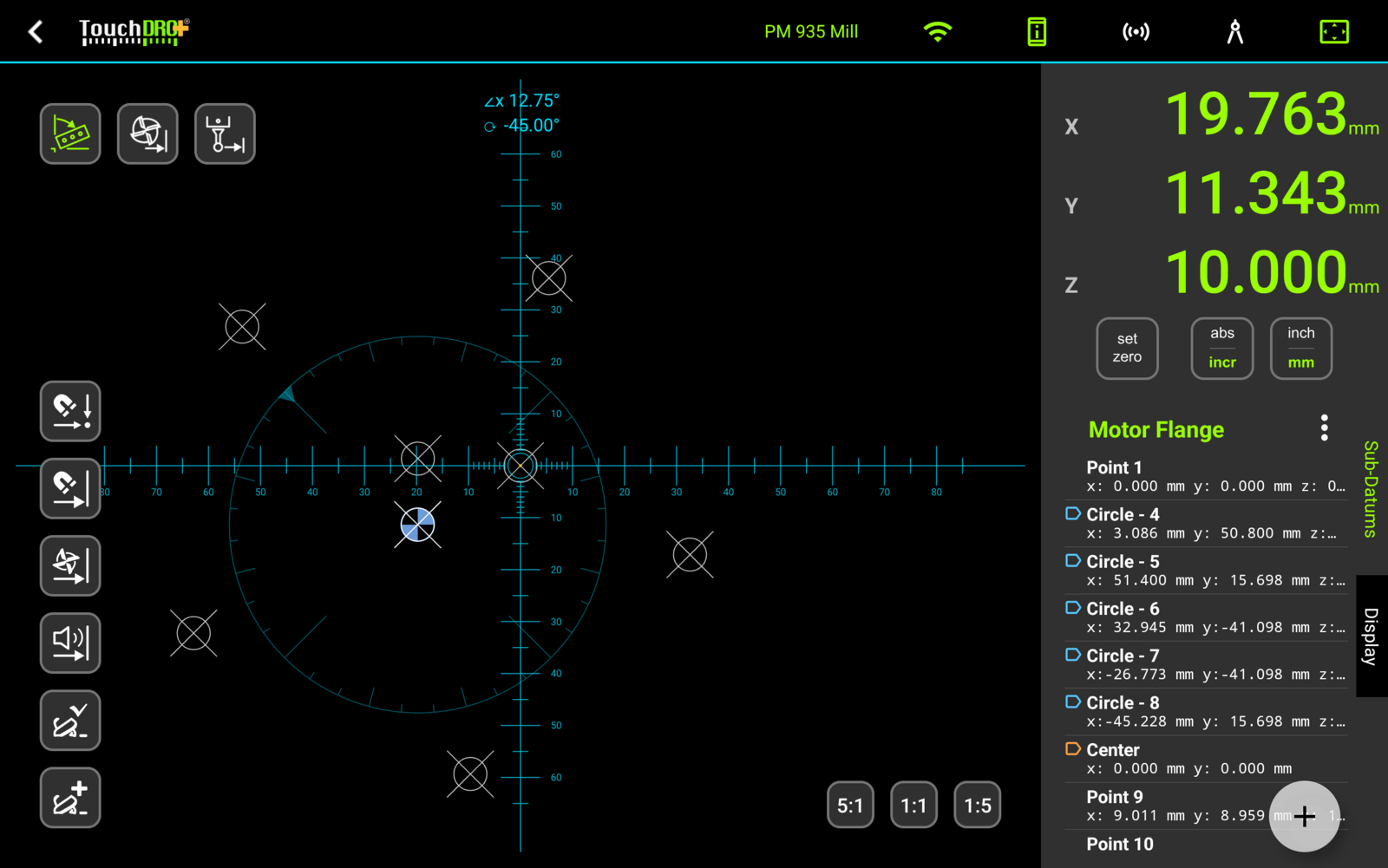
With a traditional digital readout, you read the digits and do the math in your head. In TouchDRO's Graphical View, you can see your position on a visual workspace, with guide lines, stored coordinates, the cutter diameter, and your current location all on the screen at once, so you can tell where you are relative to the part.
You also don't need to keep tapping the screen to use it. As you move across the workspace, TouchDRO can automatically select the next coordinate as you approach it, and for drilling patterns it can step to the next hole when you raise the quill. This lets you keep your eyes on the machine instead of the tablet.
Visual Layout Overlays
Graphical View is one of TouchDRO’s most useful tools, and with Plus you can put the part itself on the screen, as an imported CAD drawing or as a photo, and machine while watching your position move over it.
Follow a CAD drawing on the screen
Some shapes are really "CNC parts": rounded gussets, blended radii, profiles that would take forever to lay out by hand. If you don’t have a CNC, the old-school workaround is to print the drawing, glue it to the stock, and machine to the paper.
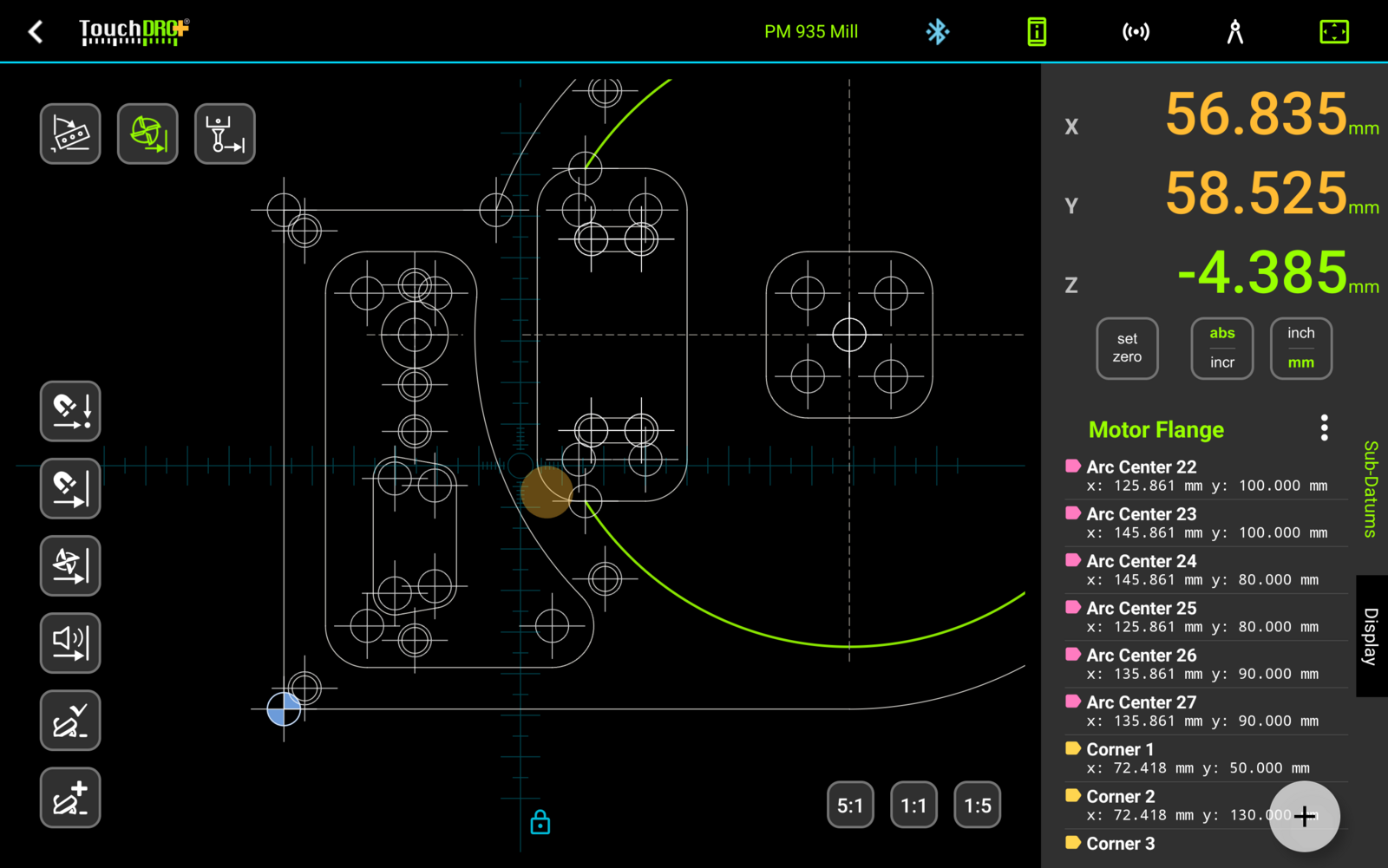
With TouchDRO Plus, you can import the drawing itself. TouchDRO shows it at true scale, in real coordinates, with no calibration step, and the crosshairs show you where the spindle is on the part as you crank the handwheels.
TouchDRO can also extract the drawing's hole centers, arc centers, and corners as sub-datums, tagged by group, so every important location is a tap away and a pattern with several hole sizes can be worked one drill size at a time. You can import a DXF file from any CAD program, and TouchDRO converts it right on the tablet. If you draw in SnapCAD, you can also export straight to TouchDRO and skip the DXF step.
Use a photo as a quick guide
Sometimes you don't have a drawing, just a part. Maybe you're making a mating bracket, matching a profile, or just trying to put holes in the same places as the original.
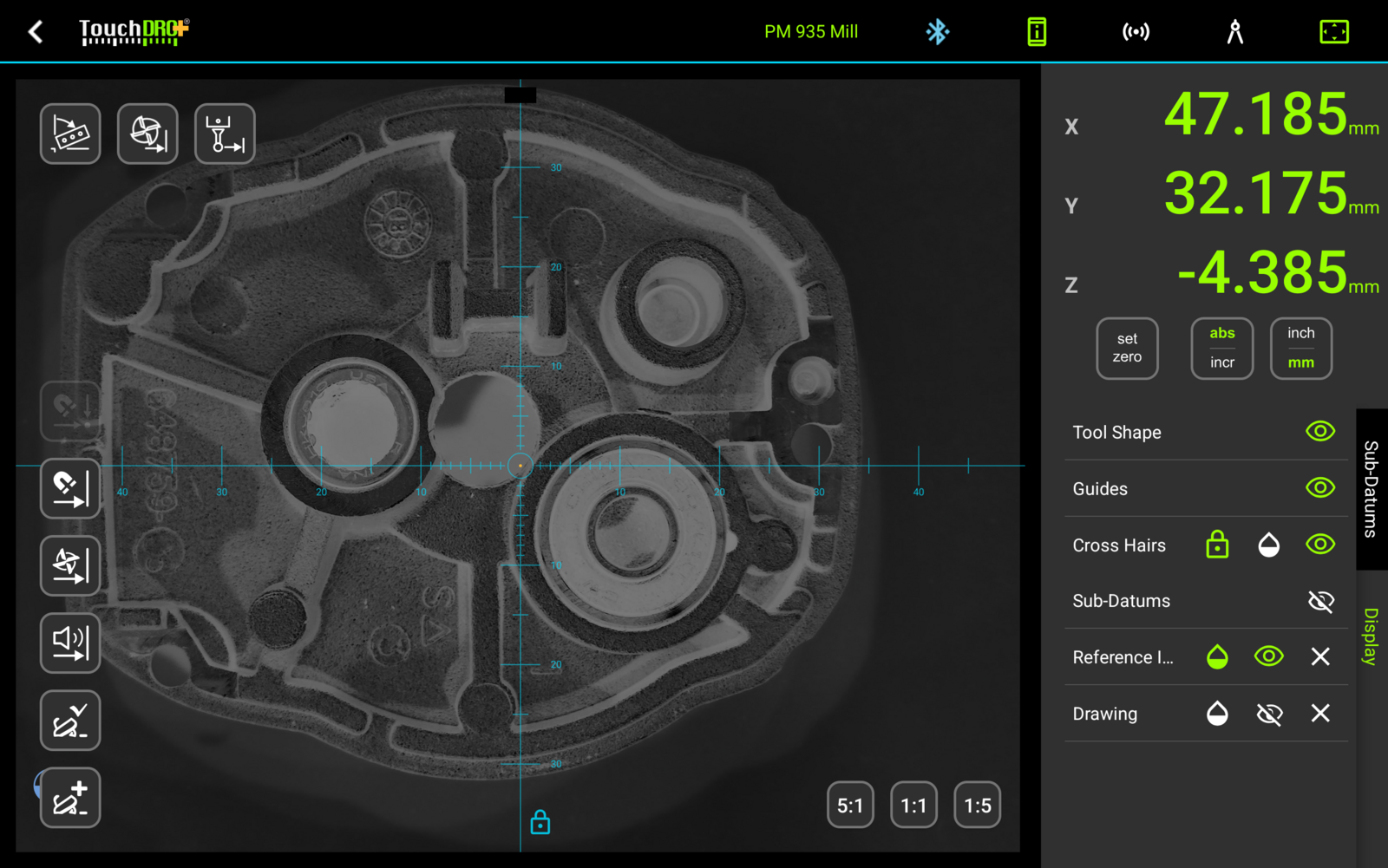
With TouchDRO Plus, you can snap a photo of the part and use it as a quick layout guide. Pick up a few reference points to line it up to your DRO coordinates, and TouchDRO scales and rotates the image into place. As you move the handwheels, you can see where the spindle is relative to features in the photo, which is useful for roughing in a shape or checking your progress. It's not a substitute for real measurement, but for roughing work it's quicker than layout dye and a scribe.
Keep your hands on the handwheels
Pockets and slots are where a manual machine starts to feel busy. You're watching the cut, watching backlash, trying not to lose track of which edge you're heading toward. Scribe lines help, until they get wiped out by coolant and chips.
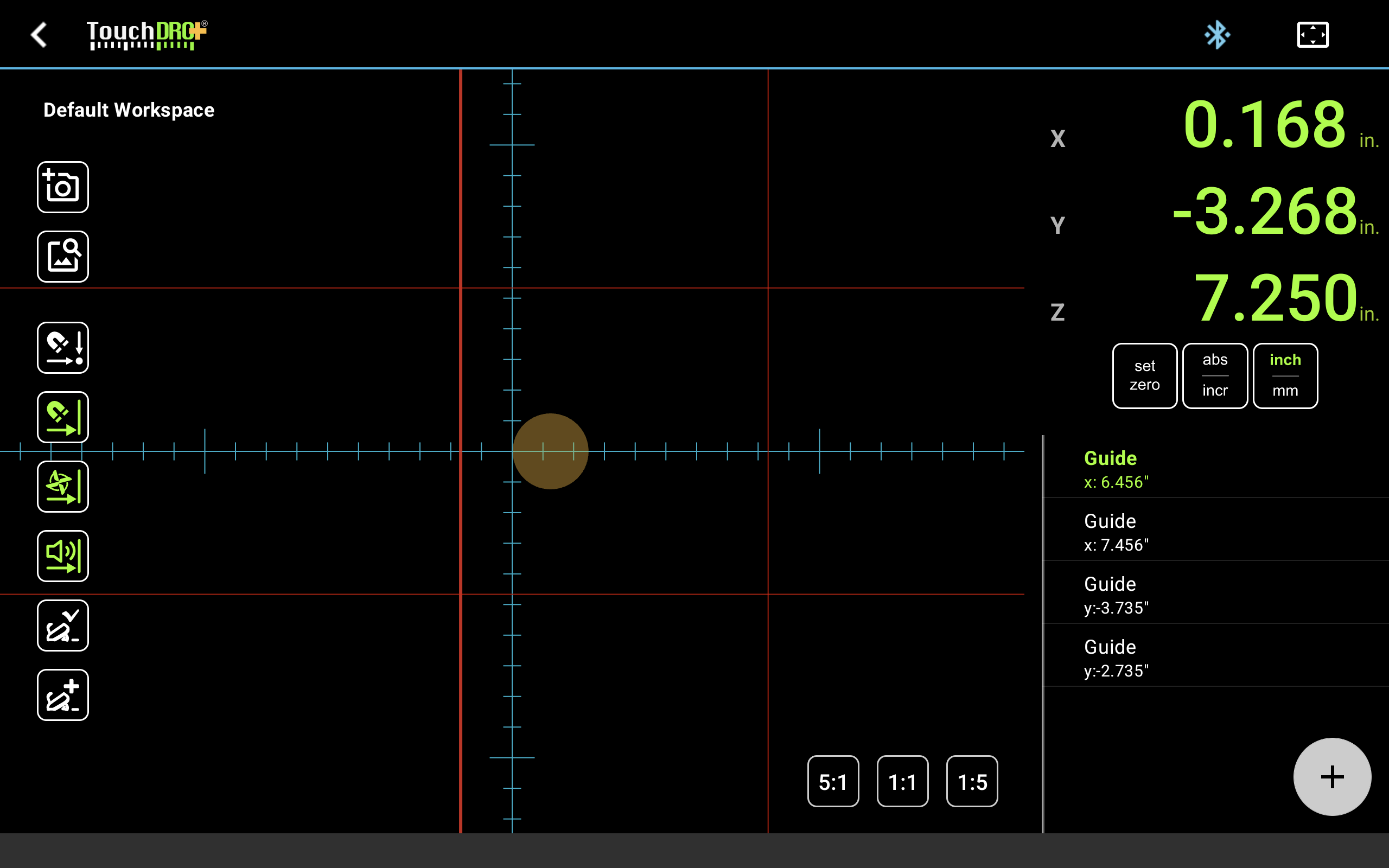
With TouchDRO Plus, you can let the DRO keep track of the edges for you. As you move toward a guide line, TouchDRO can activate it automatically, set the tool offset to the correct side, and beep as you approach the edge. This makes it easier to rough with a safe allowance and then come back and finish to size, without recalculating or second-guessing which way to compensate. The same idea works on a lathe, where an audible cue as you approach a thread relief helps you disengage the half nuts at the same spot every pass.
See the tool inside a blind bore
On a lathe, most internal work is done blind. Once a boring bar, a grooving tool, or a threading bar is inside the part, you can't see the tip anymore, so you go by the dials, the sound of the cut, and maybe a marker line on the bar. In a blind hole, the bottom of the bore is a fraction of an inch away from a crash, and with the carriage under power during threading, there is very little time to react.
With TouchDRO Plus, you can see where the tool is inside the part. You attach an outline of the cutter to the tool in the tool library (a simple DXF drawing from your CAD program), and TouchDRO draws the tool to scale at its real position in the graphical view. Add a guide line at the bottom of the bore, or import a drawing of the part, and you can see how far the tip is from the bottom, whether the back of the boring bar clears the far wall, and whether a grooving tool is lined up with the groove.
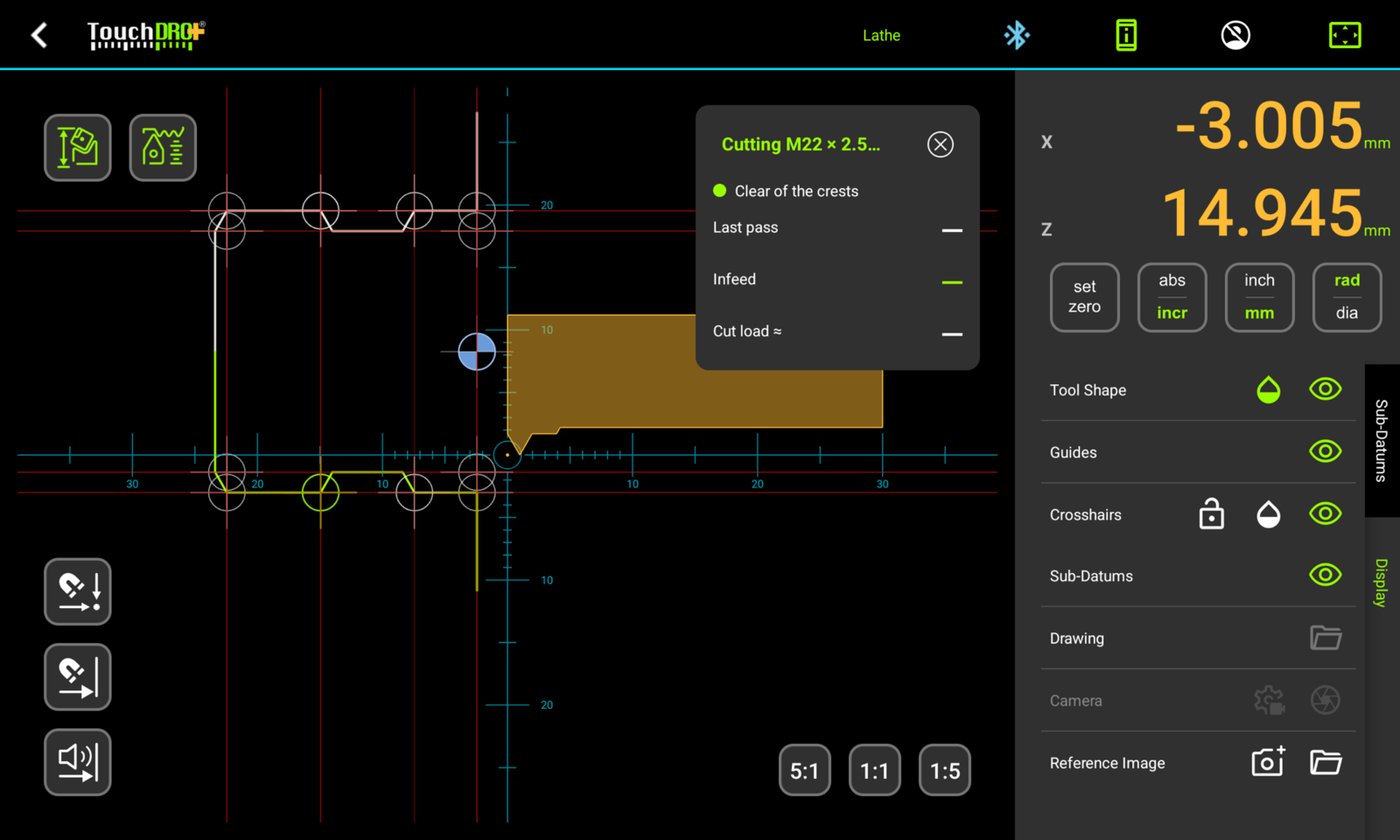
Internal threading is where this helps the most. You pick the thread from a list, the same way it is called out on the print (ISO metric coarse and fine, UNC, UNF, and UNEF, internal and external), and TouchDRO calculates the diameters for the class of fit and draws the thread profile with its relief groove. While you cut, the X readout counts down to the finished depth and the Z readout counts down to the end of the thread, so the near-zero warning beeps when it's time to disengage the half nuts. A status light shows when the tool is clear of the crests, so you know it's safe to bring the carriage back without looking into the bore. In addition, the "Cut load" number compares the chip you are about to take with the last one. Note that TouchDRO doesn't control the lathe or choose the depth of cut for you; it only keeps track of the numbers.
How lathe cutter geometry works →
How thread cutting works →
Find edges and centers without menu diving
You're probably already using an edge finder or wiggler to pick up your setups. It's not hard, but it's easy to make a mistake, and the classic one is forgetting whether you added or subtracted the tip radius this time.
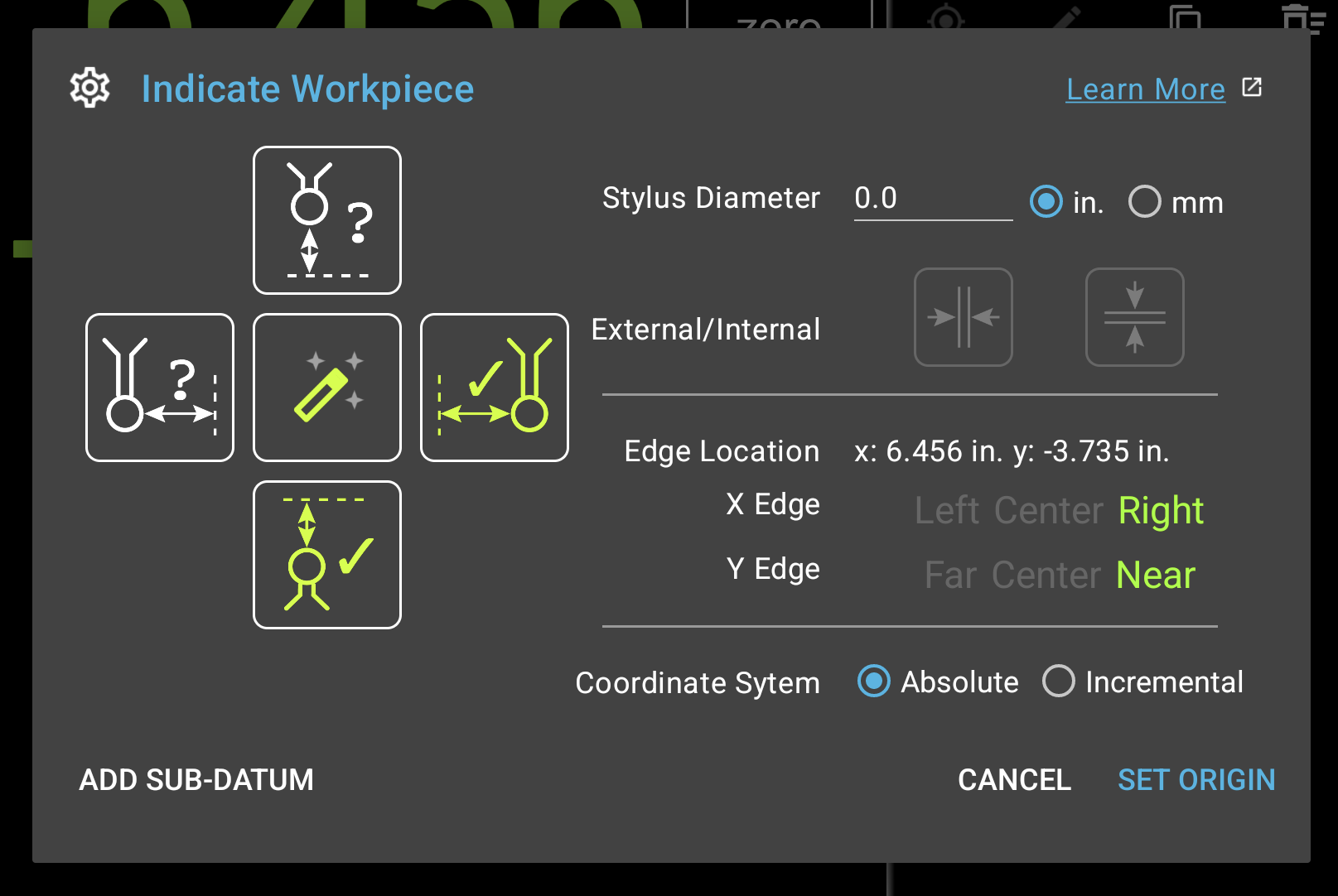
With TouchDRO Plus, you don't need to do that math at all. When you use a touch probe, TouchDRO can tell which edge you're picking up from the direction you're moving. With a mechanical edge finder or wiggler, you tap the edge you are on, and TouchDRO accounts for the tool diameter and sets the edge.
When you're done, you can drop the result straight into your coordinate list to save the feature location. In other words, you touch the edge, store it, and move on to the next one, with less screen tapping and fewer chances to add when you should have subtracted.
Pick up what a probe can't touch
An edge finder or a touch probe needs something to touch. It can't find a scribed layout line or a center-punch mark, a hole smaller than the probe tip is out of reach, and sometimes you would rather not touch a thin or finished edge at all. The traditional answer is a wiggler point or a centering scope in the spindle, and a fair amount of squinting.
With TouchDRO Plus, you can plug in a USB microscope or camera and see live video in the graphical view, with the crosshairs drawn on top. You crank the table until the feature is under the crosshairs, then set the origin or store the point the same way you would with any other instrument. The position still comes from the DRO scales, and TouchDRO only uses the video for aiming, so an inexpensive USB microscope is all it takes. The offset between the camera and the spindle is stored in the camera's probe profile, so you can leave the camera mounted beside the spindle and use it without a tool change.
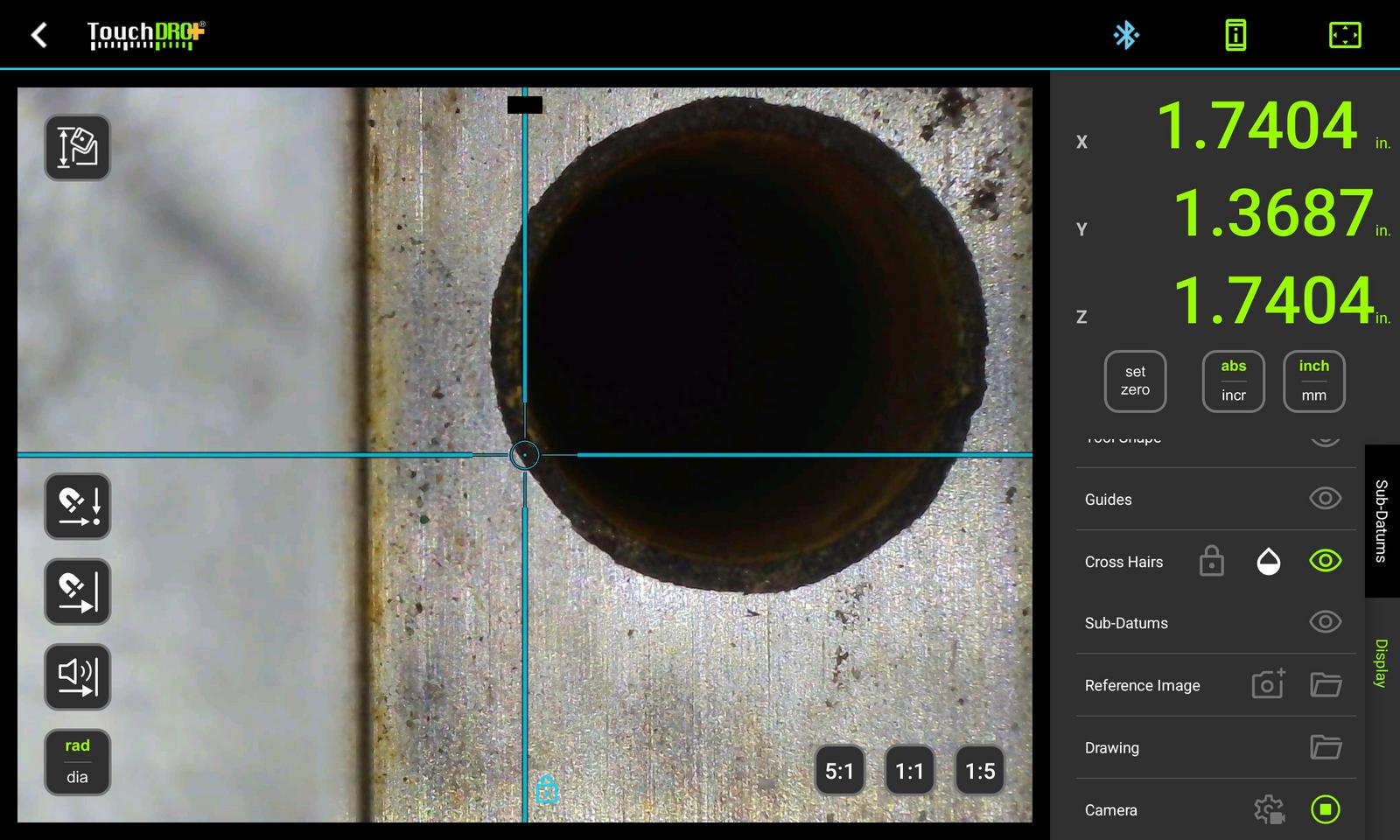
Note that most USB cameras need more power than a tablet port can supply, so plan on a powered USB hub. Also, note that TouchDRO uses the video only for aiming: it doesn't measure anything from the image, and drawings and stored coordinates are not scaled to it.
How the live camera feed works →
Measure the part without unclamping it
A milling machine with 5μm scales and a cast-iron frame is often the most precise measuring instrument in a small shop. In measurement mode you can put that to work: pick up points on the part with a touch probe or an inexpensive USB microscope, and TouchDRO calculates the dimension from them.
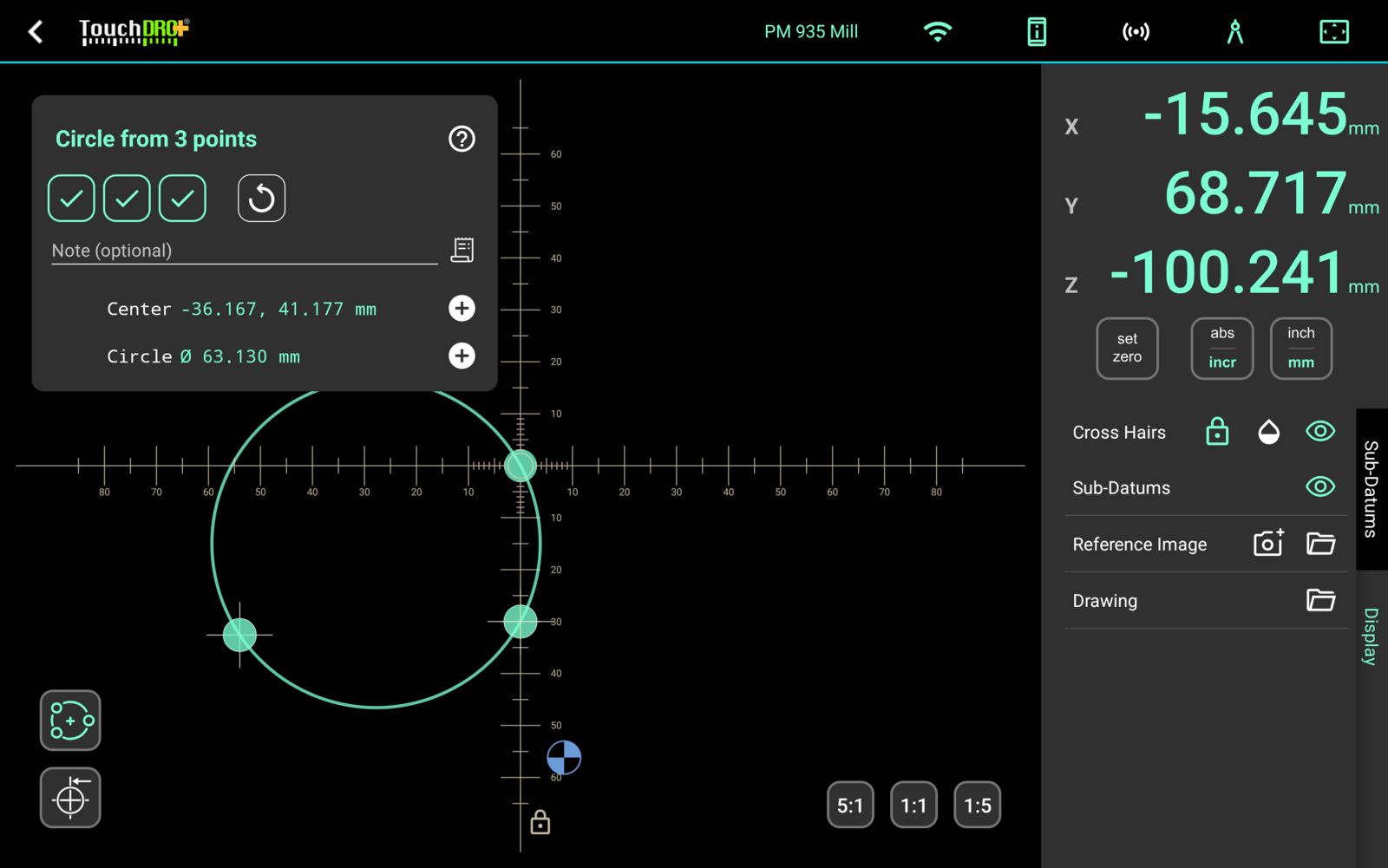
For example, some parts are awkward to measure with calipers, or even on a surface plate. You can get the center and diameter of a bore from three points on its wall, the distance between two hole centers, how far an edge runs off square, the angle between two edges, and the corner they would have met at even when the corner has been machined away.
You can save each result to the sub-datum list to machine to it later, to the inspection log with a note, or both.
You can measure a part that is clamped crooked, too. TouchDRO will square the readouts to the part's own edges, so the coordinates follow the part, no matter how it sits in the vise.
Capture and export measured coordinates
Once the features are captured, you can export them from the tablet in whichever of three formats the next step needs.
For CAD, export the workspace as a DXF drawing. Open the file in CAD, and every saved point is there to snap to, every circle you measured is a real circle, and your tags become the drawing's layers. This is the path for reverse engineering: probe the hole centers and edges of a part that has no drawing, and draw the mating part over the measured geometry.
For a spreadsheet, export the coordinate list as a CSV file: one row per point, with names, notes, and tags. The same file imports back into another workspace, or onto another tablet.
You can also export the inspection log on its own, as a formatted text report or as a CSV file with one row per measurement. This is useful as a record for repair work, or for checking a print you don't fully trust, and it saves you from writing the numbers down and typing them in later.
Work on a rotary table from the print
To drill a hole pattern on a rotary table, you normally need to convert every feature by hand: turn each hole's position into a radius and an angle, index the table, and calculate new X and Y positions at every stop. This is tedious, and every conversion is a chance to scrap the part.
With TouchDRO Plus, you can enter the coordinates straight off the drawing and let the "Rotate Part" function turn the stored geometry with the table. Index to any angle, and every feature is where the print says it is. With an inexpensive encoder on the rotary axis, the geometry follows the table live as you crank it. You can use the same function for a casting clamped at an odd angle, or for a second operation whose datum edge runs off square to the first.
How to use a rotary table with TouchDRO →
Plan the job on your PC
Typing a long coordinate list on a tablet, standing at the machine, is slow, and it's where the mistakes that scrap parts happen. With CSV import, you can build your coordinate list at a desk using Excel or Google Sheets: real keyboard, big screen, and the print or drawing right in front of you. Add descriptions, double-check the numbers, then import it into TouchDRO with a few clicks.
In a small shop, that means the next setup can be ready while the machine is still running. In a home shop, it’s the same idea: you’re comfortable, you’re not rushed, and you’re less likely to fat-finger a coordinate.
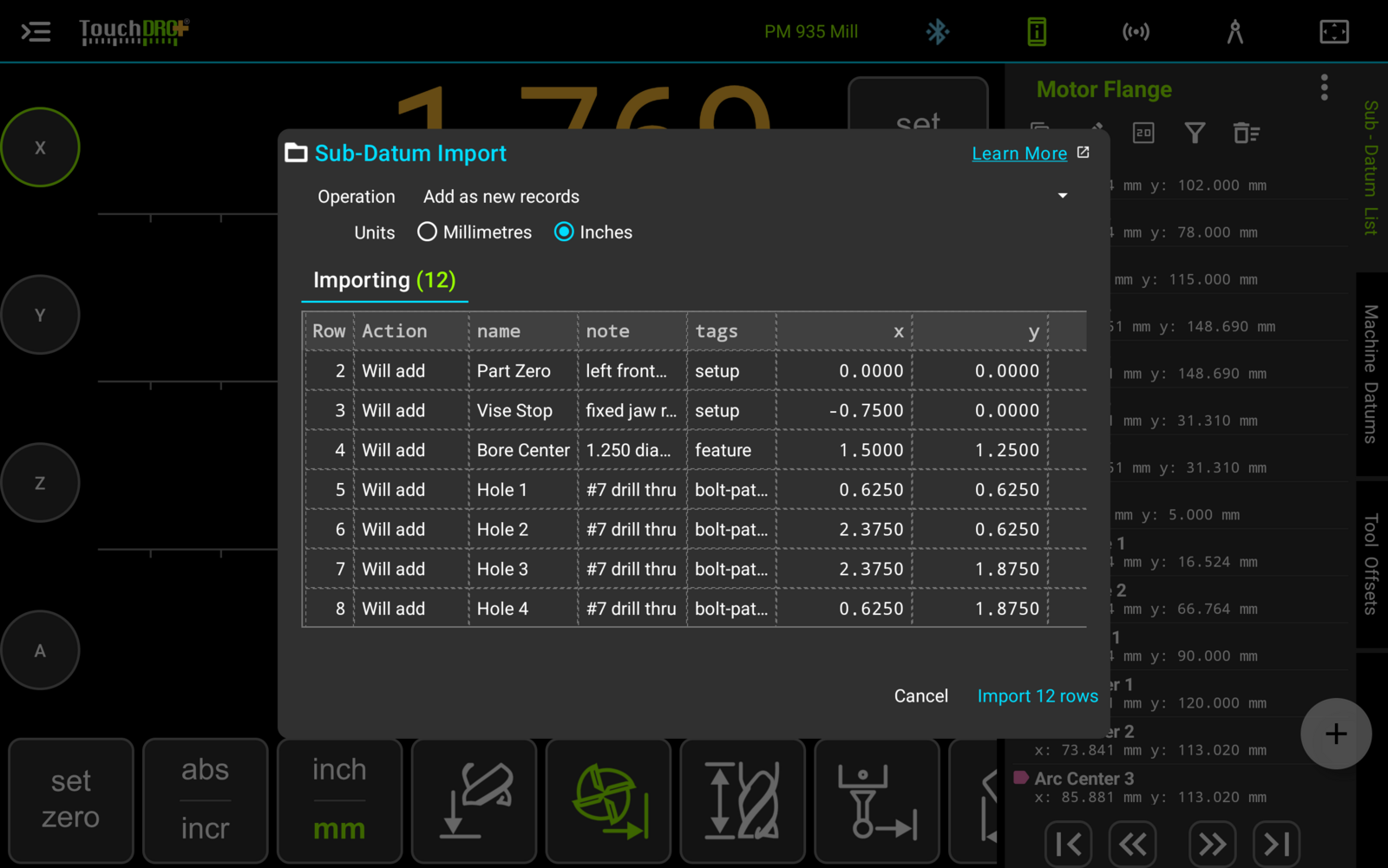
You can fill the mill's tool library the same way: measure your cutters once, put the table together in a spreadsheet, and load the whole set at once.
How to import coordinates from a CSV file →
Correct scale error without an interferometer
Magnetic scales are often the only thing that fits a lathe cross slide or a mini mill table, and their weak spot is non-linear error that normal calibration can't touch. Commercial consoles that support segmented error compensation expect you to measure that error yourself and key the correction table in on a keypad. The traditional alternative is a calibration service with a laser interferometer.
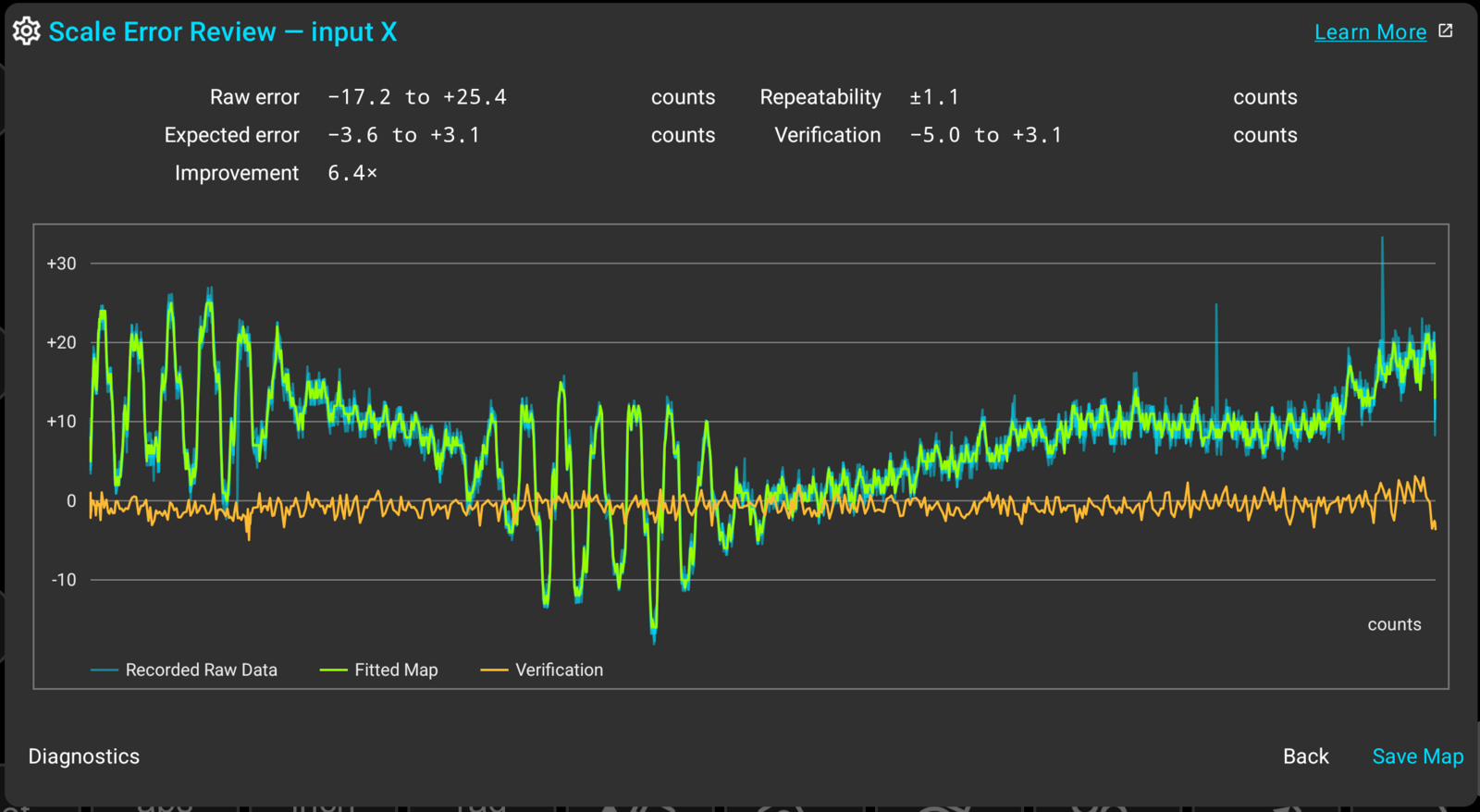
With TouchDRO Plus, you can build the correction map yourself in a few minutes. Clamp a known-good scale (a spare glass scale works) parallel to the axis and crank back and forth a few times. The Error Map Wizard records both scales, calculates the map, and shows you the before-and-after error, verified against readings that weren't used to build the map. The budget 1 micron magnetic scale on our shop lathe went from 43 microns of error to single digits, a 6.4× measured improvement. You can also use the same recording as a scale accuracy test, even if you never save the map.
How we checked and corrected our lathe's magnetic scale →
One tablet, multiple machines
TouchDRO lets you set up separate machine profiles (mill, lathe, surface grinder, whatever you run) and move the same tablet between them. Each profile can also have its own layout: readout precision (0.000 vs 0.00000), which functions show up next to each axis, hidden readouts, and font size. Set it up the way you like to work.
TouchDRO also has dedicated display modes for mills and lathes. For example, on a lathe, many customers add an inexpensive tachometer sensor to see spindle RPM and real-time surface speed (SFM) while they cut. On a mill, you can set cutter radius right from Graphical View, with no menu diving to see where the edge of the cutter actually is.
TouchDRO Plus vs. TouchDRO Community
- TouchDRO Plus: a set of advanced features bundled with all TDA-4xx adapters and the TDK-40 kit (or standalone pre-programmed module). Kits and modules bought before February 2026 may not include Plus. If you're not sure whether you have it, connect the adapter and look at the app icon in the top bar: a yellow "+" means Plus is active.
- TouchDRO Community: the free tier that works with legacy TouchDRO adapters, third-party hardware, and DIY builds. Includes core DRO functionality: readouts, bolt circles, tool offsets, sub-datums, axis summing, and Graphical View.
Feature Comparison
Both tiers share the core digital readout functions. Plus adds the workflow tools that save time on more involved setups. Hover a feature name for a short description, or follow "Learn more" for the manual page.
| TouchDRO Community | TouchDRO Plus | |
|---|---|---|
| Core DRO Functions | ||
| Mill (Horizontal or Vertical) and Lathe Display Modes Learn more | Yes | |
| Bolt Circle, Arc, and Grid Patterns Learn more | Yes | |
| Sub-Datum (Saved Coordinate) Memory Learn more | Yes | |
| Tool Compensation (Mill) Learn more | Yes | |
| Tool Offset Compensation (Lathe) Learn more | Yes | |
| Spindle RPM and Surface Speed Display Learn more | Yes | |
| Near-Zero Audible Warning Learn more | Yes | |
| Graphical View and Automation | ||
| Graphical View Workspace Learn more | Yes | |
| Guide Lines Learn more | Yes | |
| CAD Drawing (DXF) Import Learn more | No | Yes |
| Photo and CAD Image Overlays Learn more | No | Yes |
| Automatic Guide Activation and Tool Offset Direction Learn more | No | Yes |
| Auto-Advance Through Stored Coordinates Learn more | No | Yes |
| Lathe Cutter Geometry from a DXF Drawing Learn more | No | Yes |
| Single-Point Thread Cutting (Lathe) Learn more | No | Yes |
| Rotary Table Support Learn more | No | Yes |
| Probing and Edge Finding | ||
| Touch Probe and Edge Finder Support Learn more | Yes | |
| Automatic Edge Detection Learn more | No | Yes |
| Save Probed Points to the Sub-Datum List Learn more | No | Yes |
| Probe Tip Diameter Calibration Learn more | No | Yes |
| Camera and Microscope Edge Finding Learn more | No | Yes |
| Live Camera and Microscope Video Learn more | No | Yes |
| Measurement and Inspection | ||
| Measurement Mode Learn more | No | Yes |
| Measuring Bore Centers, Distances and Angles Learn more | No | Yes |
| Measuring a Part Clamped at an Angle Learn more | No | Yes |
| Inspection Log Learn more | No | Yes |
| Inspection Log Text and CSV Export Learn more | No | Yes |
| Profiles and Libraries | ||
| Machine Profiles Learn more | Yes | |
| Adapter Profiles Learn more | Yes | |
| Probe Profiles Learn more | Yes | |
| Tool Library: Cutter Radius and Height Offsets Learn more | Yes | |
| Data Import and Export | ||
| Import Coordinates from a CSV File Learn more | No | Yes |
| Export Coordinates to a CSV File Learn more | No | Yes |
| Export Coordinates and Digitized Geometry as DXF Learn more | No | Yes |
| Machine Profile Settings Import/Export Learn more | Yes | |
| Adapter Profile Import/Export Learn more | Yes | |
| Probe Profile Import/Export Learn more | Yes | |
| Tool Library Import/Export Learn more | Yes | |
| Live Data Streaming over TCP and MQTT Learn more | No | Yes |
| Accuracy and Compensation | ||
| Linear Error Compensation Learn more | Yes | |
| Hysteresis Compensation Learn more | Yes | |
| Backlash Compensation, Constant Learn more | Yes | |
| Error Correction and Backlash Maps Learn more | No | Yes |
| Head Angle Compensation (Mill) Learn more | No | Yes |
| Compound Slide Angle Compensation (Lathe) Learn more | No | Yes |
Feature Documentation
If you want step-by-step instructions (screens, buttons, and setup), these manual pages go into the details:
- Graphical View Display
- CAD Drawing Import
- Reference Image Overlay
- Working with Guides
- Near-Zero Warning
- Sub-Datum Memory
- The Sub-Datum Panel
- Sub-Datum Tags and Filtering
- Workspaces and Coordinate Entry
- Edge Finder Function
- Probe Profiles and Tip Calibration
- Measurement Mode
- Measurement Functions and the Inspection Log
- Exporting a Workspace to DXF
- Measuring a Part Clamped at an Angle
- Using a Rotary Table
- Mill Tool Library
- Thread Cutting on a Lathe
- Lathe Cutter Geometry
- Live Camera Feed
- Error Correction and Backlash Maps
- Creating an Error Map
- Machine Profiles
How to Get TouchDRO Plus
TouchDRO Plus is included with current-generation TouchDRO hardware, so there is nothing extra to buy:
- TouchDRO Adapter for Milling Machines (TDA-420), which includes touch probe/tool setter inputs and works with most glass/magnetic scales.
- TouchDRO Adapter for Lathes (TDA-410)
- DIY TouchDRO Kit (TDK-40)
- Pre-programmed module for the DIY kit
Upgrading from V2 hardware
If you have a second-generation (V2) TouchDRO adapter for glass/magnetic scales, there’s a paid firmware upgrade to V3.
DIY or third-party compatible hardware
If you built your own adapter (or you’re using third-party compatible hardware), TouchDRO’s core DRO features work the same way. TouchDRO Plus features require TouchDRO hardware that includes the Plus key.
If you have older TouchDRO hardware, there may be upgrade options (see the V2 upgrade above). If your adapter can’t be upgraded and you purchased it directly from our store, ask us about trade-in credit. Contact us.
How Plus shows up in the app
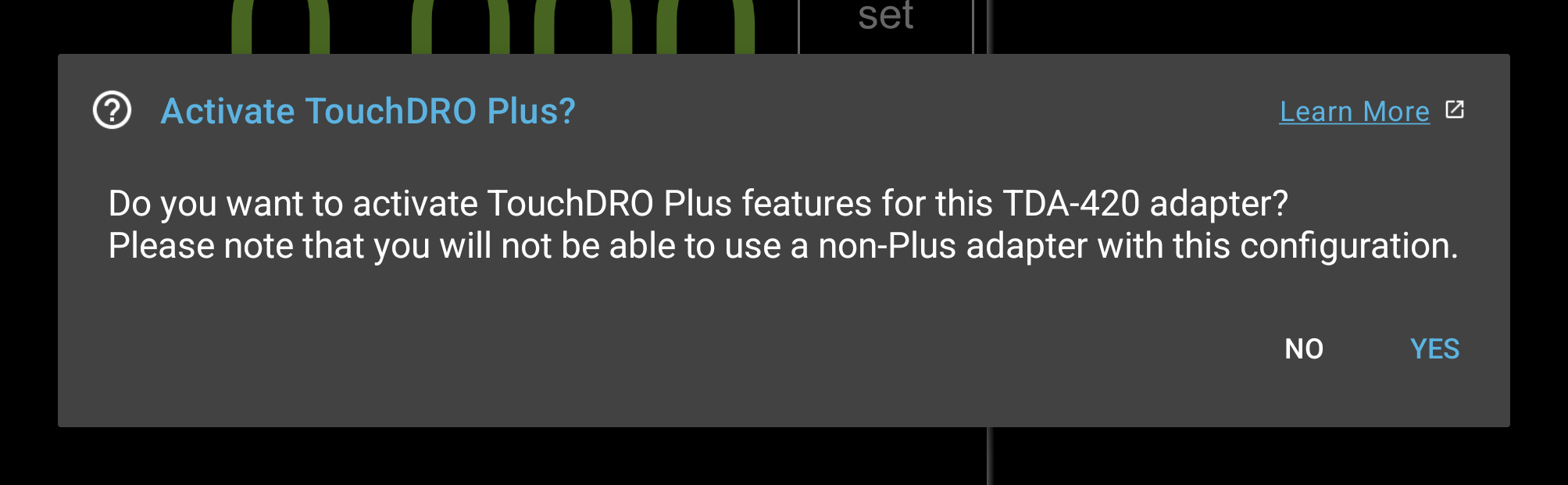
Connect a Plus-enabled adapter and TouchDRO will ask if you want to activate Plus for that machine profile. Tap "Yes", and a yellow Plus icon will appear in the top bar, with the Plus-only controls showing up where you'd expect them. There is no subscription and no internet connection required.
Frequently Asked Questions
[Expand]Do I need to pay extra for TouchDRO Plus?
No. TouchDRO Plus is included with current-generation TouchDRO hardware; there’s no separate purchase and no subscription.
Does TouchDRO Plus require an internet connection?
No. TouchDRO Plus is designed for an offline-first shop setup. Once you have the adapter, Plus works without Wi-Fi, without a monthly check-in, and without “phoning home.”
Which adapter do I need if I want to use a touch probe?
You’ll need the DRO for Milling Machines (TDA-420). It’s the only current adapter with touch probe inputs.
I have glass/magnetic (quadrature) scales. Does the TDA-420 work with them?
Yes. The TDA-420 is designed for mills and supports optical/magnetic scales (quadrature), and it also supports select capacitive scale systems with the appropriate input converters.
If I buy a Plus-enabled adapter, can I use Plus with my existing (older/DIY/compatible) adapters too?
Not on the same machine profile. Plus features are tied to the adapter that contains the Plus key. If you plug in a non-Plus adapter, TouchDRO runs as TouchDRO Community for that adapter; so, create a separate machine profile for each adapter you use.
Can I use TouchDRO Plus with a DIY or third-party compatible adapter?
DIY/third-party compatible adapters can run TouchDRO’s core DRO functions. TouchDRO Plus features require TouchDRO hardware that includes the built-in Plus key.
What if I have older TouchDRO hardware?
If you have a V2 TouchDRO adapter for glass/magnetic scales, there’s a paid firmware upgrade to V3. If your older TouchDRO hardware can’t be upgraded and you purchased it directly from our store, ask us about trade-in credit. Contact us.
Does the CAD/photo overlay “snap” to geometry or auto-pick points from the drawing?
No. The overlay is a visual reference that you align to your DRO using a few reference points. TouchDRO does not infer snap points or extract geometry from the image.
What data does TouchDRO Plus send back to you?
None for normal use. TouchDRO Plus is intended to run fully offline in the shop, and it doesn’t require a cloud connection or background data collection to keep working.
Ready to Get Started?
TouchDRO Plus comes with current-generation TouchDRO hardware: connect the adapter, and your digital readout does everything described on this page.