
Sub-Datums and Workspaces
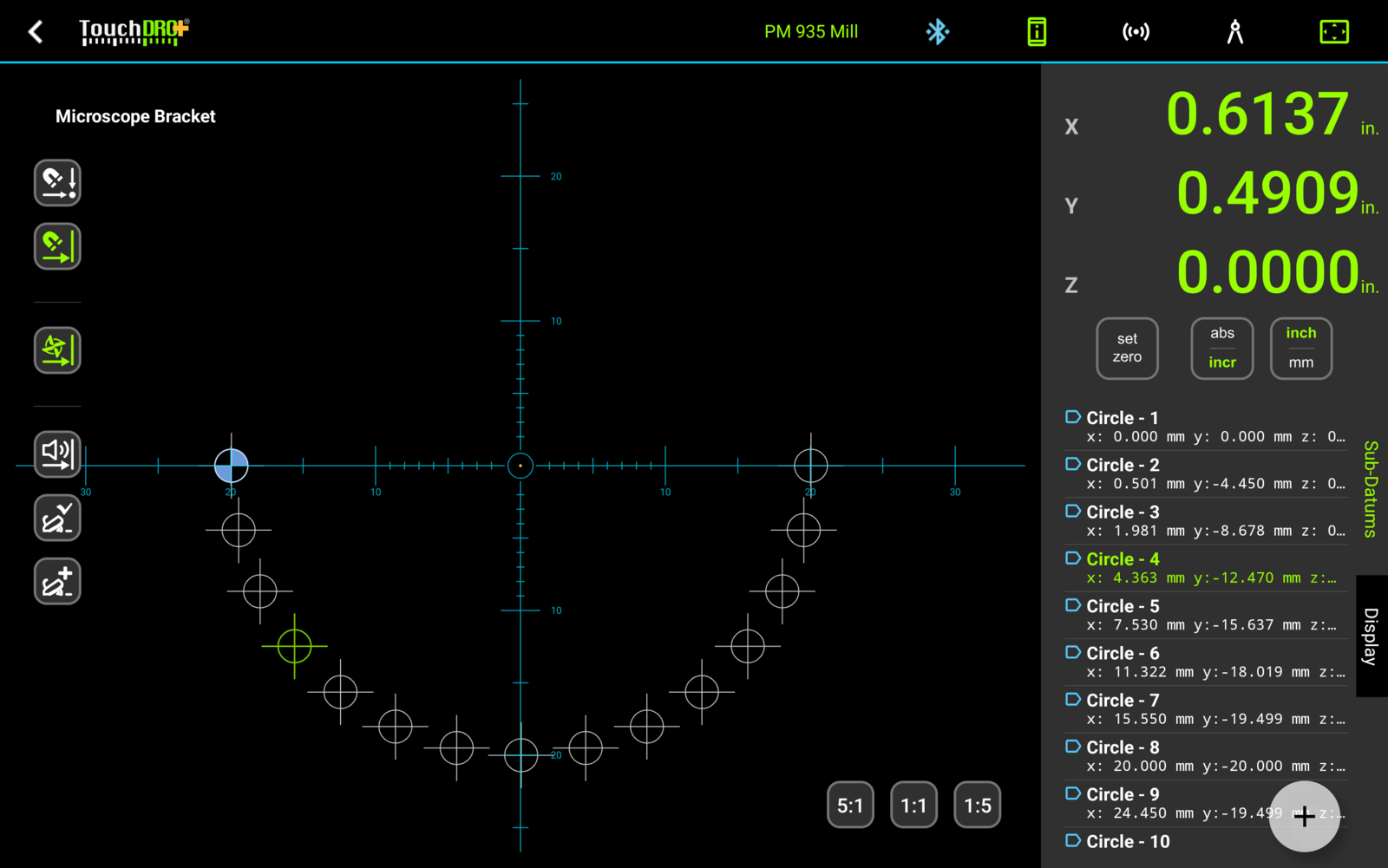
The Saved Sub-Datum Memory is one of the core DRO functions. In a nutshell, sub-datums are coordinates that can be stored into memory and recalled as needed. While this is a very simple context, the Saved Sub-Datum Memory is one of the most powerful features. Besides the simple ability to save a position and then recall it later, the sub-datum memory is used by many standard DRO functions, such as Hole Circle, Hole Grid, etc. In TouchDRO, this functionality goes much further. Thanks to its graphical display, working with saved coordinates is much more intuitive than in a traditional DRO. Furthermore, using the Graphical Projection View you can easily navigate between saved coordinates and even have TouchDRO automatically select the next sub-datum as you approach it, for a completely hands free operation.
Basic Concepts
The most basic way to use a DRO is to move the cutter/workpiece to a desired coordinate, perform the operation, and move on. Each position is found once, used once, and forgotten; if a later operation needs the same spot, the spot has to be found all over again.
Sub-datum memory removes the "forgotten" part: positions are stored, and returning to one costs a couple of taps. This changes how a job can be organized. Instead of finishing each feature before moving on to the next, you can locate every feature once, then run each operation across all of them in turn, switching tools once per operation instead of once per hole.
Saved Coordinates
Sub-Datum Memory is a fancy name for saved coordinates, but in reality, the concept is very simple: once you indicate a workpiece, you can store any arbitrary coordinate into TouchDRO's memory. At a later time, you can recall that coordinate, and TouchDRO readout will display the distance to its location (which becomes a temporary 0/0 point, or a "sub-datum").
In TouchDRO, there are multiple ways to add coordinates to the sub-datum memory. The most basic approach is to move the cutter to the desired position and press the "+" button in the lower-right corner of the screen. This will store the coordinate, so it can be used for subsequent operations. For more complex workpieces, it's also possible to predefine coordinates one-at-a-time. Finally, functions such as Hole Circle, Hole Grid, etc. provide a way to create coordinates along the pitch circle or 2 dimensional grid.
These topics are discussed in the "Adding Coordinates to Sub-Datum Memory" sections.
Sub-Datums as a Notepad
Sub-datums also make a really good notepad. Positions can be captured as you work, with one tap of the "Add Sub-Datum" button, and replayed by each operation that follows: move to a location, tap "+", do the operation, move to the next one. The first operation writes the notepad, and every operation after it just walks the saved points.
For example, here is an ad-hoc elongated screw hole: two ends 0.6 in apart, milled 0.25 in wide, centered at X 1.0 in, Y 0.5 in on the part. Not a precision job:
- Indicate the corner of the part and set the absolute origin there.
- Move to the center of the slot, X 1.0 in and Y 0.5 in, and zero the readout.
- Move X to -0.3 in and spot-drill the first end. Tap the "Add Sub-Datum" button; the position is captured, and the readout doesn't need to read zero for that.
- Move X to 0.3 in, spot-drill the second end, and tap "Add Sub-Datum" again.
- Switch to a #7 drill or thereabouts. Tap the first point in the list, crank to zero, and drill through; tap the second point and do the same.
- Switch to a 0.25 in end mill. With one point active, plunge as deep as your mill is happy with, then activate the other point and mill almost to zero. Alternate between the two points, stepping down and leaving a little for cleanup.
- For the cleanup pass, mill to zero, activate the other point, and mill to zero again.
Nothing was planned ahead, typed in, or even named. Two taps during the spot-drilling pass turned the rest of the job into driving the readout to zero.
To make the milling loop completely hands-free, switch to the "Graphical View" and turn on the point snap mode with the magnet button. TouchDRO will then switch between the two points on its own as the cutter travels, so the readout is always counting down to the end you are heading for.
Workspace
TouchDRO's sub-datum memory is organized into workspaces. Workspaces provide a way to keep all of the saved work for one part together and to come back to it later. This is useful when the same part returns to the machine next month, moves to a different vise for a second operation, or turns out to be the first of a batch.
The best way to think about the workspace is as a print of your part, pinned to the machine. It holds the part's features as saved coordinates, and it remembers how the whole set relates to the machine: the absolute and incremental origins, guide lines, sub-datum tags, the reference image with its calibration, the imported drawing, the selected units, and the display mode for each visible axis. On a milling machine a workspace usually describes a layout on the face of the part; on a lathe, a profile in the Z/X plane.
Everything in a workspace is measured from one shared origin, so the whole workspace moves as a unit. That is the rule to keep in mind when deciding what goes together: features that must move as one piece belong in one workspace, and things that need to move independently belong in separate workspaces. For the same reason, a workspace is meant to describe a single part.
Working with a workspace falls into four kinds of activity:
- Filling it with coordinates, at the machine or ahead of time, as described in the "Workspaces and Coordinate Entry" guide
- Organizing the points with tags, covered in the next section
- Aligning it to the workpiece as it is actually clamped, and editing the stored geometry when the part calls for it, using the commands described in the "Workspace Commands" guide
Returning Jobs
You might have some jobs or parts that keep coming back from time to time. Since TouchDRO can store a very large number of workspaces, you can keep the workspace for such a job indefinitely. When the part returns to the machine, load its workspace, indicate the part, and re-align the workspace to it; all of the stored coordinates will fall into place.
Several Parts from One Blank
When machining several identical parts from a single piece of stock, or working with a pallet that holds multiple workpieces, you can store the 0/0 corner of each part into sub-datum memory and move the absolute origin from part to part as you work. The stored features follow the origin, so every part is machined with the same coordinates. The "Align Absolute Origin to Sub-Datum" command is described in the "The Sub-Datum Panel" guide.
In TouchDRO Plus, you can also store each part's location as a machine datum. Machine datums are kept with the machine profile rather than inside a workspace, so the stored locations stay available when you switch workspaces, such as when each operation on the pallet has a workspace of its own. This is covered in the "Machine Datums" guide.
Fixtures and Workholding
Just like part locations, fixed locations on the machine itself, such as the corner of a milling vise or the center of a rotary table, can be stored as machine datums and recalled when a job needs them, without re-indicating the fixture.
Tags
A workspace holds one setup, and on a job of any size that is far more coordinates than you are working on at any one moment. A tag is a short label attached to a sub-datum, and it sorts a crowded workspace into groups that can be worked through one at a time. Points that share a tag are marked with the same color in the list, and the tag filter can hide the rest of them while you drill one set of holes.

Each sub-datum carries at most one tag. The pattern functions apply one on their own, so a hole circle arrives as its own group with no bookkeeping on your part, and a second circle in the same workspace stays separate from the first. Tags can also be set by hand, which is the other way to approach a complex workpiece: rather than splitting the features across several workspaces, you can keep the part in one workspace and tag the holes by size or by operation.
Tagging and filtering are TouchDRO Plus features. The controls are described in the "The Sub-Datum Panel" guide.