
Application Settings
Most of what TouchDRO does is decided elsewhere: the machine profile describes the machine, the adapter holds the scale settings, and the tool and probe libraries hold the instruments. The "Settings" screen holds what is left. A few choices about the application itself, and the doors to the per-axis, connection, and user interface screens. This page covers the "Settings" screen's own rows and points to the page for each screen it opens.
Nearly every setting here belongs to the machine profile that is loaded, and changes with it when you switch profiles. The few that belong to the tablet as a whole are called out where they appear.
Opening the Settings Screen
To open the "Settings" screen, open the application menu and tap "Settings". The screen title shows which machine profile the settings belong to, with its type in brackets, for example "Rockwell Lathe [Lathe]".
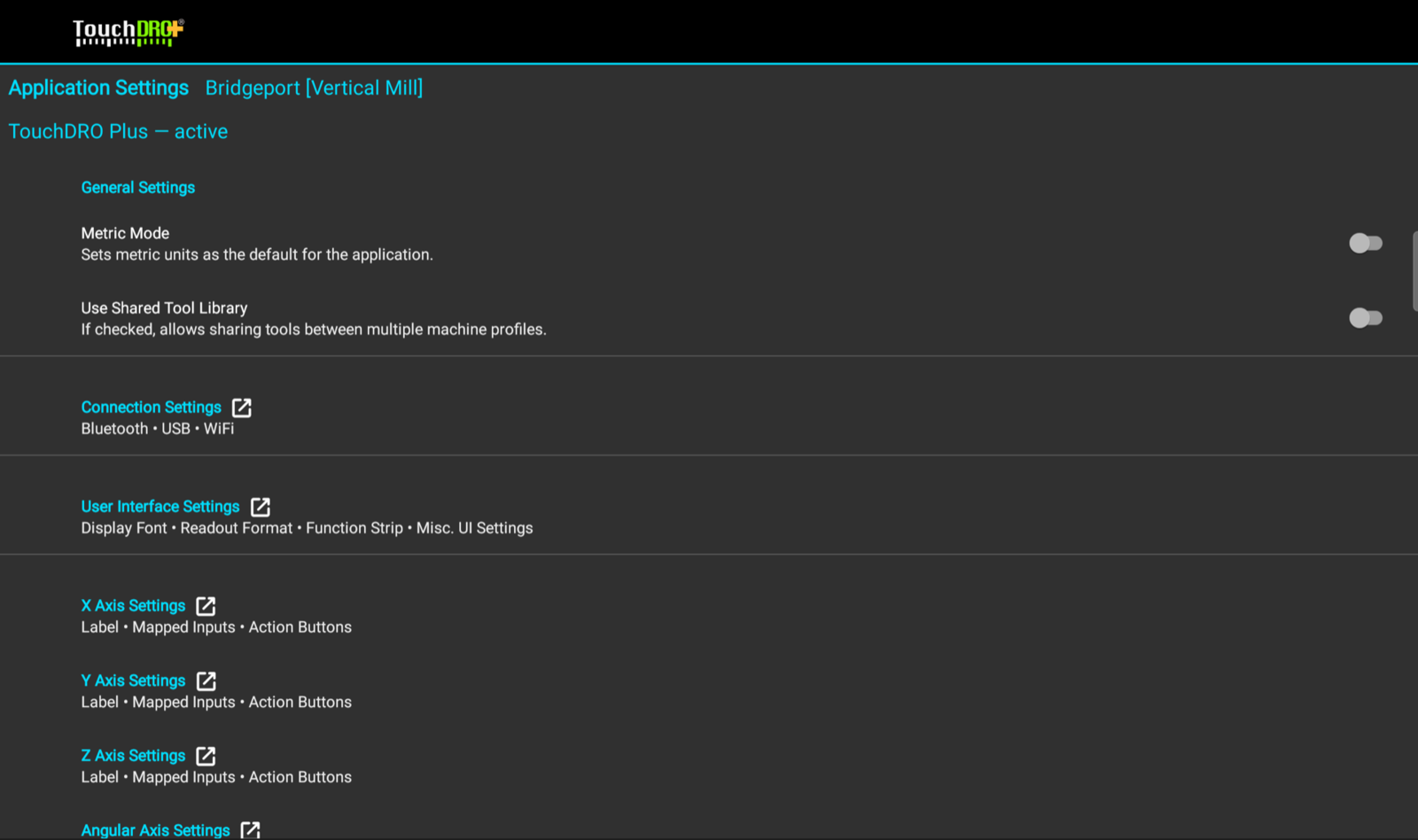
General Settings
Machine Type
The machine type is chosen once, when the machine profile is created, and shows in the screen header from then on. It decides which screens appear in the list below: a mill profile offers "Y Axis Settings" and "Probe Settings", and a lathe profile offers "Auxiliary Readout Settings" and "Caliper/Micrometer Input Settings" in their place. It also sets the axis naming in the calibration wizard and the plane the graphical view projects. "Machine Profiles" covers the three types.
Metric Mode
Off by default. When on, millimeters are the default units throughout the application: the readouts, the sub-datum memory, the function dialogs, and the tool and probe fields. Each readout can still be toggled to inches with its units button, and the sub-datum memory stores positions in microns either way, so switching this setting later does not change any stored coordinate.
Use Shared Tool Library
Off by default, so each machine profile keeps its own tool list and a new profile starts empty. When on, every profile on the tablet shares one list, which suits a shop where the same endmills go into more than one machine. The setting affects which tools are listed, not the tools themselves; turning it off again hides the other profiles' tools rather than deleting them. See "Mill Tool Library" and "Lathe Tool Offset Memory".
Settings Screens
The rows below "General Settings" each open a screen of their own. Which axis rows appear depends on the machine type, as described above.
- "Connection Settings" holds the Bluetooth, USB, and WiFi switches, the USB baud rate, the WiFi address and port, Live Data Streaming, and "Disable Two-Way Communications". Covered under "Connection Settings" on the connecting page, and on "Live Data Streaming".
- "User Interface Settings" holds the readout format and font, sounds, position indicators, the short-press and sub-datum behaviors, the graphical view's camera settings, and which function buttons appear on the strip. Covered on "User Interface Settings".
- "X Axis Settings", "Y Axis Settings", "Z Axis Settings", and "Angular Axis Settings" each hold one readout's label, action buttons, and input mapping. Covered on "Axis Settings".
- "Auxiliary Readout Settings" (lathe) is the lathe's third readout, for a tailstock or compound slide scale, with the vectoring settings. Covered under "Auxiliary Readout" on the axis settings page.
- "Caliper/Micrometer Input Settings" (lathe) maps a caliper or micrometer to an adapter input. Covered under "Caliper/Micrometer Input" on the axis settings page.
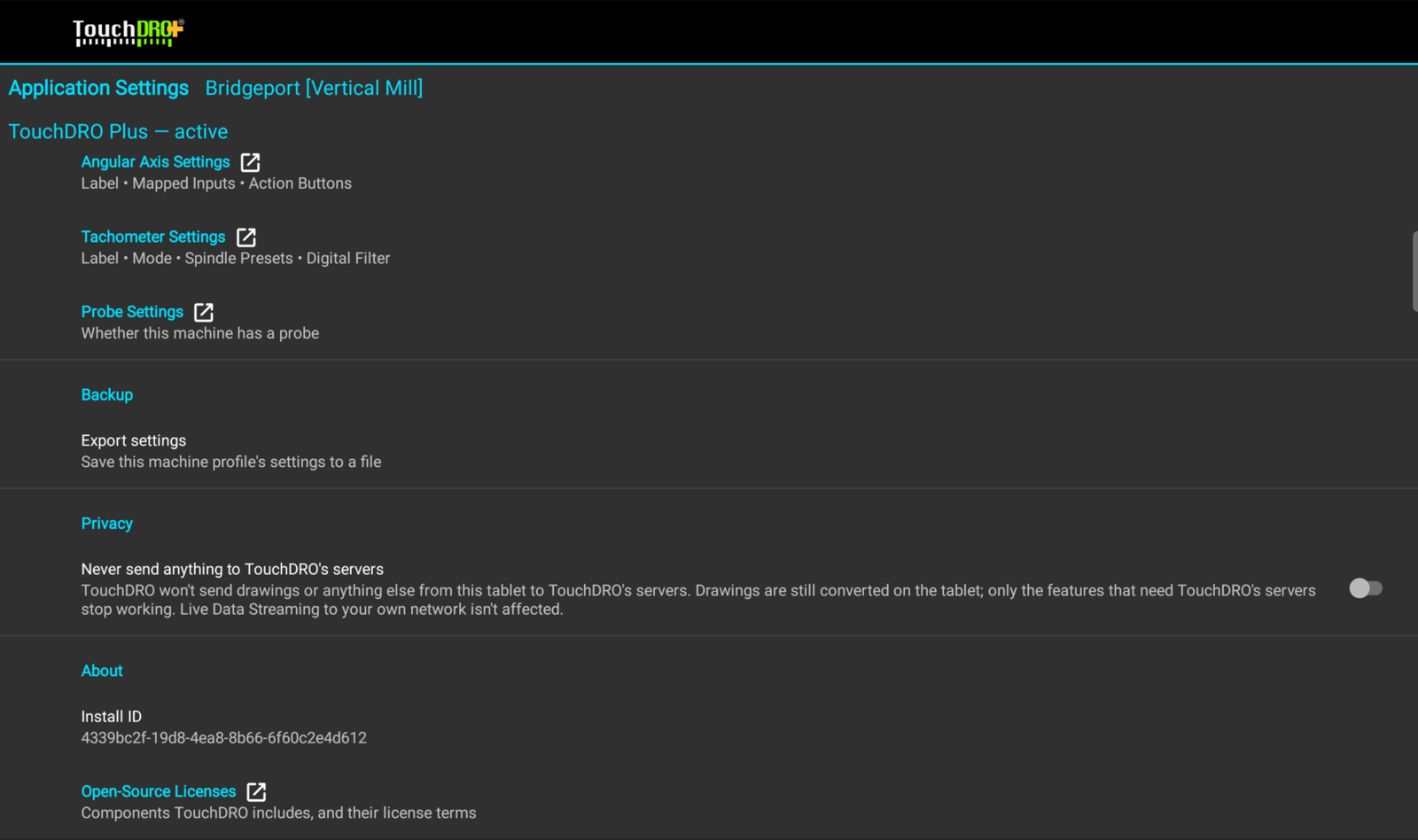
- "Tachometer Settings" holds the spindle readout's label, mode, and preset speeds. Covered on "Tachometer Settings".
- "Probe Settings" (mill) has one switch, "This Machine Has a Probe". Probes work whenever an adapter is connected regardless of it; its one effect is whether "Live Data Streaming" offers the probe fields. Each probe's own settings live in the "Probe Library".
Backup
"Export settings" saves the loaded machine profile's settings to a file, with a suggested ".tdset" name. The file holds settings only. Workspaces, sub-datums, and the tool library are not in it, and neither are the other profiles on the tablet, so a full backup of a busy tablet is one export per profile. Restoring happens when a profile is created, through "Restore from Backup" in the "New Machine Profile" dialog, which previews the file before applying it. "Machine Profiles" covers the restore side.
Privacy
TouchDRO sends something to TouchDRO's servers only when you ask it to, for example when you send a drawing to TouchDRO's online converter. The "Privacy" section has one switch, "Never send anything to TouchDRO's servers", which is off by default. When on, TouchDRO won't contact TouchDRO's servers for anything.
With the switch on, TouchDRO still converts drawings on the tablet, so you can import every DXF file the tablet can handle. TouchDRO will refuse a drawing that needs the online converter. "Live Data Streaming" keeps working, since TouchDRO sends that data directly to the computer or MQTT broker you set up. The "CAD Drawing Import" guide explains when a drawing needs the online converter.
The switch belongs to the tablet rather than the machine profile, so it doesn't change when you switch profiles and is not part of a settings export. What TouchDRO sends when the switch is off, and how long it is kept, is covered in the "TouchDRO Privacy Policy".
About
"Open-Source Licenses" lists the open-source components TouchDRO includes and their license terms.