
TouchDRO App Installation
TouchDRO installs from the Google Play Store, or from the Amazon Appstore on Fire tablets, like any other application. The install itself takes a couple of minutes. What takes longer is a brand-new tablet, which has to be walked through its own setup first, so this page covers both, screen by screen, on a Samsung Galaxy Tab A9 Plus and an Amazon Fire HD 10. Other tablets differ in the details, but the overall process is the same.
This is the detail page for Step 4 of the "TouchDRO Quick Start Guide". Both tablets are on our "Recommended Tablets" list.
Before You Start
Two things trip people up, and neither is mentioned on the box:
- You need a Google account. The Play Store will not install anything without one. If you don't have one, the tablet's setup screens offer to create it, and it takes about ten minutes. Have a phone nearby for the verification code.
- Fire tablets lag behind. The TouchDRO version in the Amazon Appstore can be a few builds behind the Google Play release, so you may not have the newest features right away. To run the current version on a Fire tablet, you side-load the Google Play Store and install TouchDRO from there, a one-time setup with good step-by-step guides online. The "Amazon Fire Tablets" section of the tablet guide covers the trade-off.
Three Tablet Settings Worth Changing
A tablet's defaults are set for a couch, not a shop. Three settings are worth changing before the tablet goes on the machine, and the walkthroughs below show where each one lives:
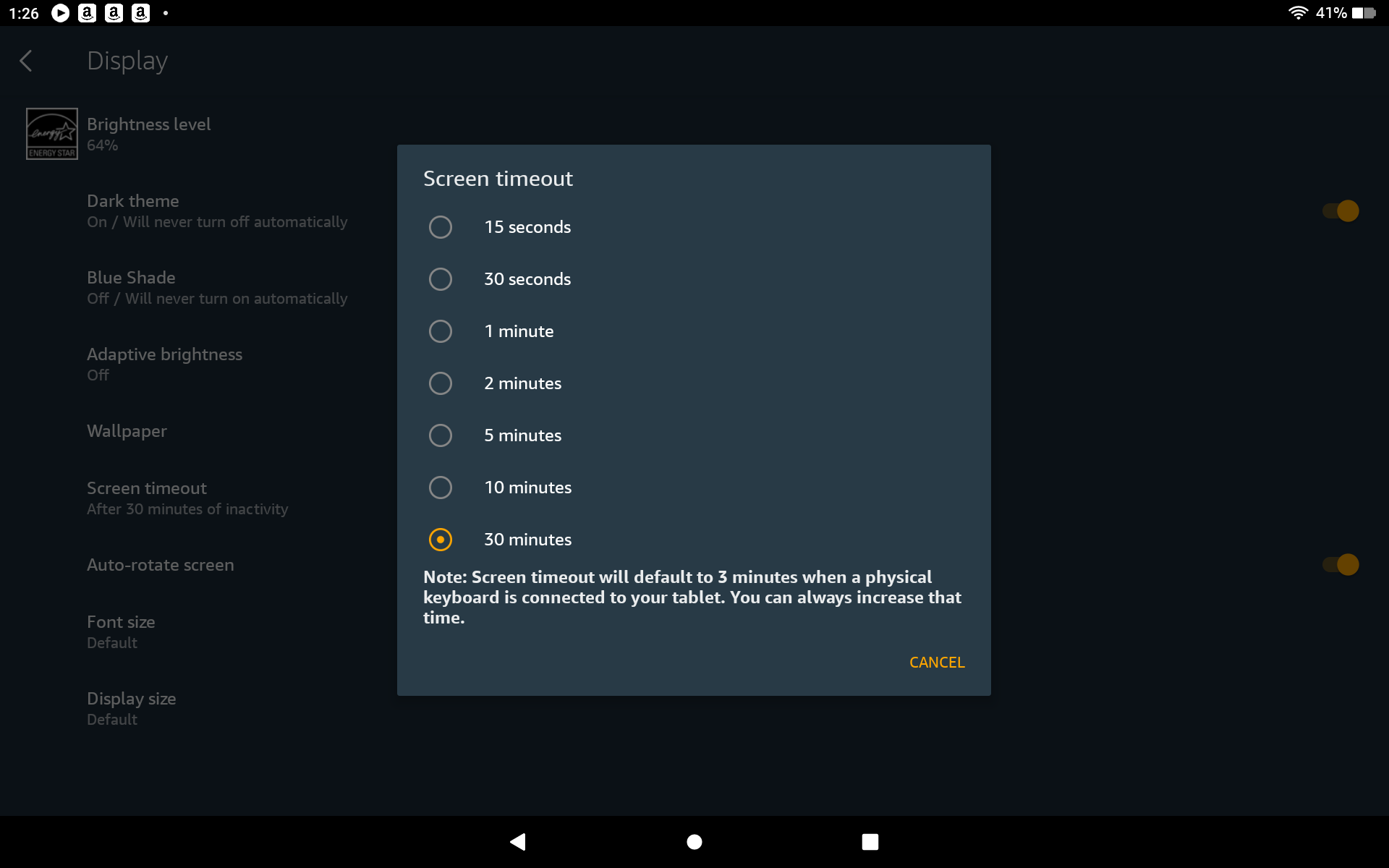
- Screen timeout, from the default of 15 or 30 seconds to 10 or 30 minutes. A screen that goes dark in the middle of a cut is the most common first-week complaint.
- Dark mode. TouchDRO is designed for it, and it is easier on the eyes under shop lighting.
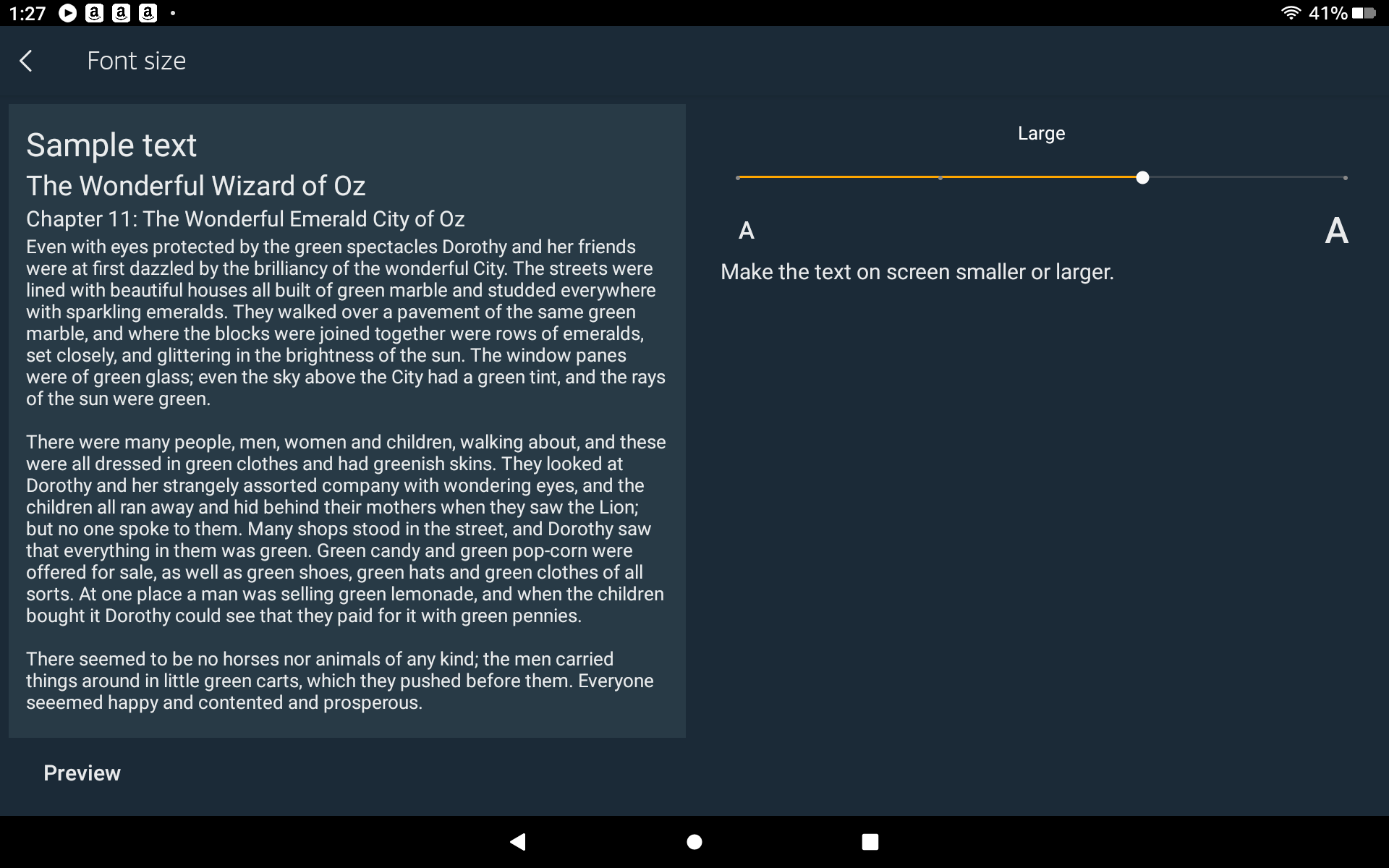
- Font size, up one or two steps. It makes TouchDRO's text and dialogs easier to read from arm's length.
Samsung Galaxy Tab Setup
Initial Setup
When you turn on your Samsung Galaxy Tab A9 Plus, you will be greeted with the "Welcome" screen that asks you to pick your language.
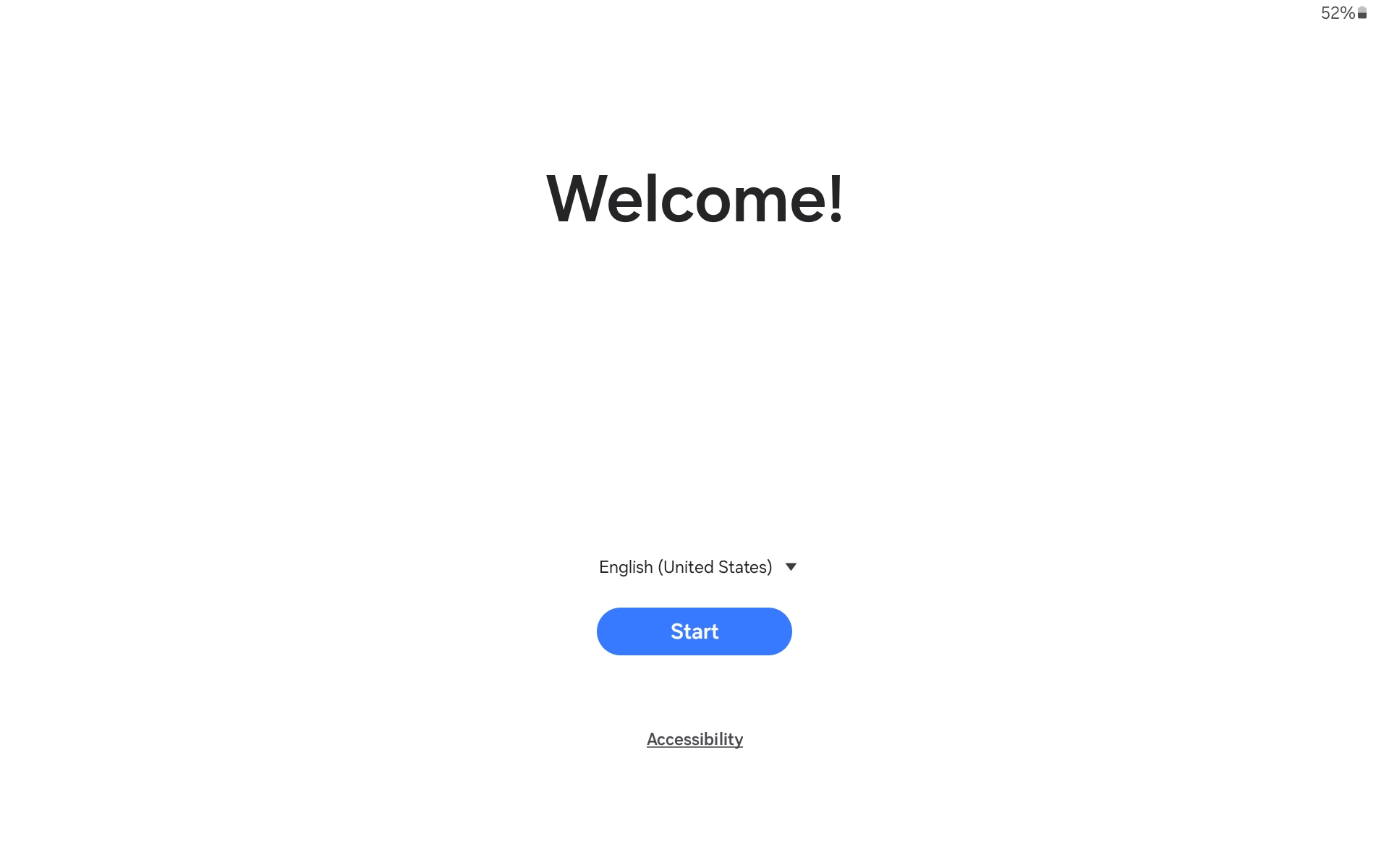
Select your preferred language from the list and tap "Start". On the next screen, you will need to agree to Samsung's terms of service and privacy policy.
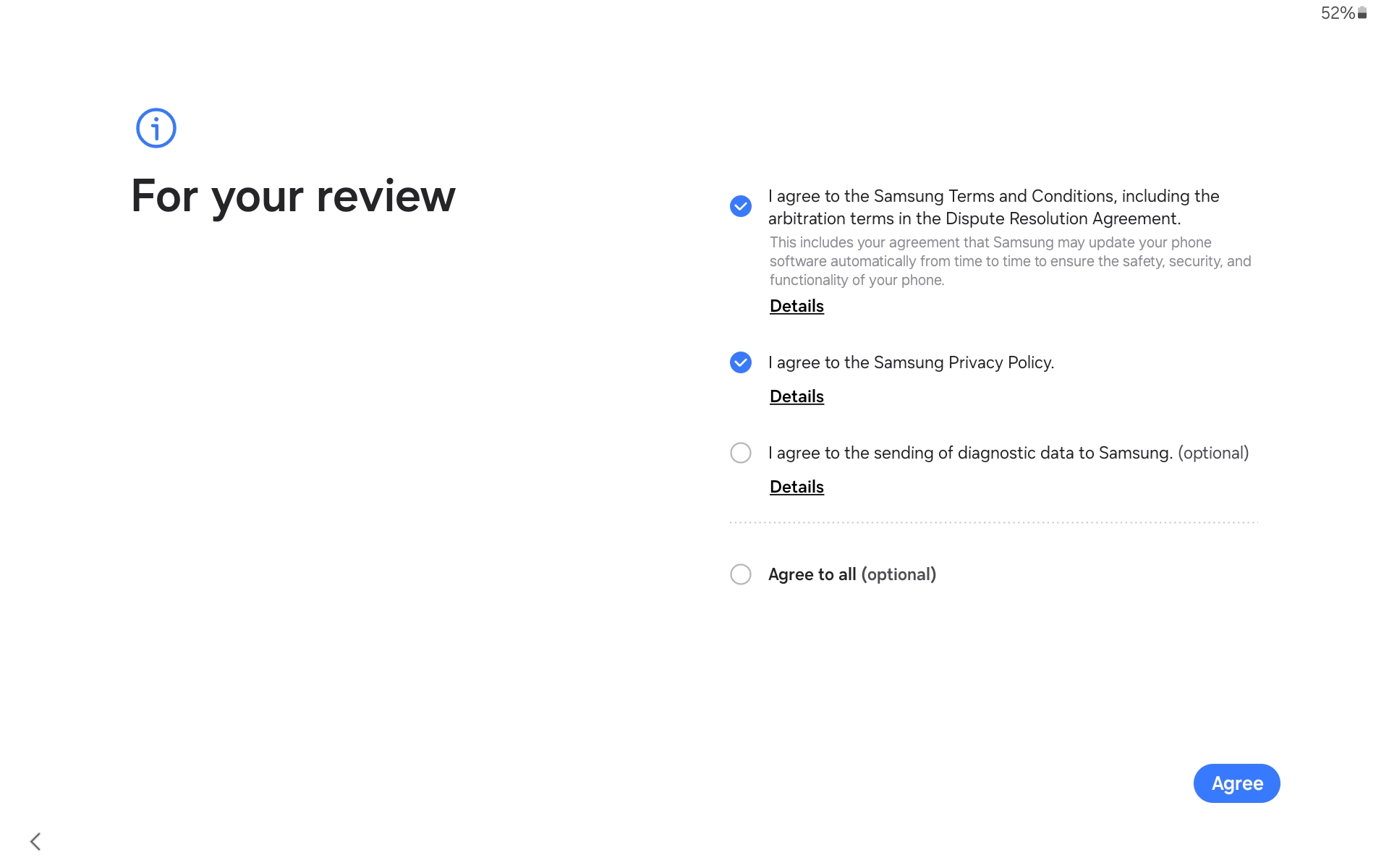
Only the first two are required. You can choose to skip sending the diagnostic data if you prefer. Tap "Agree" to continue.
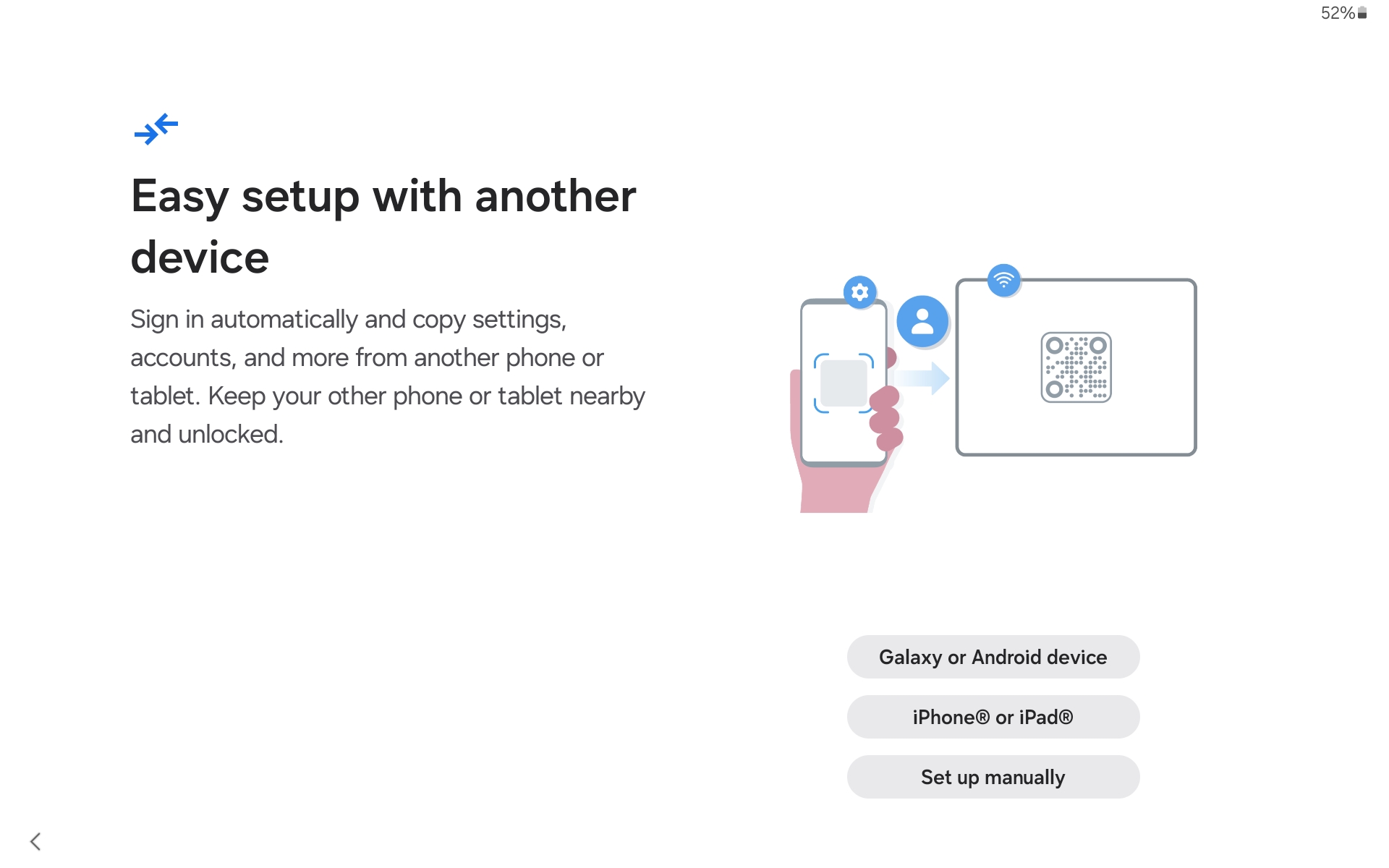
The next screen will give you an option to copy your data and settings from an existing device. If this tablet is intended to only be used as a DRO (or don't have any other tablets), select "Set up manually".
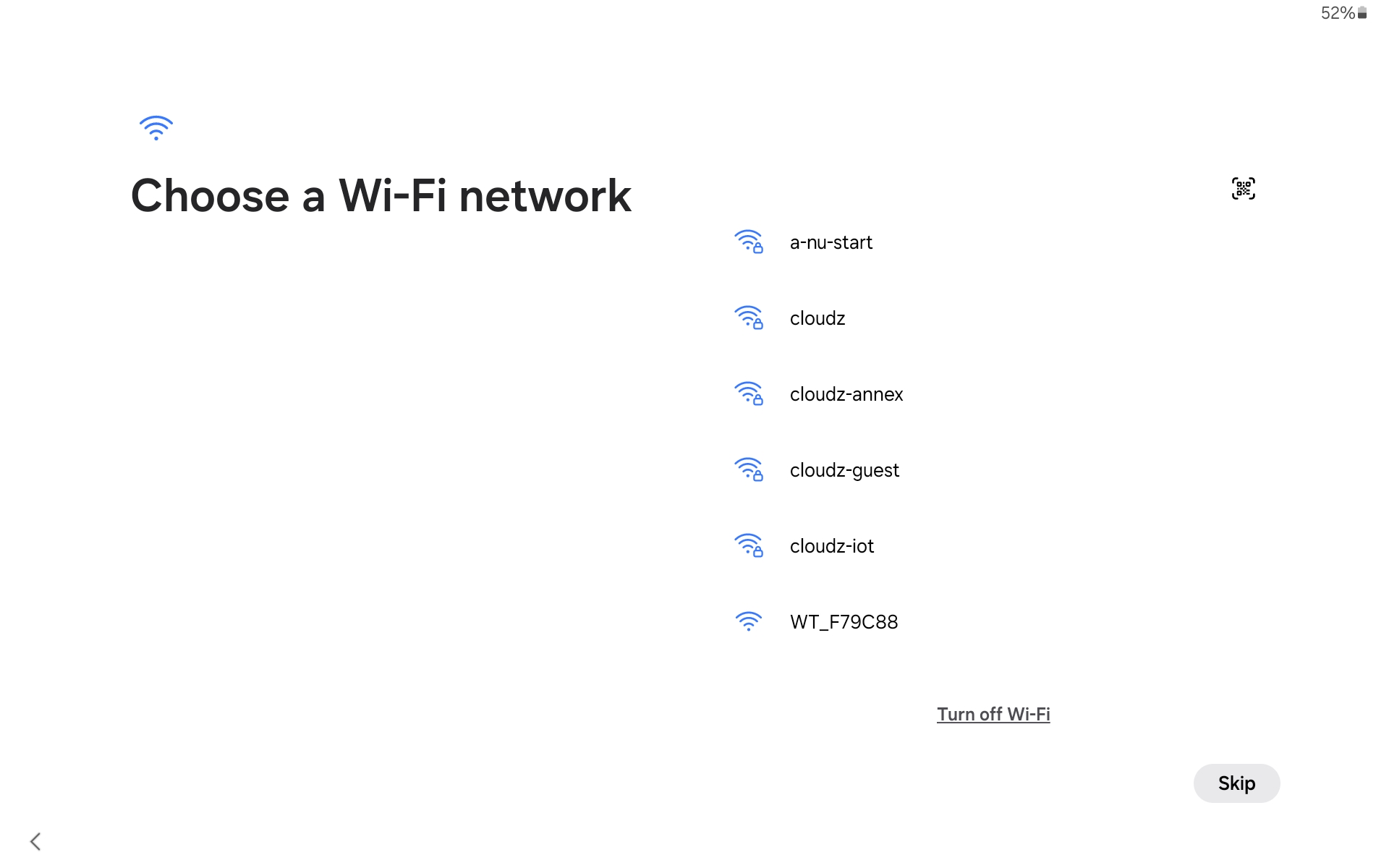
The next screen will ask you to connect to your Wi-Fi network. Select a network from the list, and tap the "Continue" button; the button will appear once a network is selected.
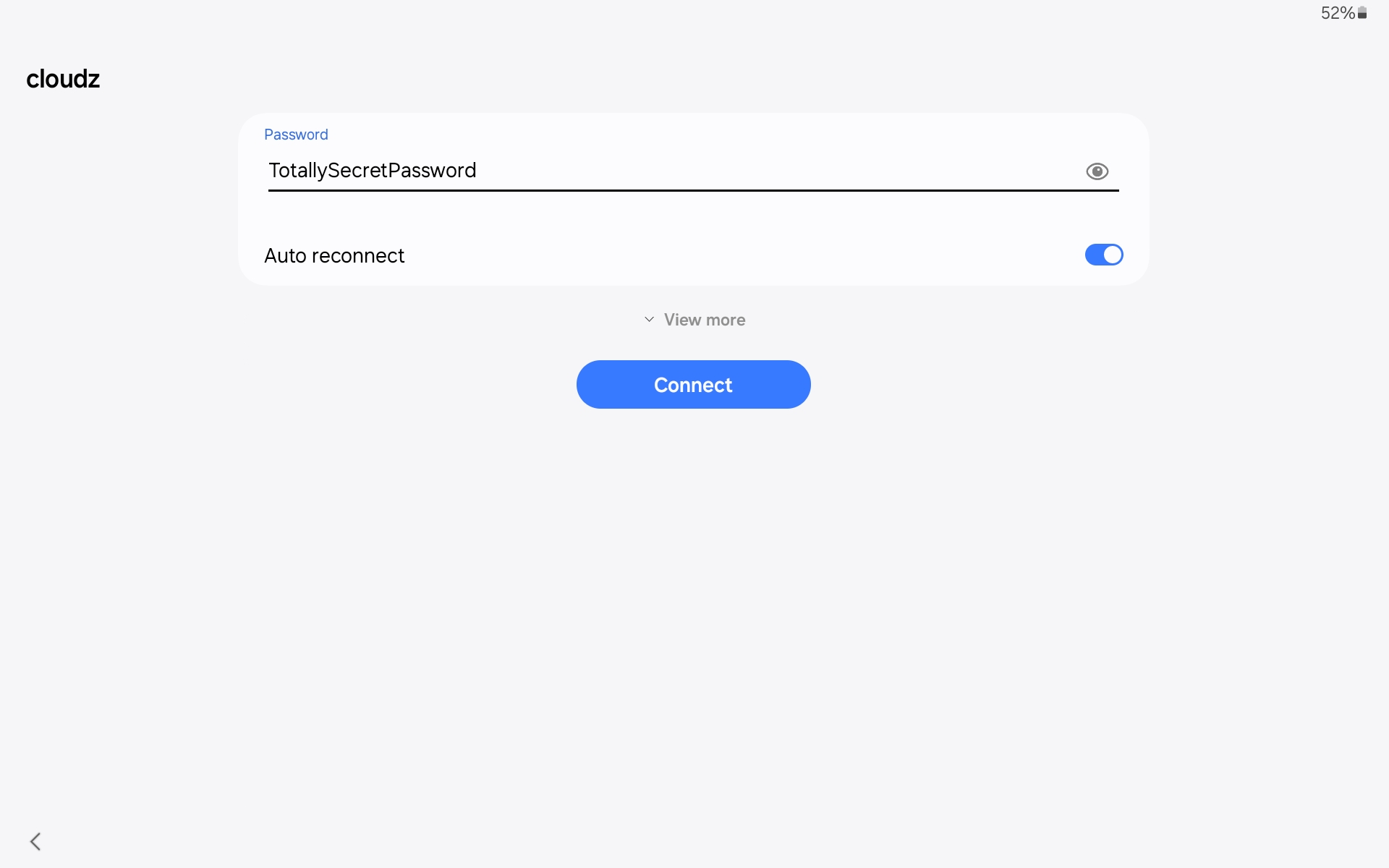
Type your network password, and tap Connect. The tablet will connect to the internet, pull some updates, etc. When it's done, you will be asked to log into your Google account. If you don't have an account, you can create one from this screen. Otherwise type your email address and tap "Next".
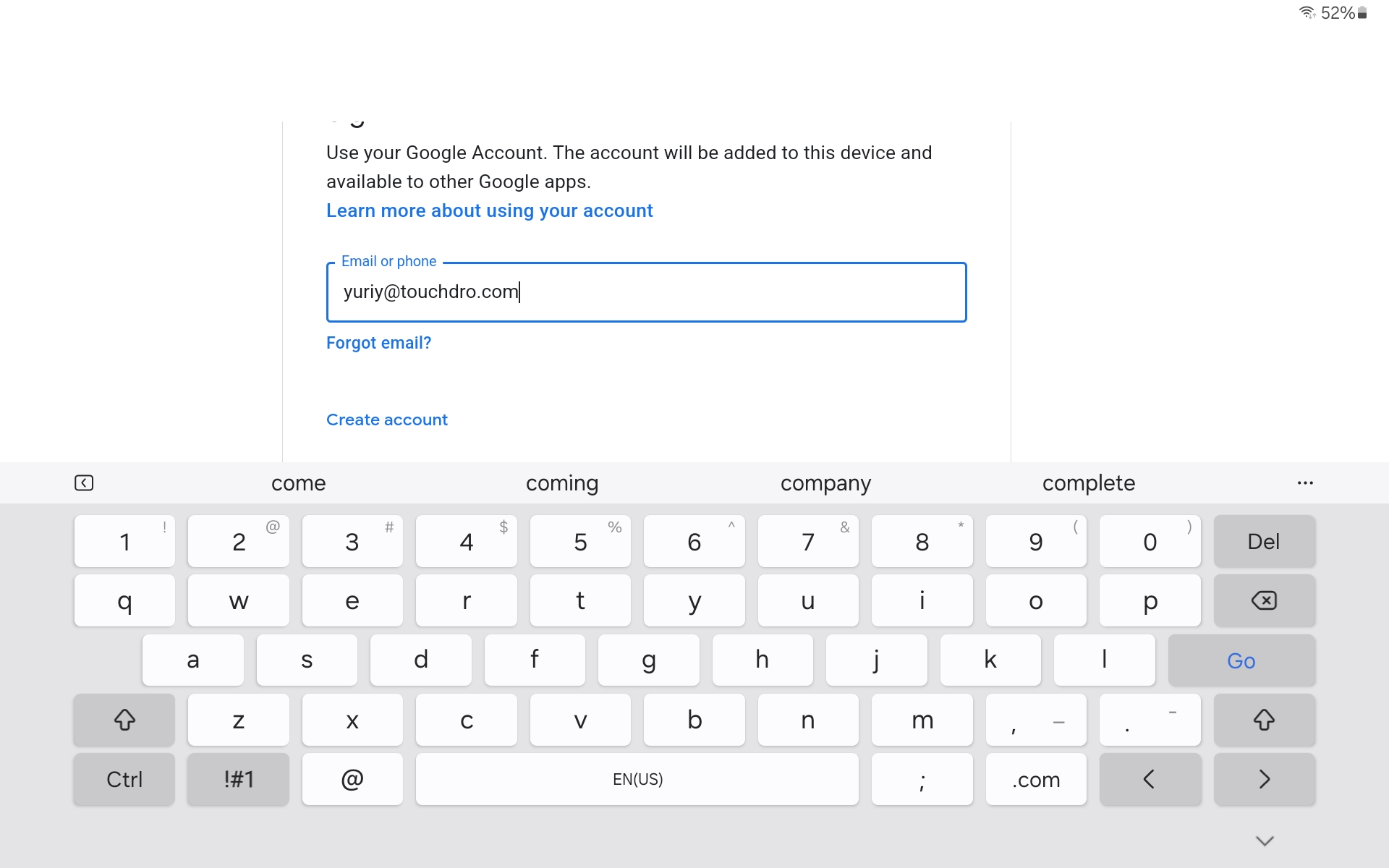
You will be asked to provide your password.
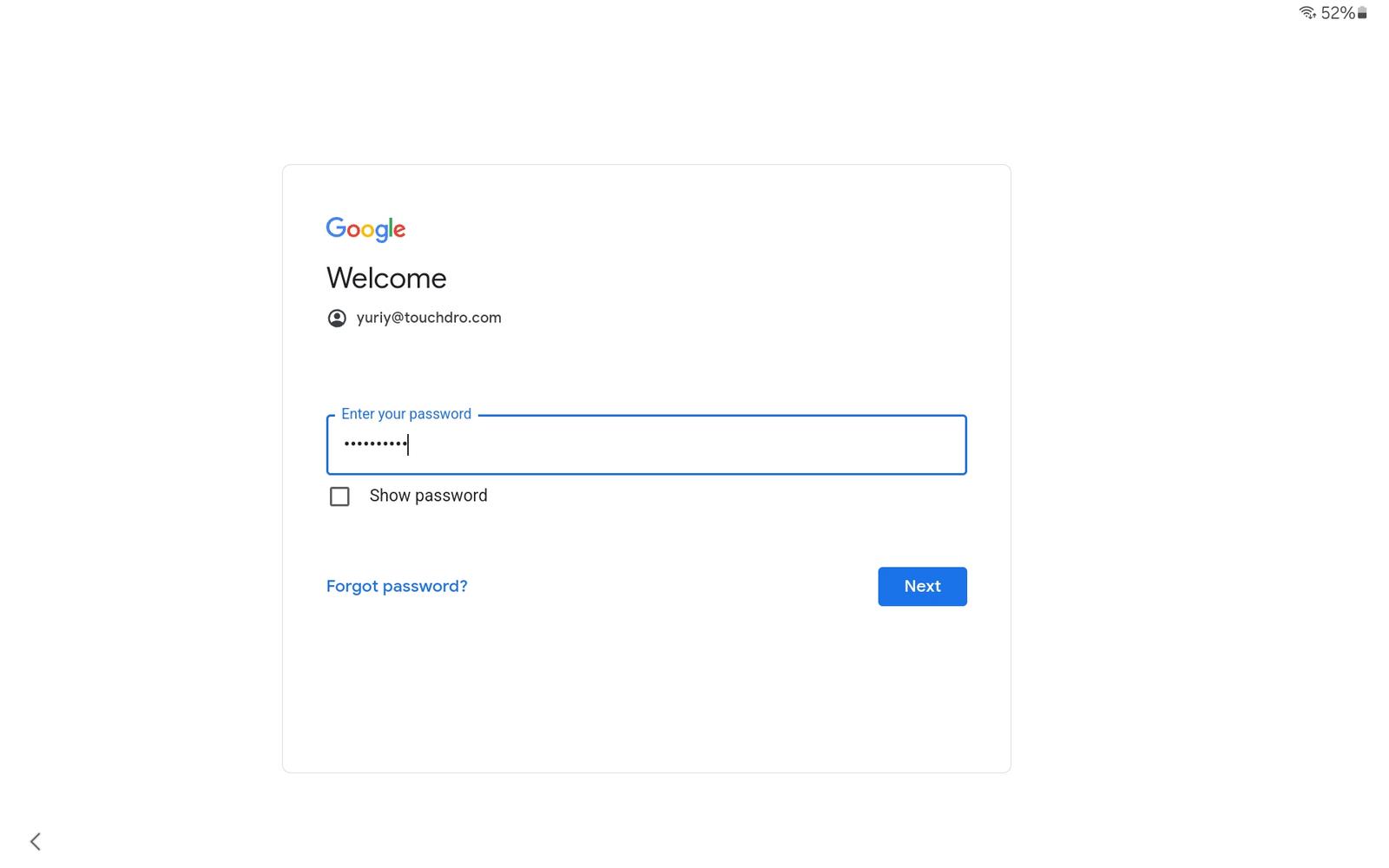
Enter the password, and tap "Next". If 2-Factor authentication is enabled, you will be asked to enter the access code (the process will vary, based on your account setup). Once you are logged into your account, you will be asked to opt into some services.
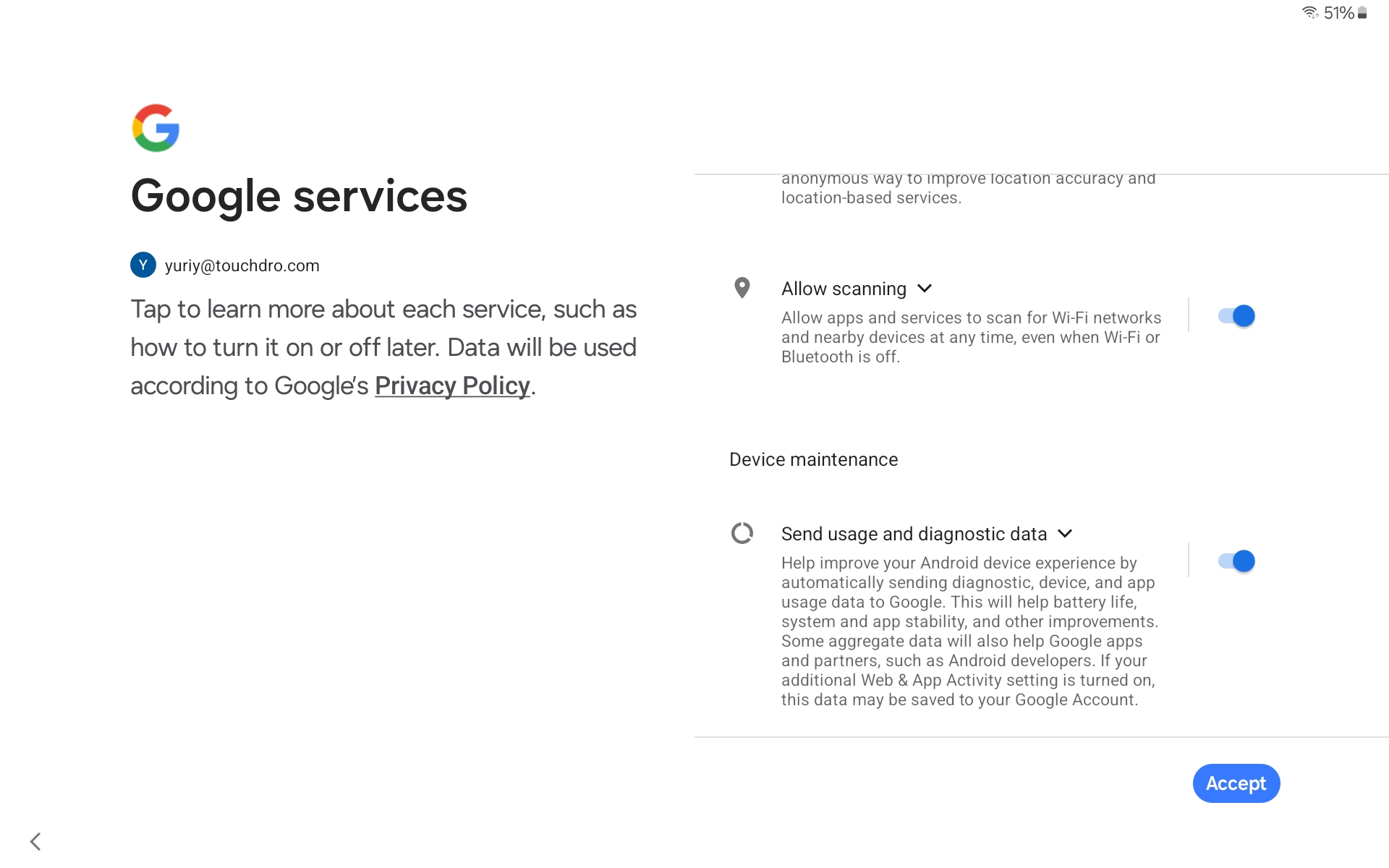
These settings are optional, and you can turn them off if you prefer. Please keep in mind that if you turn off "Send usage and diagnostic data", we will not be able to get any crash reports from TouchDRO app. It's unlikely that you will run into serious bugs or crashes with the app, but having no access to crash data will limit our ability to resolve your issue.
Tap "Accept" to go to the next screen, where you will be able to choose how you want to unlock the screen.
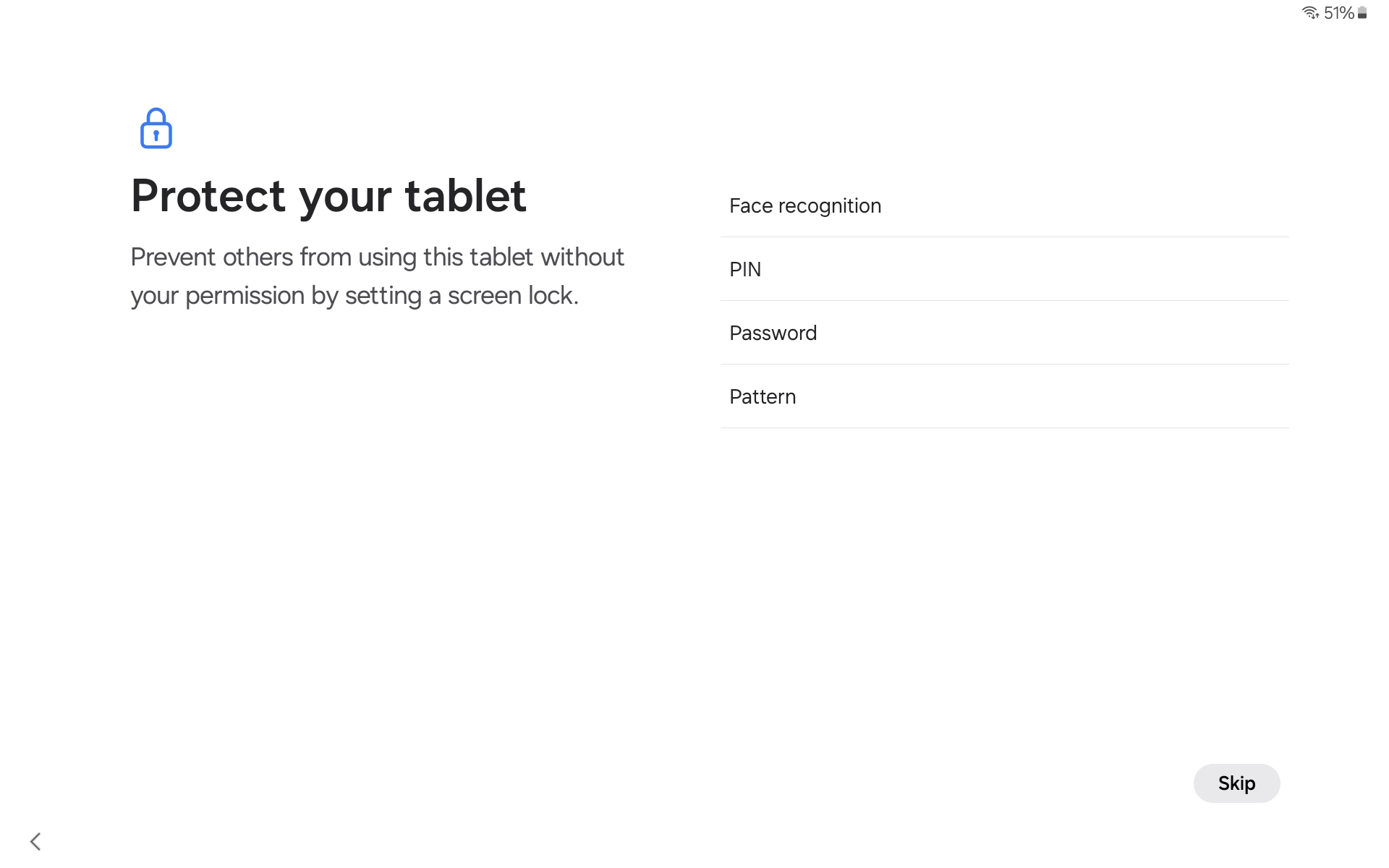
Choose the method that you are comfortable with. "Face recognition" is very convenient and works well, so it's a popular choice. An unlock pattern is pretty easy as well.
After you finish with this screen, you will be asked to log into your Samsung account (or create one). Follow on-screen prompts as needed. Once you finish the setup, you will be asked to enable Google Assistant.
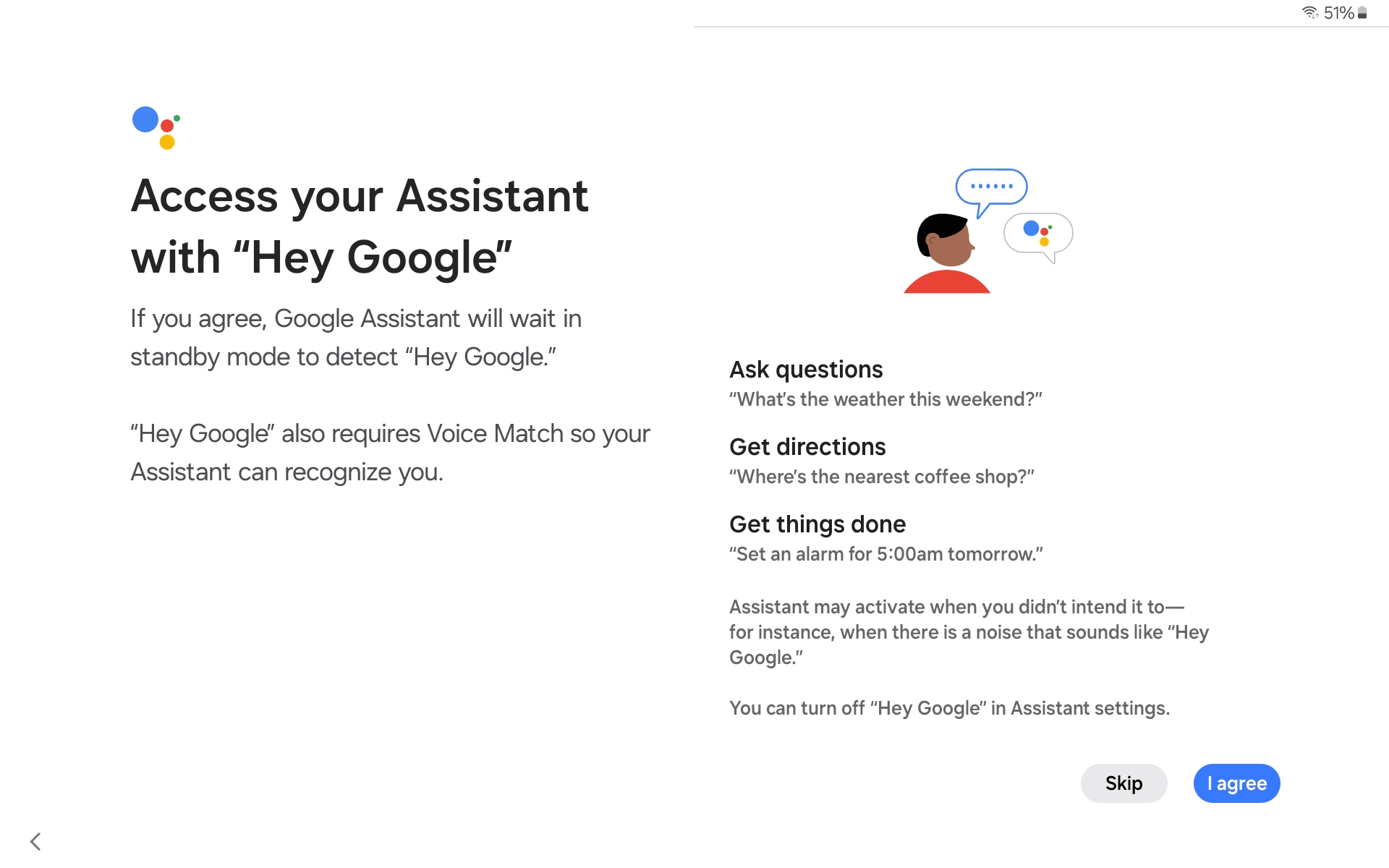
It's up to you whether you enable it or not. Tap the appropriate button, and follow on-screen prompts.
When asked to choose your display mode, check "Dark" - TouchDRO is designed for the dark mode.
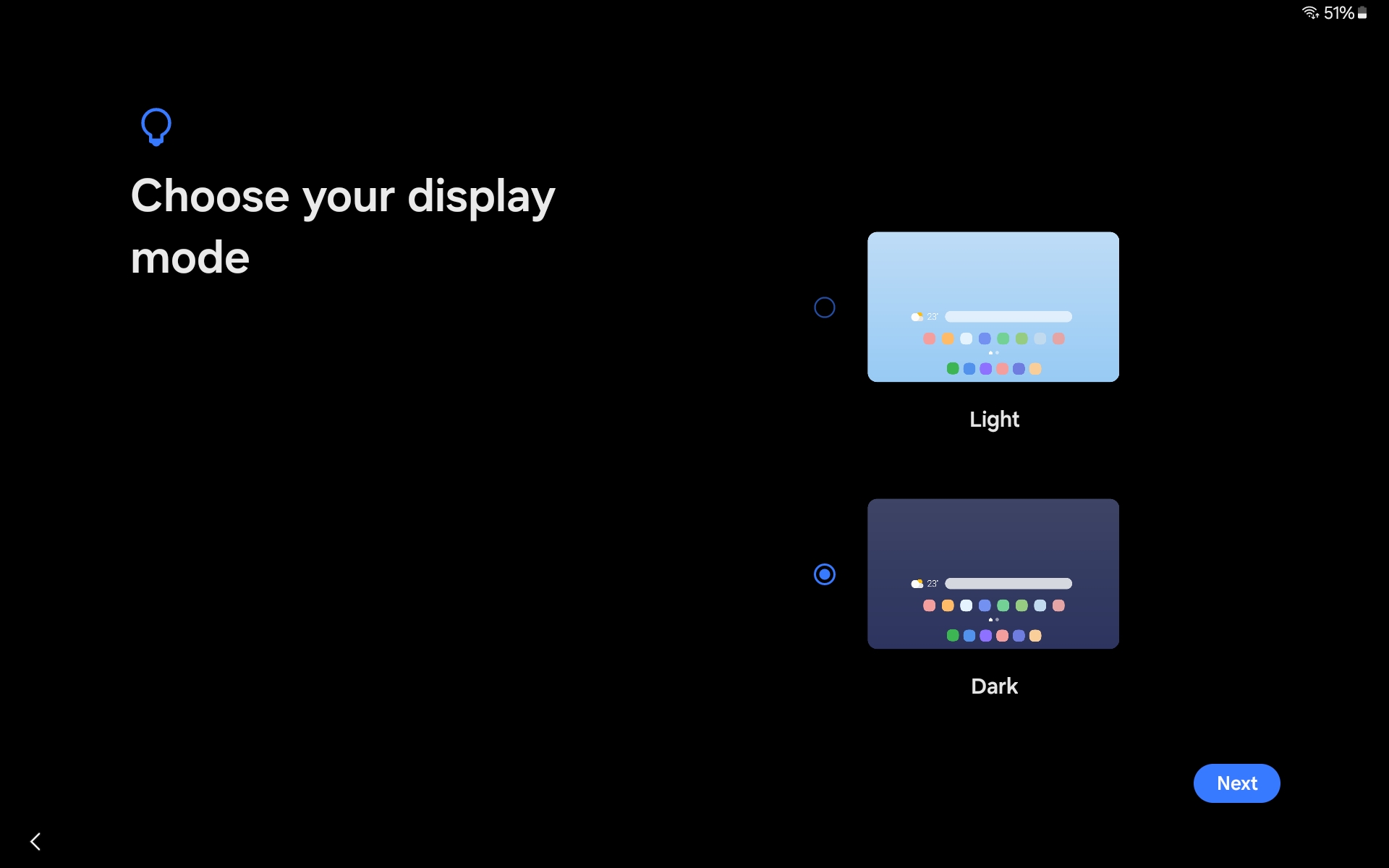
Tap "Next". You will be asked to install some apps, accept some trials, etc. Skip them as you see fit and you will be done with the tablet setup.
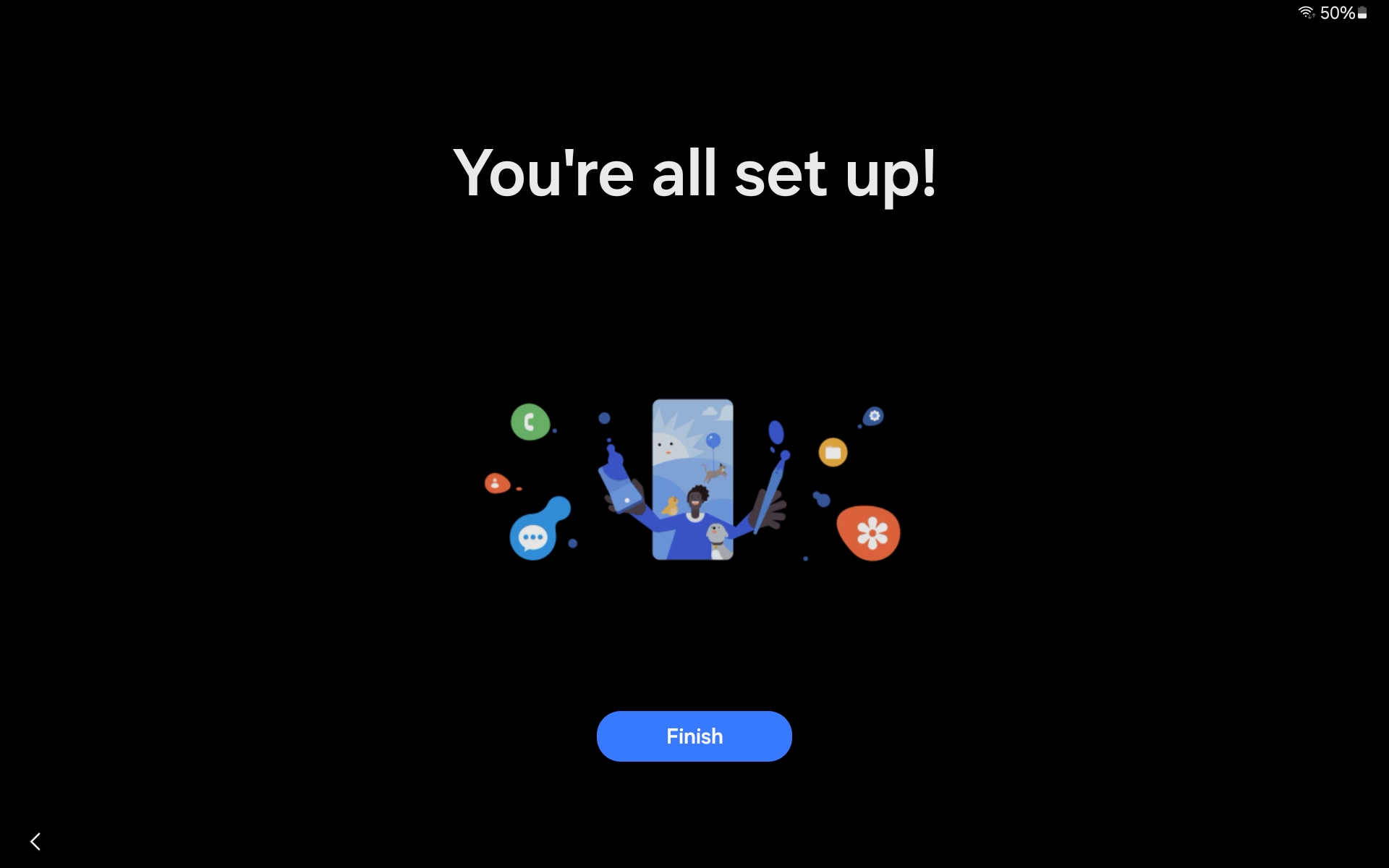
Tap finish to go to the Home screen.
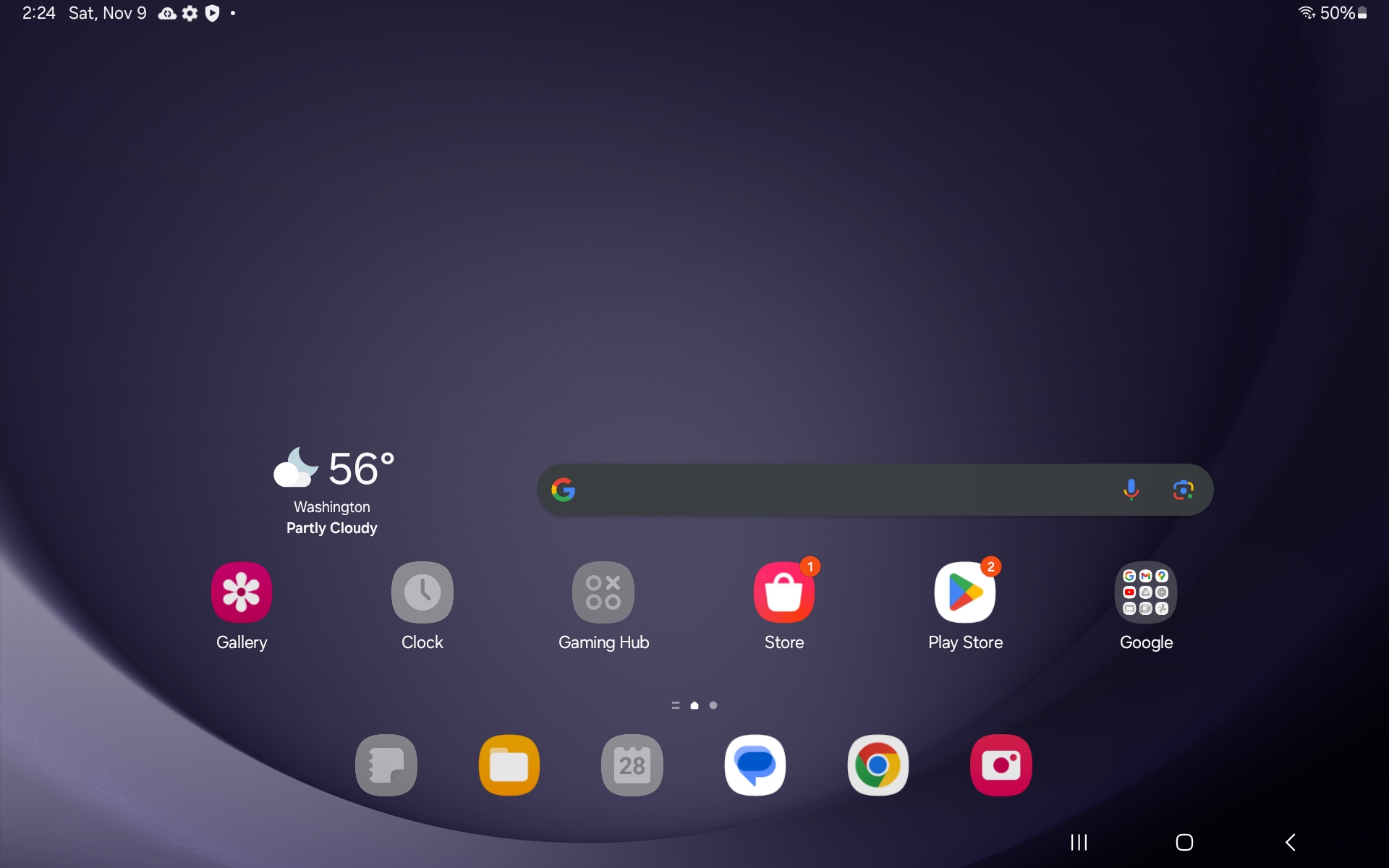
For the next few minutes the tablet will download app updates, etc. and will be pretty laggy. The screen will be pretty laggy, so just let it sit for 5-10 minutes.
User Interface Tweaks
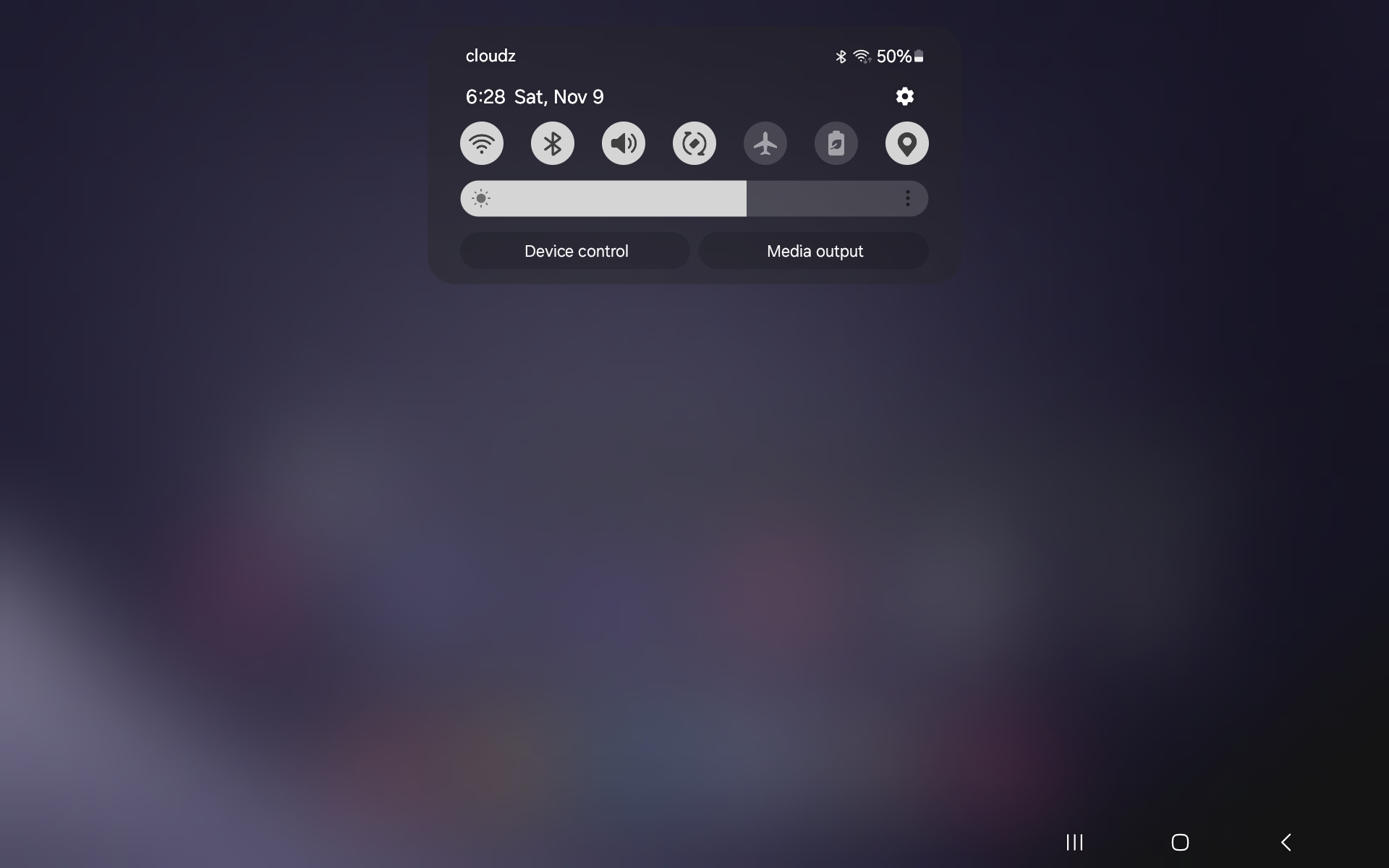
Next, let's tweak some settings. Swipe down from the top of the screen and tap the small gear icon in the upper right corner of the drop-down panel.
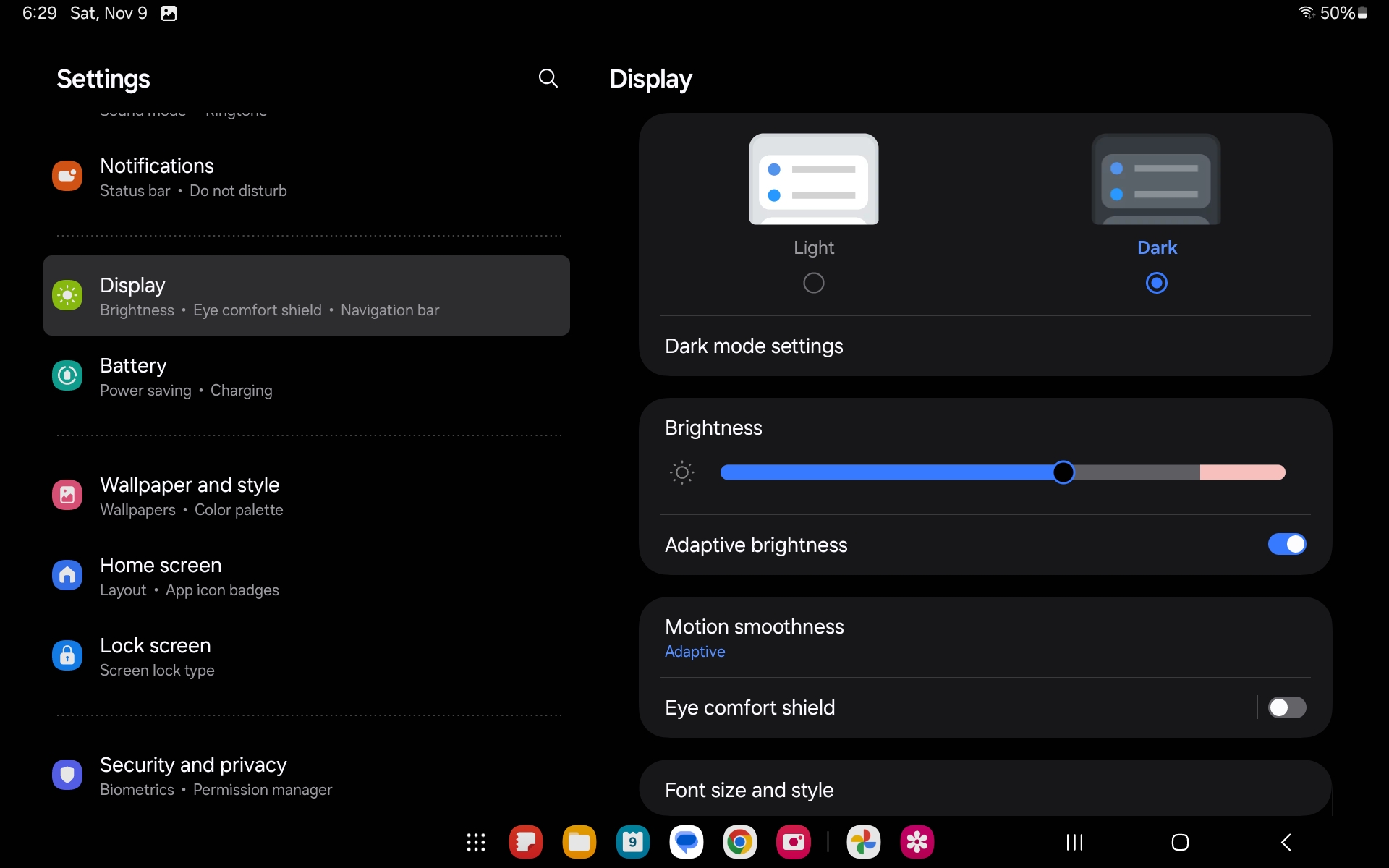
On the left side, scroll down until you see "Display", and tap on it.
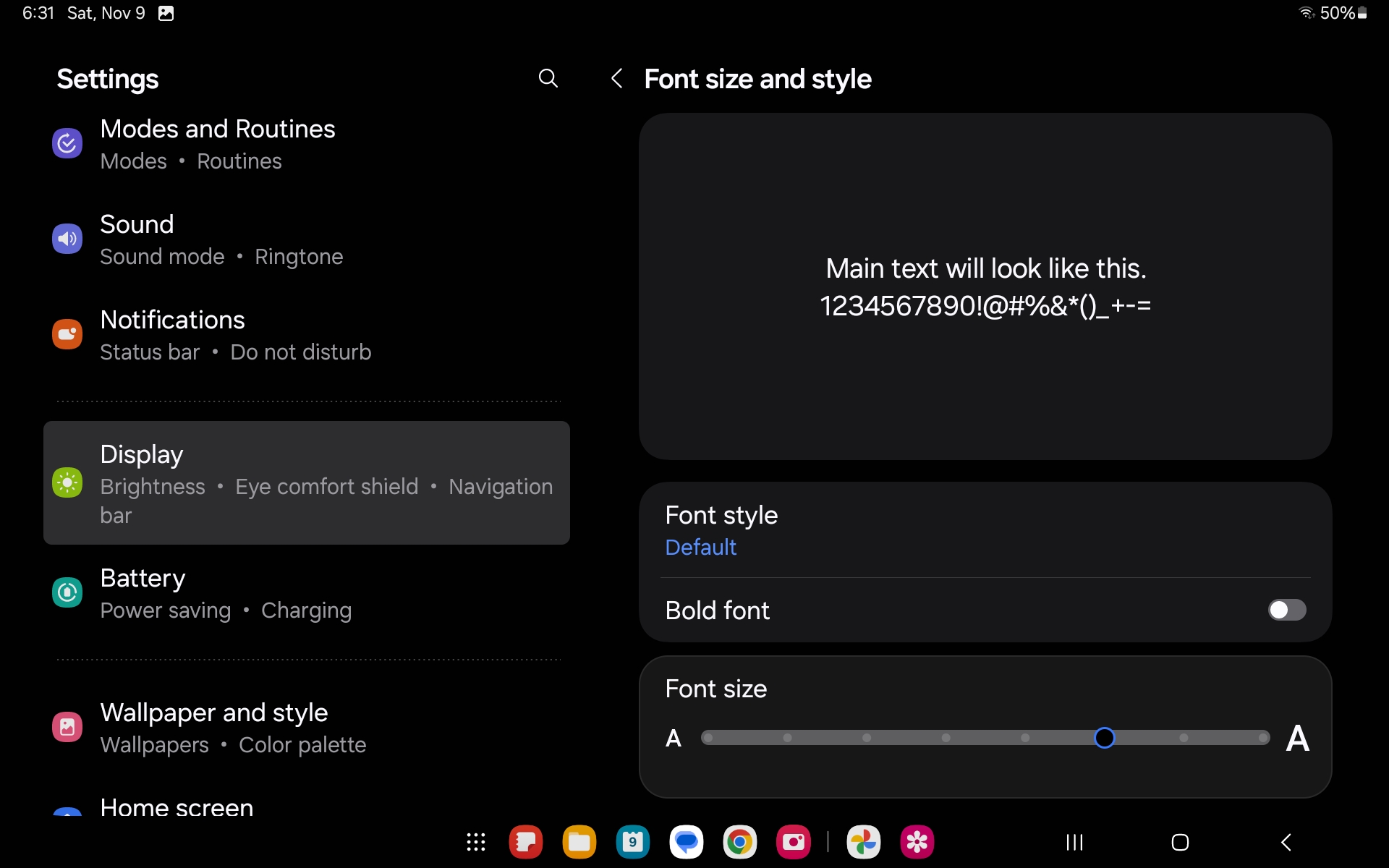
Tap "Font Size and Style" and increase the font size by one or two steps.
Go back to the Display settings (tap the left arrow in the lower-right corner), and tap on Screen Timeout. Increase it to 10 or 30 minutes.
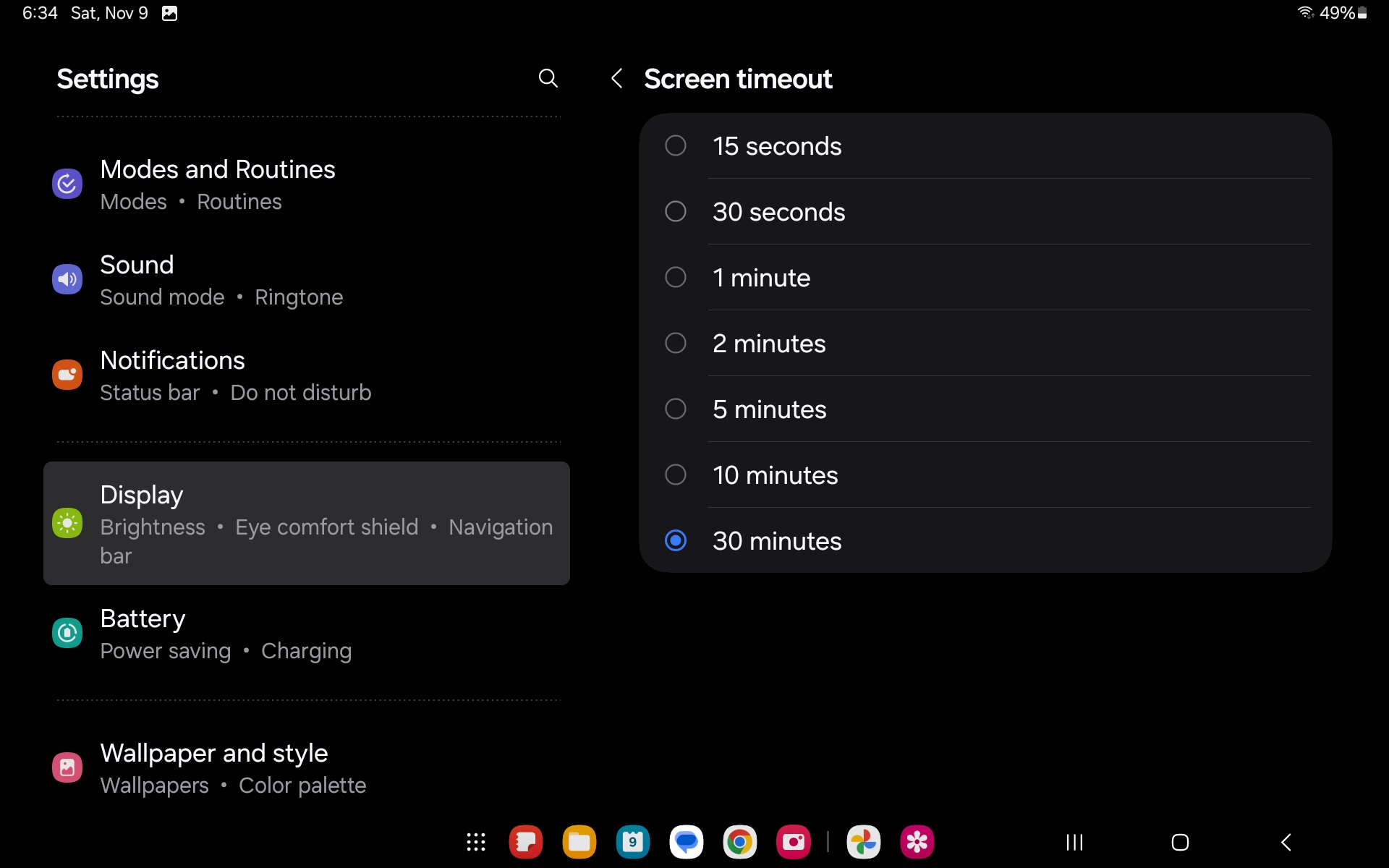
Exit the setting. We can now install TouchDRO onto the tablet.
TouchDRO Installation
Tap the Play Store icon (second icon from the right in the top row in the above screenshot). This will bring up the Google Play Store app.
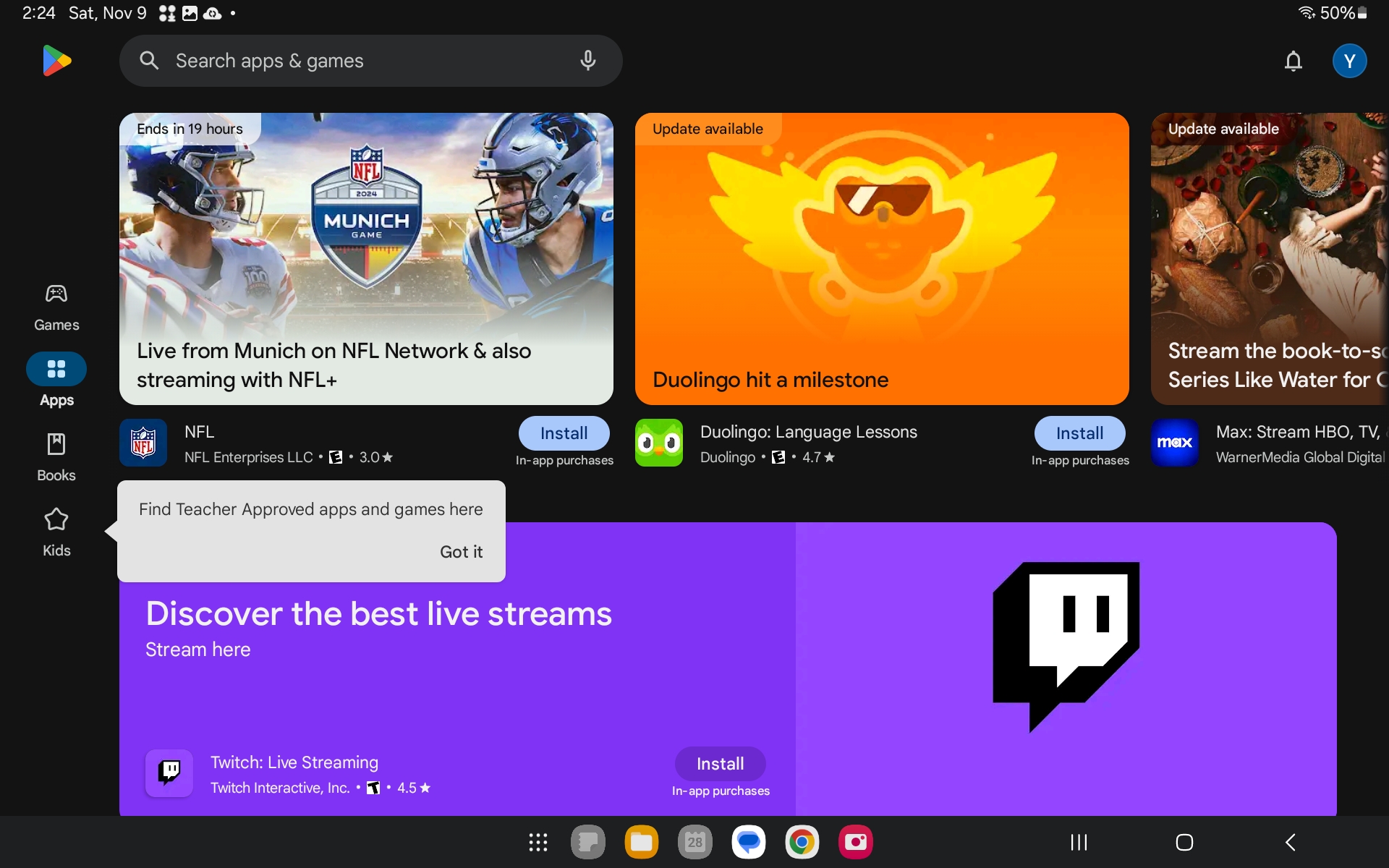
Type "TouchDRO" into the search box (without the quotes).
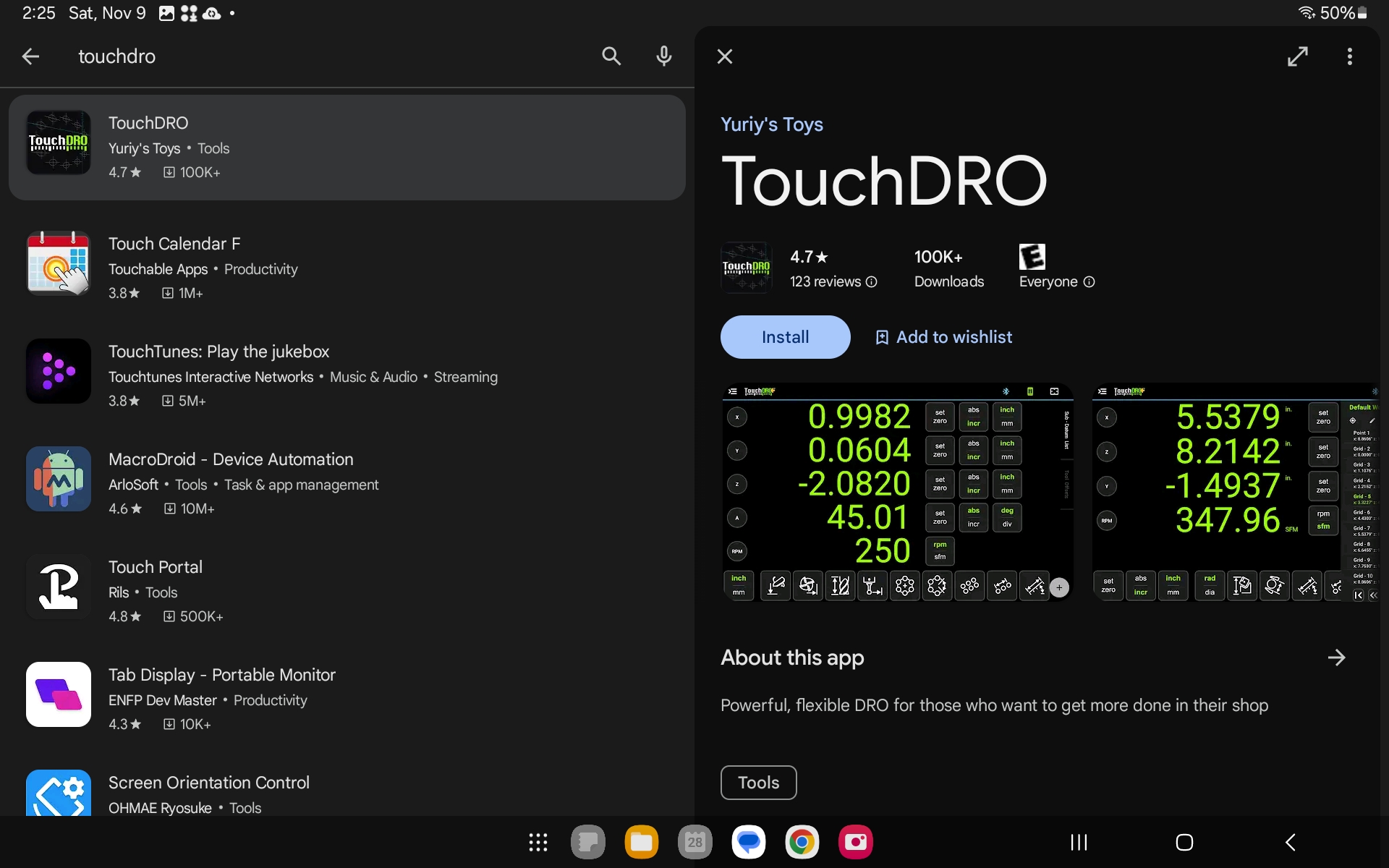
Tap "Install". You can close the Play store after the download starts - the application will be installed in the background. In a few seconds TouchDRO will appear in the applications list, but you won't see it on the home screen.
Swipe up from the bottom of the screen to go to the application list; TouchDRO icon will likely be at the very end. Tap and hold the icon for a few seconds, until you are taken back to the home screen.
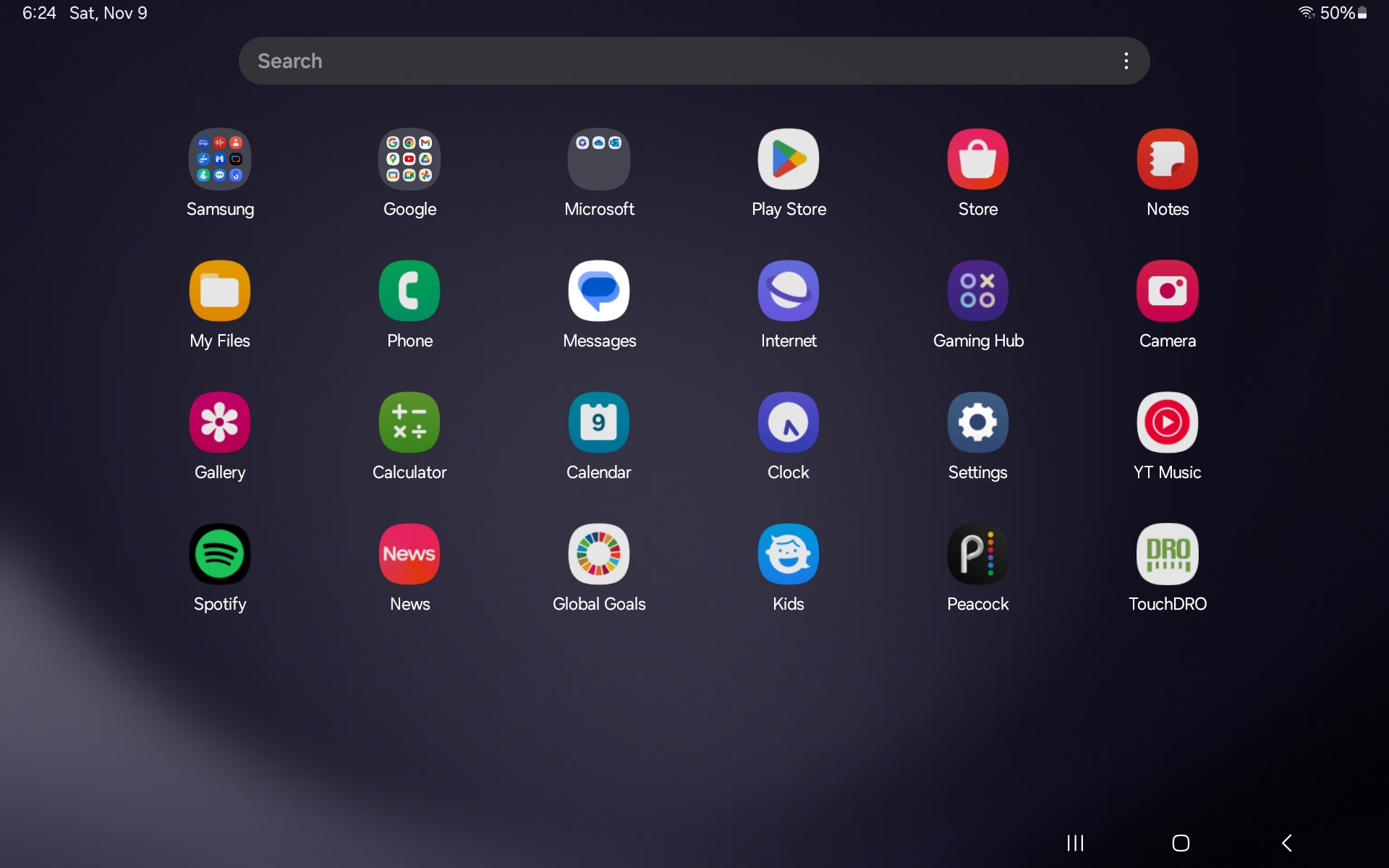
Drag the icon onto the app dock.
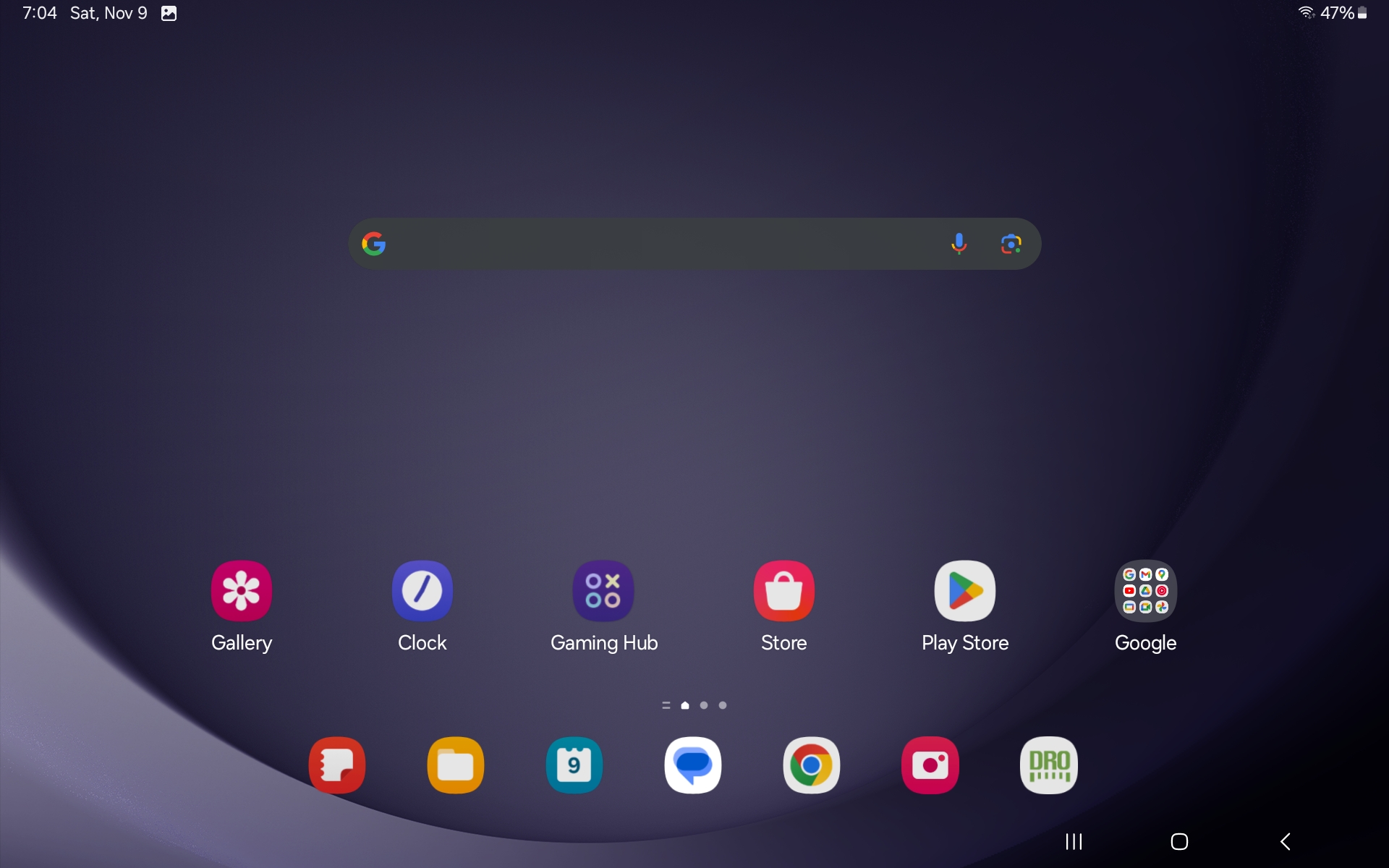
Now you can tap the TouchDRO icon to open the application.
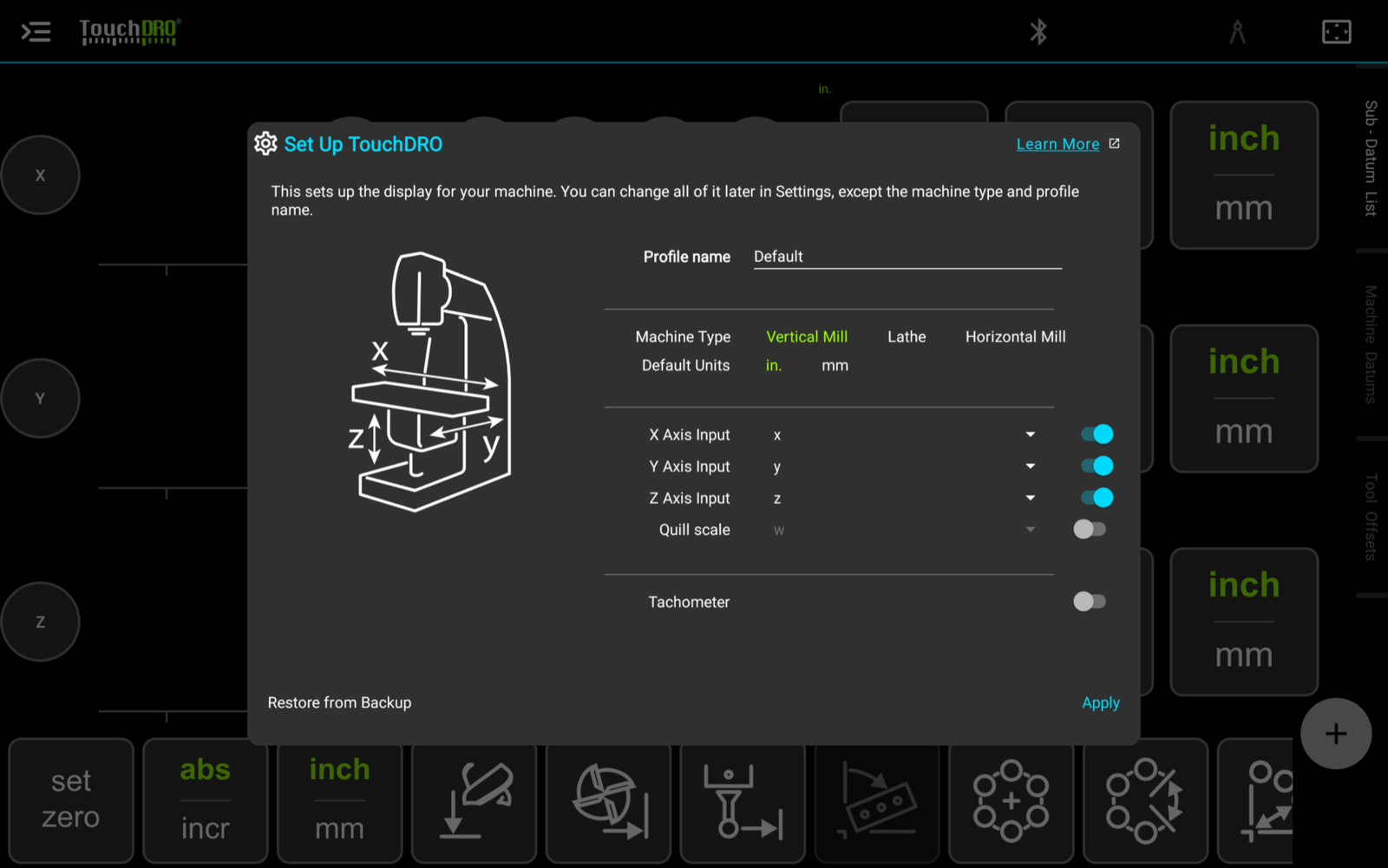
TouchDRO is now installed. On the first start the application opens the "Set Up TouchDRO" dialog, which asks for the machine type and can't be dismissed until you tap "Apply". Behind it is the main screen with grayed-out zeros, which is correct: the application is not connected to an adapter yet.
Next: the second half of Step 4 of the "Quick Start Guide", which walks through the "Set Up TouchDRO" dialog, then Step 5, pairing the tablet with the adapter. The settings that describe your scales come after that, in "TouchDRO Initial Configuration".
Amazon Fire HD 10 Setup
Initial Setup
When you turn on the tablet, you will be asked to select your preferred language on a screen that looks similar to the screenshot below.
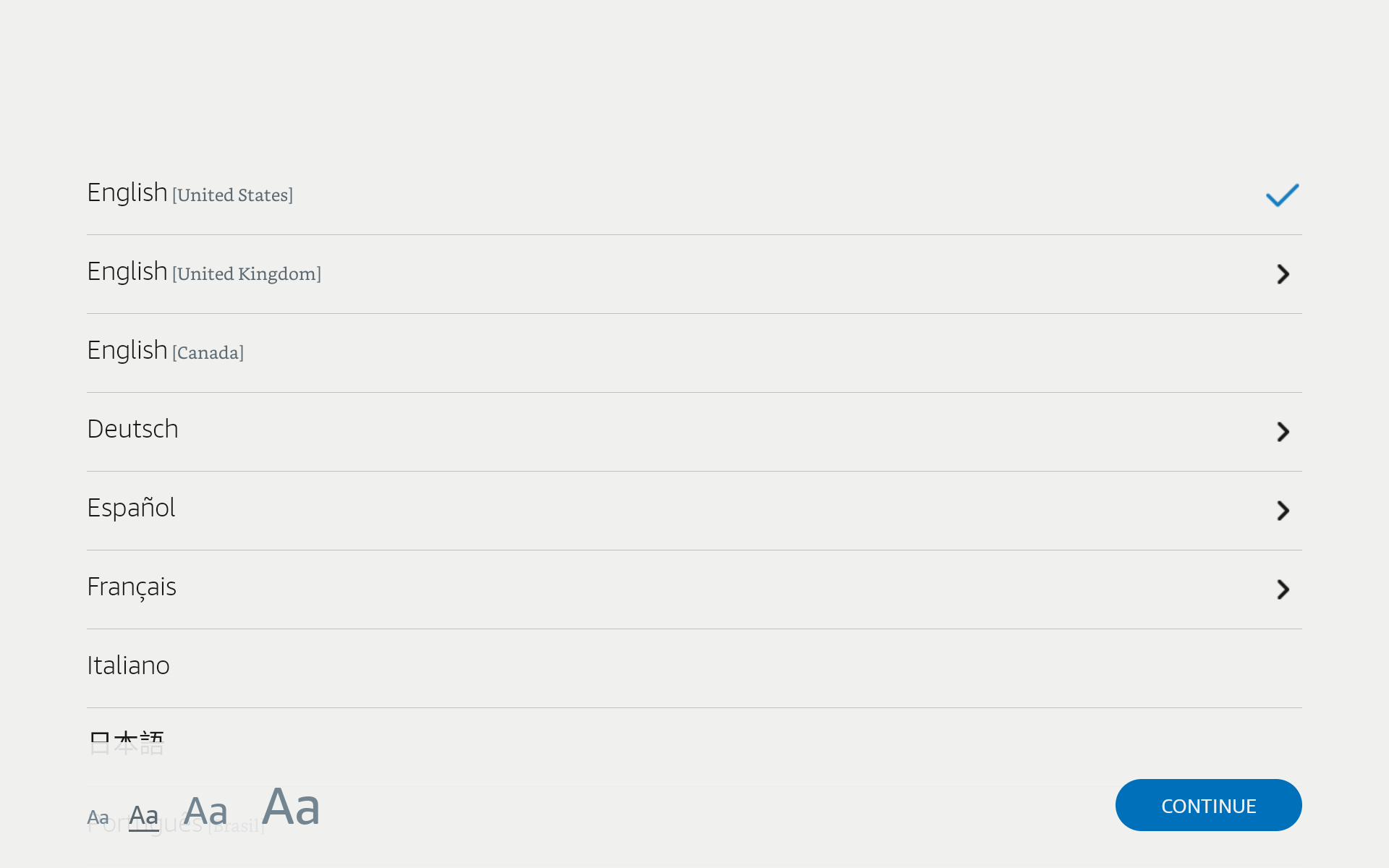
Select the language in the list, and tap continue.
The next step will differ, depending on where you purchased your tablet. If you got it directly from Amazon, it will be already tied to your account and possibly even connected to the WiFi network. In this case you will not need to do the next few steps.
If you got the tablet from a local store, or purchased it second-hand, you will need to manually connect it to WiFi. Select your network from the list.
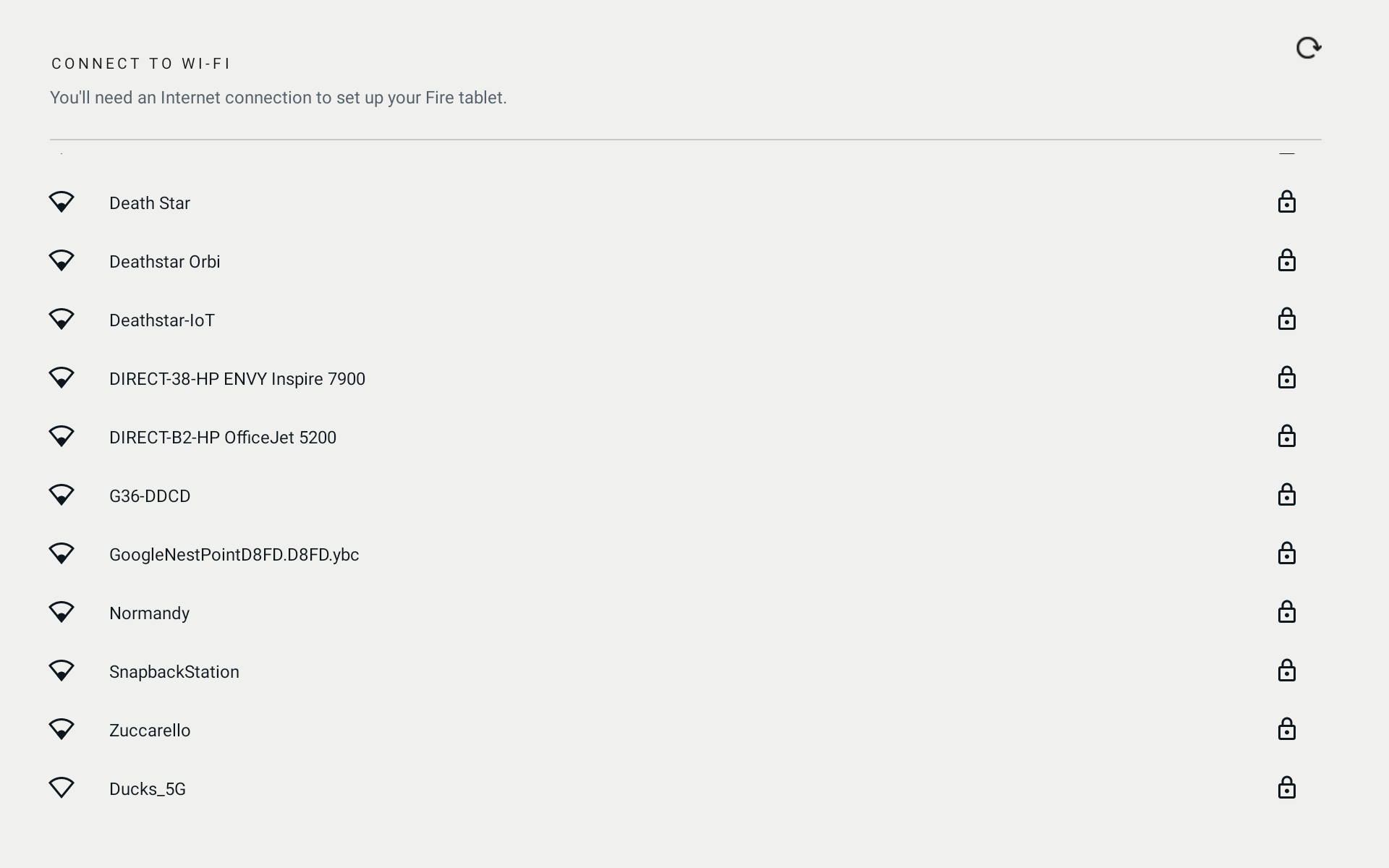
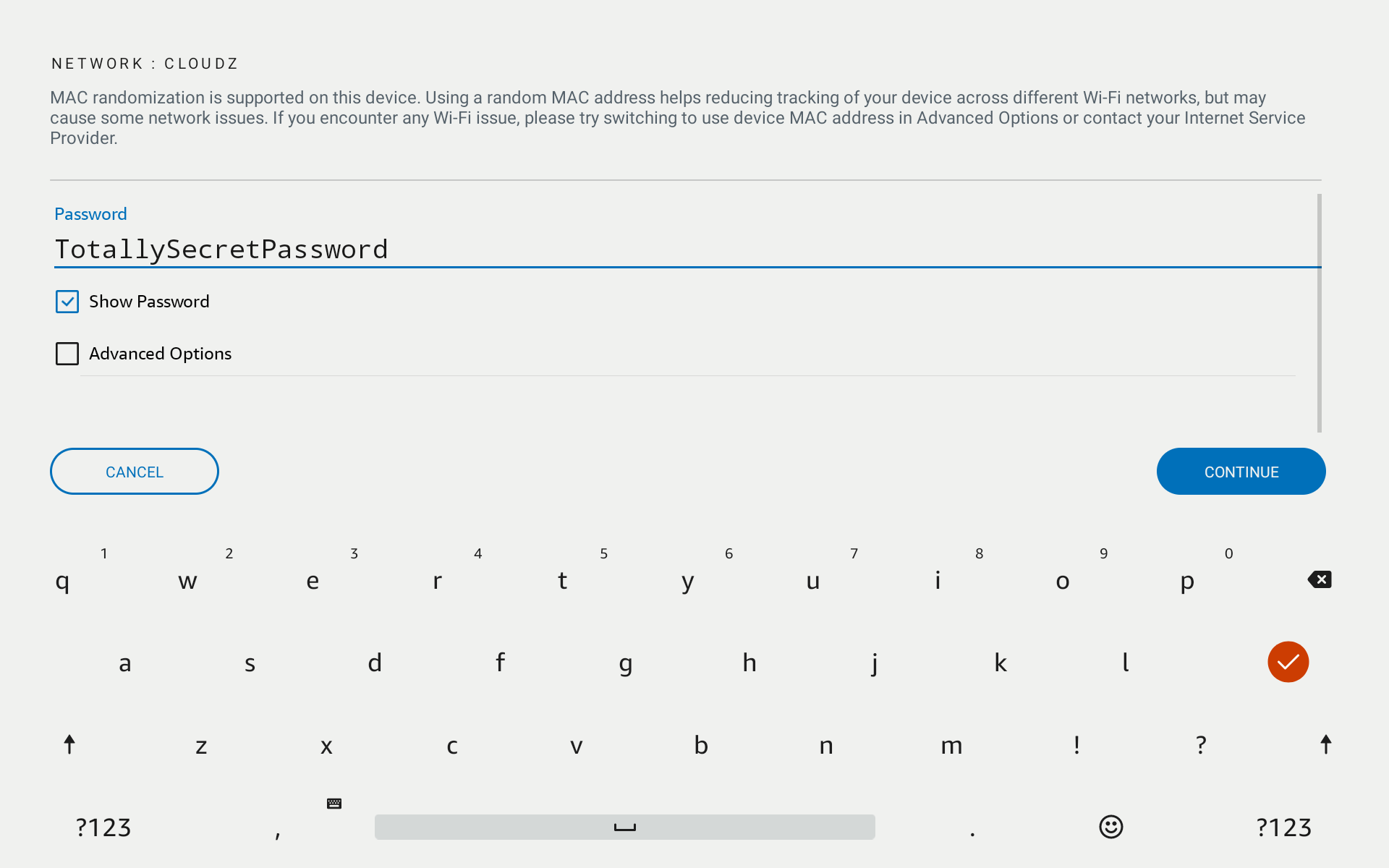
Type in your password in the next screen. You can check "Show Password" to see what you've typed.
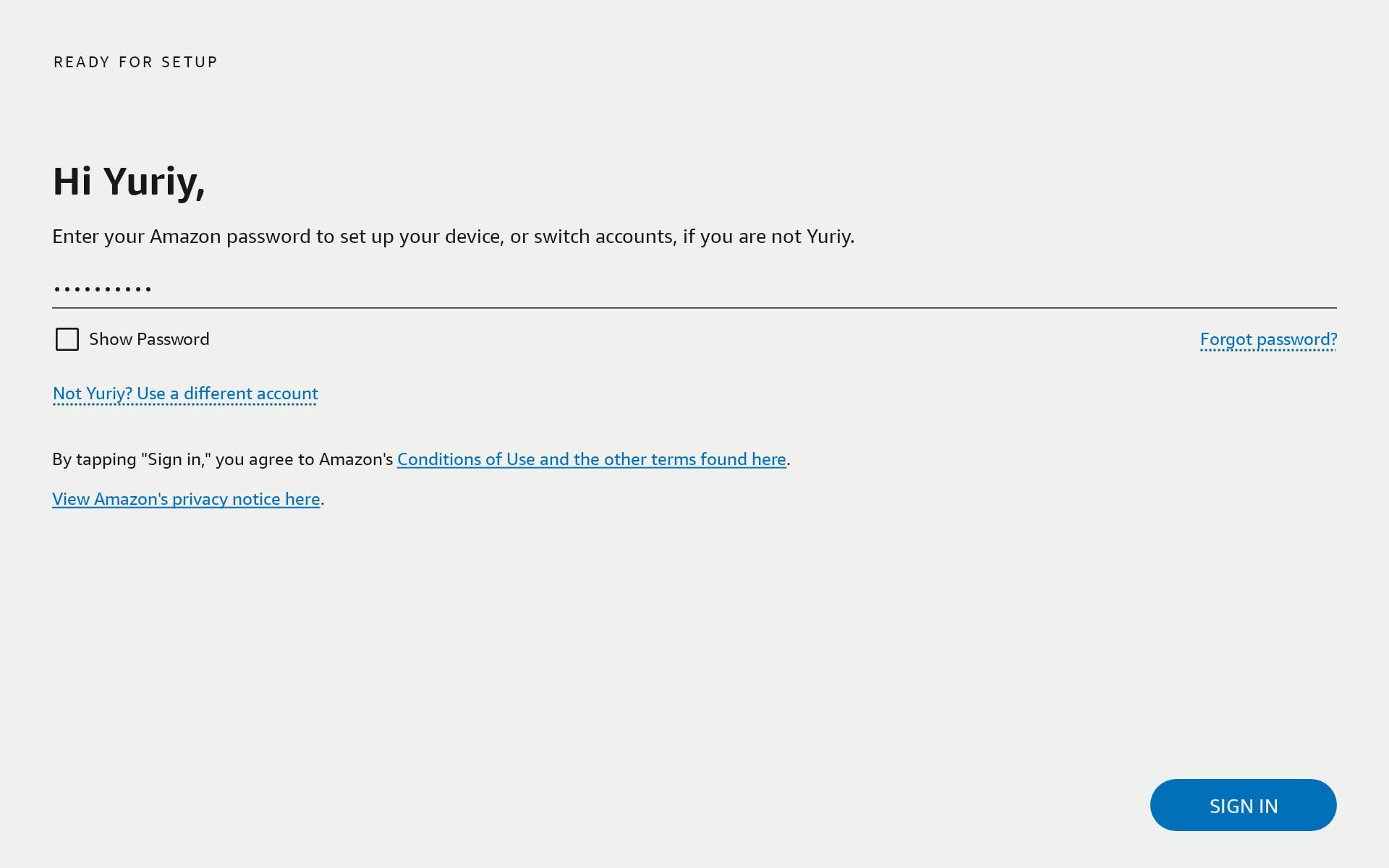
Next, the tablet will ask you to login into your Amazon account. Enter your Amazon account email (if prompted) and the password.
In the next step, you will be presented with an introduction video. Tap the play button to start it. If you want to skip the video, tap the screen again and in a few seconds a "Skip" button will appear.
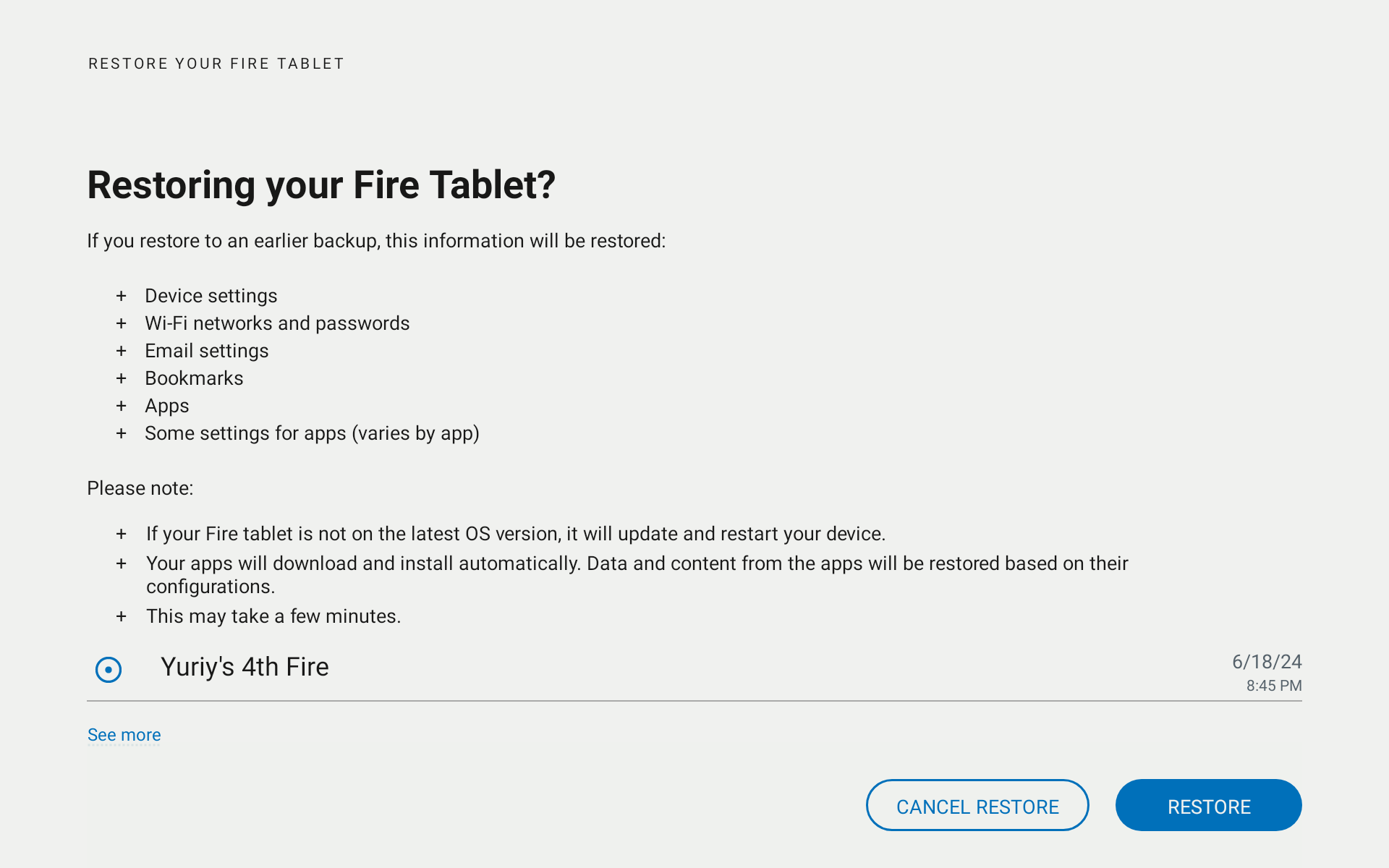
Once you get past the video, you might be asked if you want to restore settings and data from it. Whether you do or don't is up to you. It won't matter for TouchDRO.
If you choose not to restore, you will be asked to enable some settings.
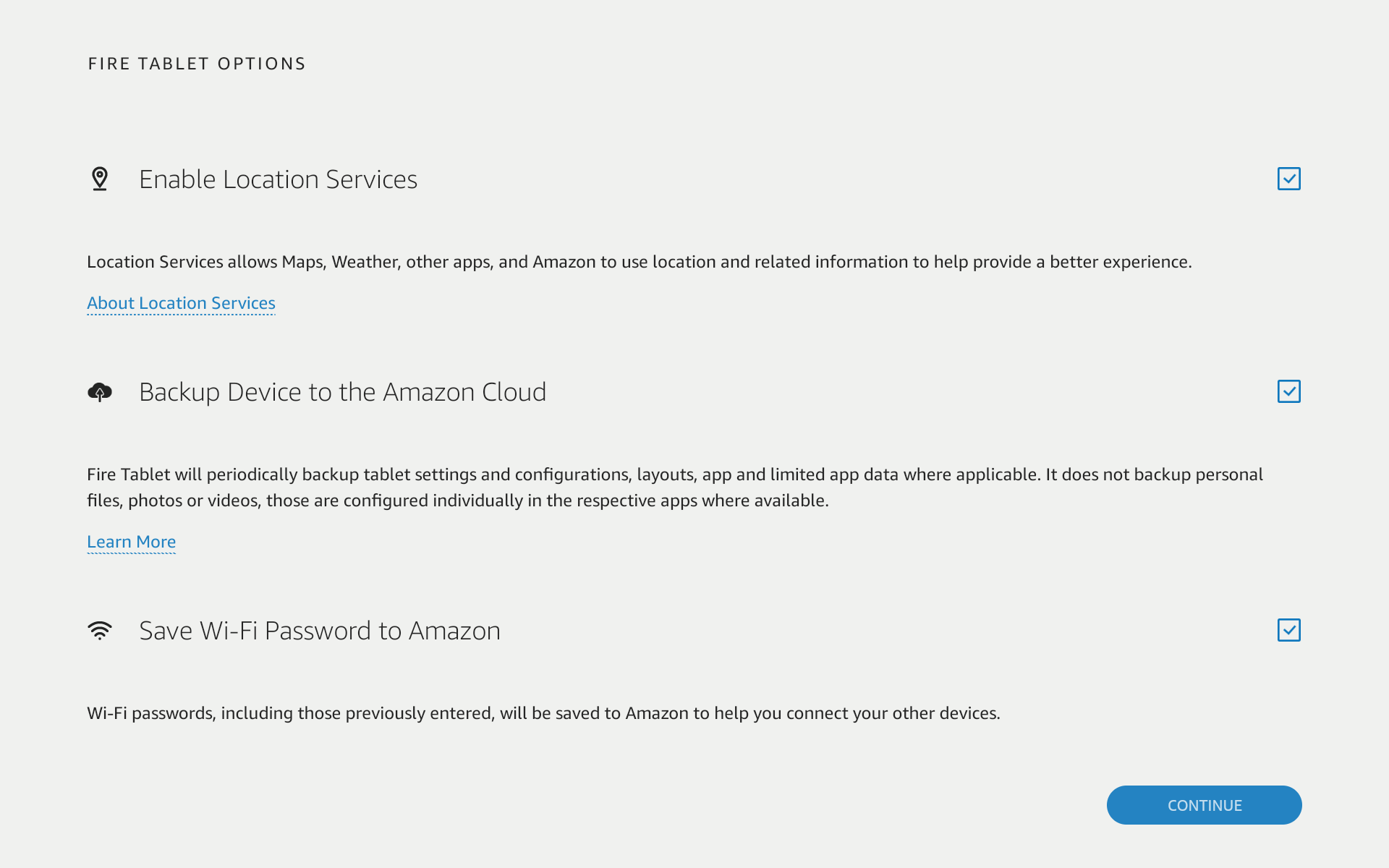
If you are concerned with your privacy, uncheck the three checkboxes, although cloud backup is pretty useful if your tablet fails and you need to replace it.
On the next screen you will be asked to set up a password or a pin. You can skip this step, but keep in mind that the tablet is linked to your Amazon account and if it's stolen, the thief might be able to access your data or even make purchases. It's best to set up a pin that you will be able to easily remember.
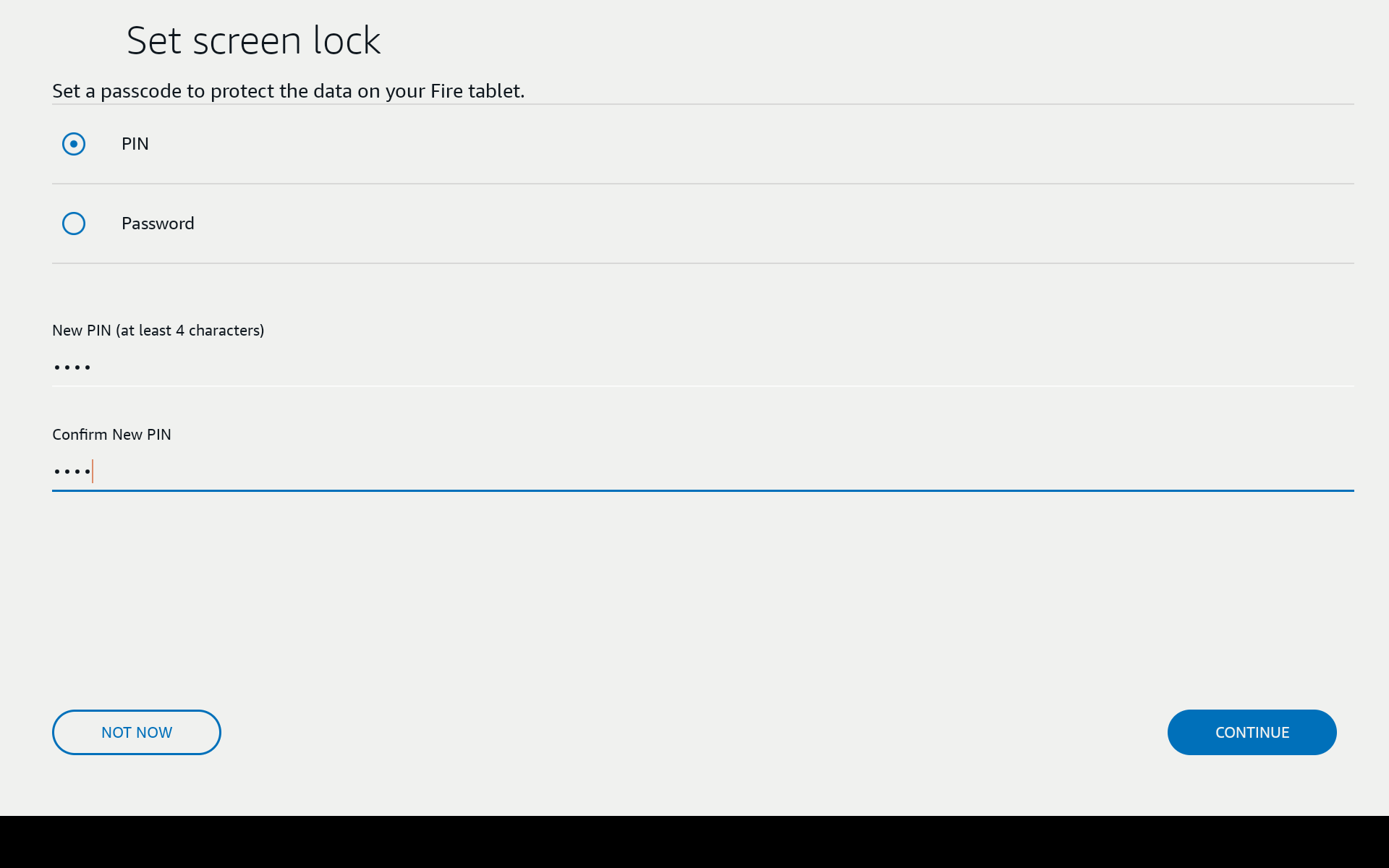
You will likely get several screens offering to install various apps, games, and streaming services. You might also get a screen asking to make the tablet kid friendly. I usually skip those, but it's really up to you.
Finally, you will get a prompt to enable Alexa hands free. If you do, you will be able to activate Alexa by saying "Hey Alexa, what time is it", "Hey Alexa, set timer to 5 minutes" or "Hey Alexa, play some quiet music". This does not matter for TouchDRO.
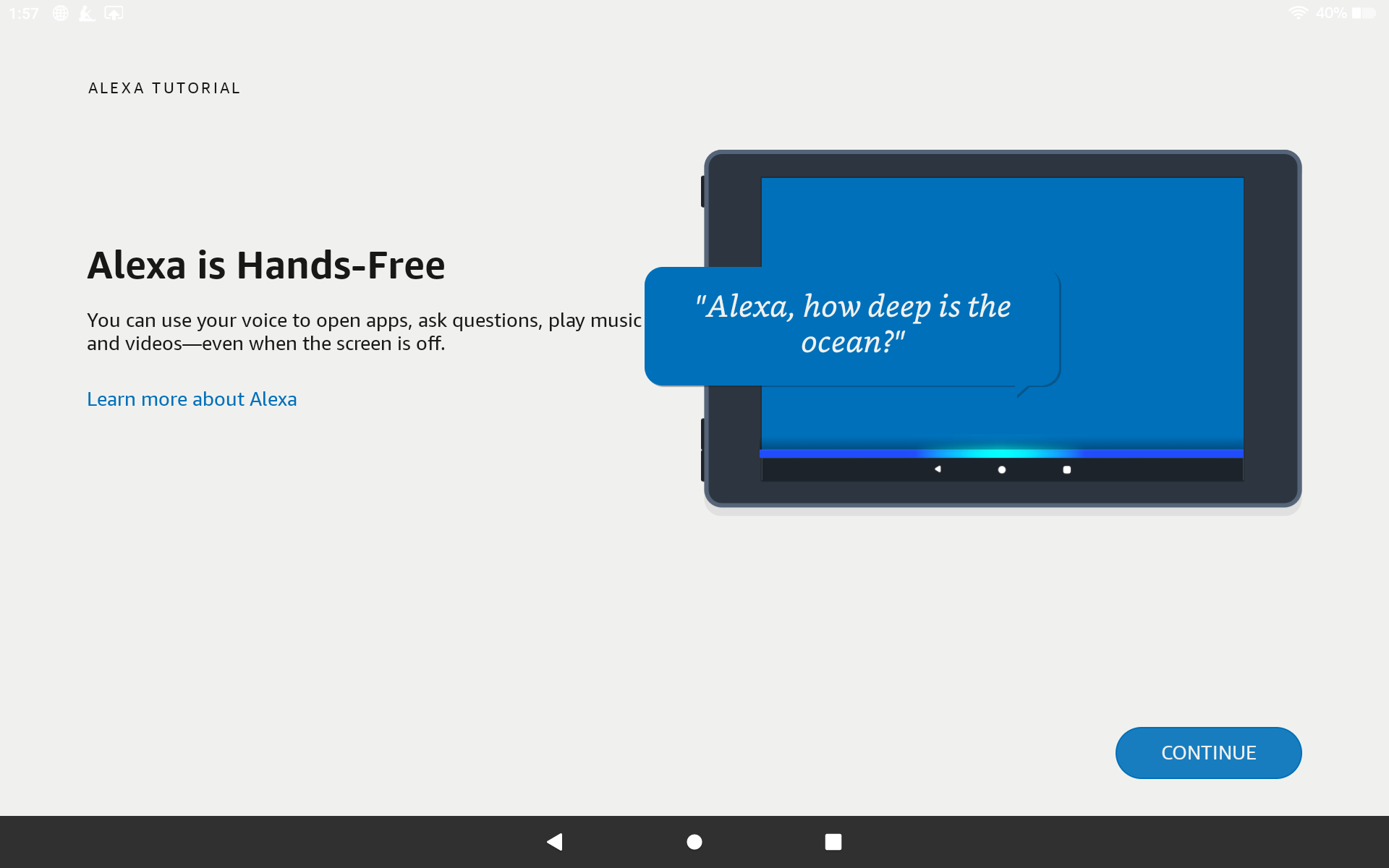
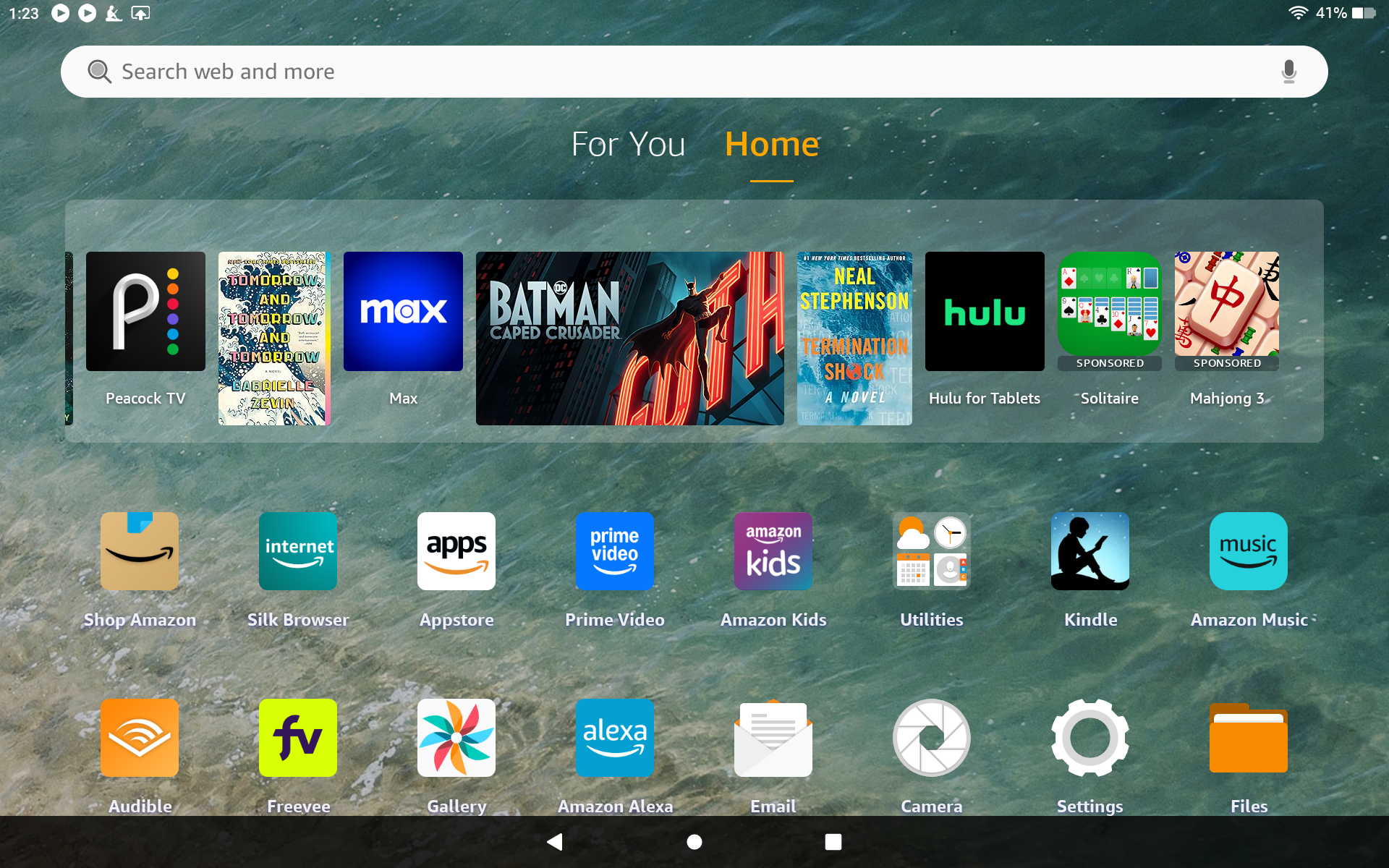
At this point you should be taken to the home screen, where you will see some content suggestions and installed applications list.
User Interface Tweaks
Before installing TouchDRO, let's switch to the "dark" mode and increase the font size. Tap the "Gear" icon on the home screen. It is the second button from the right in the bottom row on the above screenshot.
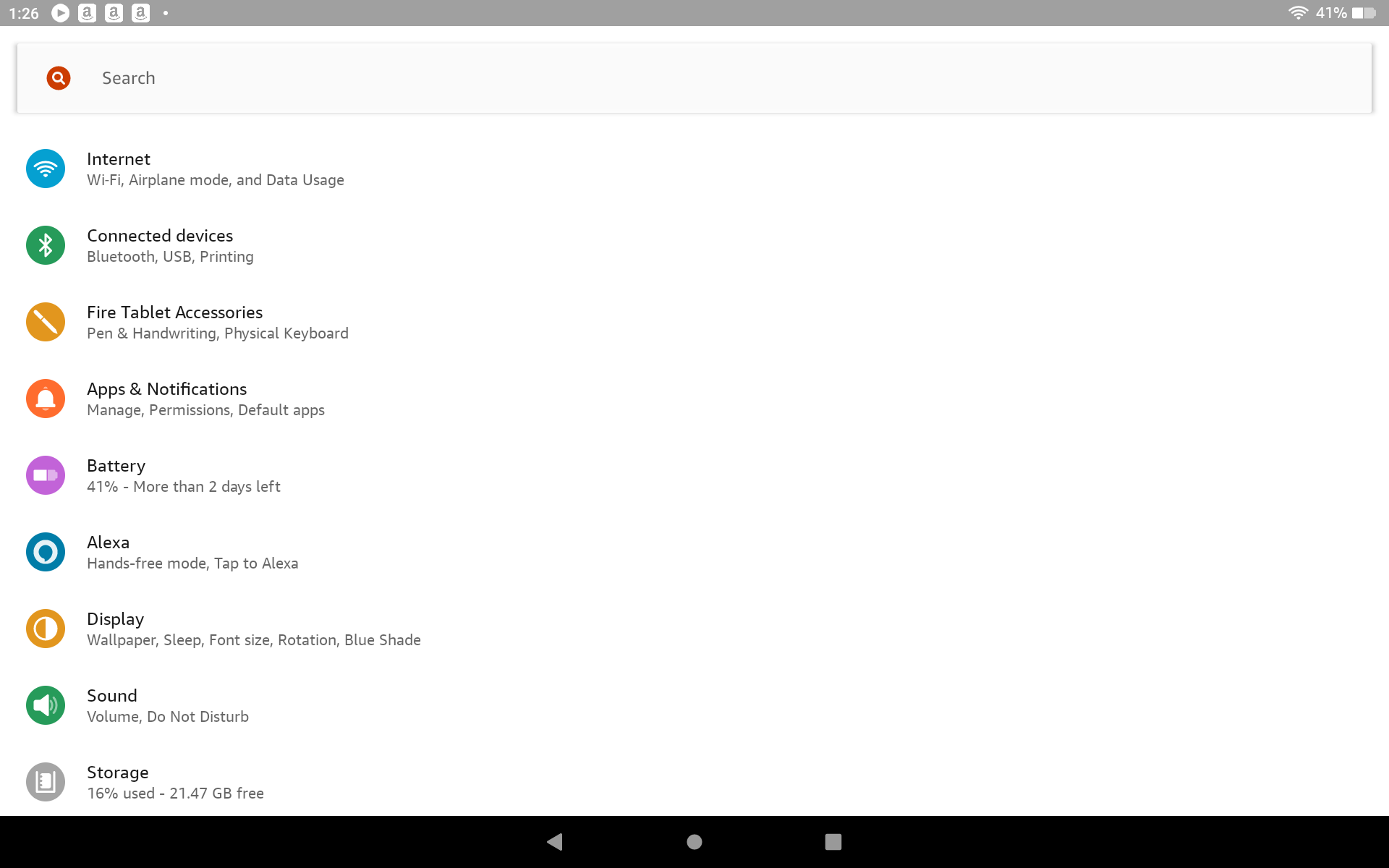
Tap "Display" to open the display settings page.
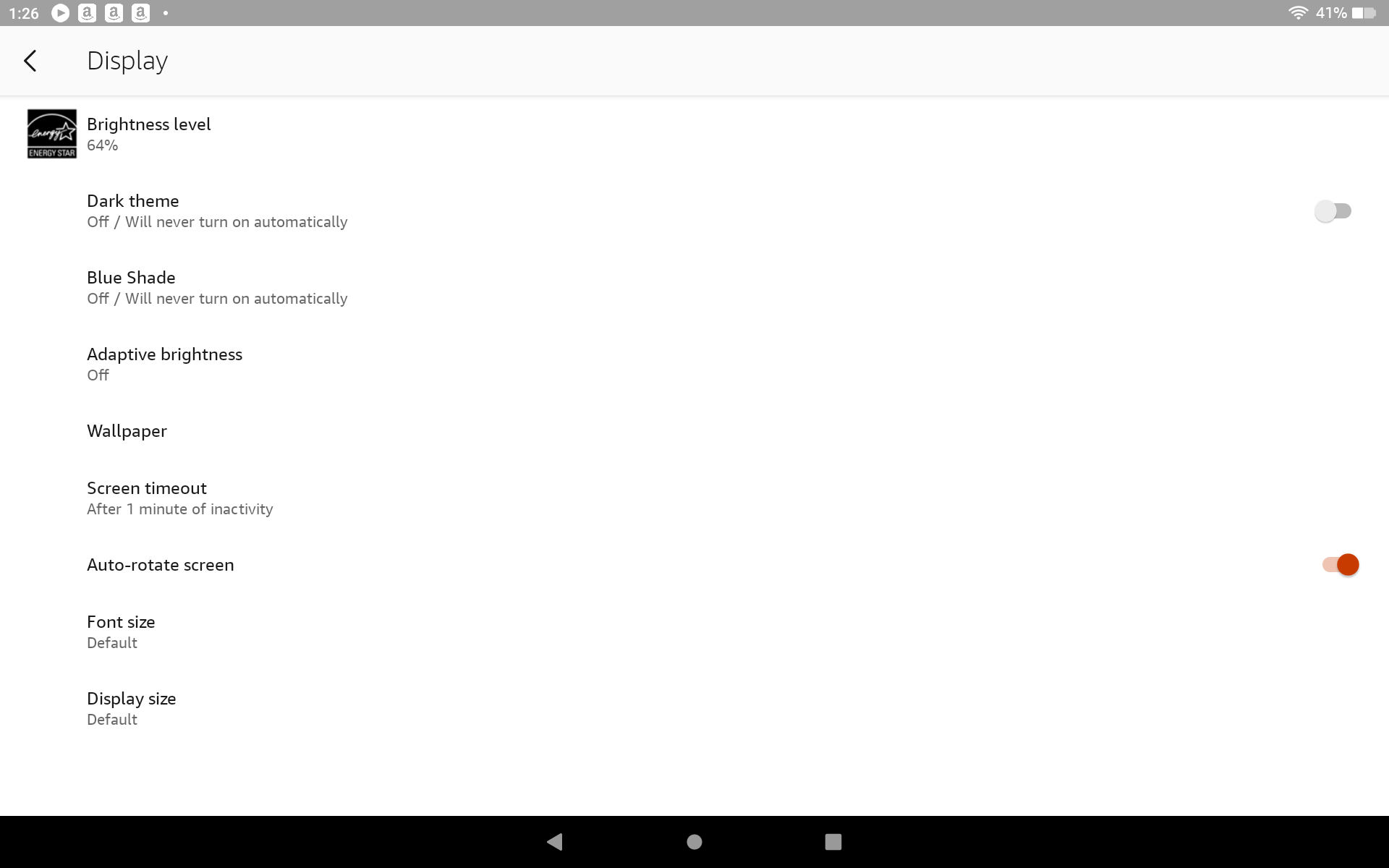
Tap the "Dark Mode" to switch to the dark theme - it works better for TouchDRO. Next, tap "Screen timeout" and change it from 15 seconds to 10 or 30 minutes.
Finally, you can increase the font size to make the icons and text in TouchDRO a bit larger and easier to see.
TouchDRO Installation
At this point you are all done with the tablet setup, so you can now install TouchDRO. There will be an Amazon App Store link on the home screen. It is the third icon in the top row in this screenshot.
Tap the icon to open the app store. When it opens, tap the magnifying glass button in the upper right corner.
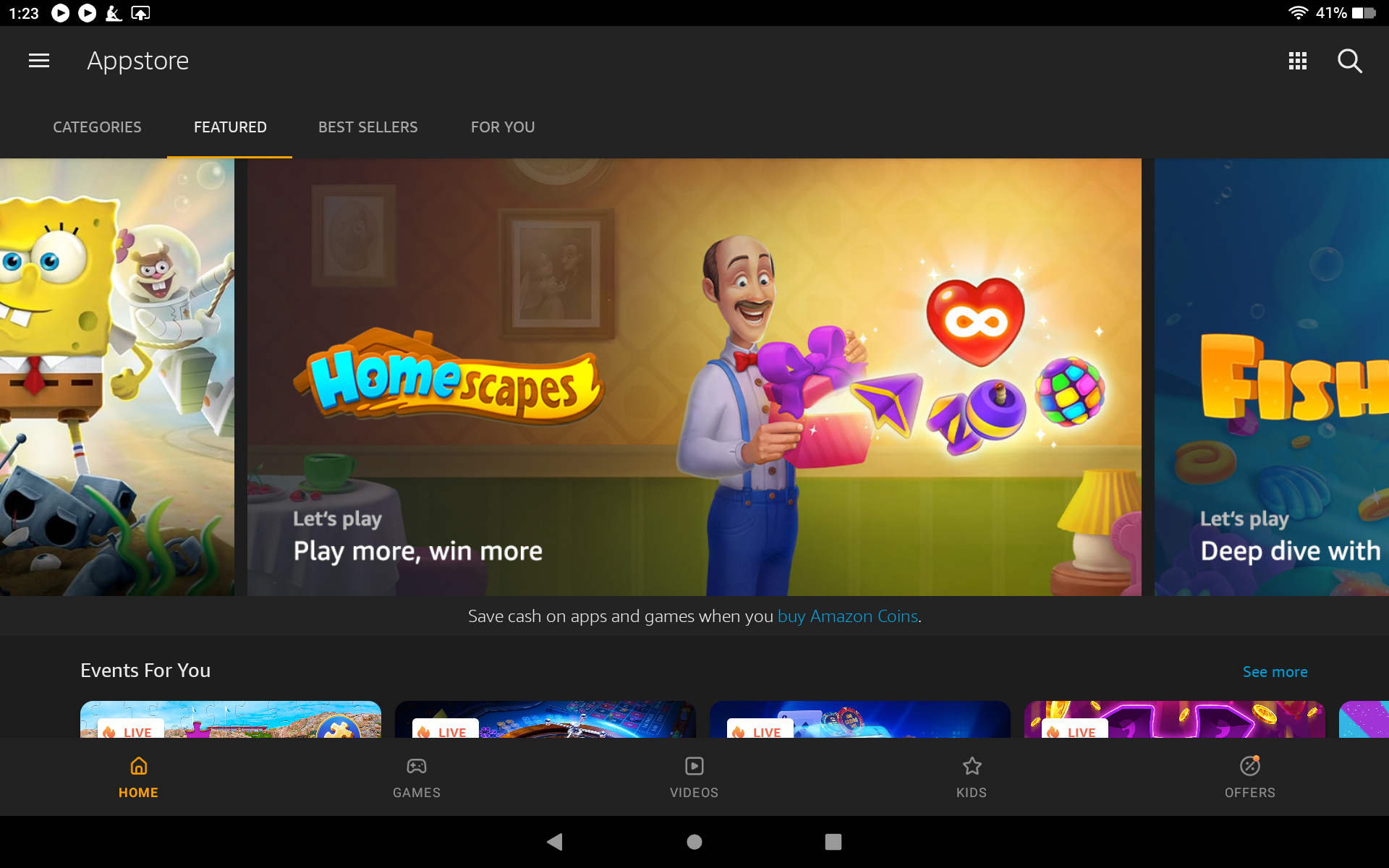
Type TouchDRO into the search box, and tap the search button on the on-screen keyboard. The search result will look similar to the screenshot below.
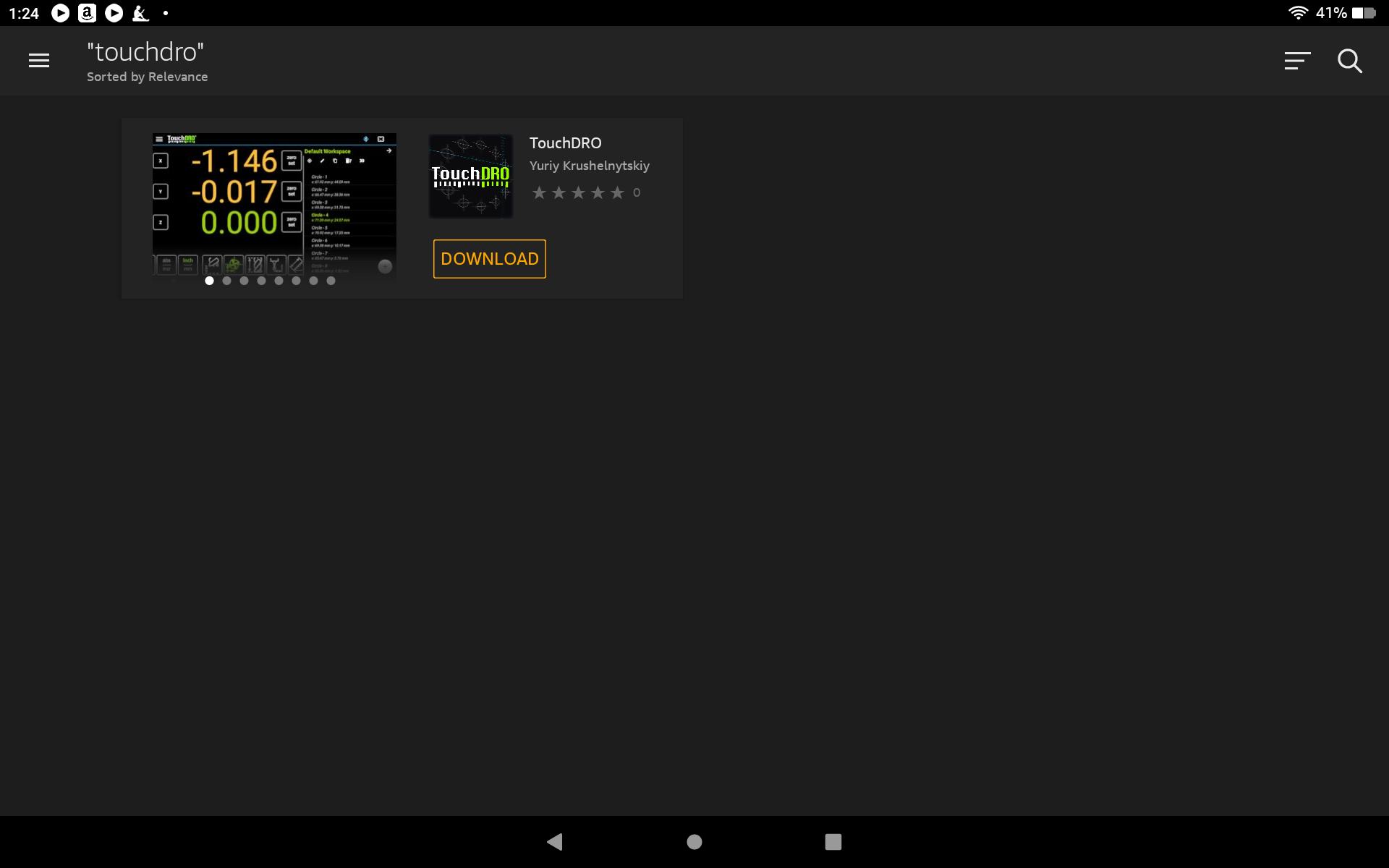
Tap the "Download" button and wait for the installation to finish. When done, go back to the home screen. If the version shown is older than the one on Google Play, that is the Appstore lag described at the top of this page, and side-loading the Play Store is the way around it.
TouchDRO icon will be added to the end of the application list. It will likely be off screen initially. Scroll down, touch and hold the TouchDRO icon and drag it closer to the top of the screen. When done, tap somewhere on the open space to exit the "drag" mode.
Now you can tap the TouchDRO icon to open the application.
The installation is done. On the first start TouchDRO opens the "Set Up TouchDRO" dialog, which asks for the machine type and can't be dismissed until you tap "Apply". Behind it is the main screen with grayed-out zeros, which is correct: the application is not connected to an adapter yet.
Next: the second half of Step 4 of the "Quick Start Guide", which walks through the "Set Up TouchDRO" dialog, then Step 5, pairing the tablet with the adapter. The settings that describe your scales come after that, in "TouchDRO Initial Configuration".