
The Sub-Datum Panel
The sub-datum panel opens along the right side of the main DRO screen. It holds the list of coordinates saved in the current workspace, the buttons that manage them, and the menu of commands that act on the workspace as a whole. This page covers each element of the panel in turn; the concepts behind saved coordinates are explained in the "Sub-Datums and Workspaces" guide.
The panel shares the right edge of the screen with two more tabs: "Machine Datums", covered in the "Machine Datums" guide, and "Tool Offsets". To open a panel, tap its tab; the readouts narrow to make room. To collapse the open panel, tap its tab again, and the readouts take the whole screen back.
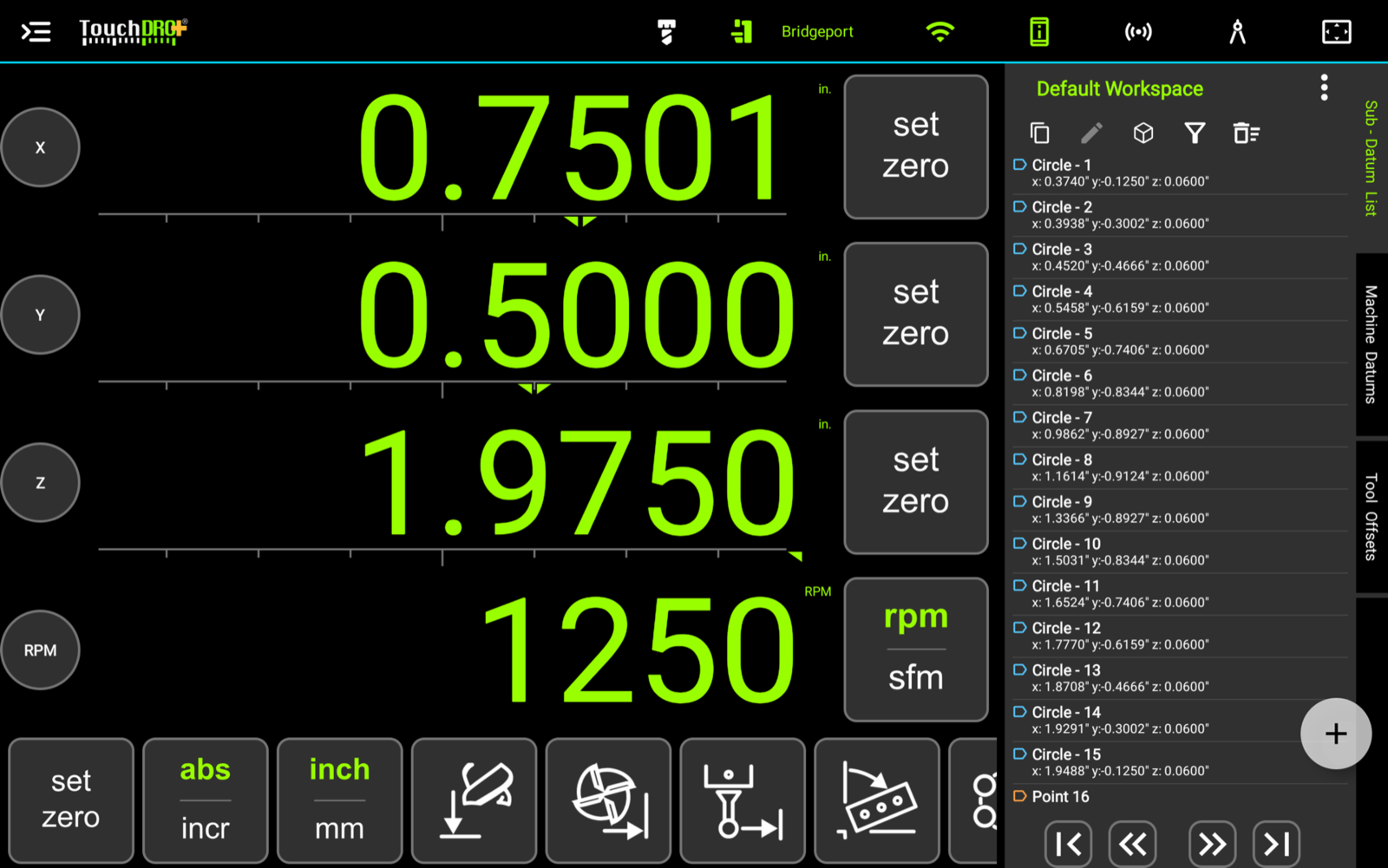
The Sub-Datum List
Most of the panel is taken up by the list of coordinates saved in the current workspace. The points are listed in the order they were added, and each row shows the sub-datum name and its coordinates for the relevant axes. A tagged point also carries a small colored tag mark on its row; tags are covered in the "Sub-Datum Tags and Filtering" guide.
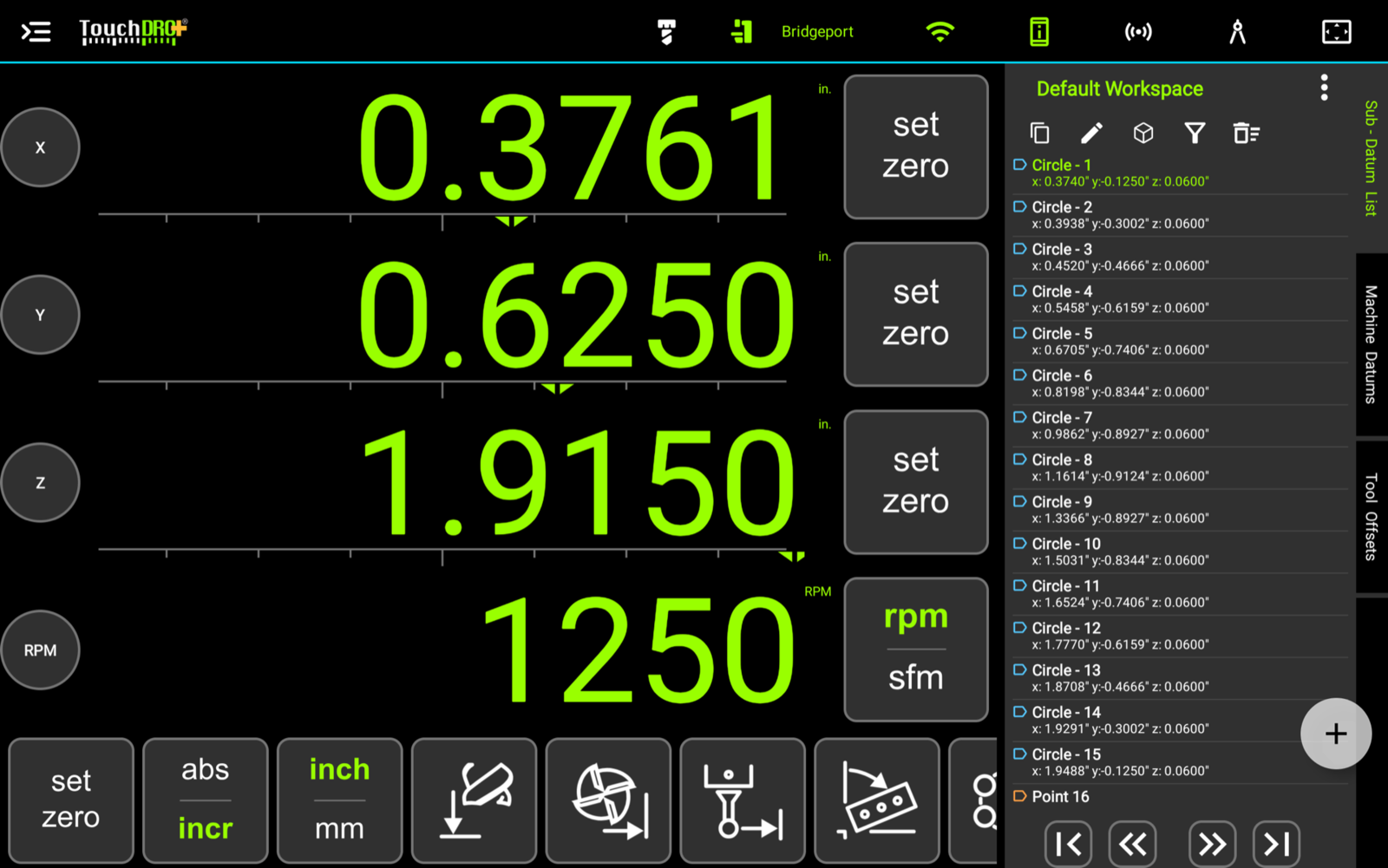
An active sub-datum becomes a temporary zero point, so the readout shows the distance left to travel to it. To activate a sub-datum, tap its row in the list. The active sub-datum is shown in green, and the inactive ones in white. To deactivate it, tap the row again, and TouchDRO will return the incremental origin to its previous value.
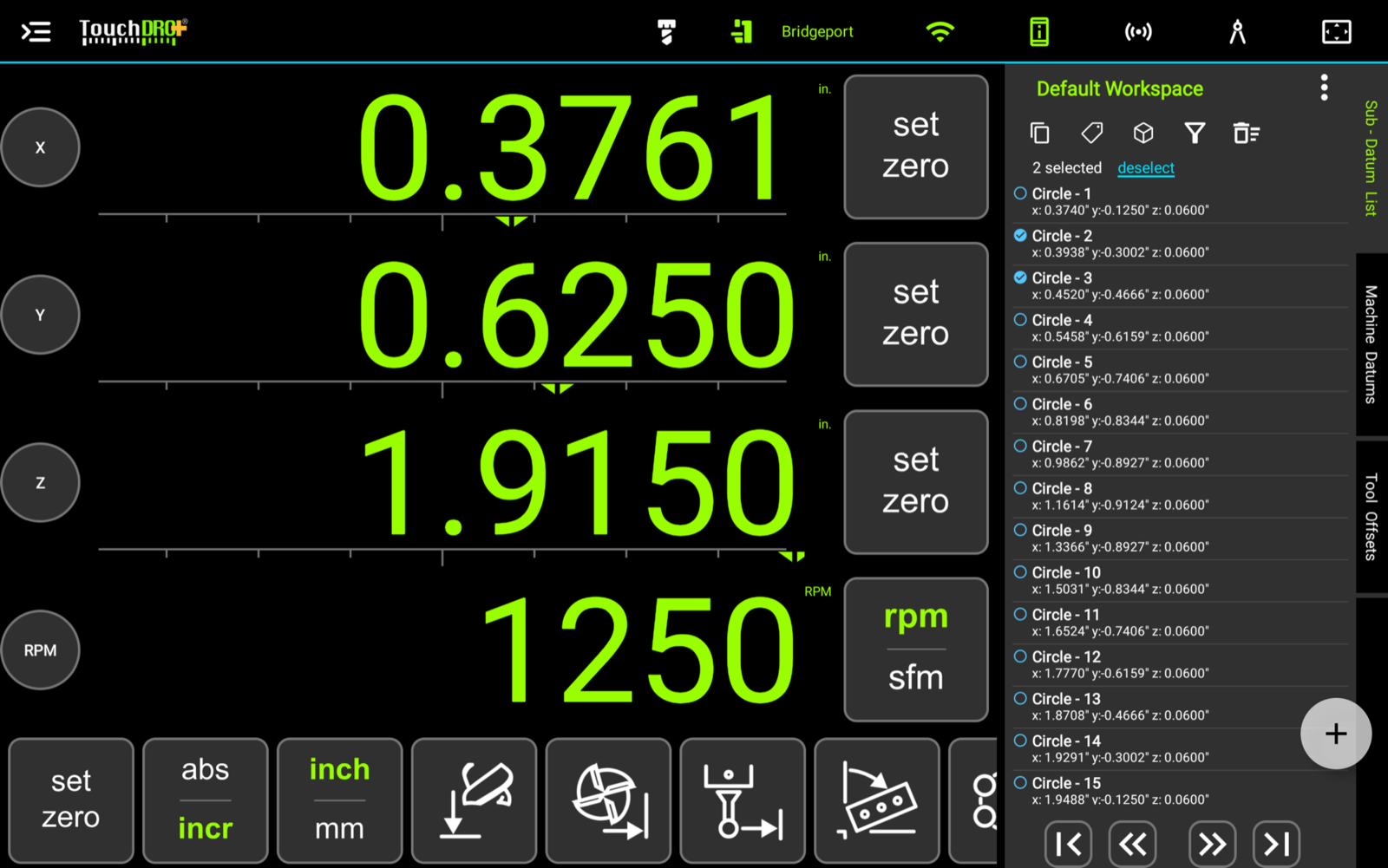
To select sub-datums without activating them, long-press a row. This will switch the list into multi-select mode, with a checkbox on every row and a count of the selection above the list; tap more rows to check them. The action buttons described below work on whatever is checked. To return to the normal mode, tap "deselect" beside the count.
Panel Header
The row above the list holds the workspace name and the menu button. Together they manage the workspace rather than any particular point.
Workspace Name
The workspace name appears in the upper-left part of the panel. To switch to a different workspace, tap the name. This will bring up the "Workspaces" dialog, covered in the "Workspaces and Coordinate Entry" guide.
Workspace Commands Menu
Commands that act on the workspace as a whole live in the "Workspace Commands" menu. To open it, press the menu ("⋮") button in the upper-right corner of the panel. The menu holds:
- "Align Absolute Origin to Sub-Datum" moves the workspace's absolute origin onto the active sub-datum. This is the command to use when machining several identical parts from one piece of stock, or on a pallet that holds several workpieces: store the 0/0 corner of each part, then move the origin from part to part as you work. It is covered in the "Workspace Commands" guide
- "Import from CSV File" and "Export to CSV File" move the workspace's coordinates in and out of CSV files, as described in the "Importing and Exporting Sub-Datum Coordinates" guide
- "Export to DXF File" writes the whole workspace out as a drawing a CAD package can open, as described in the "Exporting a Workspace to DXF" guide
- "Rotate Workspace", "Flip Across X Axis", "Flip Across Y Axis", and "Scale Workspace" rewrite the workspace's stored geometry in place; they are covered in the "Workspace Commands" guide
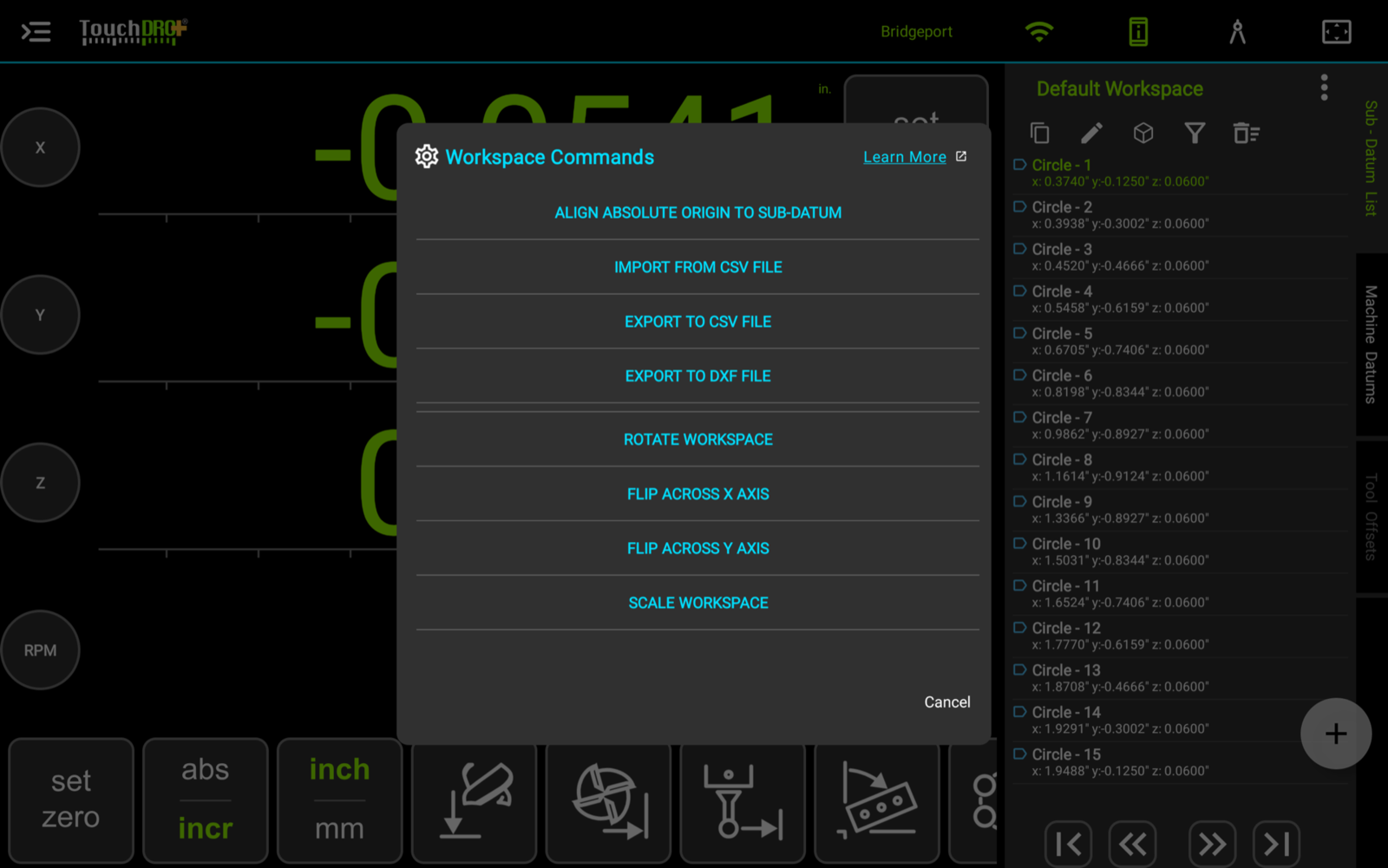
The four geometry commands apply to milling machine profiles; on a lathe the menu holds only the origin, import, and export commands.
Sub-Datum List Action Buttons
The action buttons appear in a row under the workspace name. Most of them work on the current selection, so they follow the same pattern: tap a point to activate it, or long-press and check several, then press the button.
Step and Repeat (Copy)
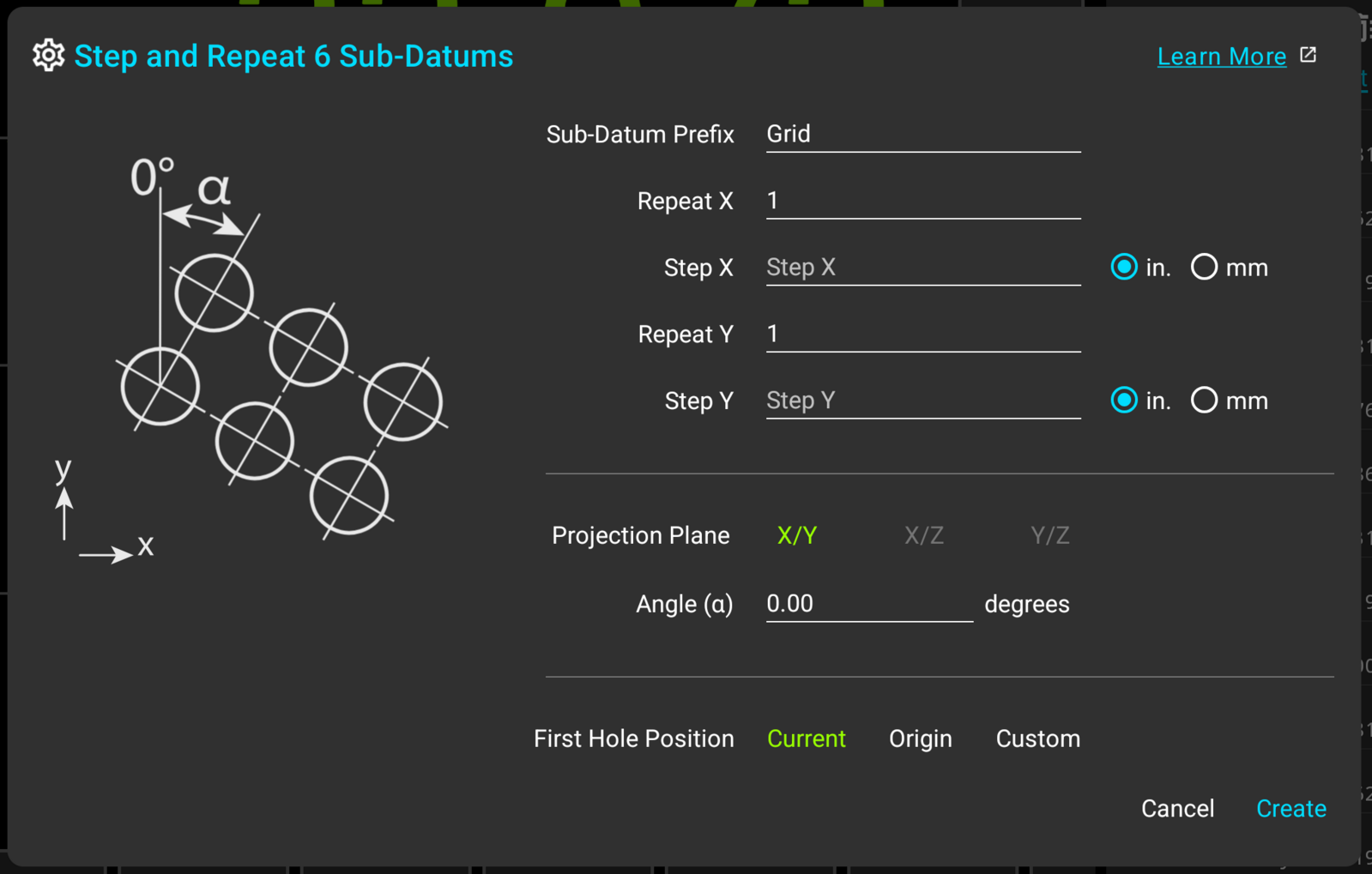
This function creates a repeating pattern from the selected coordinates; when nothing is selected, the whole workspace is used. The button brings up a dialog identical to the "Hole Grid" dialog, and the dialog title shows how many points are about to be repeated.
Edit Sub-Datum and Tag
With a single sub-datum active, the second button is "Edit". It brings up the "Edit Sub-Datum" dialog, which edits everything the row shows: the name, the note, the tag, and the coordinates. It is described in the "Workspaces and Coordinate Entry" guide.
With several sub-datums checked, the same button becomes "Tag" and applies one tag to all of them at once. Tags are covered in the "Sub-Datum Tags and Filtering" guide.
3D Toggle
On a milling machine, the 3D toggle switches sub-datum memory between 3-dimensional and 2-dimensional modes. In 3D mode a saved coordinate includes the X, Y, and Z values; in 2D mode only X and Y are saved. Activating a sub-datum in 2D mode will not affect the Z axis, regardless of whether the stored point carried a Z value.
The 2D mode exists for jobs where Z has to hold still while the table moves from point to point. To spot, drill, and countersink a set of holes to a consistent depth, you would set the Z origin once for the drill, work through every hole, then set it once more for the countersink. In 3D mode TouchDRO would reset the Z origin each time a new sub-datum is selected; in 2D mode the Z origin stays put.
Tag Filter
To open the tag filter panel, press the filter button. The panel reduces the list, and the graphical view with it, to the points being worked on; it is covered, along with the tags it filters by, in the "Sub-Datum Tags and Filtering" guide.
Delete
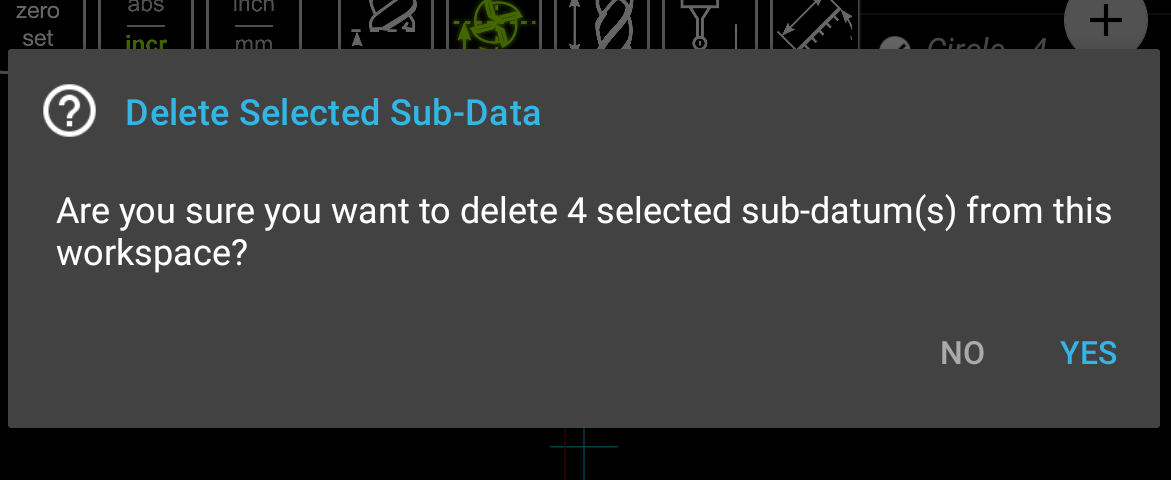
The "Delete" button, at the right end of the row, removes saved coordinates from the workspace. It brings up a confirmation dialog first, shown below. When a subset of points is checked in the list, only the checked coordinates will be deleted; with nothing checked, the whole list will be.
Add Sub-Datum Button
The "Add Sub-Datum" ("+") button floats in the lower-right corner of the screen, and it is how new coordinates get into the list. It stays visible and functional whether the panel is open or collapsed, so the current position can be saved without opening the list.
A short press stores the current position as a new sub-datum. What is stored depends on the machine type and the 3D toggle:
- In lathe mode - the values of the X and Z axis readouts
- On a milling machine in 3D mode - the values of the X, Y, and Z readouts
- On a milling machine in 2D mode - the values of the X and Y readouts
A double tap brings up the "Add Custom Sub-Datum" dialog, where a coordinate can be typed in rather than captured from the readouts. A long press brings up the "Add Sub-Datum" menu, which holds the current-coordinate and custom-coordinate commands along with the pattern functions. The menu and the entry dialogs are covered in the "Workspaces and Coordinate Entry" guide.
Navigation Buttons
The navigation buttons at the bottom of the panel provide a way to step through the saved coordinates in order, activating each point in turn. This is useful when the same set of points is worked through several times, such as spotting every hole and then drilling every hole. The buttons are shown in landscape orientation; in portrait the panel has no room for them.
The outer buttons activate the first and the last point in the list; the inner pair steps to the previous or the next one. Stepping past either end wraps around to the other end, and guide lines are skipped.
To work through the list without touching the screen, long-press the next (or previous) button. The button icon will change to show that the automatic mode is on: each time the quill is raised at the active point, TouchDRO will advance to the next point on its own. The advance only happens when the spindle is within 0.01 in (0.25 mm) of the active point, so raising the quill anywhere else, to clear chips for instance, won't skip ahead. To turn the automatic mode off, long-press the button again, or step manually with either button.
Graphical View Display
The graphical view provides a visual representation of the current workspace: a 2-dimensional projection of the spindle or cutter position in relation to the saved coordinates. A broad overview is provided in the "Graphical View Display" guide.
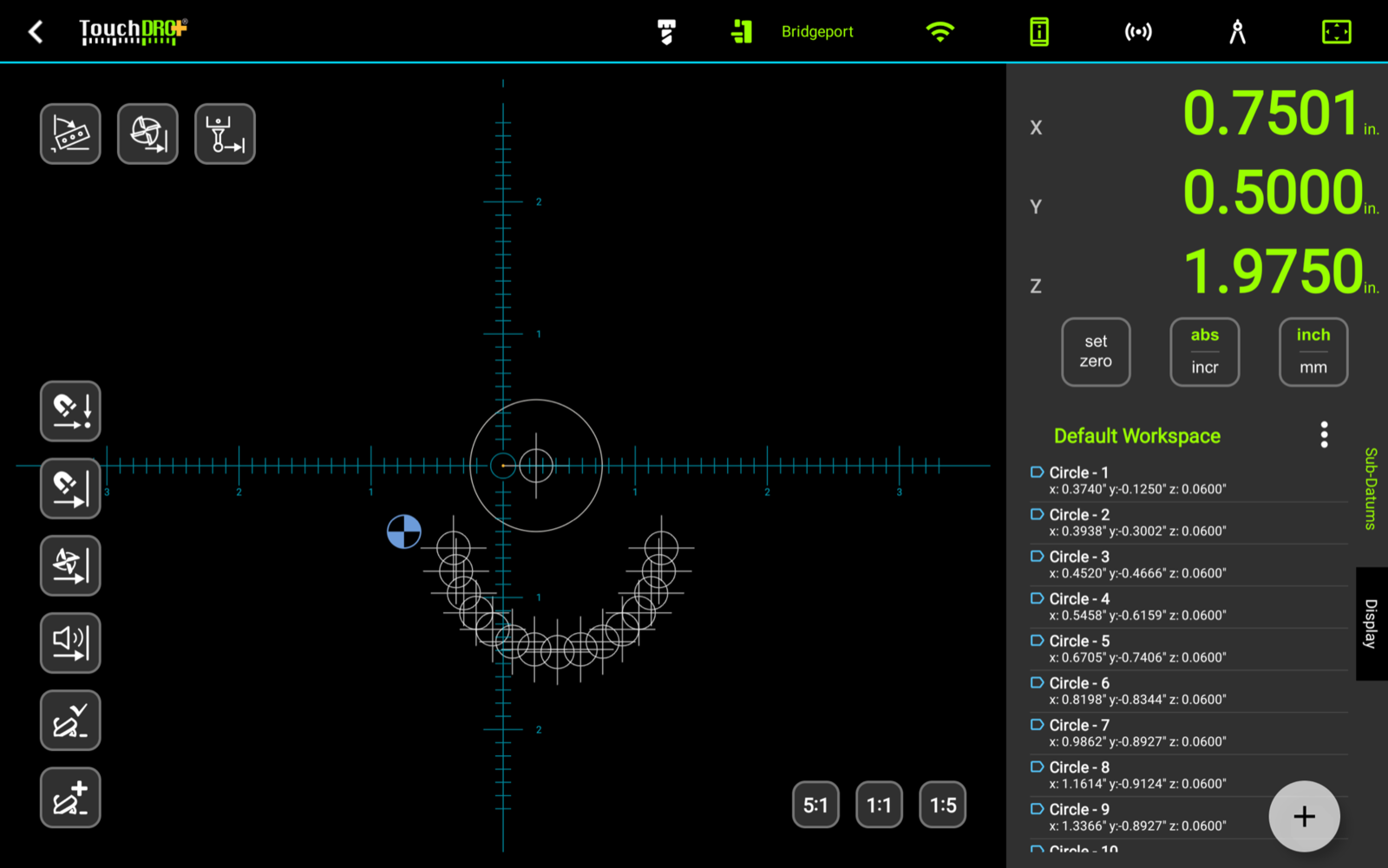
On a complex workpiece with many saved coordinates, this view makes the sub-datum memory much easier to navigate. Furthermore, in this mode TouchDRO can automatically select the nearest coordinate as the spindle approaches it, so a set of holes can be worked through without touching the screen.