
Machine Datums
Some locations on a machine never move: the fixed jaw of the vise, the center of the rotary table, the ledge of a workstop, a comfortable spot for tool changes. On a traditional DRO they get re-found with an edge finder every time a job needs them, because the readout has nowhere to keep a position that outlives the job. Machine datums are that place. Indicate the fixture once, store it as a machine datum, and from then on setting up on that fixture is one tap instead of a round of indicating.
Machine Datums and Machine Coordinates
A machine datum is a stored position in the machine's own coordinate system: the absolute distance from machine zero, unaffected by any workspace origin. Machine datums belong to the machine profile, so the same list is available no matter which workspace is loaded, and the workspace geometry commands, such as rotate and flip, never touch them. The coordinate systems themselves are covered in the "DRO Coordinate Systems and Datums" guide.
A machine datum can define one, two, or three axes. A vise corner is usually X and Y, a workstop can be a single axis, and a datum that includes Z can carry a reference height, such as the top of a tool setter.
The Machine Datum List
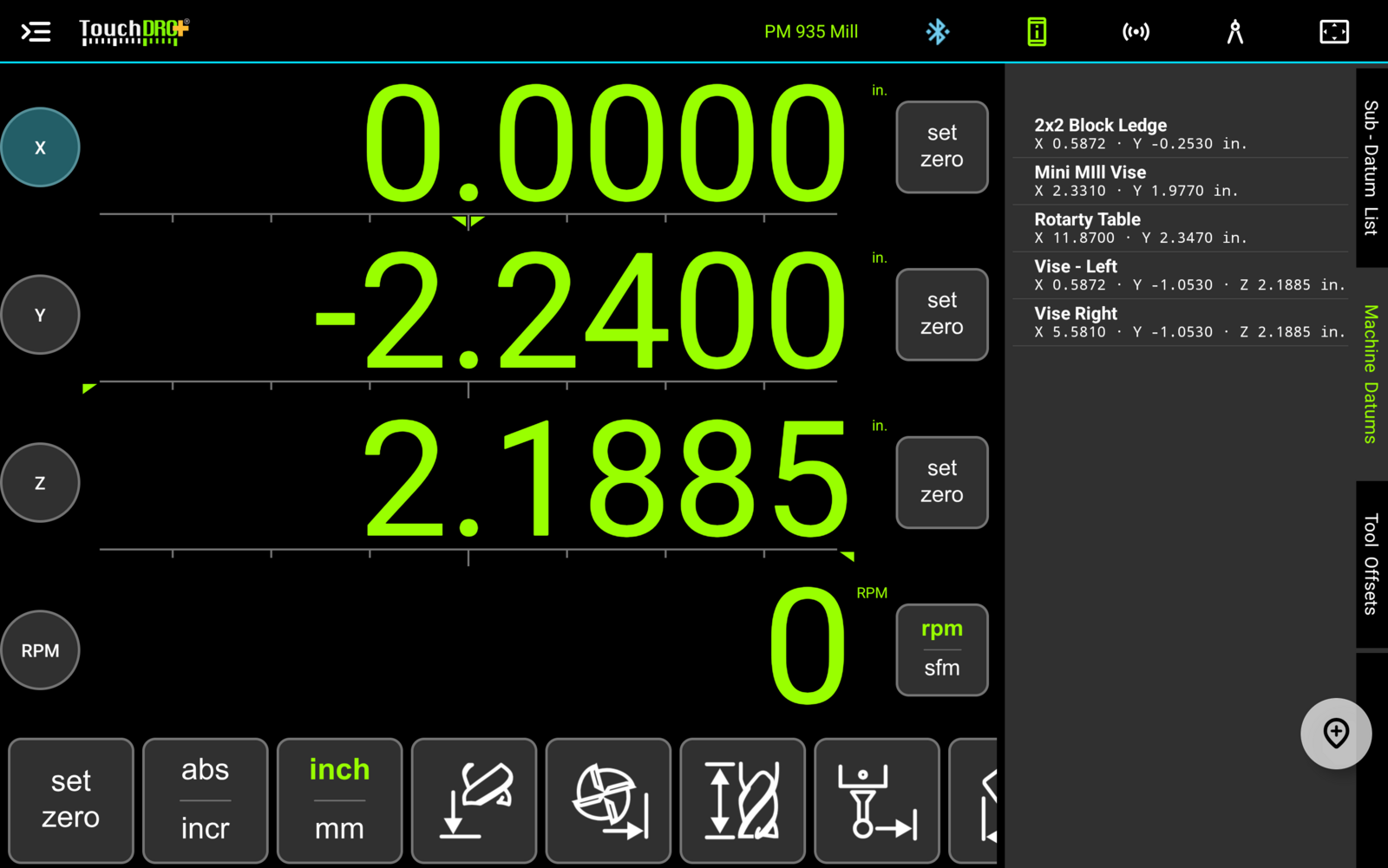
The machine datum list lives on its own tab, between the "Sub-Datum List" and "Tool Offsets" tabs on the edge of the sub-datum panel. Each row shows the datum's name and the axes it defines, along with the stored values and their units, and the list is sorted by name.
Creating a Machine Datum
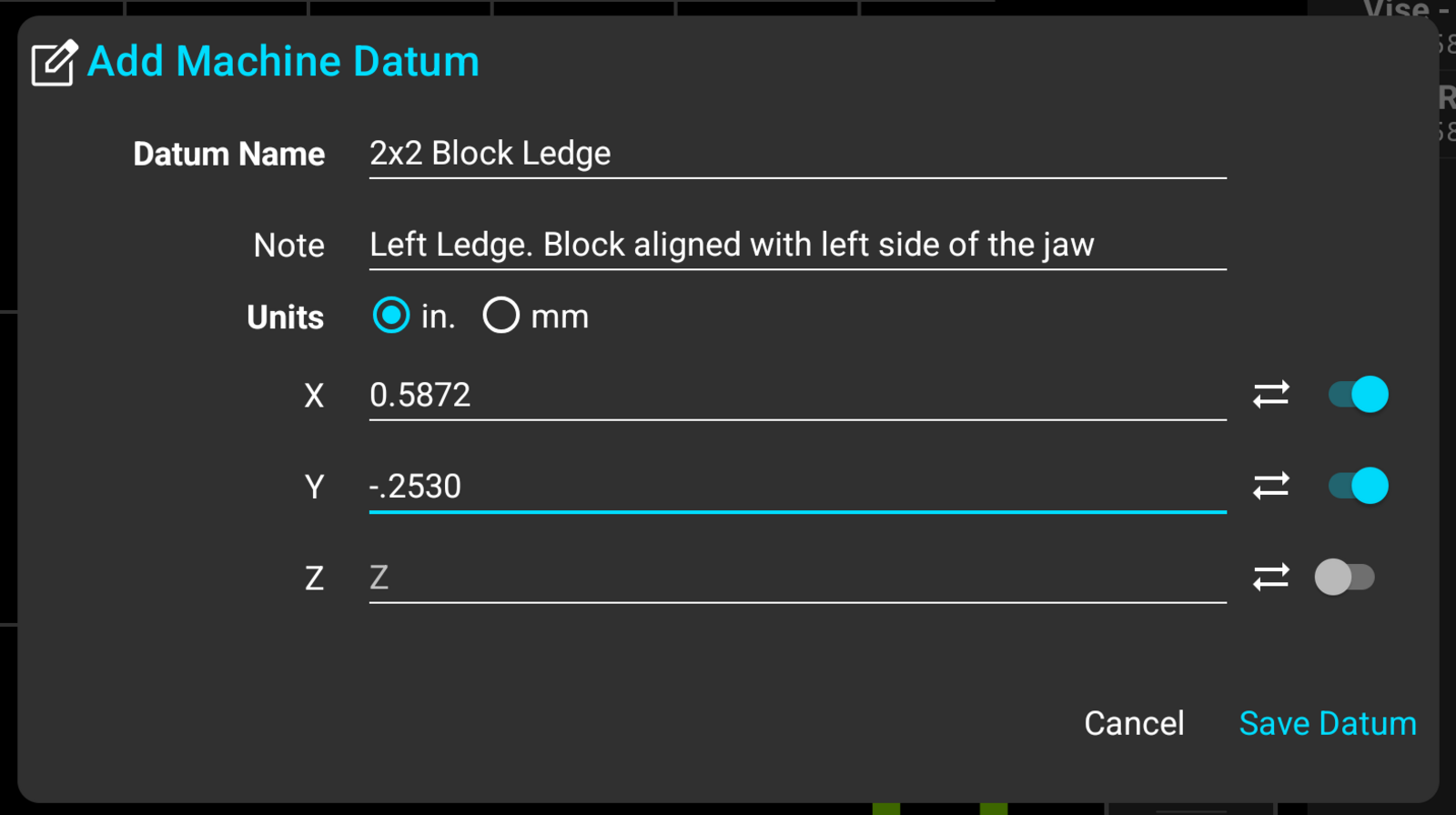
The round button in the lower-right corner of the tab stores the current position as a machine datum. A short press brings up the "Add Machine Datum" dialog pre-filled with the current position, so the datum can be named and adjusted before it is saved. A long press saves the current position immediately.
The dialog works the same way as the "Edit Sub-Datum" dialog described in the "Workspaces and Coordinate Entry" guide: enter the name, optionally add a note, select the units, and enter or adjust the coordinates. The note is worth filling in; "Left edge of the static jaw" answers exactly the question you will have a month later. Each axis row has an on/off toggle, so the datum stores only the axes that mean something. To store a two-axis vise corner, switch the Z row off.
Recalling a Machine Datum
To recall a machine datum, tap its row in the list. TouchDRO will ask for confirmation and then move the current workspace's absolute origin so the datum reads zero. The confirmation shows how far every position on screen is about to shift.
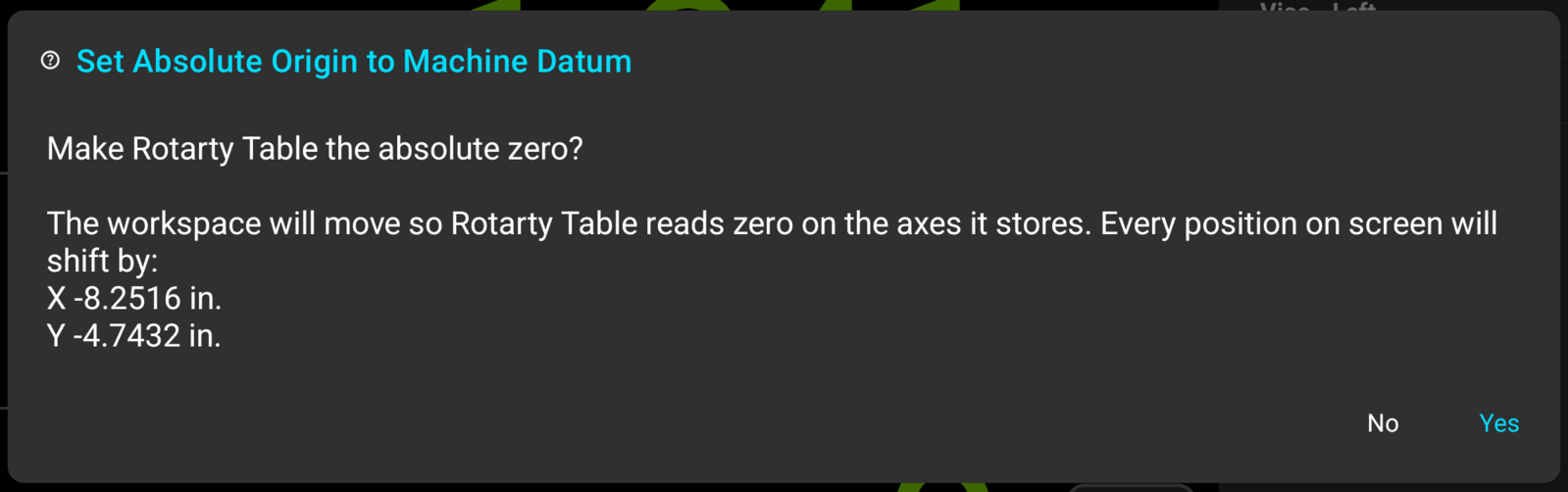
The recall applies only to the axes the datum defines. Recalling a two-axis vise corner sets the X and Y origins and leaves Z alone, so a Z reference established with a tool setter survives a move to a different fixture. The incremental origin is not affected either.
Because everything in the workspace is measured from the absolute origin, the stored coordinates ride along: recall the datum for the second vise, and the whole part layout is ready to machine at the new location.
Editing and Deleting
To edit or delete a machine datum, long-press its row and choose "Edit Machine Datum" or "Delete Machine Datum" from the menu. The edit dialog is the same as the add dialog, and deleting asks for confirmation first. There is no multi-select; the list is meant to stay short enough that it doesn't need one.
Machine Datums and Machine Zero
A machine datum is only as durable as the machine zero it is measured from. If machine zero moves and is not re-established, every stored datum silently points somewhere else, and nothing on screen will look wrong. Machine datums therefore work best on a setup where machine zero survives a power cycle:
- Scale reference marks are the best option: after a power loss, the "reference-mark routine" re-establishes machine zero exactly. The "adapter feature comparison" shows which TouchDRO adapters support scale referencing.
- Without referencing, the machine needs a repeatable home position. Move the spindle or table to it and "reset the input counters" there from the "DRO Adapter Details" dialog.
- Battery-backed capacitive scale setups sidestep the problem, since the scales keep counting through a power loss.
Machine datums are stored with the machine profile. If a profile moves between machines, name the datums for the machine they belong to, "PM935 Vise" rather than "Vise", so a datum is never recalled on the wrong iron.
Putting Machine Datums to Work
The two workflows below show how the pieces fit together, from an empty list to a part moving between machines.
Building the Datum Library
This is done once per machine, and again only when a fixture moves:
- Establish machine zero. On scales with reference marks, run the "reference-mark routine"; on scales without them, move the machine to a repeatable home position, such as a hard stop, and "reset the input counters" there.
- Locate the fixture's reference feature using the "Edge Finder (Indicate Workpiece)" function, a center finder, or a dial indicator.
- Move the spindle over the located position.
- Switch to the "Machine Datums" tab.
- Press the round button in the lower-right corner.
- Enter the name and, optionally, a note. Z is optional; if you set your Z reference with a tool height setter, leave the Z row switched off.
- Repeat for the other fixtures on the machine.
If your jobs move between machines for second and third operations, repeat this on each machine. Since the datums share one list, name them by machine so they can't be mistaken for one another.
Moving a Part Between Fixtures and Machines
With the library built, locating a part never involves an edge finder again:
- Create a workspace for the part and fill it with the part's coordinates.
- Mount the part in the vise or on the fixture.
- On the "Machine Datums" tab, tap the fixture's datum and confirm. The part is now located: the absolute origin sits at the datum, and every coordinate in the workspace is measured from it.
- Machine the first operation.
- For the next operation, take the part and the tablet to the second machine. Mount the part and connect the tablet.
- Tap that machine's datum, and continue where you left off. Same workspace, same coordinates, and nothing was re-indicated.