
Importing and Exporting Sub-Datum Coordinates
On a complex job it is worth entering the sub-datum coordinates into the digital readout ahead of time and checking the whole set against the drawing before any metal is cut. A wrong hole position discovered in the middle of a part is an expensive way to catch a typo. Typing dozens of coordinates on the tablet is tedious, though, so TouchDRO Plus can import them from a CSV file: you enter the coordinates into an Excel or Google Sheets spreadsheet, export the sheet as a comma-separated file, and load the whole set at once.
The tablet comes off the machine, so the coordinates don't have to be typed standing at a manual mill or lathe. You can build the file at a desk, check every bolt hole pattern and hole position against the print, and bring the finished set to the digital readout. Importing and exporting sub-datums are TouchDRO Plus features; once the points are in, they behave like any other coordinates in sub-datum memory.
The same file works in the other direction. A part with no drawing can be measured on the machine with an edge finder or a touch probe, saved point by point, and exported as a CSV file to draw against in CAD.
Building the File in a Spreadsheet
The import file is an ordinary comma-separated file with a header row, which is what Excel and Google Sheets produce when a sheet is saved or downloaded as CSV. It has six columns, named exactly name, note, tags, x, y, and z. The column names are matched case-insensitively, and their order in the file doesn't matter.
- name is what the point will be called in the sub-datum list. It's required; a row with a blank name is skipped.
- note is free text and optional. It will show under the name in the list.
- tags is optional and holds one tag, which is the label the point is filed under in the sub-datum list. The column keeps its plural name, but a point carries a single tag, so the cell holds a single word. A tag can't contain a space; use an underscore or a hyphen instead. A cell holding two words separated by a space imports as the first word, and the import warning names what was kept and what was dropped.
The coordinates are measured from the workspace origin, the same part zero you indicate on the machine, rather than from anything the machine itself knows. Build the file the way the drawing is dimensioned, set that origin on the part, and the two agree.
Every row needs a value in at least one coordinate column, and any column can be left empty. A row with all three of x, y, and z is a full position; a row with one coordinate is a guide line along that axis. A z-only row is the one exception on a mill, where the graphical view is the X/Y plane and a z-only guide has nothing to draw on. On a lathe the y column can sit empty or be left out of the file, and a y column carrying values means the file was written for a mill, so TouchDRO refuses the whole file rather than quietly dropping those coordinates. Hole positions exported from a CAD drawing can be pasted straight into the coordinate columns.
Numbers use a period as the decimal separator. A comma decimal, such as 6,3500, is not read as a number, so the row will be skipped.
The milling machine example below can be downloaded and opened in a spreadsheet: example-sub-datums-mill.csv. The last two rows carry a single coordinate each, so they arrive as guide lines rather than points.
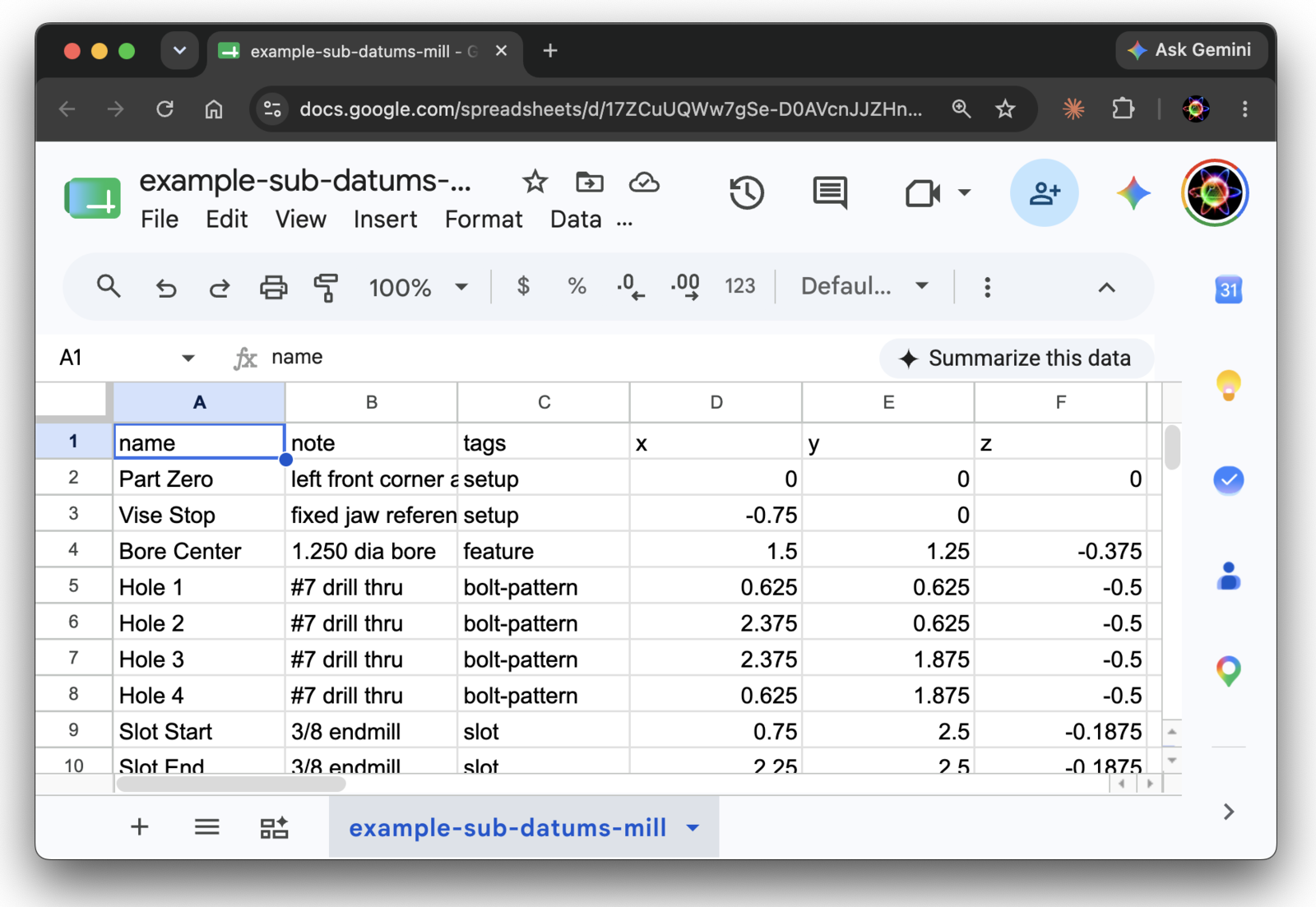
name,         note,                               tags,          x,        y,        z
Part Zero,    left front corner at top of stock,  setup,         0.0000,   0.0000,   0.0000
Vise Stop,    fixed jaw reference,                setup,         -0.7500,  0.0000,
Bore Center,  1.250 dia bore,                     feature,       1.5000,   1.2500,   -0.3750
Hole 1,       #7 drill thru,                      bolt-pattern,  0.6250,   0.6250,   -0.5000
Hole 2,       #7 drill thru,                      bolt-pattern,  2.3750,   0.6250,   -0.5000
Hole 3,       #7 drill thru,                      bolt-pattern,  2.3750,   1.8750,   -0.5000
Hole 4,       #7 drill thru,                      bolt-pattern,  0.6250,   1.8750,   -0.5000
Slot Start,   3/8 endmill,                        slot,          0.7500,   2.5000,   -0.1875
Slot End,     3/8 endmill,                        slot,          2.2500,   2.5000,   -0.1875
Left Edge,    X guide off the finished edge,      guide,         -0.1875,  ,
Front Edge,   Y guide off the finished edge,      guide,         ,         -0.1875,
The lathe version of the same idea uses the x and z columns, and can be downloaded as well: example-sub-datums-lathe.csv.
name,          note,                           tags,     x,        y,        z
Chuck Face,    datum face after facing,        setup,    0.0000,   ,         0.0000
Shoulder,      step down to 1.250 dia,         feature,  0.6250,   ,         1.2500
Groove Start,  3/32 wide relief groove,        feature,  0.5000,   ,         2.0000
Groove End,    3/32 wide relief groove,        feature,  0.5000,   ,         2.0938
Thread Start,  3/4-16 UNF major dia,           thread,   0.3750,   ,         0.2500
Part Off,      leave 0.030 for facing,         finish,   0.0000,   ,         3.7500
Finish Dia,    X guide at 1.250 dia,           guide,    0.6250,   ,
Face Datum,    Z guide at the finished face,   guide,    ,         ,         0.0000
Units
The first lines of a file TouchDRO exported are comment lines starting with #, which record what the file is, the format version, the machine type, and the units the coordinates are written in. A file built by hand in a spreadsheet does not need them.
The import dialog always shows a Units choice, "Millimeters" or "Inches", set to whatever unit is actually being used to read the file. When the file declares its unit, that is the unit used. When it doesn't, TouchDRO assumes the current display unit and says so in a notice at the top of the dialog: "The file doesn't say which unit it uses, so the current display unit is assumed."
To read the file at the other unit, change the Units choice. TouchDRO will re-read the file at the chosen unit, and if that contradicts what the file declared, the notice turns into a warning. The unit choice disappears once the rows are committed.
Importing the File
To open the "Workspace Commands" menu, tap the menu button at the top of the Sub-Datum List panel, then tap "Import from CSV File". Android's file picker will open so you can point it at the CSV file.
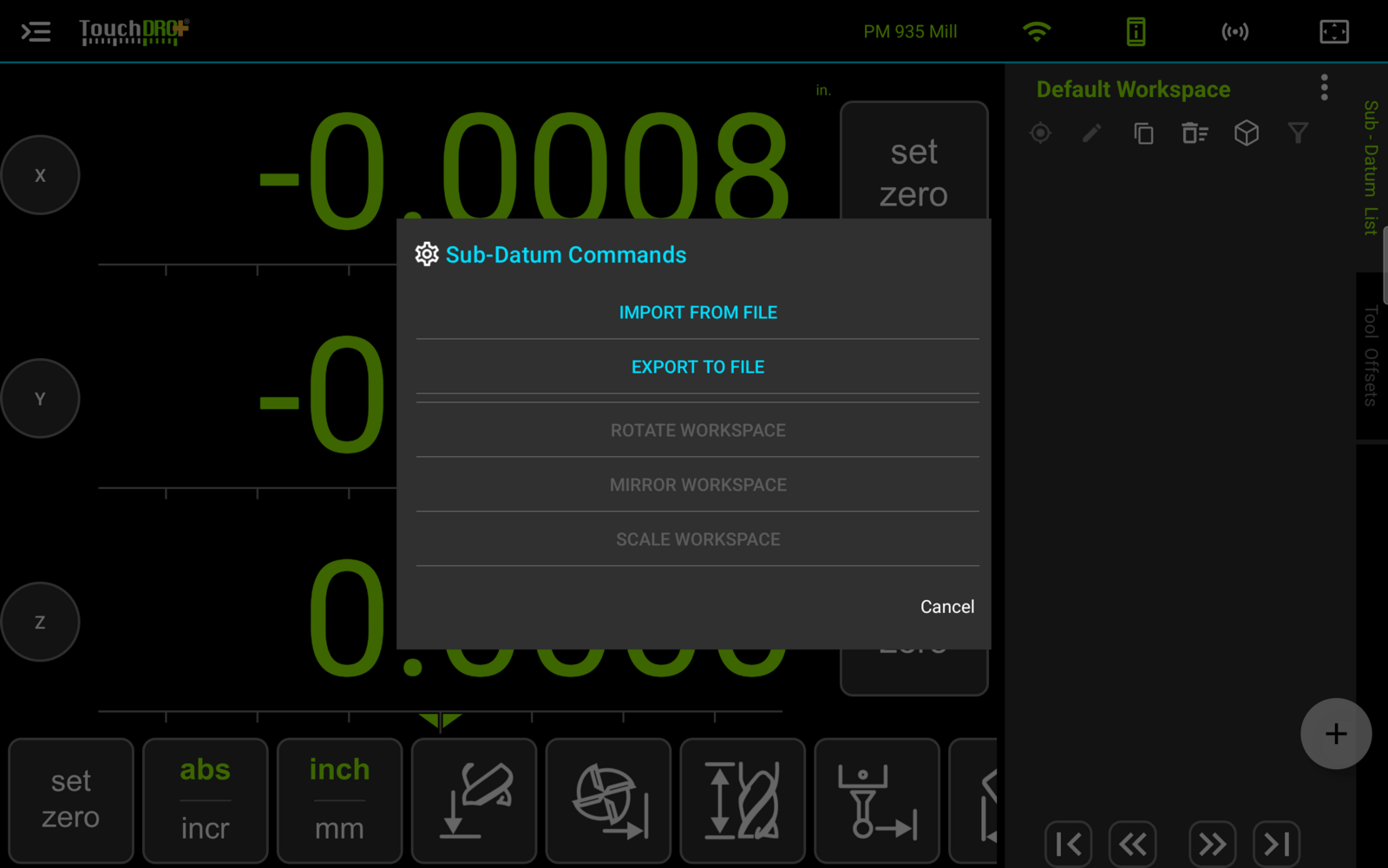
TouchDRO reads the file and shows a preview before anything is written. Nothing changes in the workspace until the import button at the bottom of the dialog is tapped, so the preview is a safe place to look the file over.
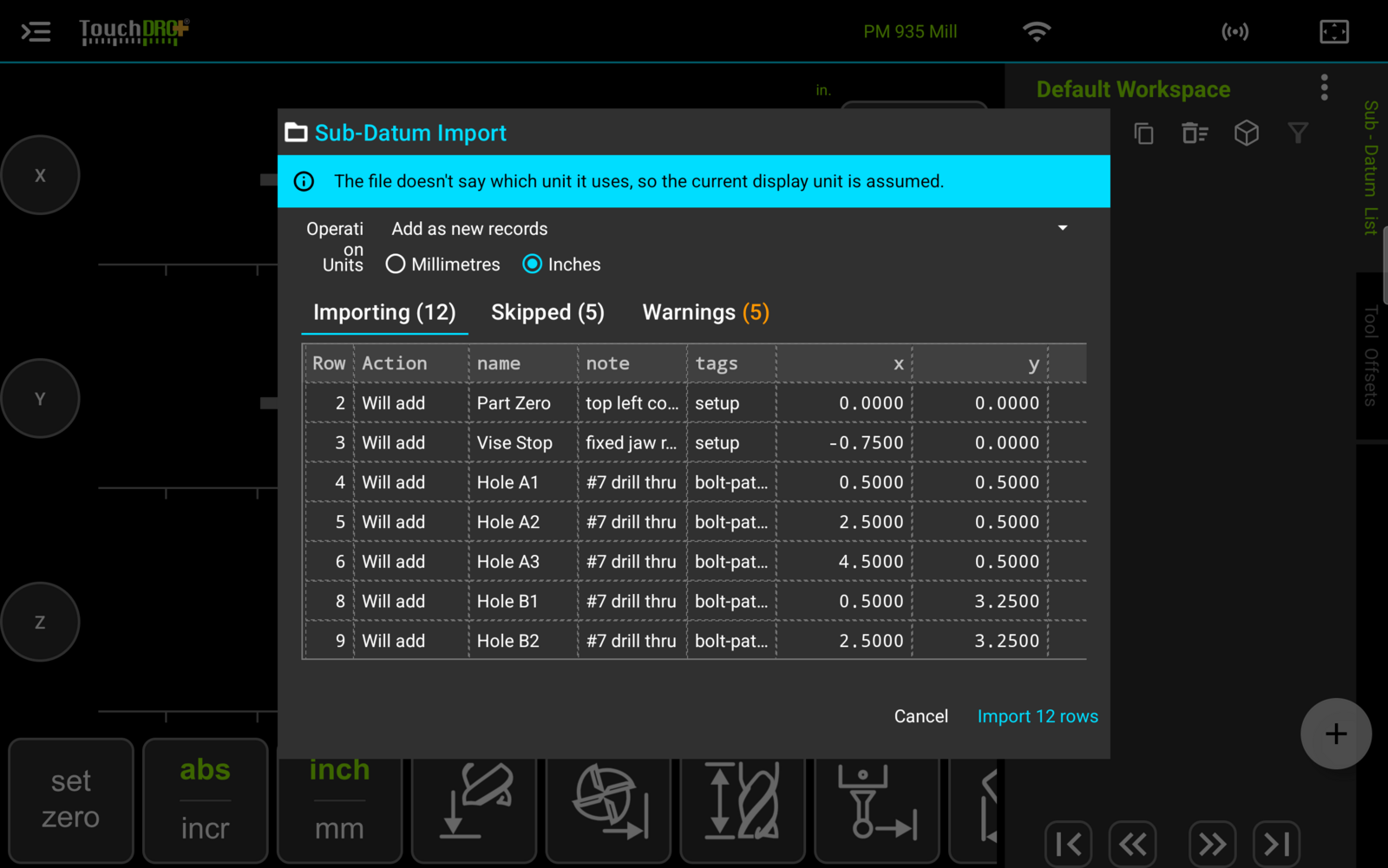
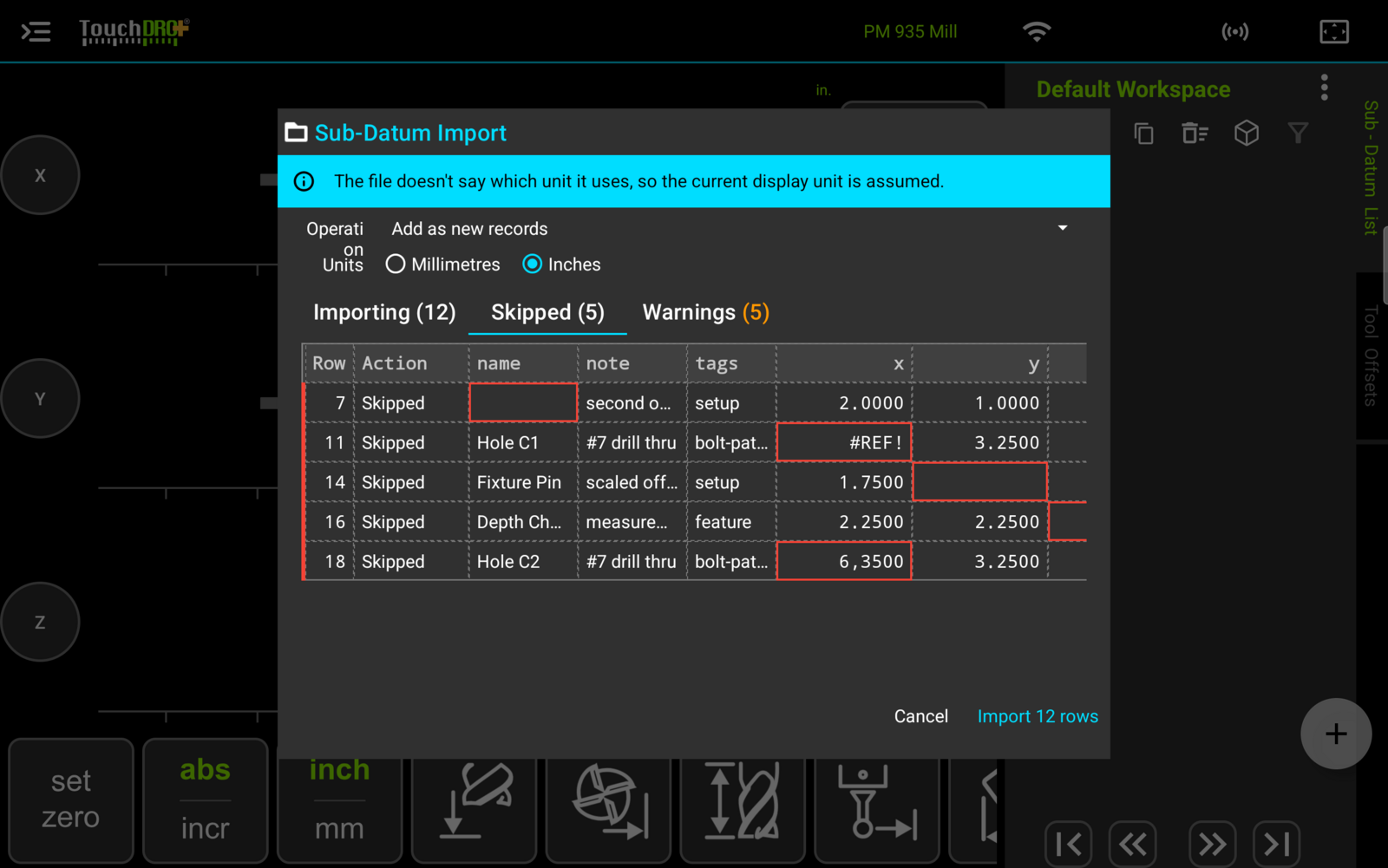
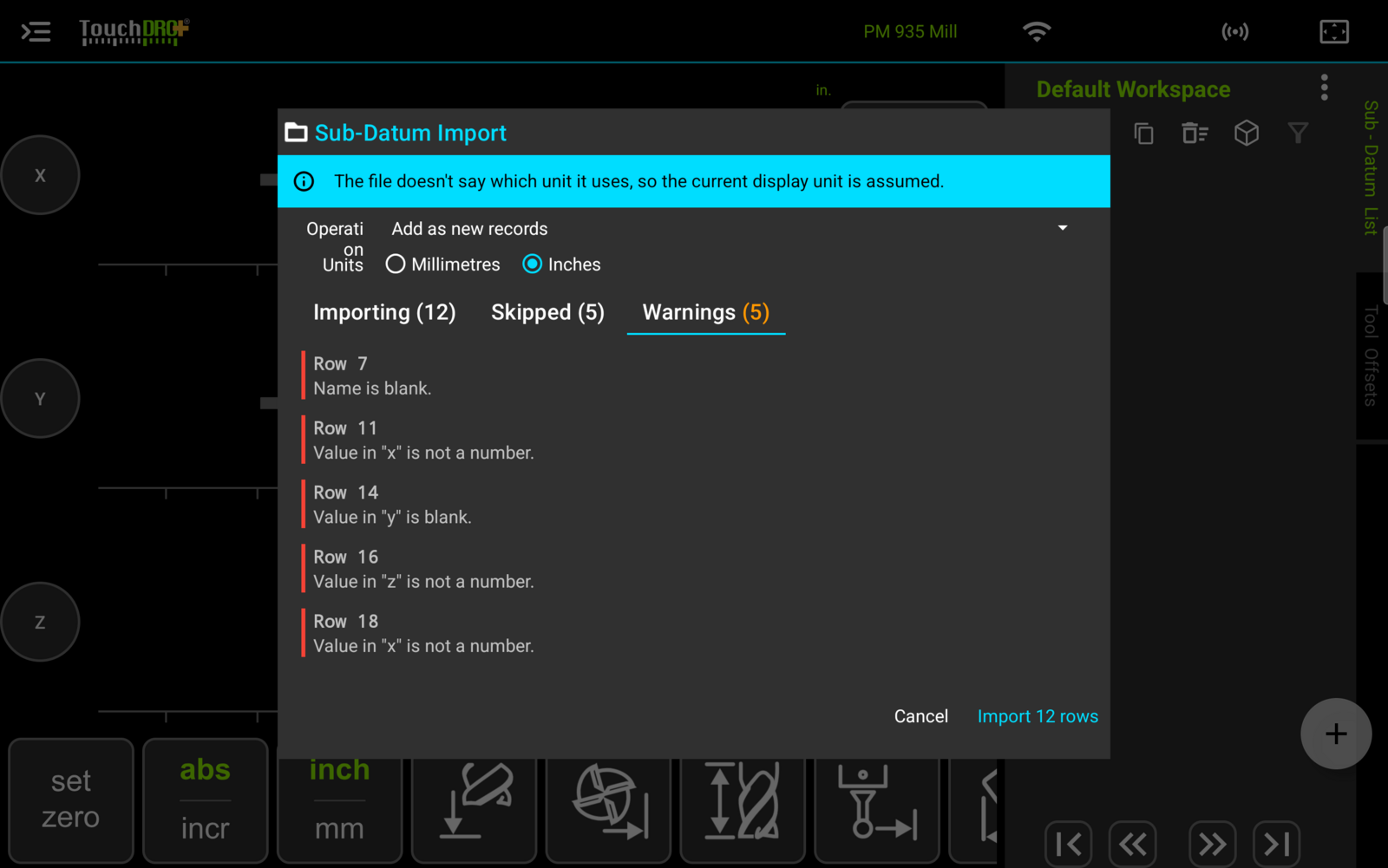
The preview has up to three tabs, each with a count. "Importing" lists the rows that will be written and the action each one will take. "Skipped" lists the rows that won't be, with the offending cell outlined. "Warnings" explains why, one line per row. A row can land in "Skipped" without anything being wrong with it: under the operation that adds only points you don't already have, a row matching a point in the workspace is skipped on purpose, and raises no warning.
Before tapping the import button, check the operation at the top of the dialog. It decides what happens to points the workspace already holds, and the section below covers the four choices.
The import button names the count, for example "Import 12 rows". After the import, a summary will state what happened, for example "Imported 12 sub-datums. 5 rows were skipped."
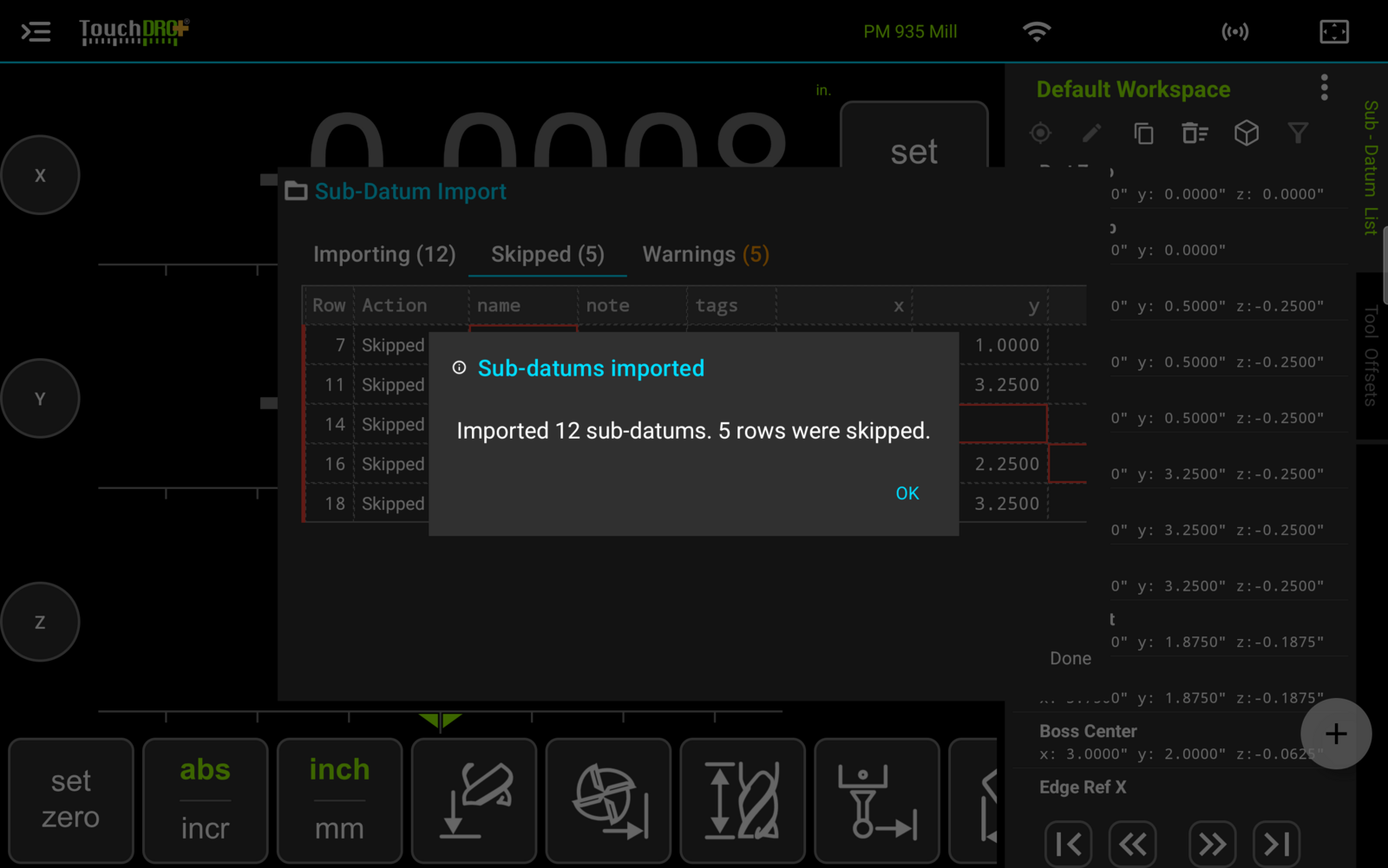
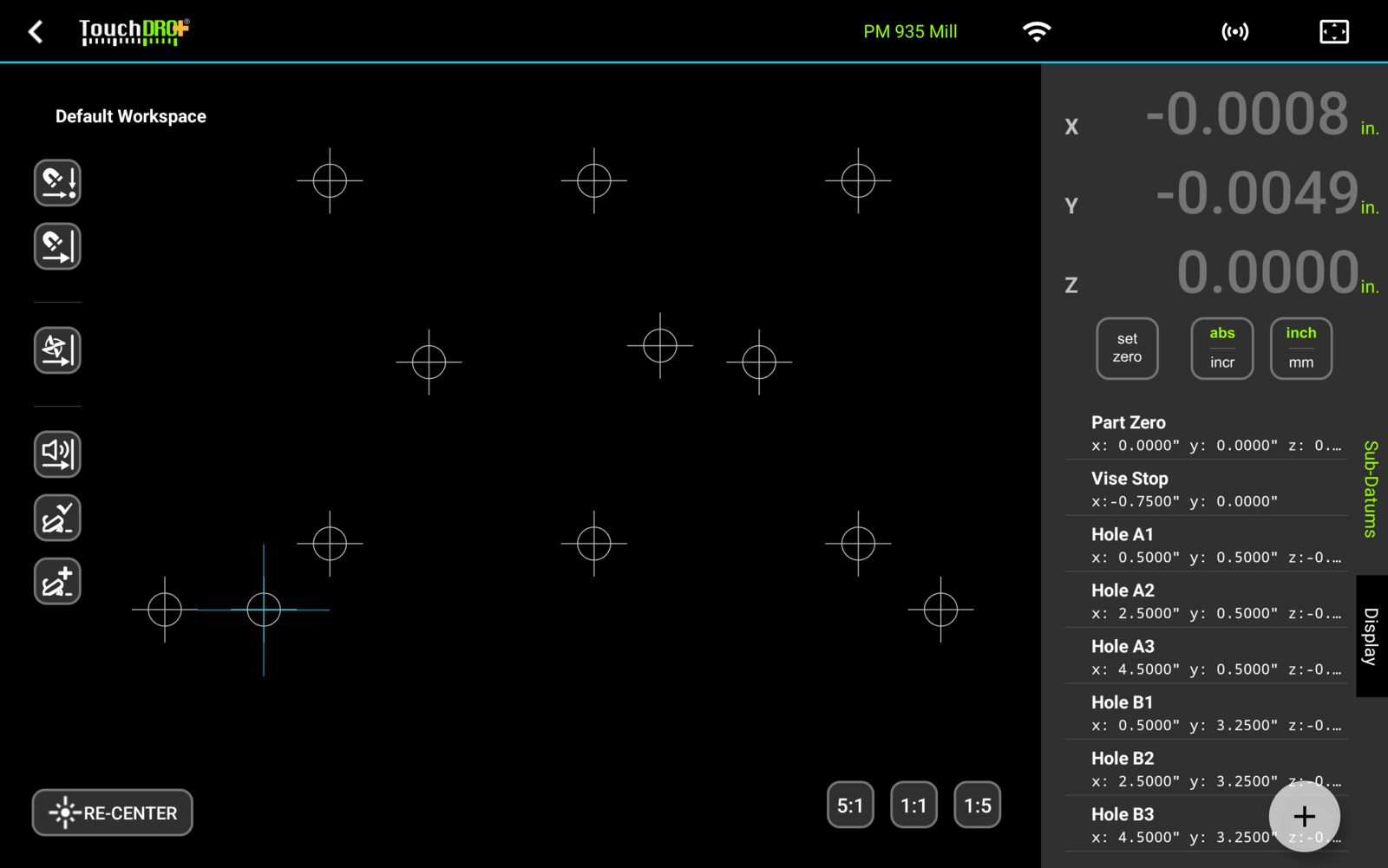
The imported points appear in the sub-datum list and in the graphical view, ready to work through.
Choosing What Happens to Points You Already Have
A file is often imported into a workspace that already holds some of the same points, so the dialog asks what to do with them. There is one operation choice for the whole file, at the top of the dialog.
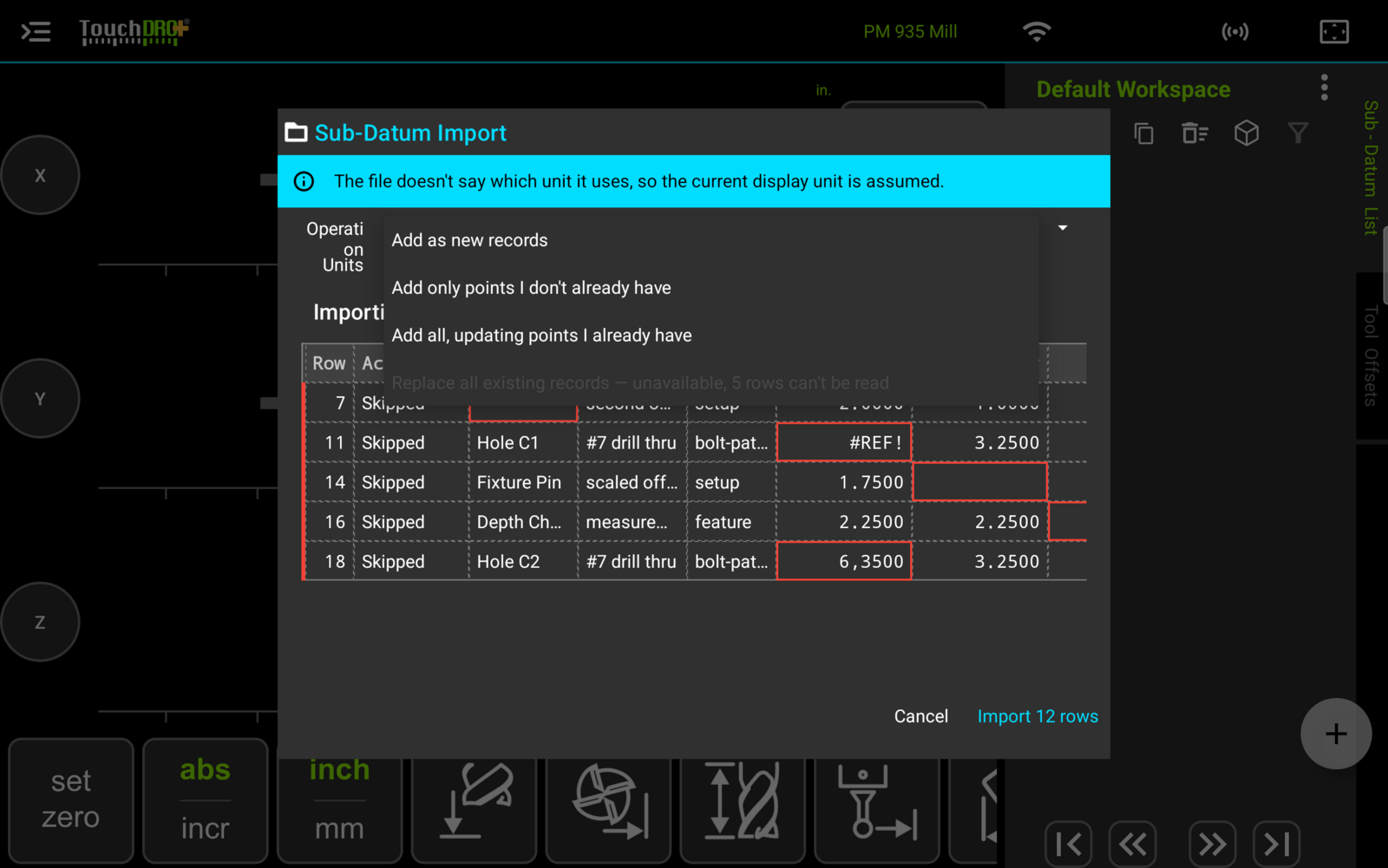
- "Add as new records" adds every row in the file, including points that are already there.
- "Add only points I don't already have" skips a row that matches a point already in the workspace.
- "Add all, updating points I already have" keeps a matching point's coordinate and takes the name and note from the file.
- "Replace all existing records" clears the workspace's sub-datums and replaces them with the file. This option is offered only when every row in the file can be read; when some can't, it's shown greyed out with the reason, for example "unavailable, 5 rows can't be read". Because it throws away what's there, it asks for a confirmation of its own before anything is deleted.
All four are always offered, and only the default moves. When the file's own record says this tablet and this machine profile wrote it, the updating operation leads, because re-importing an edited export is what that file is usually for. Otherwise adding as new leads, since it touches nothing that's already there.
Two sub-datums match when they sit at the same coordinate in the same workspace. The names are not compared, because two points can legitimately share a name. Matching is scoped to the loaded workspace, so the same coordinates under a different workspace are a different fixture.
The comparison is made at the precision the file itself printed. A file written with four decimal places is compared to four decimal places, which is what lets a file TouchDRO exported be re-imported without turning every point into a duplicate. A point with a different set of axes does not match one with a full position.
A value written without a decimal point carries only whole-unit precision, so a bare 1 on an inch file matches anything within half an inch. When a file is meant to be matched against points already in the workspace, write the coordinates out to the decimals the job actually needs.
When a point is updated, a tag it already carries is kept and the file's tag is ignored, so an import can't re-file a point you have already sorted. A point with no tag takes the one from the file.
Rows That Will Not Import
A row that can't be read is skipped, not corrected, and the rest of the file still imports. A row is skipped when:
- The name cell is blank.
- Every coordinate cell is blank.
- A value isn't a number, whether it's a spreadsheet error value such as Excel's #REF marker, a stray comma decimal, or text like TBD.
- Two rows in the file sit at the same point, and the chosen operation is one of the two that match against the workspace. Adding every row and replacing the workspace both take the file as it comes, so neither one minds a repeated point.
The "Skipped" tab outlines the cell at fault, and the "Warnings" tab names the column it's in, so a row that failed on x says so rather than just failing.
Fix the row in the spreadsheet and import again, or import what's good and add the rest by hand.
A few problems stop the whole file rather than a single row: a file with no x, y or z column at all, a tool library file offered to the sub-datum importer, a file whose comment lines declare a different machine type than the one running, a file saved with semicolons instead of commas (a common default in European spreadsheet locales), and a file written by a newer version of TouchDRO than the one installed. In each case the dialog says which problem it is and what to do about it.
A file built by hand carries no comment lines, so nothing in it says which machine it was meant for. It's worth a look at the coordinate columns before importing one, because a set of lathe coordinates read on a mill will land its z values in the mill's Z axis and leave the Y axis empty.
Exporting Coordinates
An export does two quite different jobs. One is a backup of a fixture setup you will want again, or a starting file to edit in a spreadsheet when you want the column layout right from the first row. The other is a measured record of a part, taken off the machine and carried into CAD.
To write the current workspace out, open the same three-dot menu and tap "Export to CSV File", then choose where Android should save it. The name is built from the machine profile and the machine type, with a timestamp, so an export never lands on top of an earlier one.
The file carries every sub-datum in the loaded workspace, along with the comment lines that record the machine type and units, so it re-imports cleanly on the same machine, or on another machine of the same type. When some sub-datums are selected in the list, only those are written; with nothing selected, the whole workspace is written.
Coordinates are written in the display unit that is active at the time, at the display precision. That precision is worth a thought before exporting a set of measurements, because the file can't carry decimals the display isn't showing.
Reverse Engineering a Part Without a Drawing
An existing part with no drawing can be measured on the machine and exported as a set of coordinates. The Indicate Workpiece function locates an edge or the center of a feature, and in TouchDRO Plus its "Add Sub-Datum" button saves that result straight into the sub-datum list. Work through the part that way and the workspace ends up holding every hole center, edge, and boss center that was measured, all in one coordinate system. The edge finder page covers how to capture the points.
An export writes that set out as a CSV file, one point per row, names and notes included. Getting those coordinates into a CAD or CAM package is that package's business, and TouchDRO makes no attempt to match any particular import format: the file carries a comment preamble and six columns, so a spreadsheet is usually the step in between, with the columns cut down to whatever the package reads.