
Error Correction and Backlash Maps
DRO scales, especially magnetic and inductive ones, can have pronounced cyclic and position-dependent error. TouchDRO reduces or removes this error with interval-based correction maps: an error correction map corrects the scale reading interval by interval along its travel, and a backlash map does the same for a worn leadscrew, holding a separate backlash figure for each stretch of the screw instead of one compromise value.
A DRO scale is rarely wrong by the same amount along its whole length. Inexpensive magnetic scales in particular tend to show a cyclic error that repeats at the pole spacing of the magnetic tape, and many scales pick up a slow, uneven error that wanders over longer distances. Calibrating the resolution corrects the average error, but a single number can't follow an error that changes from place to place.
You can build an error correction map directly on the machine with the "Error Map Wizard", using a second scale as a temporary reference, or import a map from a file. The wizard doubles as a scale accuracy test: it measures and reports the scale's real error and repeatability whether or not you keep the map it builds.
What a Map Does
A map is a list of positions, each with a correction. TouchDRO adds the correction to the scale reading and interpolates linearly between the listed points. Given a map that sets 100 to -5 and 200 to +5, a reading of 110 is corrected by -4, 150 by 0, and 190 by +4. DRO consoles call the same technique segmented linear error compensation or interval-based calibration.
Both columns are in raw encoder counts. TouchDRO applies the map to the count coming from the adapter, before the resolution and the counting direction are applied, so the map has no unit of length attached to it. This is why recalibrating an axis doesn't disturb its map: the map describes the encoder itself, and the resolution is applied downstream of it.
Outside the mapped span, TouchDRO holds the correction of the nearest end point. A map that covers part of the travel corrects that part; beyond its ends, the readout carries the last correction and the scale's error is no longer followed.
The positions in the map are the encoder's own absolute counts. The corrections line up with the machine only while the encoder's count agrees with where the map was measured, which is why a mapped axis has to be re-homed after every restart. The "Establishing a Repeatable Home Position" section below covers how.
Opening the Map Editor
Maps are intrinsic to the scale, so they are stored with the encoder's other settings in the adapter profile. Each is reached from the "Encoder Settings (Input X)" dialog: the error correction map from the "Error Map" row, and the backlash map from the "Backlash map" row, which appears when "Backlash compensation" is set to "Map".
The row summarizes the stored map as the range it covers: "4 intervals (0 – 400)", or "Not set" when there is none. The count is of the intervals between points, not of the points themselves, so five points make four intervals. To open the editor, press the button on the row.
The Map Editor
The "Error Map" editor opens on its "Summary" tab, which describes the stored map: the typical spacing between points, the span of encoder counts the map covers, the largest correction it applies, and, for a wizard-built map, the measured error with and without the map and where the map came from. Below the figures, a plot draws the correction against position. To enlarge the plot, tap it.
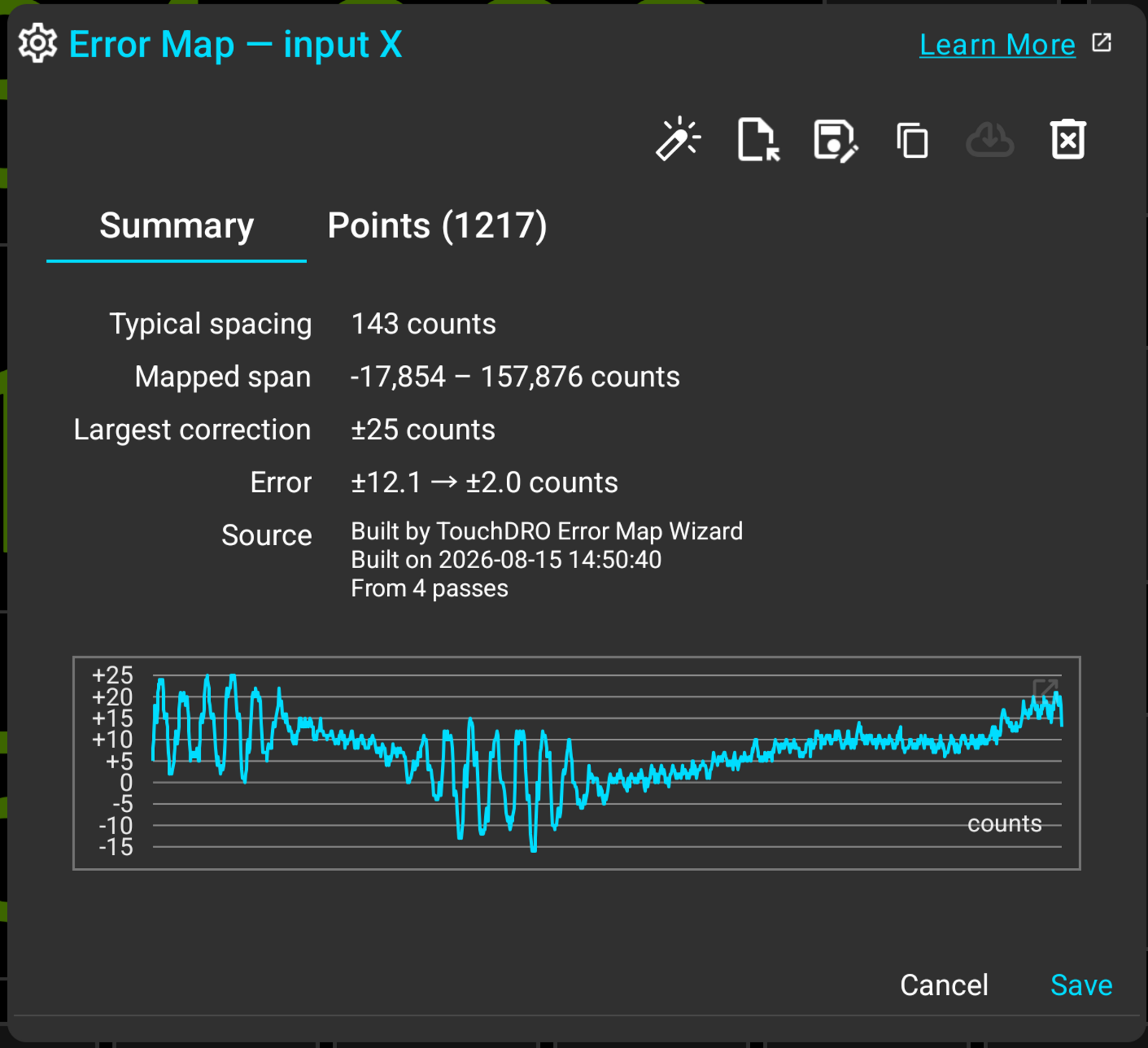
The "Points" tab lists the map itself, one row per point, with both columns in encoder counts. A map typed in by hand can be edited here row by row. A wizard-built map is marked "Generated map – read-only": it is a fitted curve with hundreds of points, and the way to change it is to run the wizard again, not to edit one point.
The toolbar above the tabs has buttons to open the "Error Map Wizard", import a map from a file, export the current one, duplicate it, and delete it. Edits aren't stored until the "Save" button is pressed; "Cancel" leaves the input as it was.
The Error Map Wizard
The wizard builds an error correction map by recording the scale against a reference scale mounted temporarily along the same axis. To open it, press the wand button in the map editor's toolbar; the wizard reads live counts, so the button is only enabled while TouchDRO is connected to the adapter.
The whole procedure, from choosing a reference scale to recording the passes, is covered in the "Creating an Error Map" page, and the magnetic scale accuracy guide walks it end to end on a real machine.
Reviewing the Map
The "Scale Error Review" dialog states the scale's measured error, the error expected to remain once the map is applied, and the improvement, over a plot of the recorded data. Reading those figures, and the plot behind them, is covered in the "Reviewing the Results" section of the "Creating an Error Map" page.
Diagnostics
Behind the review screen, the "Error Map Diagnostics" dialog records everything about the run, with a "Copy" button for pasting into a support request. Its lines are covered in the "Diagnostics" section of the "Creating an Error Map" page.
Importing and Exporting Maps
A map can also arrive as a file: measured with an interferometer, supplied with a scale, or prepared centrally for a shop. The format is plain text, one "position,correction" pair per line, both as whole numbers in encoder counts. Lines starting with "#" are treated as comments, which is where an exported map carries its own history.
When a map is imported, a notice band will appear above the table and report what was read: "Loaded 5 points (0 – 400). Press Save to apply them." Nothing is stored until "Save" is pressed.
The notice matters most when the imported file turns out to hold absolute measured positions rather than corrections. TouchDRO will convert the values and say so in the same band, and the band is the only warning there is: an absolute map imports cleanly, since its values are strictly increasing and every validity check passes, and the first symptom would otherwise be readings roughly double the true travel at the machine.
A file whose values carry decimal points is refused outright, with a message pointing out that a map holds raw encoder counts. A map exported in inches or millimeters by another tool has to be converted to counts before TouchDRO will accept it.
Exporting works in reverse: the file carries the points along with a comment header recording where the map came from, so a wizard-built map keeps its history through a round trip. Maps are also included when the whole adapter profile is exported, which is the convenient way to move a calibrated setup to another tablet.
Backlash Maps
A worn leadscrew doesn't have one backlash figure. It has more lost motion where the screw has done most of its work and less at the ends, so the single figure of constant backlash compensation is a compromise everywhere. A backlash map holds a separate figure for each interval, and TouchDRO applies whichever one matches the current position.
One difference from the error correction map: a backlash value can never be negative. Backlash is lost motion, so each figure is a number of counts to ignore after a change of direction, not a signed correction.
The editor works the way the error map editor does, with "Backlash" in place of "Correction" in the points table and the same import, export, duplicate, and delete buttons. Backlash maps are measured externally and imported; the "Error Map Wizard" builds error correction maps only.
Establishing a Repeatable Home Position
Both kinds of map are indexed by the encoder's own count, so they are only correct while TouchDRO's idea of where the axis is agrees with the machine's. That means the axis has to be hard-zeroed at a position you can return to, and it has to be done again every time TouchDRO is restarted, since a fresh start has no memory of where the axis was left.
How you return to that position depends on the scale. A scale with reference marks gives you an exact one: run the reference-mark routine after each power cycle and the scale finds the same point every time.
Without reference marks, a consistent hard stop is usually good enough. Wind the axis against the same stop each time and zero it there. A map only lines up with the machine while the axis is homed the same way it was when the map was recorded, so once a map is in place, the home position is part of the calibration. Less precision is needed here than you might expect: the error being corrected has a period measured in millimeters, so a few tens of microns of variation in where you home will not be consequential.