Updating the Adapter Firmware
TouchDRO adapters get new features and fixes through firmware updates. For example, since the first release of the V3 adapters, we have added support for capacitive scales (iGaging and Mitutoyo), made the touch probe more dependable, and improved performance and stability. You can install an update from the TouchDRO application, with the tablet you already use, so you don't need a computer or a programming tool. The update takes a few minutes.
To see what each firmware release changes, see the "Adapter Firmware Release Notes" page.
What You Need
Before you start, make sure you have the following:
- A TDA-400, TDA-410 or TDA-420 adapter, or a TDK-40 kit. TouchDRO confirms that the adapter is a genuine TouchDRO adapter before it installs anything, so home-built adapters and adapters that don't identify themselves can't be updated this way.
- An internet connection on the tablet. TouchDRO downloads the firmware made for your adapter when you start the update.
- A USB cable that connects the adapter to your tablet, unless your adapter can be updated over Bluetooth, as explained below. The adapter has a USB-C port, so for most tablets this is a USB-C to USB-C cable.
Note that the readout doesn't work during the update, so stop the machine first. In addition, the "Never send anything to TouchDRO's servers" switch in the "Privacy" settings has to be off, since both the check for new firmware and the download need TouchDRO's servers.
Checking for an Update
To see whether a newer firmware version is available, connect to the adapter and open the "DRO Adapter Details" dialog. TouchDRO checks for new firmware each time the dialog opens. When a newer version is available, you will see "Update available" beside the firmware version, with the update icon at the end of the row.
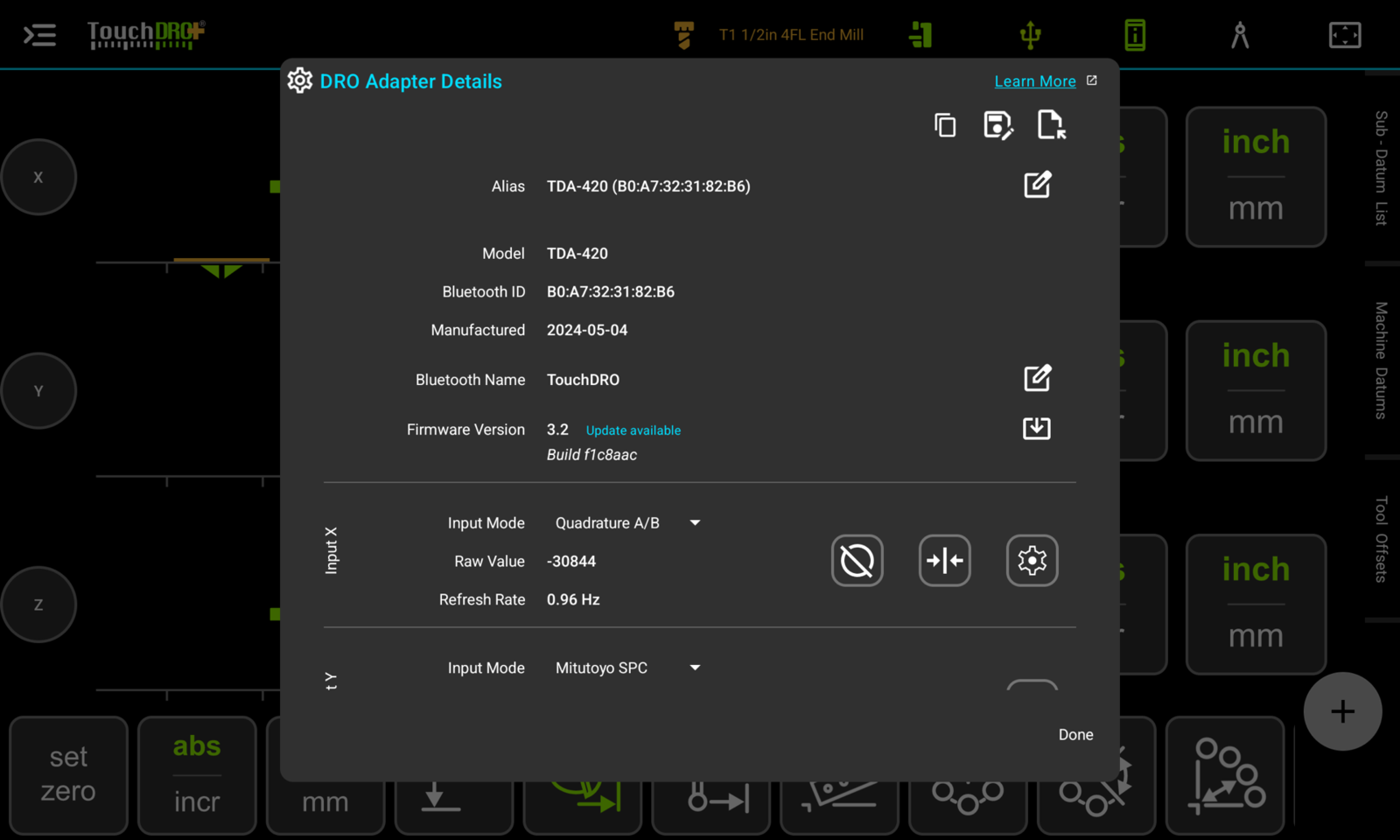
The check sends only the adapter's model and the application version. The "Privacy Policy" lists what is sent when you install an update.
Bluetooth or USB
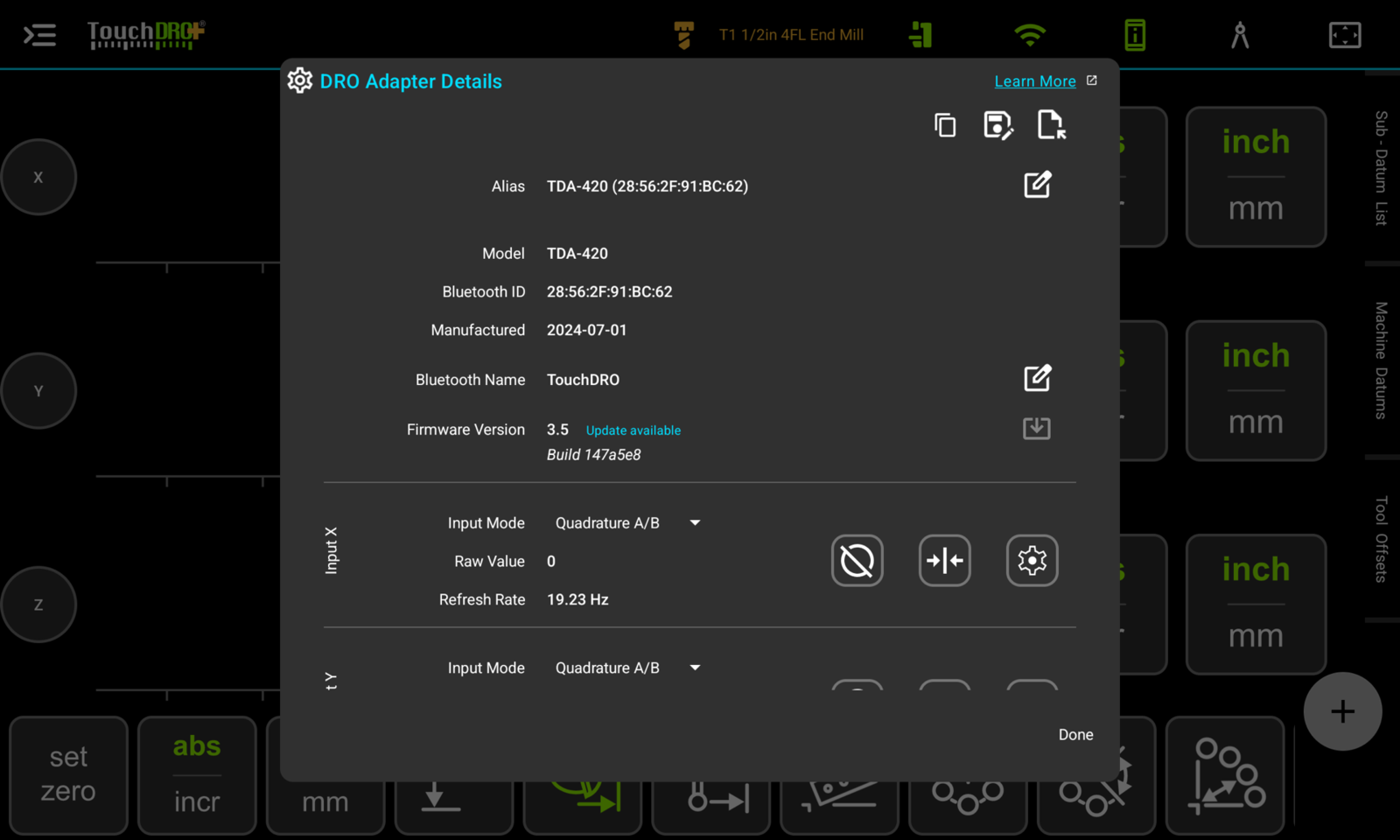
Some adapters can be updated over the Bluetooth connection you already use, and the rest are updated over a USB cable. You don't need to know which kind you have, since the update icon tells you:
- If the icon is at full strength while you are connected over Bluetooth, your adapter supports Bluetooth updates. You can skip the next section and go straight to "Installing the Update".
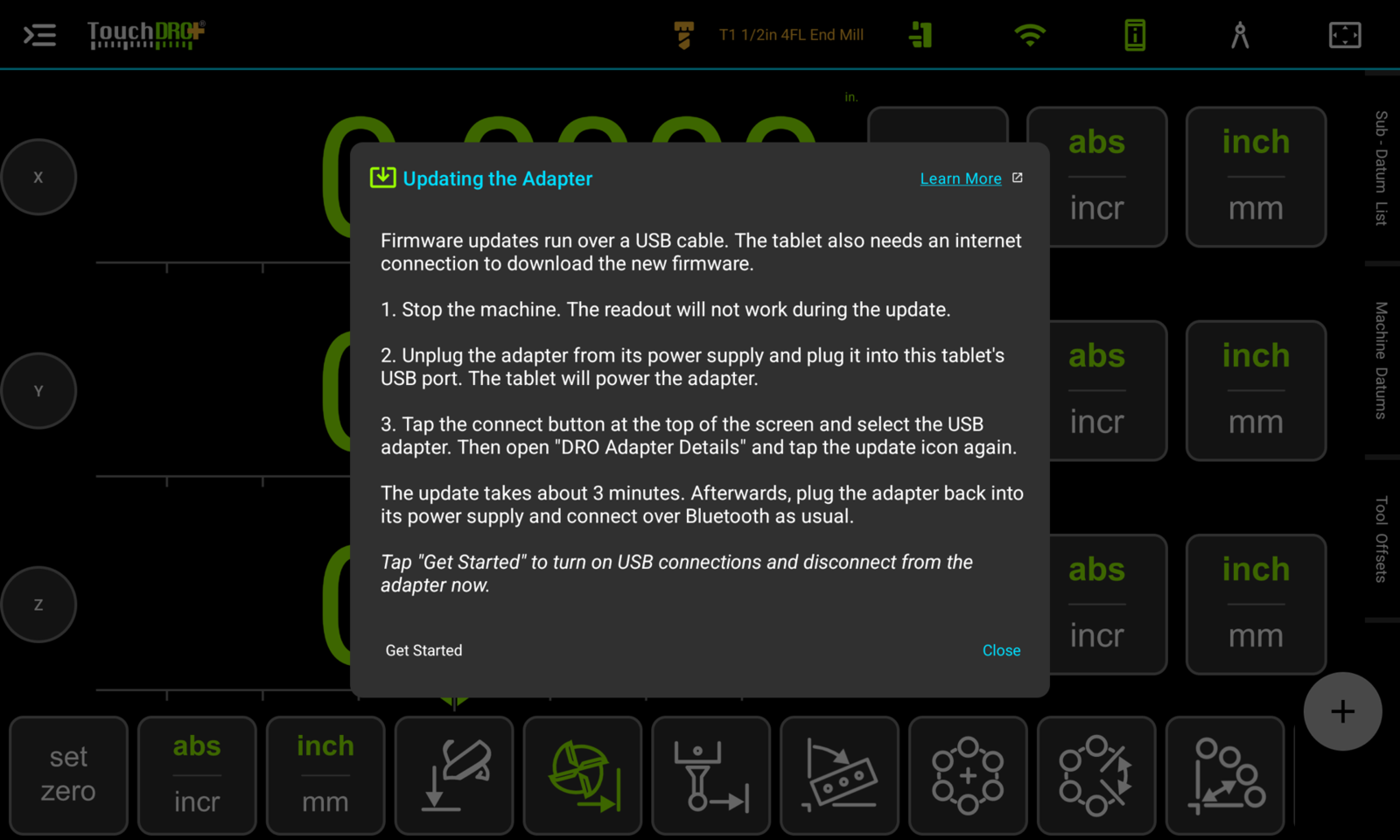
- If the icon is dimmed, the update has to be installed over USB. To see the steps, tap the icon. TouchDRO will open the "Updating the Adapter" dialog, which is covered in the next section.
An adapter that supports Bluetooth updates may accept them only from a tablet it is paired with. In that case, the "Updating the Adapter" dialog says so and tells you how to pair: switch the adapter off and on, then pair it in the tablet's Bluetooth settings within 10 minutes. You can also update such an adapter over USB.
Connecting the Adapter Over USB
To get the adapter ready for an update over USB, follow these steps:
- Stop the machine.
- Unplug the adapter from its power supply and plug it into the tablet's USB port. The tablet will power the adapter.
- In the "Updating the Adapter" dialog, tap "Get Started". TouchDRO will turn on USB connections, disconnect from the adapter, and close the dialog.
- Tap the connect button at the top of the screen and select the USB adapter. If Android asks for permission to access the USB device, grant it. "Connecting over USB" covers this step in detail.
- Open "DRO Adapter Details" again. The update icon is now at full strength.
Installing the Update
To start, stop the machine and tap the update icon. TouchDRO will open the "Firmware Versions" dialog, which lists the versions available for your adapter with their release dates. The newest one is marked "[Latest]" and is already selected, and the version the adapter is running is marked "Installed now". To read what a version changes, tap "Release notes" on its row.
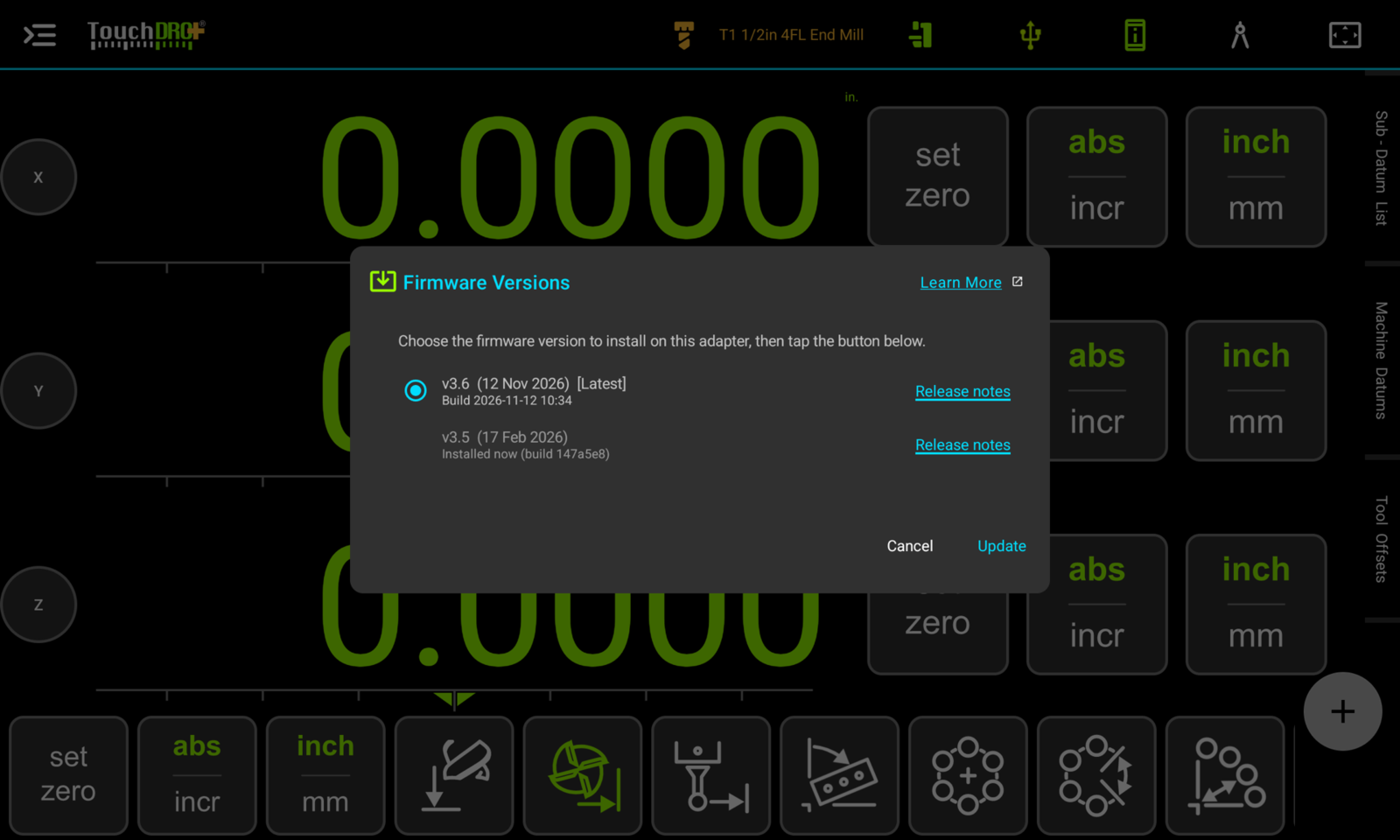
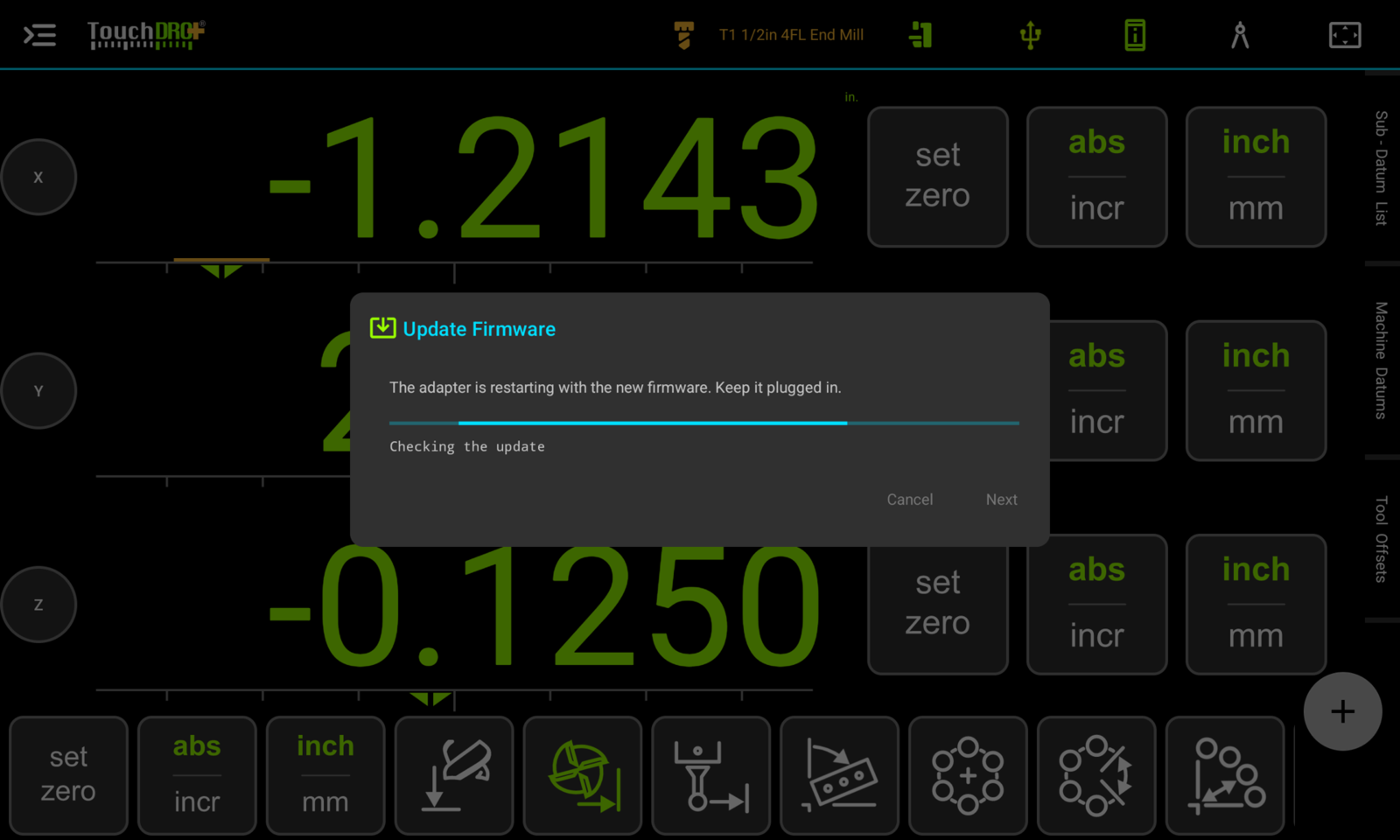
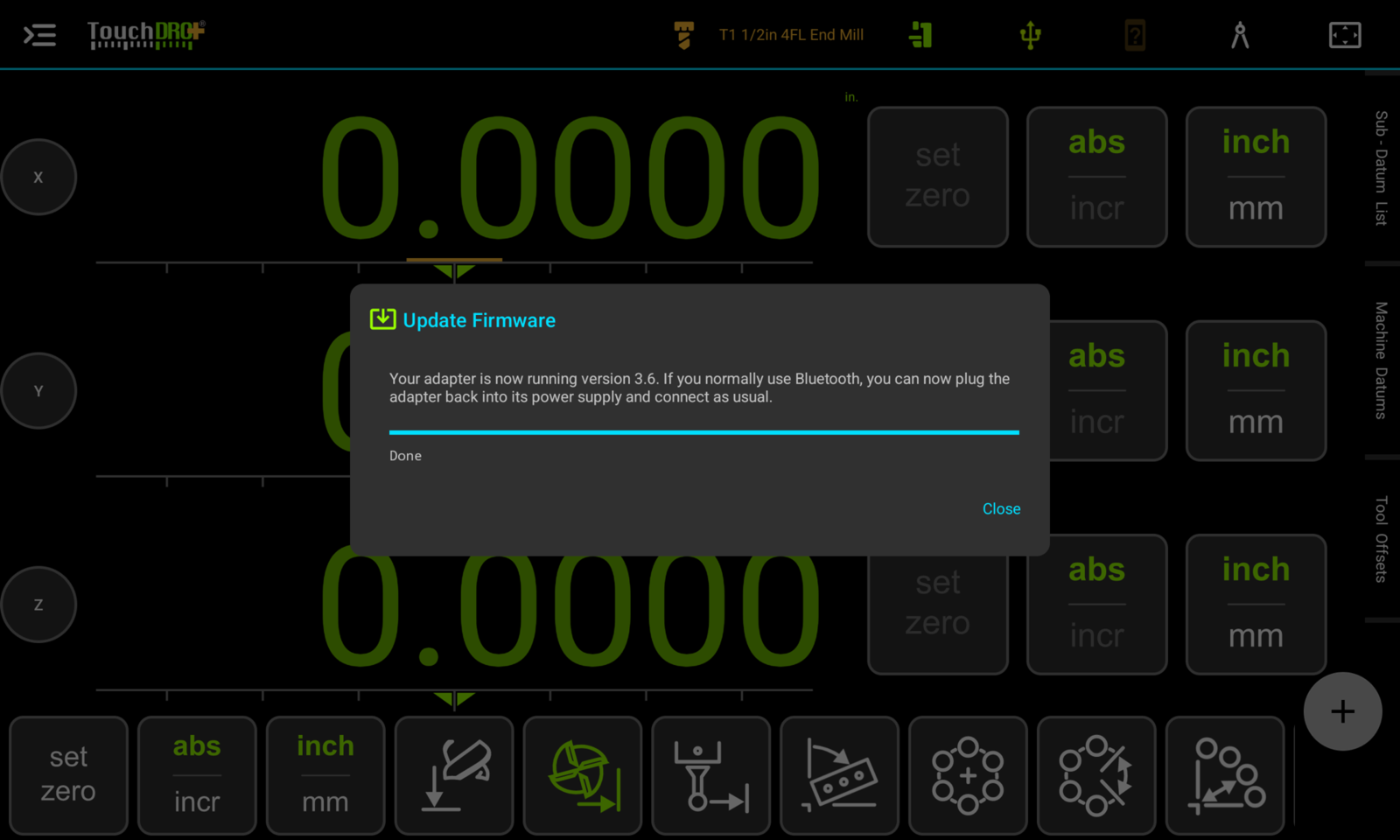
After that, tap "Update". The "Update Firmware" dialog will open, showing the version your adapter is running and the version about to be installed. To begin, tap "Next". TouchDRO will download the firmware, confirm that the adapter is a genuine TouchDRO adapter, and install the new version. In the dialog, you will see a progress bar and the current step, such as "Downloading", "Installing", and "Checking the update".
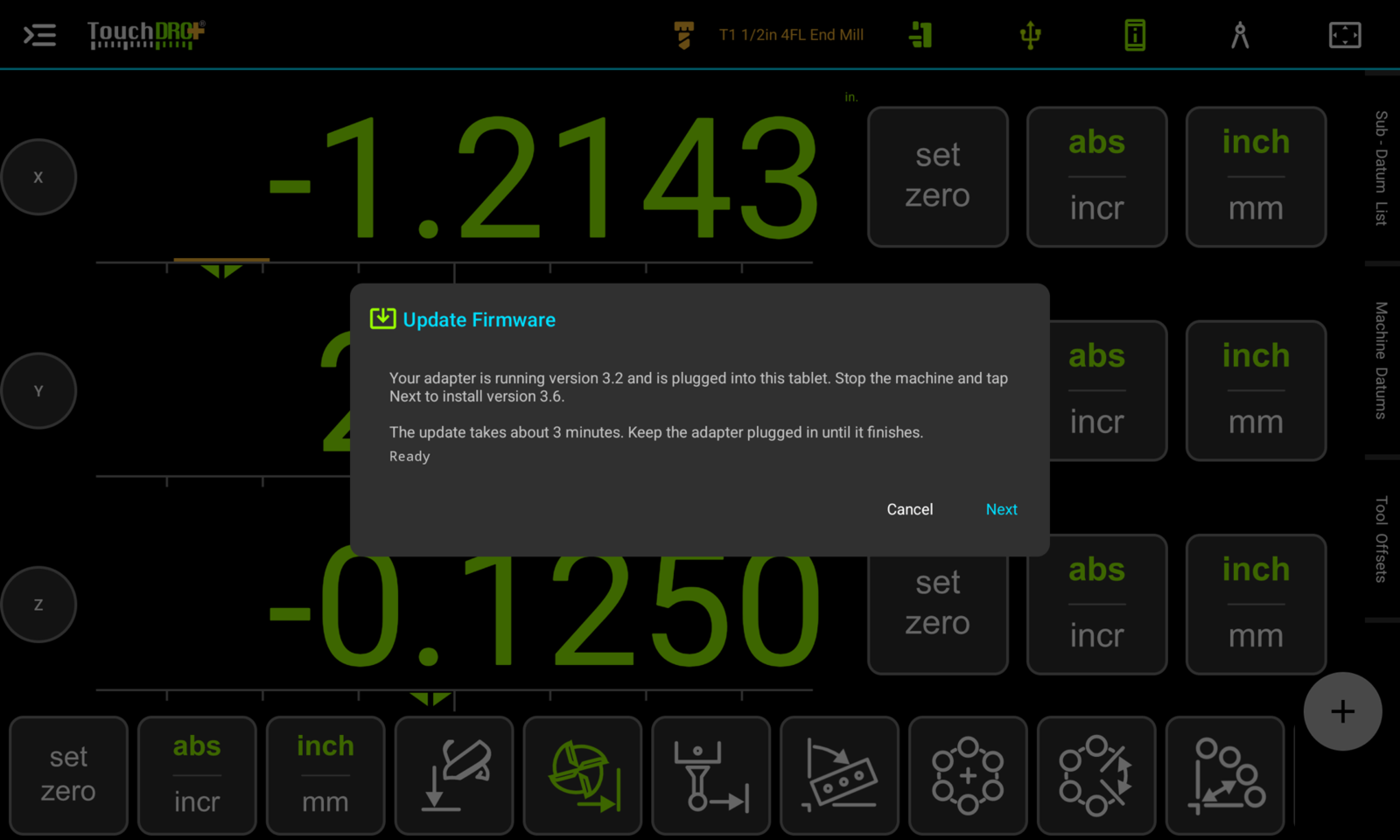
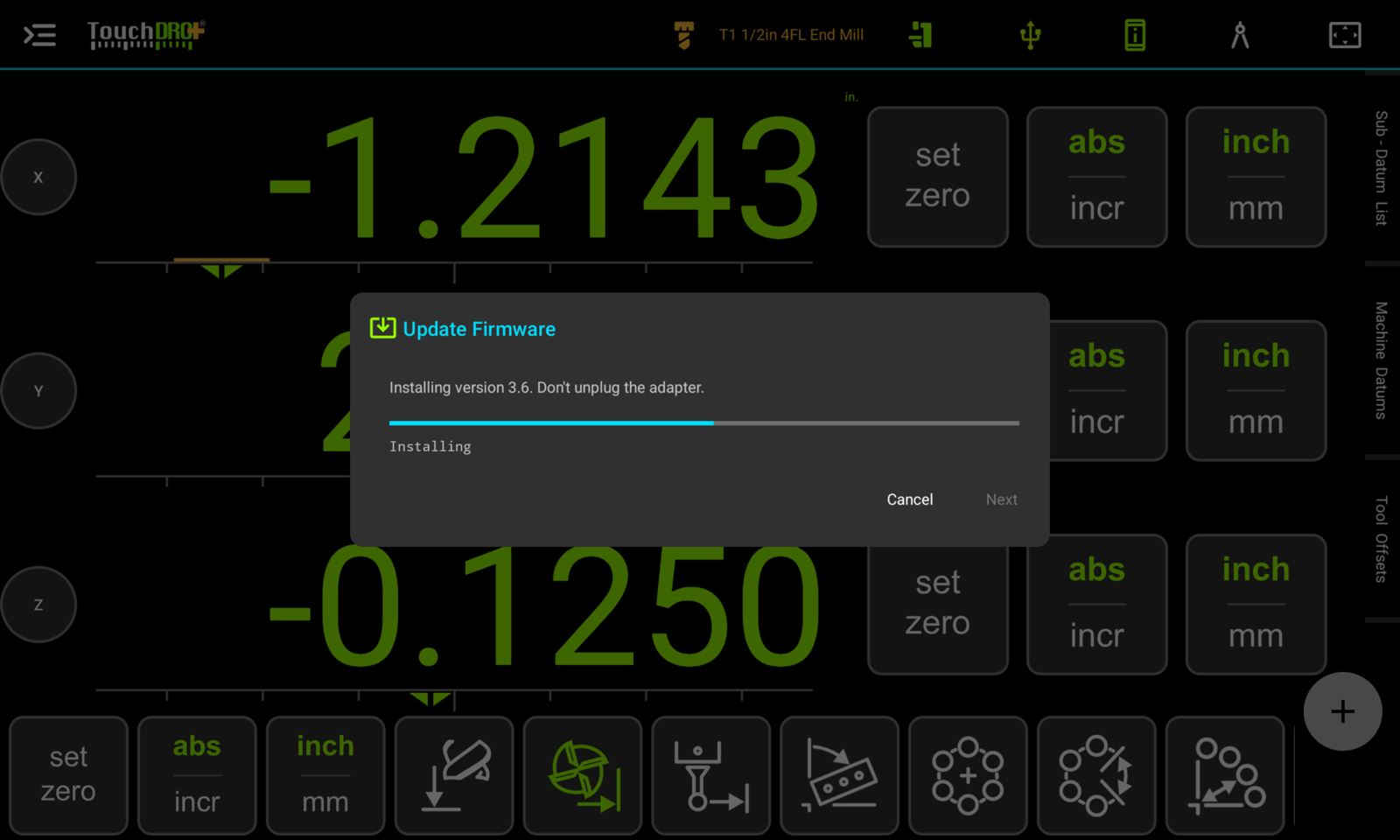
While the update runs, leave everything as it is. Over USB, keep the adapter plugged in until the update finishes, which takes about three minutes. Over Bluetooth, keep the tablet near the adapter, with its screen on and TouchDRO open. You can cancel while the firmware is downloading or being sent to the adapter, and the adapter will keep running its current version. Once the whole firmware has been sent, the "Cancel" button is disabled until the adapter has restarted.
Once the update is installed, the adapter restarts with the new firmware, and TouchDRO reconnects and checks that readings are coming in. When the dialog reads "Your adapter is now running version" followed by the new version, tap "Close". After an update over USB, leave the adapter plugged into the tablet for at least a minute, as explained below, then plug it back into its power supply and connect over Bluetooth as usual.
After the Update
Once the dialog says that the update is done, leave the adapter plugged into the tablet for at least a minute before you unplug it, so that the adapter can finalize the update. After an update over Bluetooth, leave the adapter powered for the same time.
The new firmware takes effect only after it has started successfully. On the first start, the adapter checks the new firmware, and on firmware 3.6 or later the "Data" light blinks rapidly for about ten seconds to show that the update is confirmed. If the new firmware fails to start, the adapter goes back to the previous version on its own. The light patterns are listed in the "Status Lights" section of the TDA manual.
Your settings are kept. The adapter keeps its Bluetooth name, input modes, and probe and tachometer settings, and your calibration is not affected, since the resolutions and error maps are stored in the adapter profile on the tablet.
Firmware 3.6 also upgrades some adapters to a newer model. A TDK-40 or TDK-40T becomes a TDK-40 Plus, and a TDA-400 becomes a TDA-410. After the update, you will see the new model on the "Model" row of the "DRO Adapter Details" dialog. The "Firmware 3.6" release notes list what each model gains.
Installing an Older Version
On an adapter running firmware 3.6 or later, the "Firmware Versions" dialog also lists older versions, back to 3.5. To go back to one, select it. The button will read "Downgrade", and the "Downgrade Firmware" dialog will remind you that the version is older than the one the adapter is running. The rest of the procedure is the same, and you can update the adapter again later.
An adapter running firmware 3.5 or older is offered newer versions only.
If the Update Does Not Finish
An interrupted update doesn't damage the adapter. If the download fails, the cable comes out, the Bluetooth connection drops, or the tablet loses power, the adapter keeps the firmware it was running, and you can start the update again.
When an update stops, the dialog explains what happened and tells you what the adapter is running:
- "Your adapter has not been changed." means that the update stopped before anything was sent to the adapter.
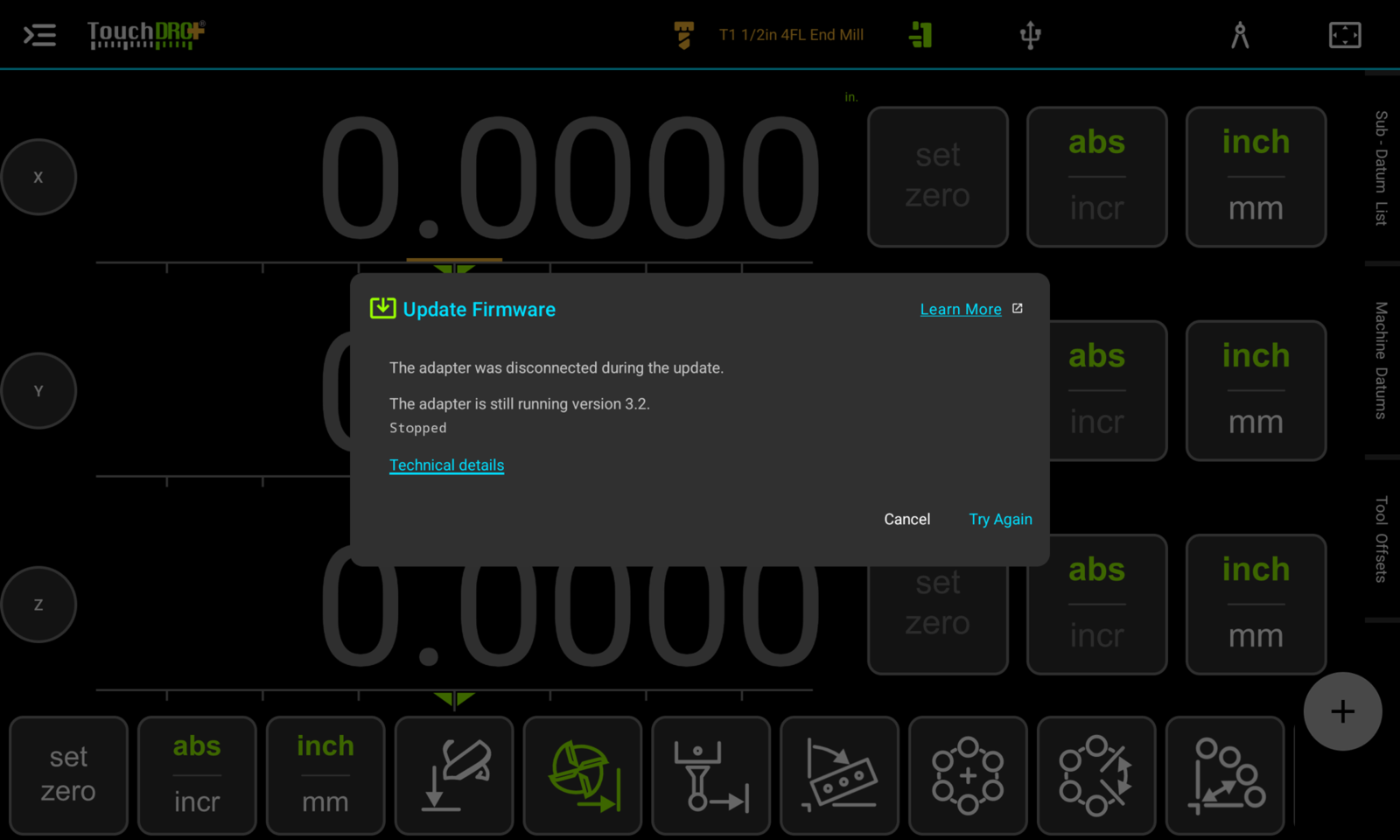
- "The adapter is still running version", followed by the version, means that the update was started and TouchDRO confirmed that the adapter went back to its previous firmware.
- "TouchDRO couldn't confirm which version the adapter is running." means that the adapter will start with either the old or the new version. To find out which, restart the adapter (unplug it and plug it back in, or switch it off and on), connect to it, and check the firmware version in "DRO Adapter Details".
In most cases, you can tap "Try Again" to run the update from the start. Each message also has a "Technical details" link, which shows a short code for the step where the update stopped. The table lists the messages that need something from you first.
| Message | What to do |
|---|---|
| "This tablet isn't connected to the internet." or "TouchDRO couldn't download the firmware." | Connect the tablet to Wi-Fi, then tap "Next" or "Try Again". |
| "TouchDRO can't find the adapter on the USB port." | Check the cable and make sure you allowed TouchDRO to use the USB device, then tap "Next". |
| "The adapter was disconnected during the update." | Plug the adapter back in, connect to it over USB, and start the update again. |
| "The Bluetooth connection to the adapter was lost during the update." | Keep the tablet near the adapter and tap "Try Again". |
| "The adapter didn't accept the update from this tablet because it doesn't have a pairing for it." | Remove the adapter from the tablet's Bluetooth settings, switch the adapter off and on, and pair it again within 10 minutes. You can also update it over USB. |
| "This firmware was downloaded for a different adapter." | The firmware is made for one adapter. Connect to the adapter you started the update with, then tap "Try Again". |
| "TouchDRO couldn't confirm that this is a genuine TouchDRO adapter, so the firmware was not installed." | Tap "Try Again". If you see the message again, please reach out to us using the form linked at the bottom of this page. |
| "This adapter has downloaded firmware too many times today." | Try again tomorrow. |
| "Updating the firmware needs TouchDRO's servers" | Turn off "Never send anything to TouchDRO's servers" in the "Privacy" settings. |