
Tool Length Offsets on a Manual Mill
When machining a part that needs several cutters, you need to touch off each one to re-establish the Z zero. The first touch-off is easy, since the stock is clean and has a flat top. By the fourth tool, the top surface is a pocket floor or a row of counterbores, the surface you set the zero on is gone, and you end up touching off wherever there is still room for it. A Z zero that is off by the difference between two cutters isn't an obvious mistake on the readout, and you generally find out about it at the bottom of the pocket.
Quick-change tool holders that return each cutter to the same height take care of half of the problem. The TTS system is one example, and set-screw holders of this kind are made for most common spindle tapers. Once a cutter is set in its holder, its height doesn't change from one job to the next. The other half of the problem is telling the DRO how long each tool is. This is what a tool length offset is: the distance between the tip of a given tool and the tip of the tool the Z zero was set with. On a CNC machine, this is the tool length offset applied with G43, and some DRO consoles call it the tool height offset.
TouchDRO stores this offset with each tool in the tool library, next to the diameter and the flute count. When you recall the tool, the Z readout shifts by its offset, so the zero still refers to the surface it was set from, and the tool change becomes a single tap instead of a touch-off. This guide assumes that you already have a tool library set up, which is covered in "Tool Compensation on a Manual Mill". It covers measuring the offsets, a couple of tricks for a slitting saw and a chamfer mill, and an example of a pocket cut with three tools on a single Z zero: a square end mill, a bullnose end mill for the floor fillet, and a chamfer mill for the top edge.
How Tool Length Offsets Work
There is no intrinsic Z zero on a mill. The zero is wherever you set it, with whatever tool was in the spindle at the time. In other words, the Z zero always belongs to a particular tool, and an offset is simply the difference in length between some other tool and that one. Once the differences are stored, you can set the zero with any tool from the library, and every other tool will be in the right place, since the readout only needs the differences.
Machinists usually designate one tool as the reference tool and measure everything against it. The reference tool can be one of the cutters, and if that cutter is lost or broken, nothing is lost with it, since any other tool from the library can restore the same zero. A better option is to use a touch probe in a dedicated holder. Since you will likely use the same probe to indicate the workpiece at the start of each job, the Z zero is set at the same time, and all the tool offsets fall into place. A nice side benefit of this setup is that it doesn't matter if you lose the Z position of the probe between jobs, after a holder swap, or when moving to a different machine. Every offset is stored in relation to the probe, and the probe sets the zero again next time.
There are two ways this can go wrong. First, the DRO has to know which tool is in the spindle whenever the zero is set or an offset is measured. If you set the zero with a cutter while TouchDRO thinks the probe is in the spindle, every other tool will be off by the length of that cutter, and there is nothing on the screen that would tell you. Second, a stored offset is only as good as the holder. A cutter that is reset in a collet for every job has no fixed length, and an offset stored for it describes where the cutter used to be. Those tools are covered at the end of this guide.
What You Will Need
You will need cutters set in quick-change holders that return them to the same height, one holder per cutter; a dial tool height setter, i.e. the kind with a spring-loaded anvil and an indicator on top; and a touch probe in its own holder, centered on the spindle and with its tip calibrated, which is covered in "Touch Probe Setup and Calibration". The setter will be used as a transfer standard, so its exact height doesn't matter here. You will also need a 1-2-3 block or another ground surface to stand the setter on, and a piece of cigarette paper for the chamfer mill.
The probe is the recommended reference tool, but it isn't required. A cutter in a quick-change holder works as the reference as well, and a feeler gauge or a piece of paper will work in place of the dial setter, as long as you can tell the moment of contact consistently. The procedure below assumes the probe and the setter, and the section "A Cutter as the Reference Tool" describes the difference.
Setting the Reference
The reference consists of two things: a reference surface, and the Z zero set on that surface with the probe. The height setter is zeroed on the same surface, so that every cutter touched off on the anvil is measured from the same height the probe was zeroed on. This needs to be done only once.
Zeroing the Height Setter
Most dial setters have a fixed base and a spring-loaded anvil. Stand the setter on the reference surface, press the anvil down until it is level with that surface, using a 1-2-3 block standing next to it as a straightedge, and zero the dial. After this, when you lower a cutter onto the anvil until the dial reads zero, the tip of the cutter will be at the height of the reference surface, regardless of where the setter is standing.
Note that this is a different use of the setter from the one described in "How to Use a Tool Height Setter". There, the measured height of the setter is entered in a probe profile and used by TouchDRO. Here the setter only transfers a height from the surface to the cutter, and its own height never enters the application.
Setting Z Zero with the Probe
Insert the probe into the spindle and set the Z zero on the reference surface itself, not on the anvil, which is spring loaded and will move under the probe. Before you do this, make sure that no tool is applied. The toolbar should show the white cutter icon and the machine profile name, with no tool name in amber next to it. If a tool is shown there, clear it first by tapping its green row in the "Tool Offsets" panel, or with the "Clear Compensation" button in the "Tool Compensation" dialog. TouchDRO sets the zero with the applied tool's offset taken into account, so if a cutter is still applied while the probe touches the surface, the zero will be off by the length of that cutter.
- Open the "Set Z Reference" function and select the probe's profile in the "Probe" selector
- Enter 0 in "Desired Z Value (B)", so that the surface reads zero
- Press "Auto", and lower the probe onto the reference surface until it triggers. TouchDRO will capture the Z position at the instant of contact and set the zero
This completes the reference setup. The surface reads zero with the probe, the anvil of the setter is level with that surface at dial zero, and every cutter from here on is measured against the probe.
A Cutter as the Reference Tool
If you don't have a probe, pick a cutter that you are not likely to lose or replace and make it the reference. Lower it onto the zeroed setter until the dial reads zero, and set the absolute Z zero there by long-pressing the Z axis "Zero Set" button. The tip of the cutter is at the height of the reference surface, so the surface reads zero with this cutter. Its library entry gets a Z offset of zero, and every other tool is measured from it in the same way as described below. Some people use the spindle nose as the reference instead. This works as well, but every offset will then be a negative number.
Measuring Each Tool
Once the reference is set, measuring each cutter takes about a minute. The measurement is done with the "Sync" button in the tool editor. It takes the Z reading at the moment the cutter is sitting on the zeroed setter, subtracts the offset of the tool that is currently applied (if any), and stores the negative of the result as the offset. Because of this subtraction, it doesn't matter which tool is applied while you sync; the result is always the distance to the reference tool.
- Remove the probe and insert the first cutter into the spindle
- Select "Tool Library" from the application menu and tap the cutter's row to open its "Edit Tool" dialog
- Lower the cutter onto the anvil of the setter until the dial reads zero
- Tap the "Sync" button next to the "Z Offset" field. TouchDRO will fill in the offset and turn the Z offset switch on
- Tap "Save", and repeat for the next cutter
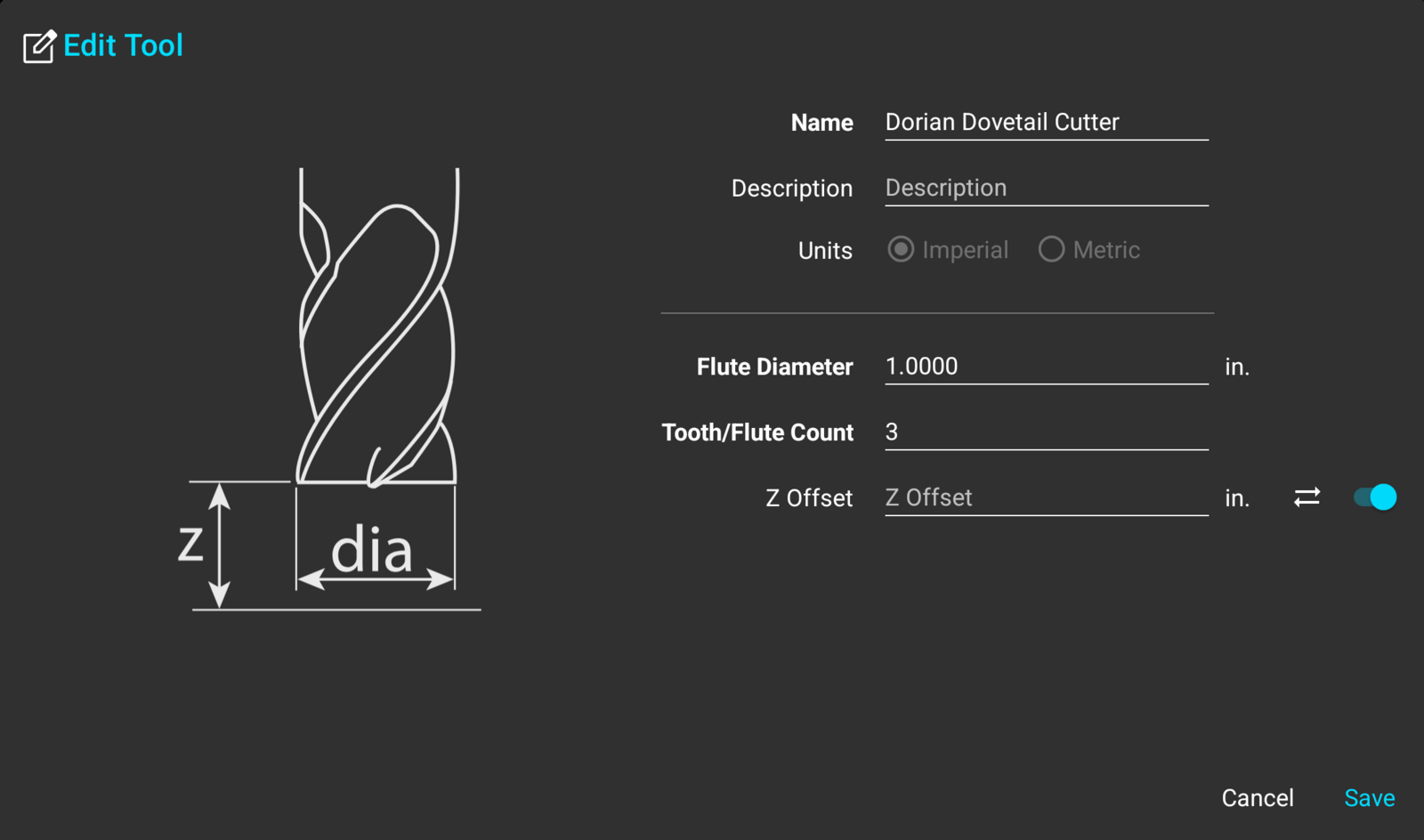
As a sanity check, the offset should have the opposite sign of what the Z axis read when the cutter was on the anvil. A cutter that sticks out further than the probe touches the anvil with the spindle higher up, so Z reads positive and the offset comes out negative; a shorter cutter gets a positive offset. In other words, the offset is the number TouchDRO adds to the reading to cancel out the difference in stickout.
Note that "Sync" needs a live reading. It will show a message instead of a number when TouchDRO is not connected to the adapter, when a sub-datum is selected, or in measurement mode. The field can also be edited by hand, so an offset measured on the bench, or one that needs an adjustment, can be typed in.
A Slitting Saw
A slitting saw on an arbor in a quick-change holder is a good candidate for the library, with one adjustment. When you touch it off on the setter, the saw is measured to the bottom face of the blade, but when slitting you usually care about the middle of the blade. Measure the thickness of the blade with a micrometer, sync as usual, and then add half of the thickness to the value in the field. For example, a saw that syncs at −1.000 with a 0.030" blade should be stored as −0.985. The readout will then refer to the center of the cut.
A Chamfer Mill
A chamfer mill is a cone, so it has no single diameter. This makes it a bit trickier to set up, but once it is done, it is one of the most useful tools in the library. A library entry for a chamfer mill describes one point on the cone: the saved diameter is the width of the cone at that point, and the Z offset is set so that this point is at Z zero when it touches the surface. If you feed the tool down past zero by the size of the chamfer, that point ends up at the chamfer depth, and the lower edge of the chamfer is a circle of the saved diameter. With the compensation on, the readout edge is exactly that lower edge.
The trick is to save more than one entry for the same chamfer mill, one for each end mill size it needs to match. An entry saved with a diameter of 1/2" makes the lower edge of the chamfer the same size as a 1/2" end mill. In the corners of a pocket cut with that end mill, the chamfer will follow the 1/4" corner radius exactly, so the chamfer will be the same width all the way around. With a mismatched diameter, the corners will come out with a sliver left in them, or with a narrower chamfer. The entries are measured at a sharp corner, such as the top edge of the fixed vise jaw:
- Make sure that no tool is applied, so that the X readout shows the spindle axis rather than a cutting edge
- With the probe, use the "Indicate Workpiece" function to set X zero on the edge of the jaw and, with the "Z Position" row switched on, Z zero on its top face
- Insert the chamfer mill into the spindle and move the X axis until the spindle axis is 1/4" inboard of the edge, over the jaw
- Lower the tool until its flank almost touches the corner. A piece of cigarette paper between the two will tell you when it does
- Open the tool library and press "Create New Tool". Name the entry for the size it matches ("Chamfer as 1/2"), enter 0.5 as the diameter and the flute count, tap "Sync" next to the Z offset, and save
- Move the X axis to 5/16" inboard, lower the tool to the corner again, and save a second entry as "Chamfer as 5/8" with a diameter of 0.625. Repeat for each end mill size you cut pockets with
There are two limitations to keep in mind. Every entry has to land on the cone, i.e. above the tip flat and below the full diameter. Also, feeding down for the chamfer uses the part of the cone above the saved point, so the chamfer mill has to be bigger than the end mill it matches by at least twice the size of the chamfer. For example, a 1/2" entry with a 1/16" chamfer needs a 5/8" chamfer mill or larger. Note that the thickness of the paper at the touch moves the chamfer width by about a thou, which is not a concern for a chamfer.
Using the Offsets on a Job
Below is an example of a part cut with several tools on a single Z zero: a pocket with a filleted floor and a chamfered top edge. It takes a square end mill, a bullnose end mill of the same diameter, and the chamfer mill, and none of them needs to be touched off.
Starting the Job
Clear any applied tool, insert the probe into the spindle, and pick up the stock with the "Indicate Workpiece" function: the edges for X and Y, and the top face for Z, using the "Z Position" row. Since this zero was set with the probe, which is the reference tool, every cutter's offset will be correct from here on. Insert the first cutter and tap its row in the "Tool Offsets" panel. The Z readout will shift by its offset, and the top of the stock will read zero with the cutter, the same as it did with the probe. The name of the tool shown in amber in the toolbar lets you verify that TouchDRO and the spindle agree on which tool is loaded.
Note that drilling, spot drilling, and tapping don't need any of this. A drill is run to depth on the quill stop or by eye, and a spot drill doesn't need an accurate depth. The offsets matter for any depth that you set using the readout, for example the floor of the pocket, a counterbore cut with a different end mill than the one that drilled the hole, or a tap-drill depth that must not break through.
The Pocket
Mill the pocket with the square end mill to its full depth, with the walls compensated as described in the previous guide. Leave some material in the bottom corners for the fillet: a ledge along the junction of the wall and the floor, equal to the corner radius of the bullnose cutter in both height and width. The bullnose will then remove it in one pass, with the wall and the floor already at size.
The Fillet
Swap to the bullnose end mill and recall it from the panel. Its diameter puts the edge of the cutter on the wall, and its Z offset puts the tip on the floor, and both need to be right at the same time. If the Z offset is a couple of thou short, there will be a ledge at the tangent; if it is a couple of thou long, there will be a groove in the floor, and either one will be visible. Bring Z to the pocket depth and run the cutter around the walls at the same readings the square end mill used. The ledge will come off as a fillet that is tangent to both surfaces.
Note that the bullnose entry doesn't need any special measurement. The wall contact is above the corner radius, at the full diameter of the cutter, and the Z offset is measured to the tip, so the entry is measured on the setter like any other cutter. This is also a good test of whether your holders repeat; with a cutter reset in a collet, you would not get the same result twice.
The Chamfer
Swap to the chamfer mill and recall the entry that matches the end mill used for the pocket, i.e. "Chamfer as 1/2" for a pocket cut with a 1/2" end mill. Bring the tool over the pocket, feed Z down past zero by the size of the chamfer, and run it around the pocket at the same wall readings as before. The lower edge of the chamfer will land on the wall, its width will be the depth you fed down, and in the corners it will follow the same 1/4" radius as the wall and the fillet below it.
The same entries can be used to chamfer the outside of the part. Trace the outline that you faced and squared with the matching end mill, at the same readings, and the chamfer will match there as well. This is the kind of clean, consistent chamfer you see in the good machining videos, and it takes one tool change and no measuring.
A Zero Set with the Wrong Tool
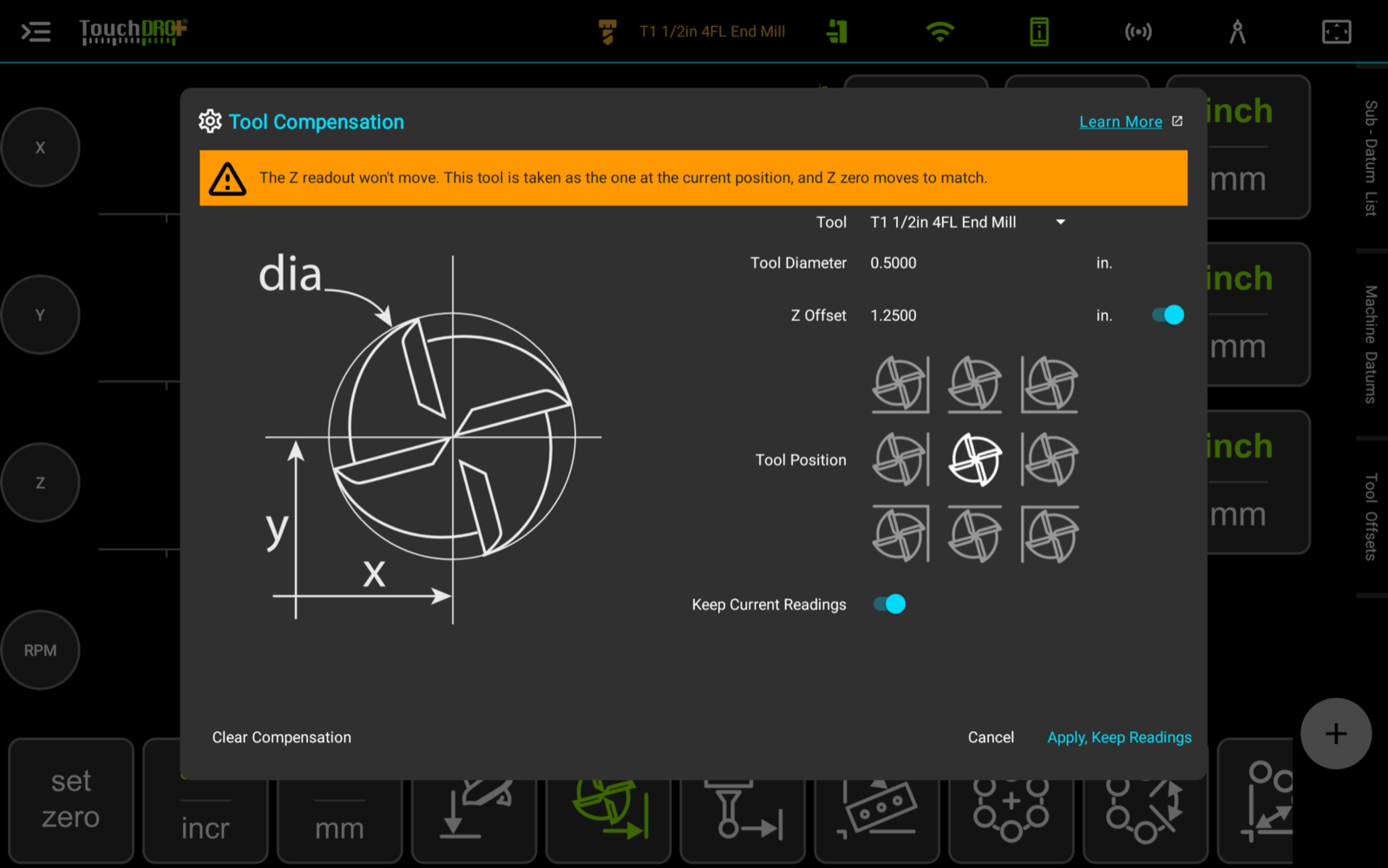
Sooner or later a zero gets set with one cutter in the spindle while TouchDRO had a different tool applied, and every tool after that is off by the difference. The "Keep Current Readings" switch in the "Tool Compensation" dialog provides a way to fix this without re-doing the zero. Select the tool that is actually in the spindle, turn the switch on, and press "Apply, Keep Readings". TouchDRO will leave the Z readout where it is, take the selected tool as the one at the current position, and move the zero by the offset of that tool to match. After this, the other tools will be correct again.
Replacing a broken cutter mid-job is even simpler. Set the replacement in its holder, touch it off on the setter, sync its entry, and recall it. The pocket continues at the same floor depth.
Tools That Don't Repeat
Most shops have a few tools in collets or a drill chuck alongside the quick-change holders, and you can keep both kinds in the library. A tool that doesn't repeat gets an entry for its diameter with the Z offset switched off in the editor, so recalling it changes X and Y and leaves Z alone. For the tool change itself, use the height setter the usual way. Freeze the Z readout with the "Hold" function while the previous cutter is sitting on the setter, swap the tool, bring the new cutter down to the setter, and release the hold. The procedure is described in "How to Use a Tool Height Setter".
Note that the "Z Offset" switch in the "Tool Compensation" dialog has the same effect for a single job, for a tool that normally has an offset but is in a different holder today. With the switch off, the tool is applied for its diameter only, and its row in the panel reads "(not applied)" after the offset.
Between the two, every tool in the shop is covered: a tap on the panel for the tools in holders that repeat, and a touch-off on the setter for the rest. Over time, as more cutters get holders of their own, more of them move into the first group.