
Tool Compensation on a Manual Mill
When you use a milling machine with a DRO, the scales measure the position of the spindle, but the actual cut happens at the edge of the cutter, half a diameter away. With a plain readout, this means that every time you work to an edge, you need to add or subtract the radius of the cutter and get the sign right. Sooner or later one of these calculations will be off, usually by exactly one cutter diameter, and the mistake isn't visible on the readout. You generally find out about it when you measure the part.
Most DRO consoles have a tool diameter compensation function that takes care of this, and so does TouchDRO. In addition, TouchDRO's tool library provides a way to save the measured diameter and the flute count of each of your cutters, so when you use a cutter again, you can simply recall it by name. In other words, you measure the cutter once, and you don't need to look up the diameter and type it in every time.
This guide covers building the library, recalling a tool, and the jobs where tool compensation is most useful: milling slots and pockets to size, squaring stock to a dimension, and machining a part to a drawing or a photo. It also covers how to keep the Z zero through a tool change when your tool holders don't return the cutter to the same height, which is the case with most collets and drill chucks. If your holders do repeat, the next guide, "Tool Length Offsets on a Manual Mill", shows how to add a Z offset to each tool, so that a tool change becomes a single tap on the screen.
What Tool Compensation Does
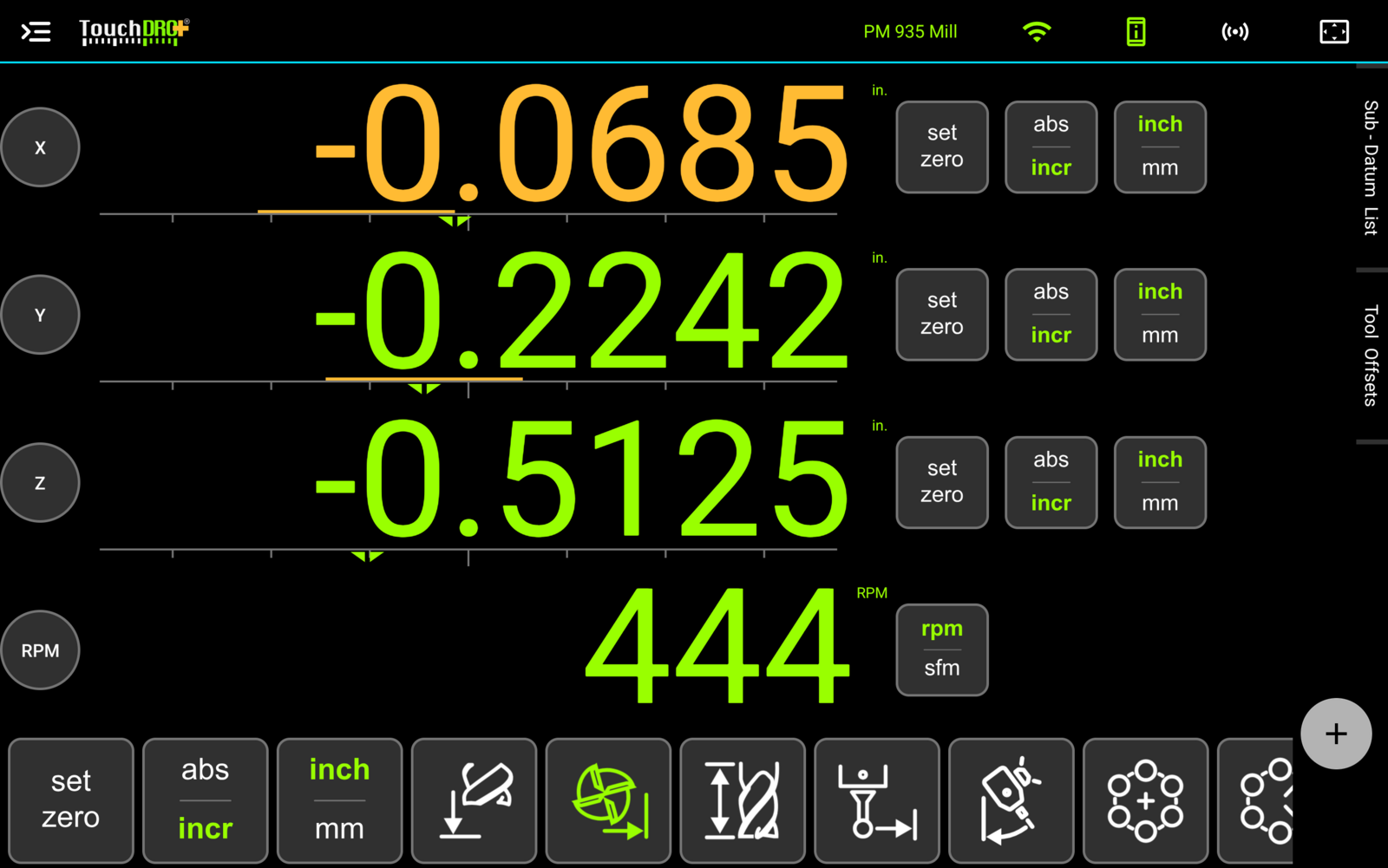
Tool compensation shifts the X and Y readouts by half the cutter diameter, so the number on the screen is the position of the cutting edge rather than the center of the spindle. This is usually called "cutter comp", and it is the same idea as G41/G42 cutter compensation on a CNC machine. To do this, TouchDRO needs to know two things: the diameter of the cutter, and which side of the cutter is doing the cutting.
The side matters because the two edges of a cutter are a full diameter apart. When you are milling the left wall of a pocket, you care about the left edge of the cutter, and on the right wall, the right edge. In TouchDRO the side is selected on a nine-cell "Tool Position" pad, where each cell is drawn as the cutter against the edges it is working to. The center cell applies no shift at all. When an axis is compensated, its readout is shown in amber, so it's easy to tell that the number on the screen is not the spindle position.
The diameter can come from the tool library, or it can be typed in for the job at hand. The typed-in diameter is fine for a cutter you use once in a while. For the cutters you use often, it's much more convenient to save them in the library, where each one has a name, a measured diameter, and a flute count, and can be recalled with one tap from a panel next to the readouts. The rest of this guide covers the library.
What You Will Need
You will need TouchDRO installed on your mill (a TouchDRO adapter and a tablet), a pair of calipers or a micrometer to measure the cutters, and a piece of scrap to cut a test slot with the cutters that matter. At the start of a job you will also need whatever you normally use to pick up an edge, such as a touch probe, an electronic edge finder, or a wiggler. If you have more than a handful of cutters, a computer with a spreadsheet will save you a lot of typing on the tablet.
Building the Tool Library
The library needs to be built only once. Each entry consists of a name, the units, the flute diameter, and the flute count. The Z offset is optional and is covered in the next guide; for the cutters described here, leave it switched off.
Measuring the Diameter
It's important to enter the actual diameter of the cutter, rather than the nominal size etched on the shank. Many end mills are ground a bit under their nominal size, a resharpened end mill is smaller still, and any runout in the holder makes the cut wider than the cutter. If you enter the nominal diameter, every wall will come out off by half the difference. Since the error is consistent, it's pretty easy to blame it on the machine.
There are two ways to measure the actual diameter. Measuring across the flutes with calipers is quick and good enough for roughing cutters. Note that this doesn't work for a three-flute end mill, since it has no two flutes opposite each other. For finishing cutters, a better approach is to cut a test slot. Mill a short slot in a piece of scrap at the feed and depth you will actually use, and measure the width of the slot with calipers or a gauge pin. The width of the slot is the effective diameter of the cutter, including the runout, and this is the number that should go into the library.
Entering Tools
To add a tool, select "Tool Library" from the application menu and press "Create New Tool" in the "Saved Tools" dialog. This will open the "Add Tool" dialog, where you enter the name, the units, the flute diameter, and the flute count. The drawing on the left shows what each value means. The diameter field accepts fractions, so a 3/8" cutter can be entered as "3/8". Each tool has its own units, so a metric end mill can be entered in millimeters even if the readout is set to inches.
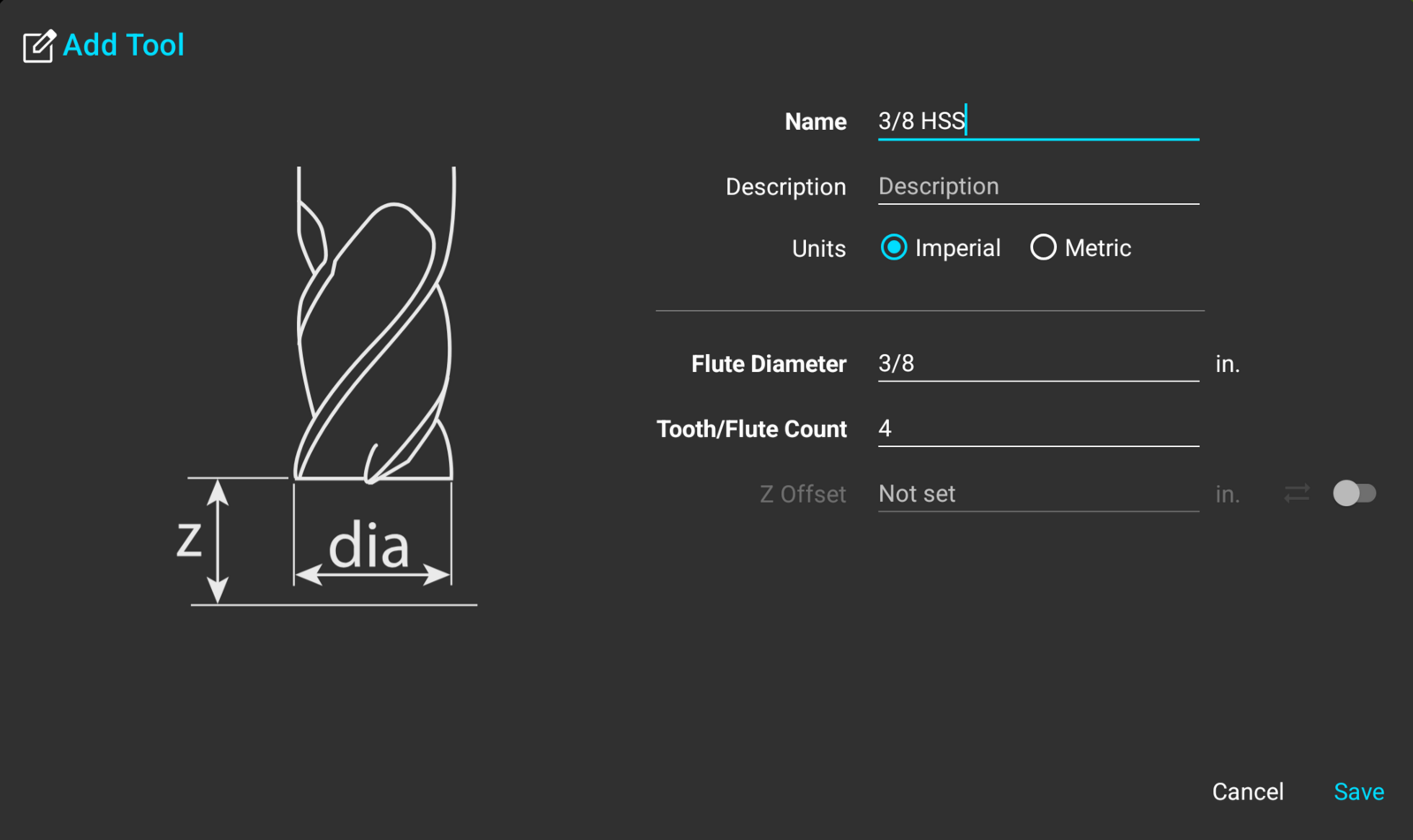
The name is what you will see in the panel later, so it's best to use something easy to recognize, such as "1/2 4FL Carbide" or "3/8 Rougher", rather than a catalog number. The panel is fairly narrow, and names longer than about twenty characters will be truncated there. The description field is a good place for the holder the tool is set in or the material it is ground for. The individual fields are described on the "Mill Tool Library" page.
A cutter that was typed into the "Tool Compensation" dialog for one job can be saved as well. The save icon next to the "Tool" dropdown opens the same "Add Tool" dialog with the diameter and the units already filled in. This is a convenient way to add cutters to the library as you go.
Importing from a Spreadsheet
If you have a drawer full of end mills, it's much faster to enter them in a spreadsheet on a computer and import the whole list at once. The library imports a CSV file with one row per tool. A sheet built from scratch needs only four columns: name, metric (yes or no), diameter, and tooth_count. Save it as a CSV file and open it with the "Import" button at the top of the "Saved Tools" dialog. TouchDRO will show the rows in a preview first, and nothing is written until you confirm.
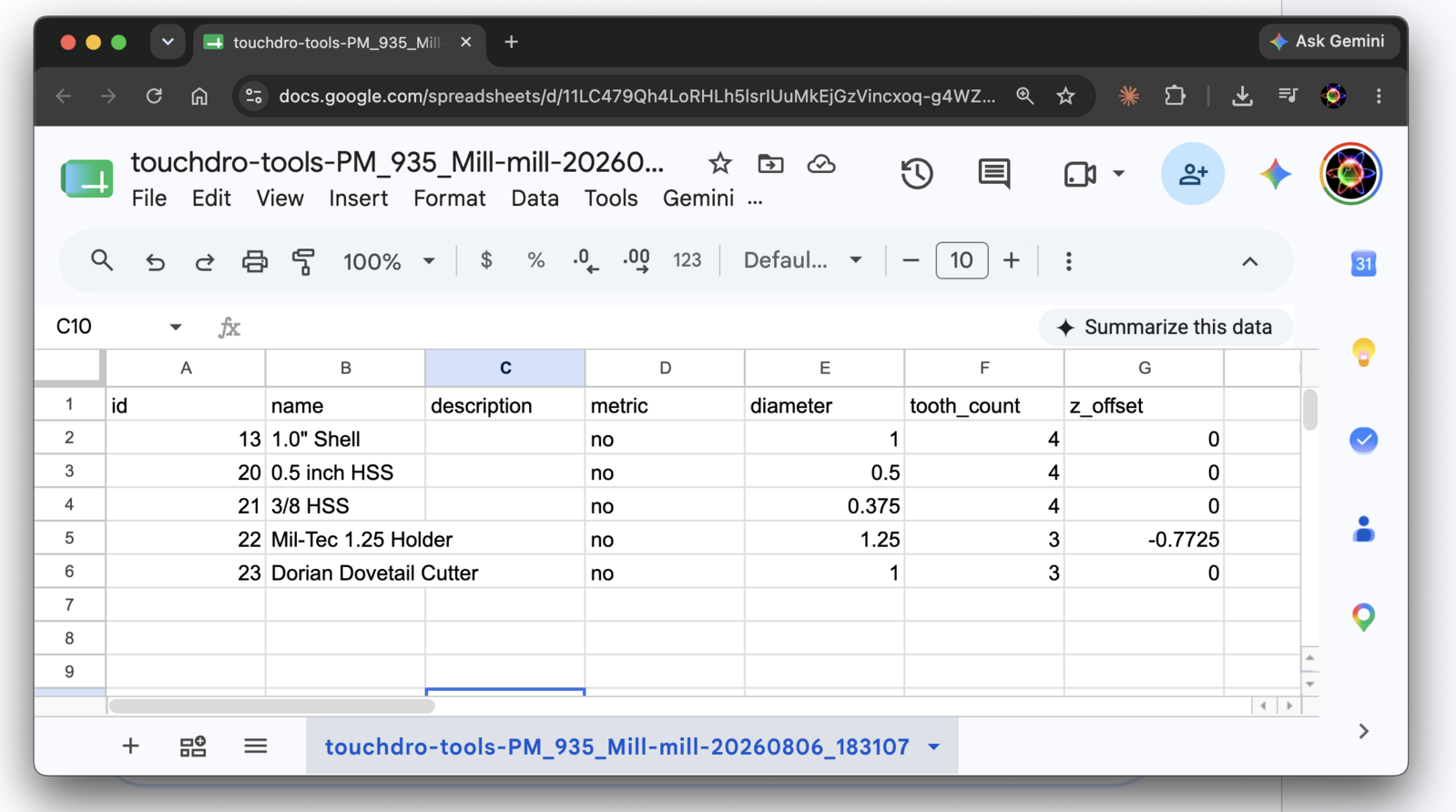
The column names, the optional columns, and the import preview are covered in "Importing and Exporting Tools". Note that the diameters in the spreadsheet should be the measured ones, as described above, rather than the nominal sizes from the packaging.
Recalling a Tool
To recall a tool, tap its row in the "Tool Offsets" panel on the right side of the readout screen. TouchDRO will load the diameter and the flute count of the cutter, show the row in green, and show the name of the tool in amber in the toolbar. The name is visible from any screen, so you can always tell which cutter TouchDRO assumes is in the spindle. To remove the tool, tap the green row again.
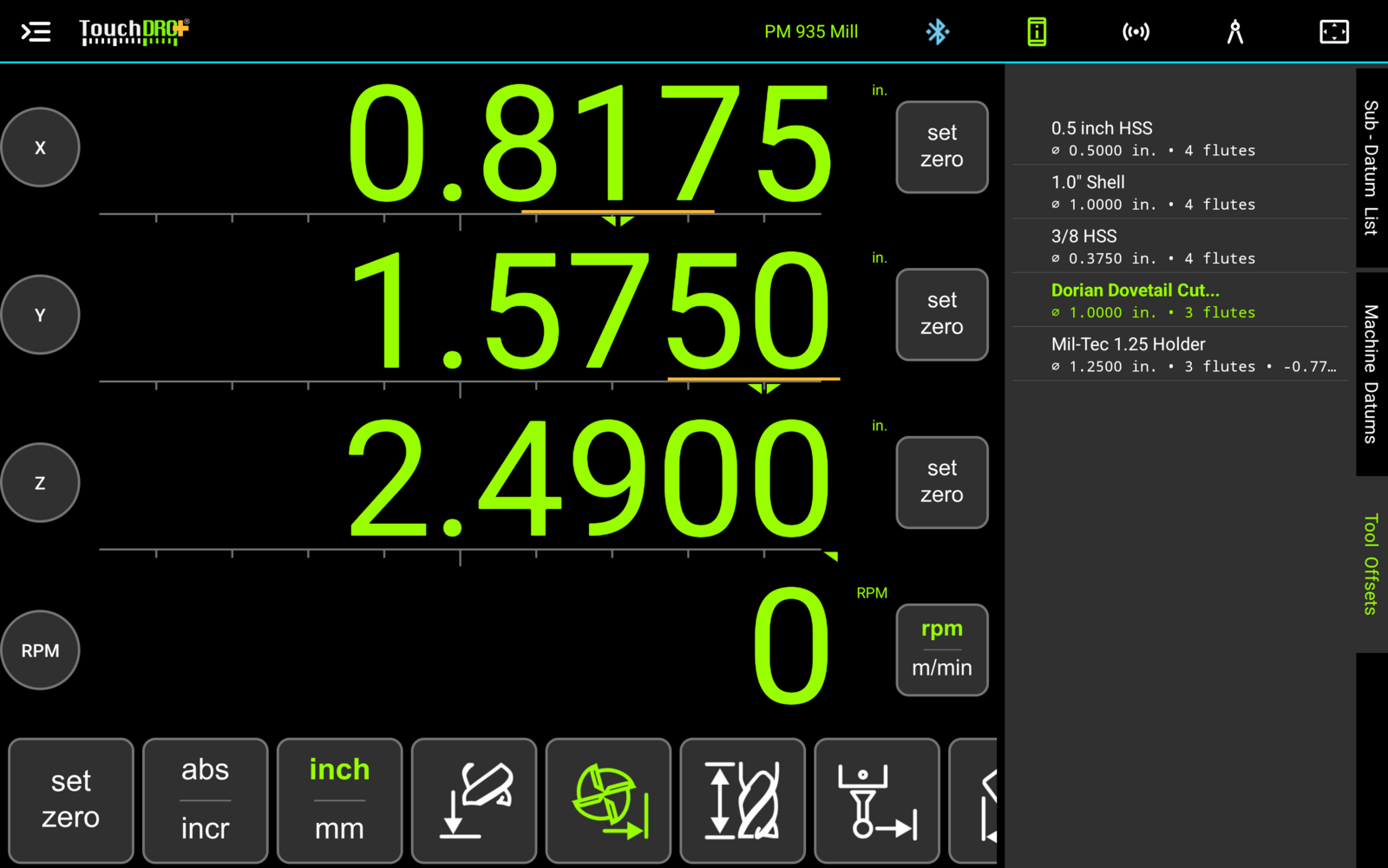
When a tool is recalled for the first time, it is in the center position, i.e. no shift is applied until you select a side. The side is selected on the "Tool Position" pad in the "Tool Compensation" dialog, which opens from the cutter icon in the toolbar, or by tapping the cutter drawn in the Graphical View display. Once a side is selected, it stays selected through tool changes. For example, if you swap a 3/8" rougher for a 1/2" finisher on the left wall, the readout will still show the left edge, recalculated for the new diameter.
There are two visual cues that show the compensation direction. The position slider under each readout shows the cutter as an amber band drawn to its diameter, with the green marker at the edge the readout refers to. This makes it easy to see which side of the cutter the readout is showing, which is the part that is easy to get backwards. In the Graphical View display, the cutter is drawn as a circle to scale over the workspace, so you can see how much material the next pass will remove. The dialog and its controls are described on the "Tool Compensation" page.
Milling to Size
Tool compensation is most useful when you need to work to an edge repeatedly. Below are four common examples.
A Slot or a Pocket
A pocket has four walls, and each wall is a dimension on the drawing. With compensation on and a guide line drawn on each wall, the readout shows the distance between the cutting edge and the wall, and reads zero when the wall is at size. In other words, you don't need to add half the diameter on one wall and subtract it on the other. With the "Auto Tool Offset" mode on, activating a guide turns the compensation toward it, so you don't need to change the direction by hand as you move from wall to wall.
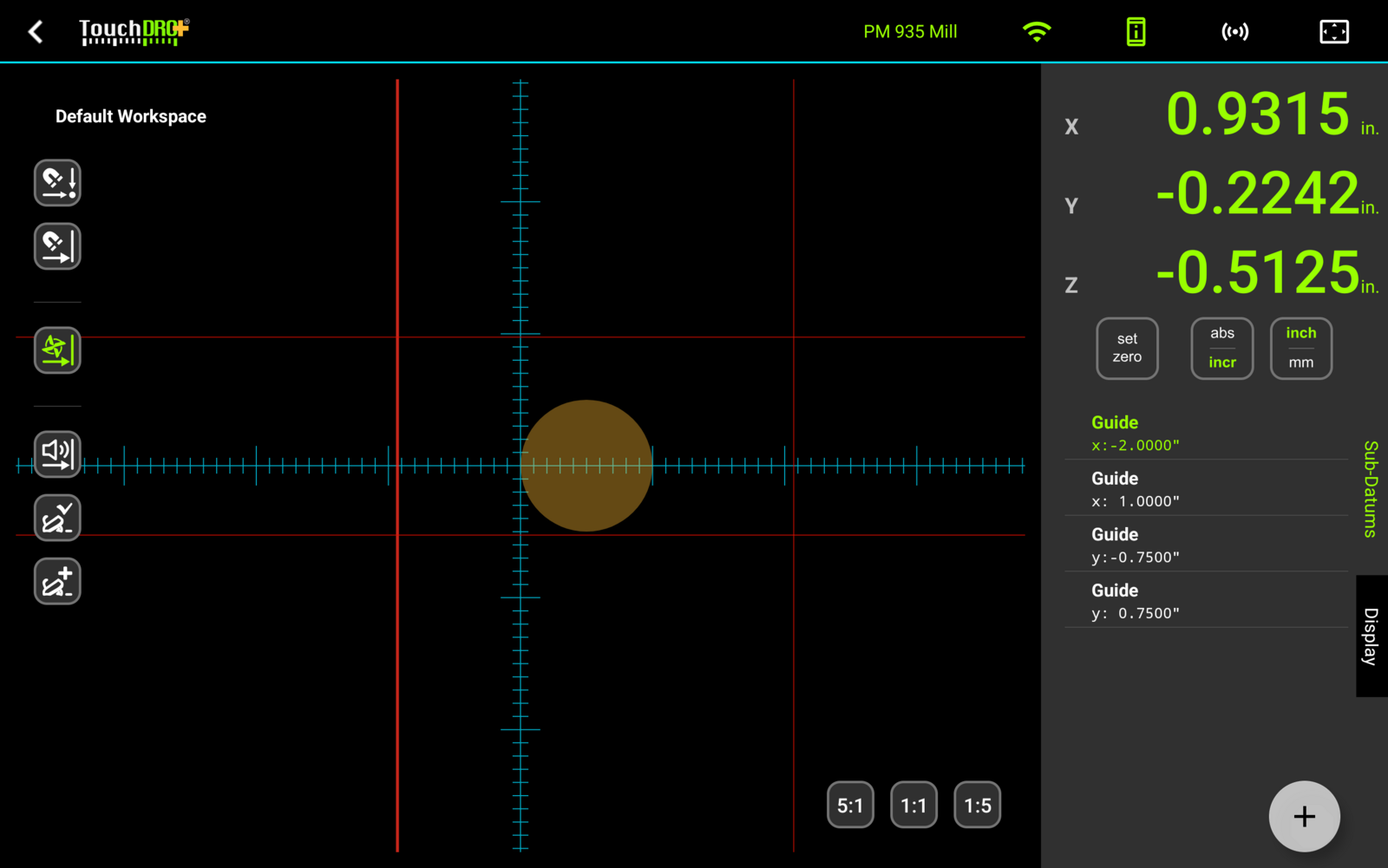
A slot is the same job with two walls. Worked examples for both, with the guides set up step by step, are in "Cutting a Slot on a Mill" and "Cutting a Rectangular Pocket on a Mill".
Squaring Stock
When squaring a piece of rough stock, the readout needs to do two different things. While the first two faces are being cut, it needs to show where the cut is landing. Once those faces are clean and zeroed, it needs to show how far the opposite faces are from them, which is the finished size of the part. Tool compensation covers both, because the side can be flipped once the first two faces are done. Clean up the left and front faces with the cutter on the lower-left cell, and zero X and Y on them. Then switch to the upper-right cell, and mill the remaining faces until the readouts show the finished width and depth.
Note that both readouts will jump by one cutter diameter when the side is flipped, since the reading moves from one edge of the cutter to the other. The zeros you set are not affected. The step-by-step procedure is in "Squaring and Sizing Stock".
Working to a Drawing or a Photo
For a more complex contour, you can use the Graphical View display. You can import a CAD drawing of the part, or overlay a photo of it, and TouchDRO will draw the recalled cutter to scale against the outline. You can then run the cutter along the outline, and since the diameter comes from the library, the circle on the screen is the correct size.
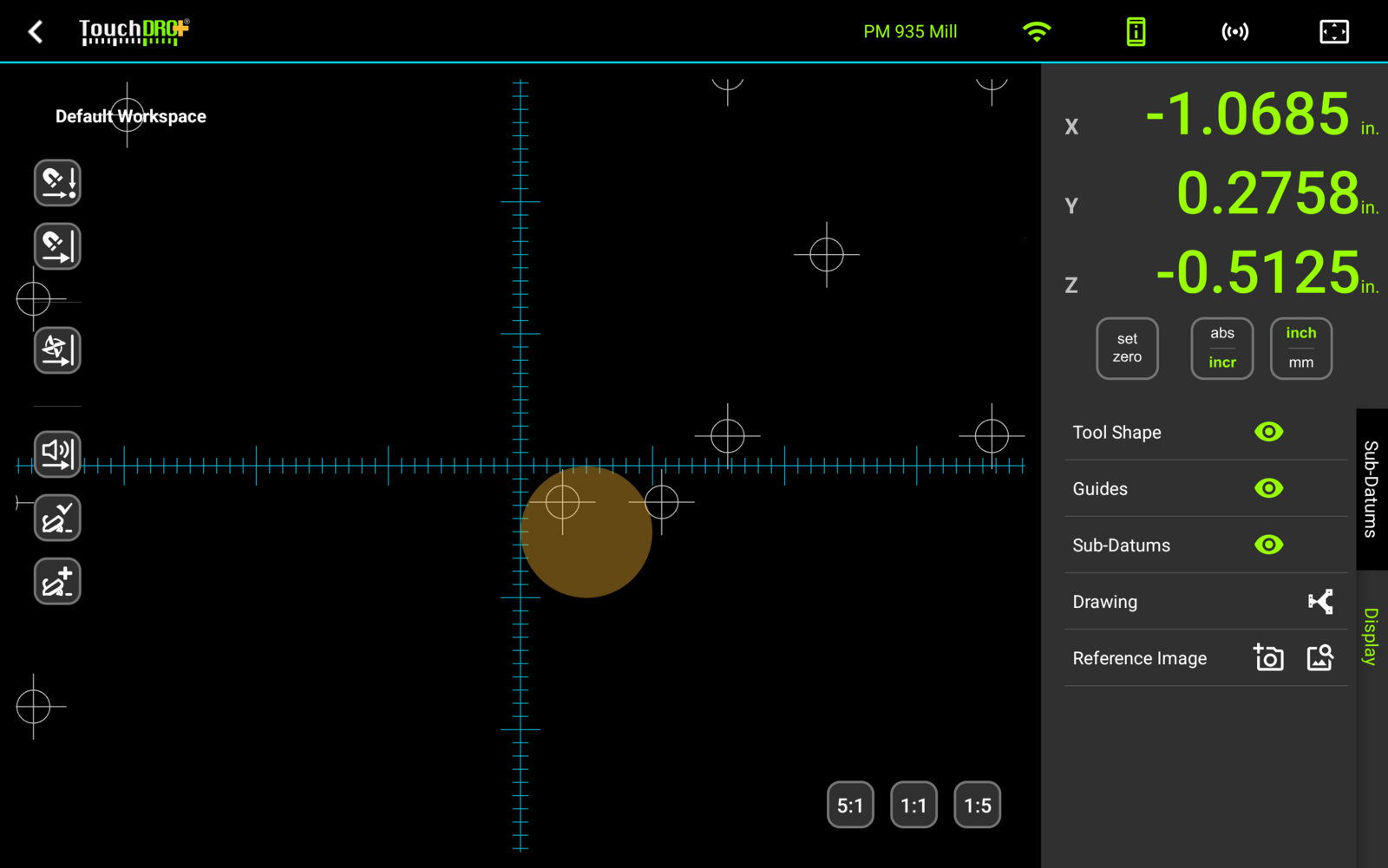
The full workflow, from the drawing to the finished part, is covered in "Machining to a CAD Drawing" and "Machining a Part from a Photo".
Chip Load
The flute count has one use. Together with the diameter, the feed rate, and the spindle speed, TouchDRO calculates the chip load (feed per tooth) and shows it live in the "Axis Details" dialog. Recalling the tool supplies the two numbers that don't change, so the chip load is available on every job without entering the cutter's size again. This is useful on a machine without a power feed, where the feed rate depends on how fast you turn the handwheel.
Changing Tools Without Losing the Z Zero
So far this guide has covered X and Y only. A tool change also moves the tip of the cutter up or down in the spindle, and with a collet, a drill chuck, or any other holder that doesn't return the cutter to the same height, the height of the new tool is unknown until you touch it off. Since the library entries described here have no Z offset, recalling a tool changes X and Y only, and the Z zero still needs to be set for each cutter.
The easiest way to do this is with a tool height setter and two TouchDRO functions. At the start of the job, the "Set Z Reference" function sets the Z zero from the setter standing on the stock. If you enter the stock thickness, the zero will be set at the bottom face. At each tool change, the "Hold" function freezes the Z readout while the old cutter is sitting on the setter. You then change the tool, bring the new cutter down to the same setter, and release the hold. The readout continues from the same number, and the part is never touched. A feeler gauge or a piece of cigarette paper will work in place of the setter, as long as you can feel the contact consistently.
The whole procedure, with the setter profile and the screenshots, is covered in "How to Use a Tool Height Setter". It takes a minute or two per tool change, and for most jobs this is all you need.
If your cutters are set in quick-change holders that return each one to the same height, there is an even faster way. Since the holder makes the height of each tool repeatable, the library can store it as a Z offset, measured once with the same setter, and a tool change becomes a tap on the panel with no touch-off at all. This is covered in "Tool Length Offsets on a Manual Mill".