
Tool Height Compensation
Machining a part rarely takes one cutter. A job can rotate through half a dozen or more of them, a center drill, two or three drills, an endmill, a chamfer tool, a reamer, and every one of them sits at a different height in the spindle. Re-indicating the surface is quick the first time and tedious by the sixth.
Repeatable tool holders take care of half of that. Holder systems that return a tool to the same position every time are available for most common spindle tapers, and once a cutter is set in one, its height stops changing from one use to the next. What is left is telling the readout what that height is.
Tool height compensation is the other half. Measure a tool's offset once and store it, and selecting that tool afterwards shifts the Z readout so zero still refers to the surface it was set from. The tool change costs a selection instead of a touch-off. If you know G43 tool length offset from CNC work, this is the readout version of the same idea.
The offset is kept as a separate tool offset coordinate system rather than being folded into the absolute or incremental origin, so it can be changed or cleared without disturbing the Z zero you established.
Opening the Dialog
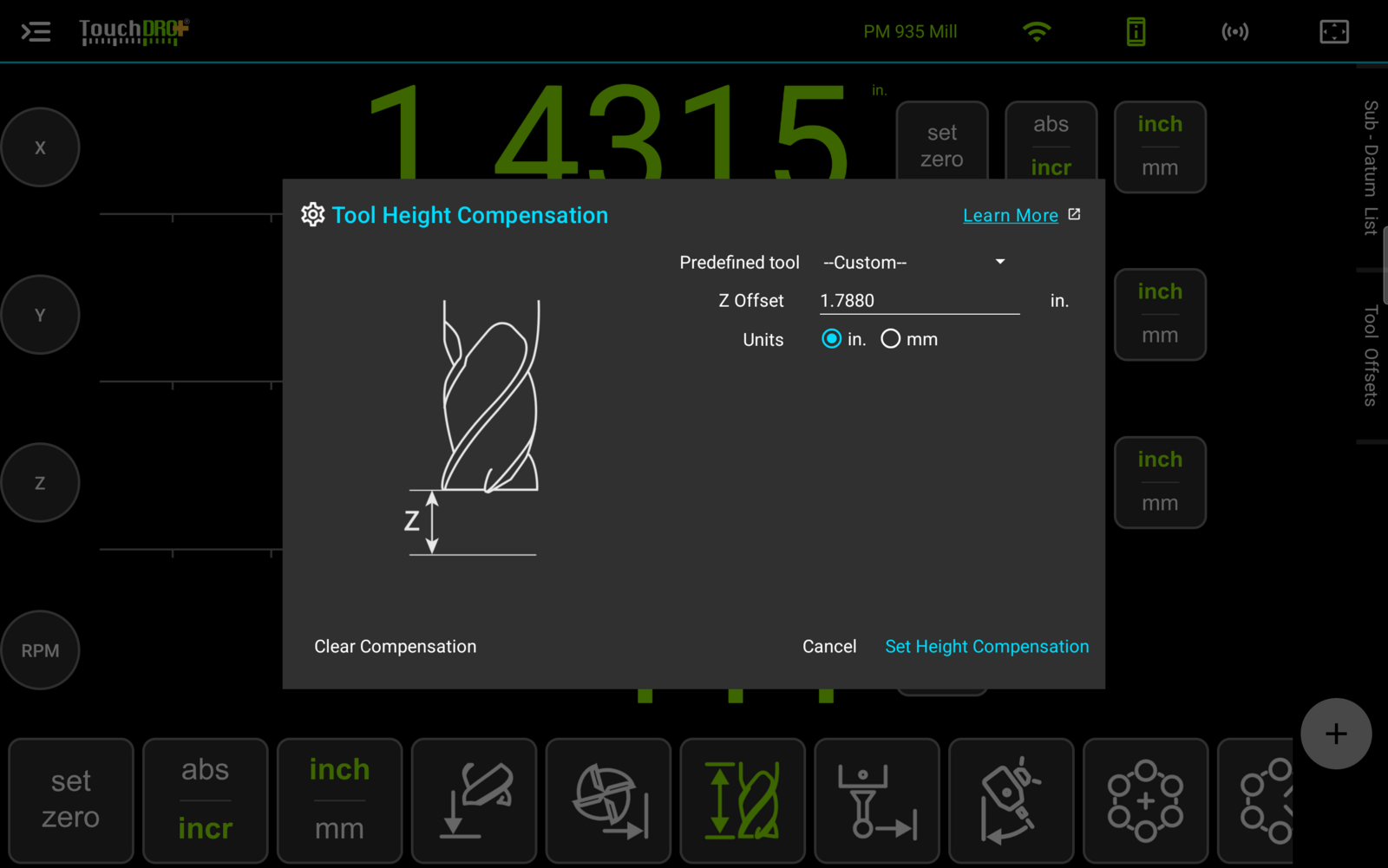
To open the "Tool Height Compensation" dialog, press the "Tool Height Compensation" button in the function strip.
Setting the Offset
The dialog takes the offset two ways: from the tool library, or as a figure typed in for the tool at hand.
Predefined Tool
The "Predefined tool" dropdown lists the tools held in the tool library. Selecting one will fill in its offset and units and make both fields read-only, since those values belong to the library entry.
This is the route worth taking for tools you use repeatedly. Measuring a tool once and picking it by name afterwards is the difference between a tool change that takes a moment and one that takes a touch-off.
Z Offset and Units
Leaving "Predefined tool" on "--Custom--" enables the "Z Offset" field and the "Units" selection. The drawing in the dialog shows what the figure describes: the distance between the tip of the cutter and the reference surface below it.
The units belong to the entry rather than to the machine, so a tool measured in millimeters can be entered that way on a readout you are working in inches.
Pressing "Set Height Compensation" applies the offset. "Cancel" closes the dialog and changes nothing.
How Compensation Appears on Screen
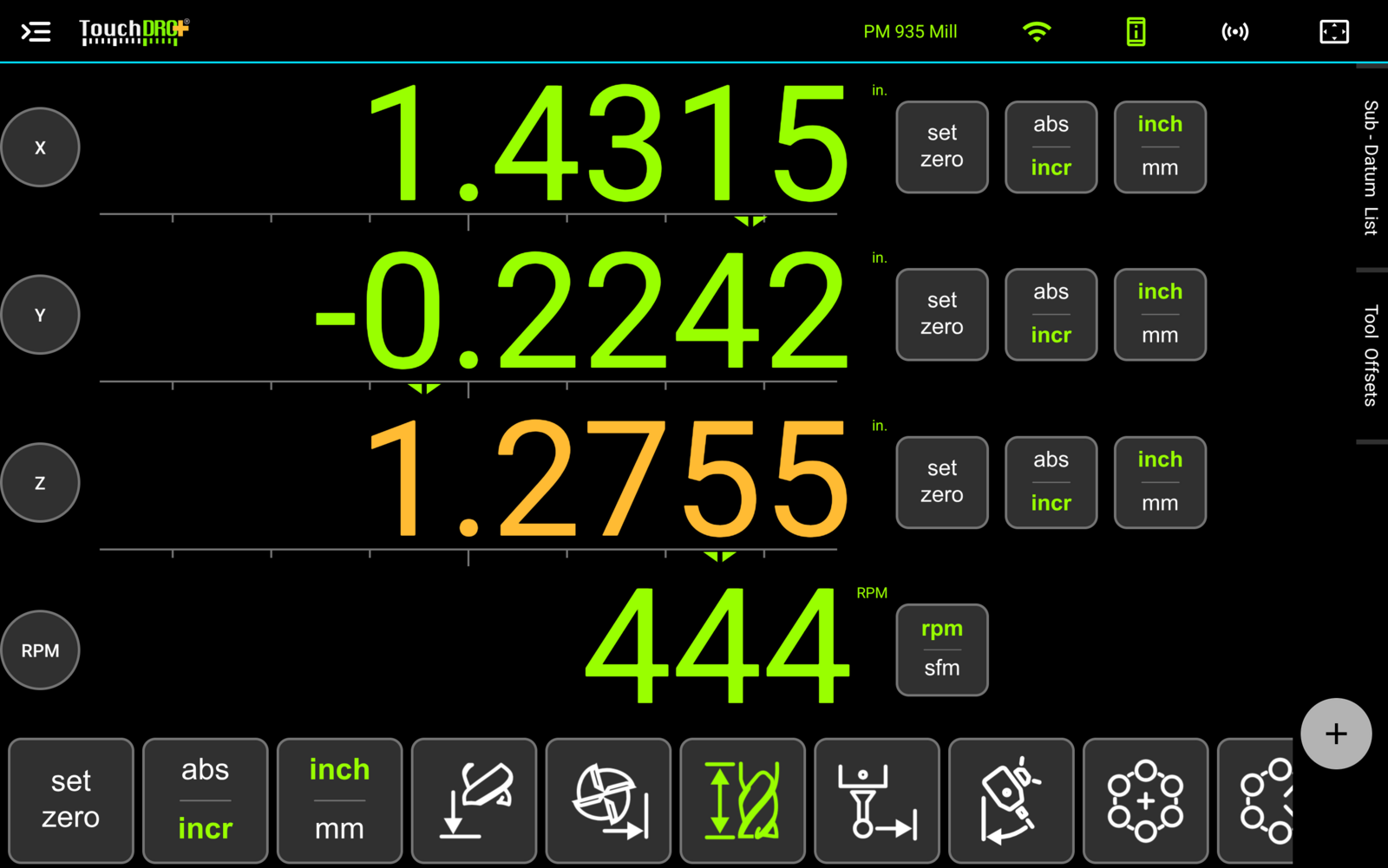
The Z readout will show in amber rather than the usual color while an offset is applied, so a compensated number is never mistaken for a plain one. The "Tool Height Compensation" button in the function strip is highlighted at the same time.
Clearing the Offset
There are two ways to remove the compensation:
- Long-press the "Tool Height Compensation" button in the function strip
- Open the dialog and press "Clear Compensation" in the lower left corner. The button is disabled while there is no offset to remove
Clearing the offset returns Z to the spindle position. The Z zero is not affected, since the offset was never folded into it.
Other Ways to Handle a Tool Change
Two other functions deal with the same problem from different directions, and which one fits depends on whether the tool's offset is a number you already have.
The "Set Z Reference" function establishes where Z zero is in the first place, by touching a tool off against a height setter, a feeler gauge, or the work itself. It is the function to reach for at the start of a job, or whenever the datum rather than the tool has changed.
The "Hold" function freezes the Z readout so a cutter can be swapped without losing the position. It suits a tool whose offset is not known: touch the old tool off against a setter, hold, change tools, bring the new tool down to the same setter, and release. Nothing has to be measured, but the setter has to come out for every change.
Height compensation is the option that pays off when tools live in repeatable holders. The offset stays true from one job to the next, so it is worth measuring once, and the tool change becomes a selection rather than a procedure.