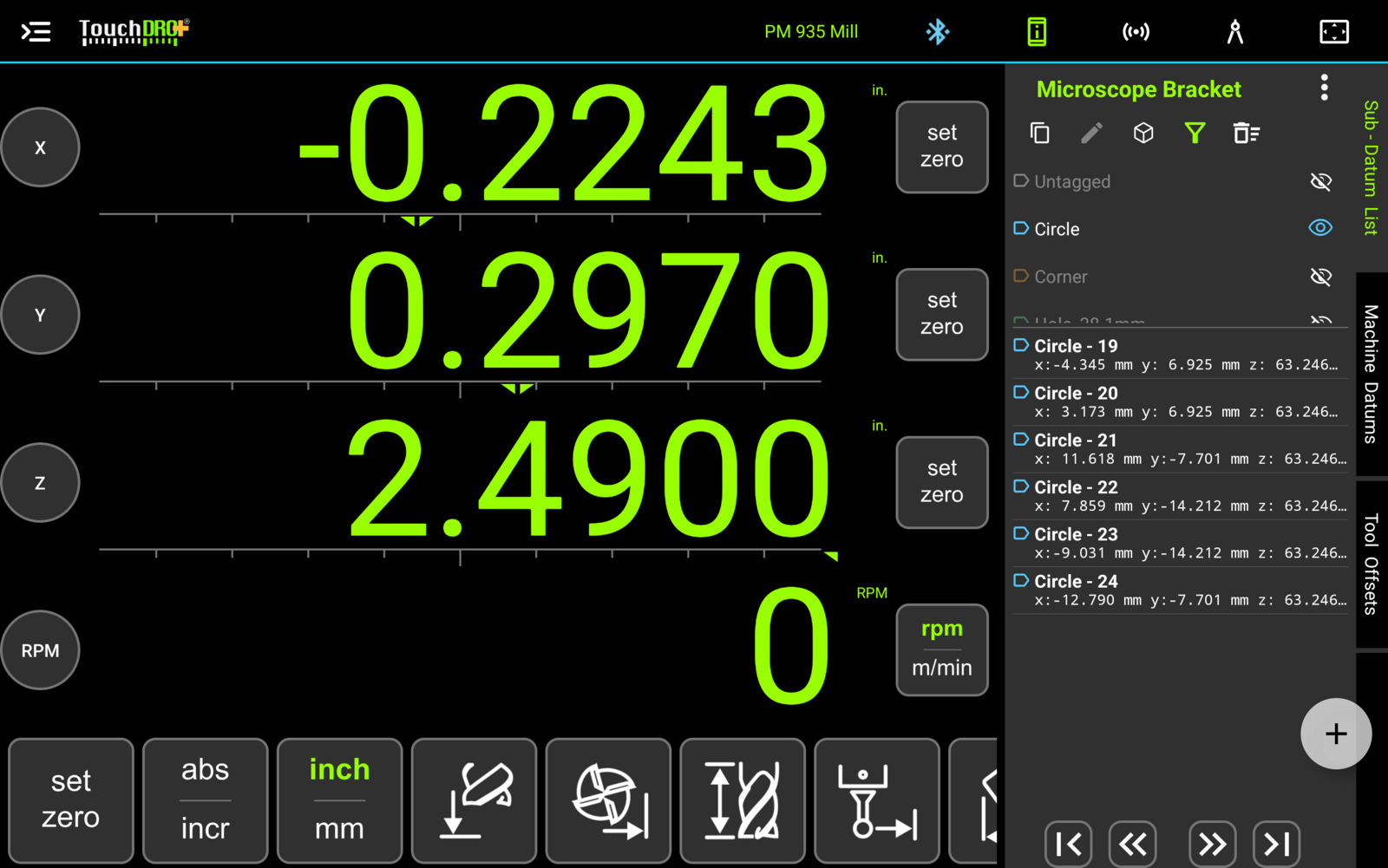
Unequally Spaced Hole Circles
Not every bolt pattern splits a circle equally. Motor mounts, flanges with clocked holes, and castings laid out around obstructions put their holes on a common radius but at uneven angles. The "Arbitrary Hole Circle" function handles this case: enter the radius once and the angle of each hole, and TouchDRO will calculate every position and save it into sub-datum memory.
For holes that are spaced equally, the "Hole Circle" function is the quicker route, since it takes a hole count instead of a list of angles.
Opening the Dialog
To open the "Arbitrary Hole Circle" dialog, press the "Arbitrary Hole Circle" button in the function strip, or select "Arbitrary Hole Circle" from the "Add Sub-Datum" menu in the sub-datum panel.
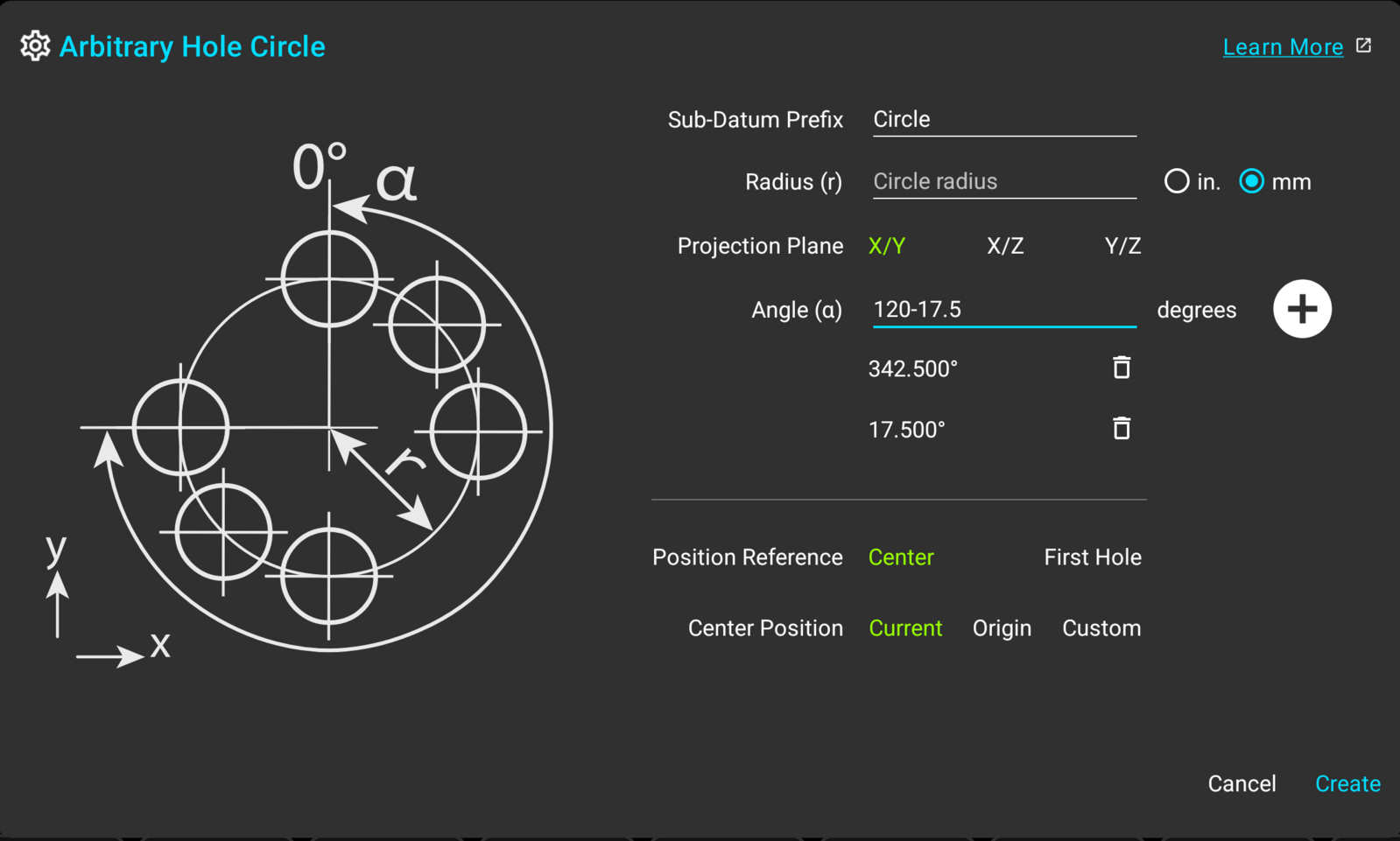
Circle Parameters
Sub-Datum Prefix, Radius, and Plane
The prefix, the radius with its own "in."/"mm" selection, and the "Projection Plane" selection work exactly as they do in the "Hole Circle" function. The created holes are named and tagged with the prefix. The radius field accepts arithmetic in its own units, and the plane defaults to X/Y on a mill.
The Angle List
The angles are entered one at a time: type a value into the "Angle" field and press the "+" button to add it to the list. Each entry can be anything from -360 to 360 degrees. The field accepts arithmetic, so an angle laid out on a drawing as "120° minus 17.5°" can be typed as "120-17.5". The 0° mark points along the horizontal axis of the drawing (the 3 o'clock position), and positive angles run counter-clockwise, as in the "Hole Circle" function. With "Legacy Pattern Angles" on, the 0° mark is at 12 o'clock and positive angles run clockwise.
Added angles are shown normalized to the 0-360 range, so entering -17.5 will show as 342.500°. To remove an entry, press the delete icon on its row. The pattern can hold up to 100 holes.
Positioning the Circle
The bottom of the dialog places the pattern, and the controls are shared with the other generator functions. "Position Reference" picks between the center and the first hole. The position itself comes from the current machine position, the workspace origin, or typed-in coordinates. The details, including the stored sub-datum dropdown and the optional third axis, are covered in "Hole Circle".
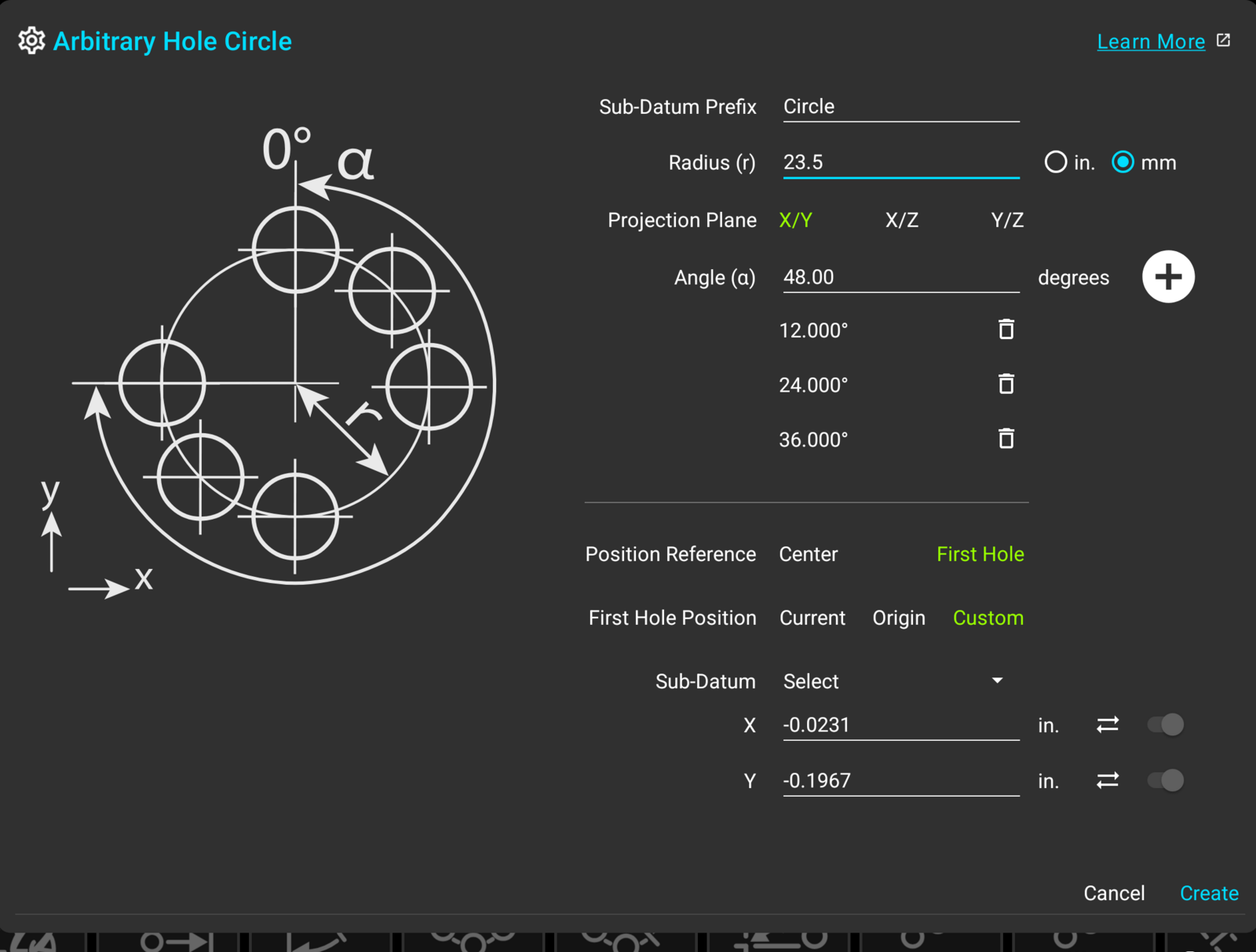
The Created Holes
Press "Create" and TouchDRO will write the holes into the current workspace as ordinary sub-datums: they appear in the sub-datum list named by the prefix, and are drawn at their positions in the Graphical View display, where tapping a hole activates it and the readouts count down to it.
The prefix also becomes a tag on every hole, and the tag filter can show or hide the whole pattern in one tap, in the list and in the view alike. On a workspace that already carries other patterns, filtering down to one tag is the quick way to work the new holes without wading through the rest.
How To Use
Drill Three Pairs of Holes
Goal: drill three pairs of holes on a 25 mm bolt circle, the pairs 120° apart and the holes of each pair 35° apart, centered on the current spindle position.
- Move the spindle to the center of the pattern
- Bring up the "Arbitrary Hole Circle" dialog
- Enter 25/2 into the "Radius" field and select "mm"
- Enter the following values into the "Angle" field, pressing "+" after each one:
- -17.5
- 17.5
- 120-17.5
- 120+17.5
- -120-17.5
- -120+17.5
- Leave "Position Reference" on "Center" and "Center Position" on "Current"
- Press "Create"
The angle list will show the six entries normalized: 342.500°, 17.500°, 102.500°, 137.500°, 222.500°, and 257.500°. The result in the Graphical View display looks like this:
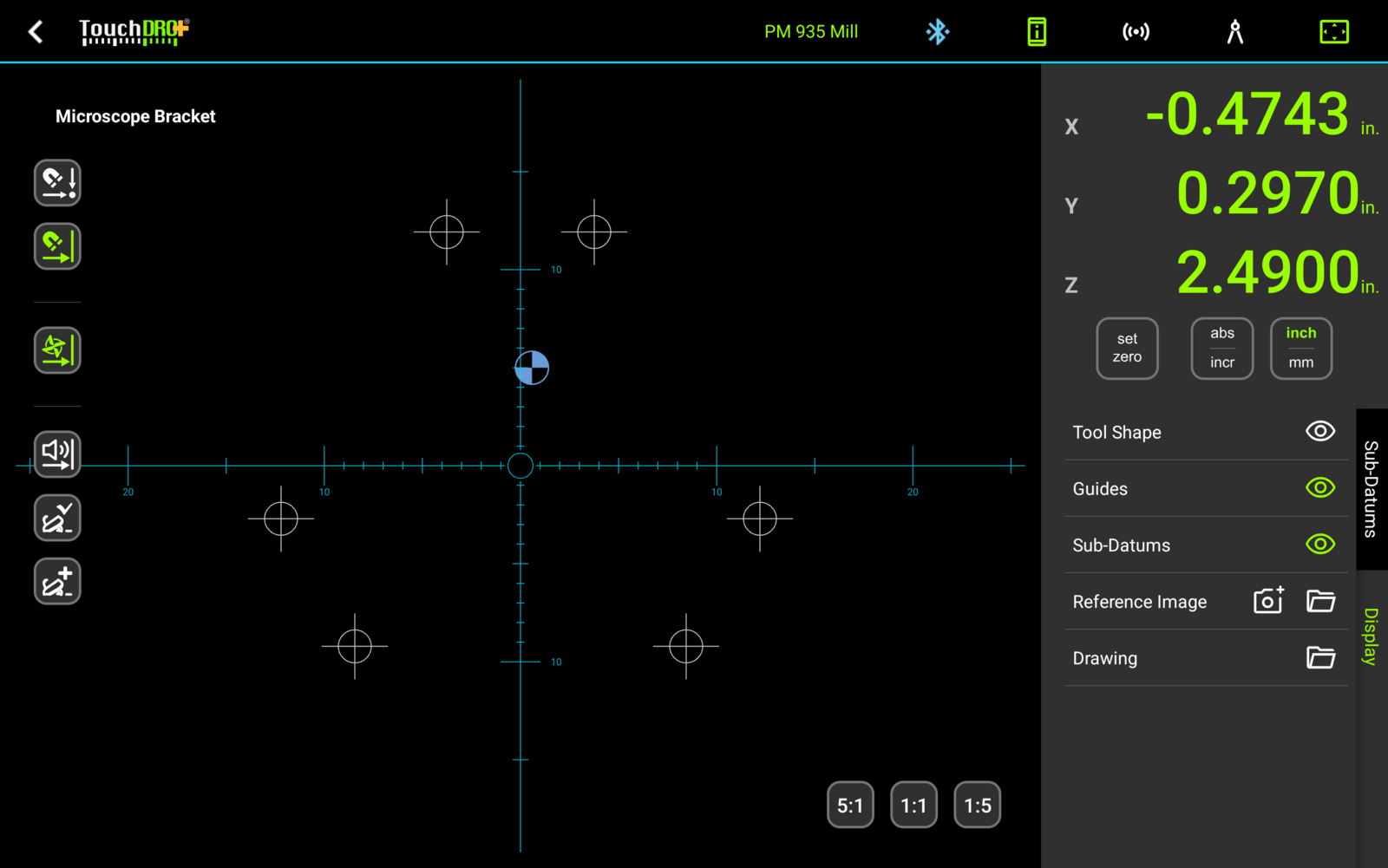
The created holes arrive in the sub-datum list named "Circle - 1" through "Circle - 6" and tagged "Circle", so the whole pattern can be filtered, hidden, or deleted as a group: