
TouchDRO 3.31 Release Notes
TouchDRO 3.31 is a large release. The digital readout can now work directly from a CAD drawing, measure a part as well as cut one, follow a rotary table as you index it, and correct the error in your scales, and calibration has moved from the machine profile to the adapter. Every section below links to the manual page that covers the new functionality in full.
CAD Drawing Import
TouchDRO can now show your CAD drawing at true scale under the crosshairs, so you can work straight from the print instead of transcribing coordinates off it. The graphical view draws the part where the part actually is, and the drawing needs no scaling or calibration step on import because the coordinates are true scale to begin with.
TouchDRO also extracts hole centers, arc centers, and corners as sub-datums, tagged by group, so every important location is a tap away and a pattern with several hole sizes can be worked one drill size at a time. Drawings come in from SnapCAD, which has a built-in "Export to TouchDRO" command; direct DXF import is under development. Since SnapCAD's native format is DXF, you can open a DXF from any other package in SnapCAD and export it from there in the meantime.
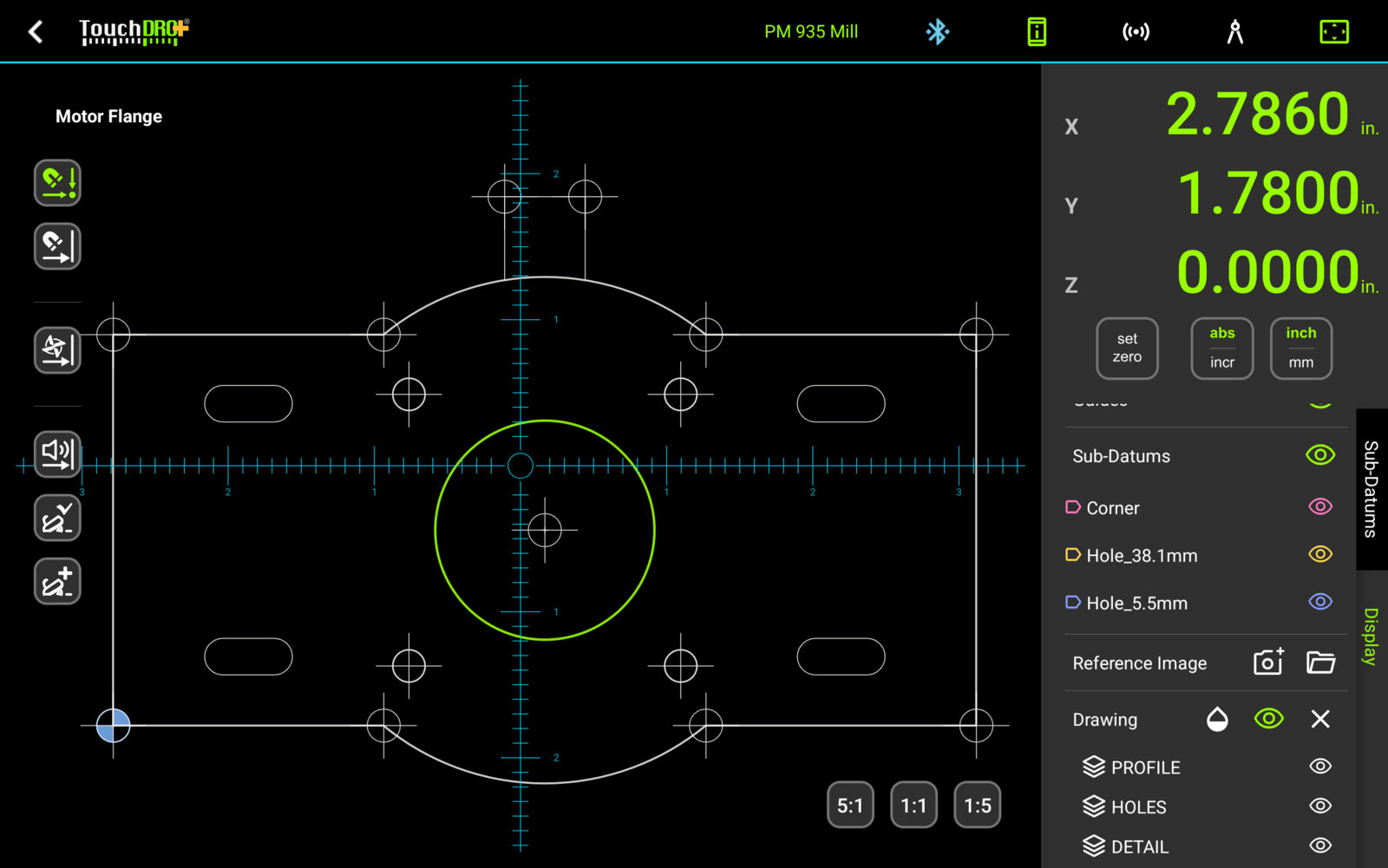
See "CAD Drawing Import" and the "Machining to a CAD Drawing" guide.
Rotary Table Support
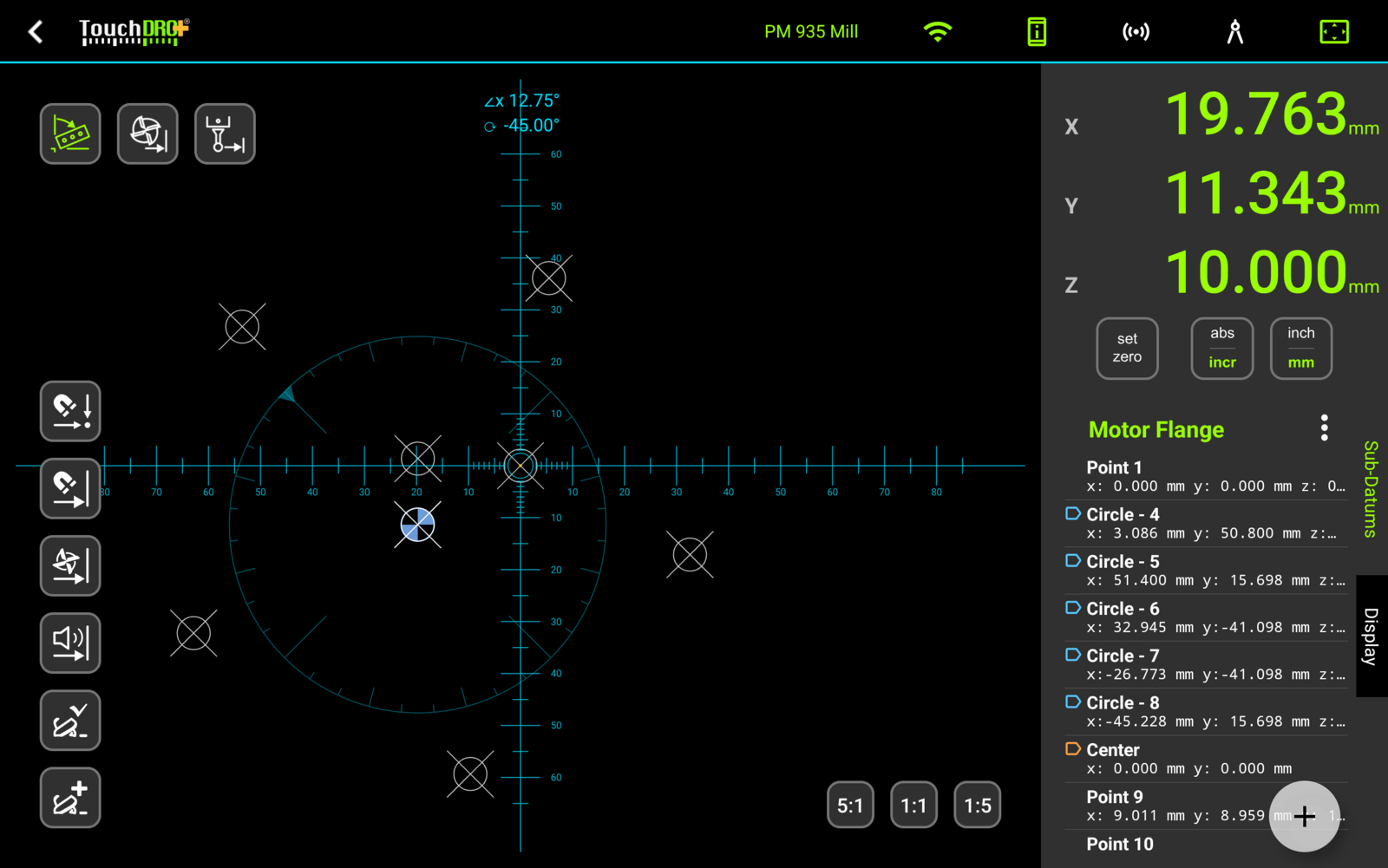
When you machine a part mounted to a rotary table, the moment you index the table the coordinates on the readout stop matching the print. The features are still where the drawing says they are on the part, but the part has turned under the spindle.
The new Rotate Part function turns the stored geometry with the table, so you keep driving to the numbers the print gives. TouchDRO reads the table angle live from an encoder on the rotary axis, so the workspace follows the table as you index, or takes a typed angle when the part is fixed at a known one: a casting sitting at an angle to the vise jaws, a job on an angle plate, or a second operation whose datum edge runs off square to the first. See "Rotate Part".
Measurement Mode
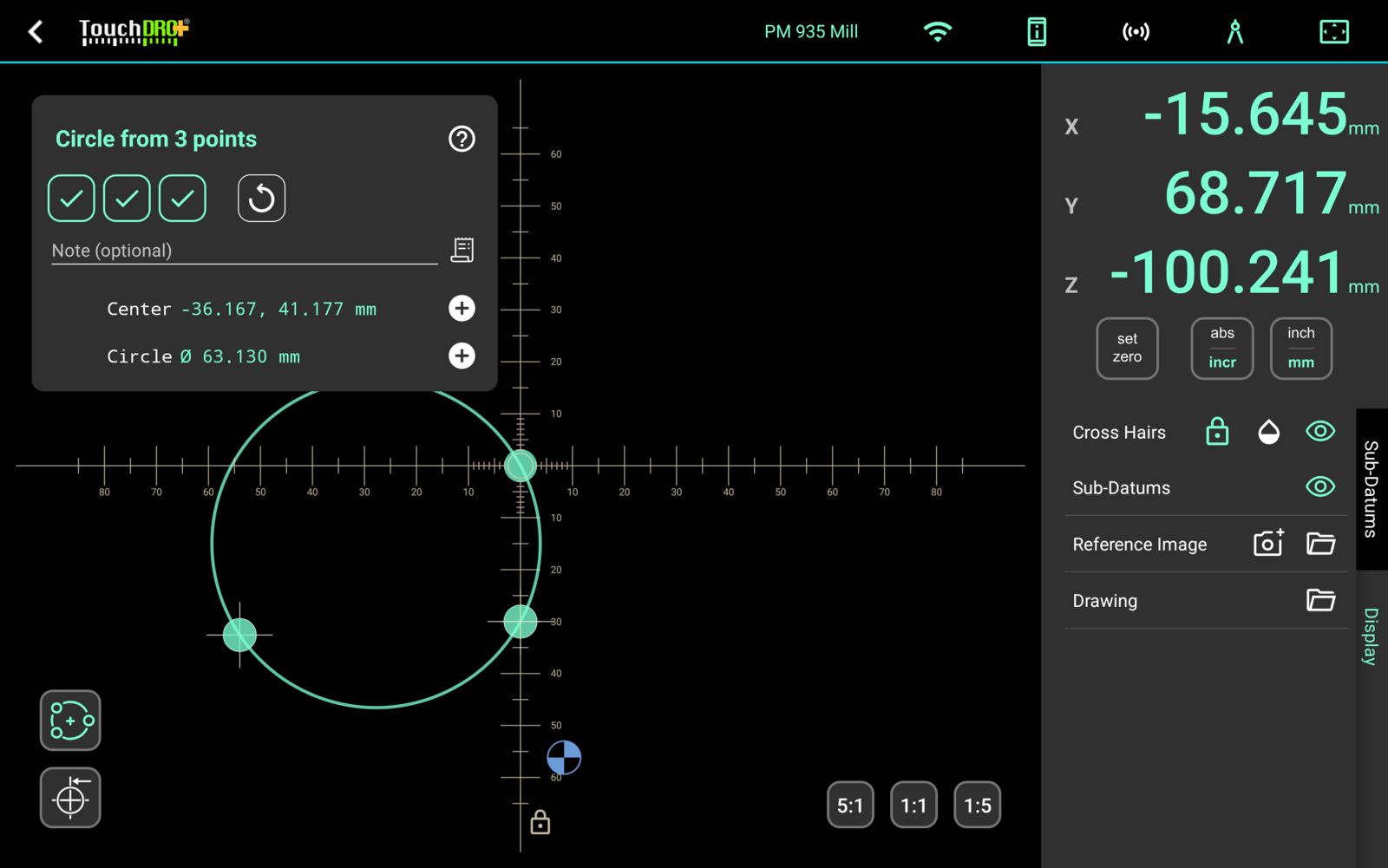
A mill and its readout are a measuring machine as much as a cutting machine, and 3.31 adds a mode that treats them as one. Measurement mode lets you check the part you just made without unclamping it and carrying it to a surface plate, and lets you pick up the dimensions of a part you didn't make, one feature at a time, finishing with a set of coordinates you can draw from.
You indicate features with a touch probe, a camera, or an inexpensive digital microscope, and store what you find in sub-datum memory as you go. The probing functions cover the features you can't put crosshairs on directly: the center of a partial bore, the point where two lines would have met before the corner was rounded off, and the angle between two sides. See "Measurement Mode".
Probe Profiles
Most shops own more than one instrument. A 4 mm edge finder, a touch probe, and a microscope measure differently and sit differently in the spindle, and until now switching between them meant re-entering numbers. The Probe Library holds a profile for each, with its tip diameter, its offsets, and the port it is wired to.
Three functions draw on the library, and each remembers the profile it was last used with, so the Indicate Workpiece function, the Set Z Reference function, and measurement mode can all stay on different instruments at the same time.
TouchDRO can also measure a probe's effective tip diameter for you. The number marked on a probe is a starting point rather than a measurement, since probing forces deflect the stylus before the probe triggers, and depending on the probe that difference ranges from negligible to tens of microns. The new calibration wizard takes touches at four clock positions inside a ring gauge, or any accurate bore of known size, reports the effective diameter along with how repeatable the touches were, and writes the measured figure into the profile.
See "Probe Profiles" for the library, and the touch probe setup and calibration guide for mounting, centering, and calibrating a probe end to end.
DXF Export
Measuring a part on the mill gives you a set of coordinates, and the next thing most people want is to draw from them. TouchDRO can now export a workspace as a DXF drawing rather than a column of numbers: sub-datums arrive as points you can snap to, circles you fitted arrive as circles, and an imported drawing comes back out with its layers intact. Every CAD package reads DXF, so the file opens in Fusion, FreeCAD, QCAD, or whatever you already use. See "Exporting a Workspace to DXF".
Error Correction Maps
Almost every linear DRO scale reads slightly differently in different parts of its travel, and on inexpensive magnetic scales the error can run to a few thousandths of an inch over a few inches of travel. Most of that error is repeatable, which means it can be measured and subtracted. Version 3.31 adds the tooling to do exactly that, without an interferometer and without taking the scales off the machine.
The Record Scale Error wizard walks you through the recording. You clamp a reference scale alongside the axis you want to correct, wire it into a spare input, and crank the axis from one end to the other while TouchDRO compares the two. Scale Error Review then shows the recorded data and the fitted map together, along with the error you should expect once the map is applied, how well the passes agreed with each other, and a verification figure calculated from a pass the app held back from the fit, so the estimate is measured rather than self-graded.
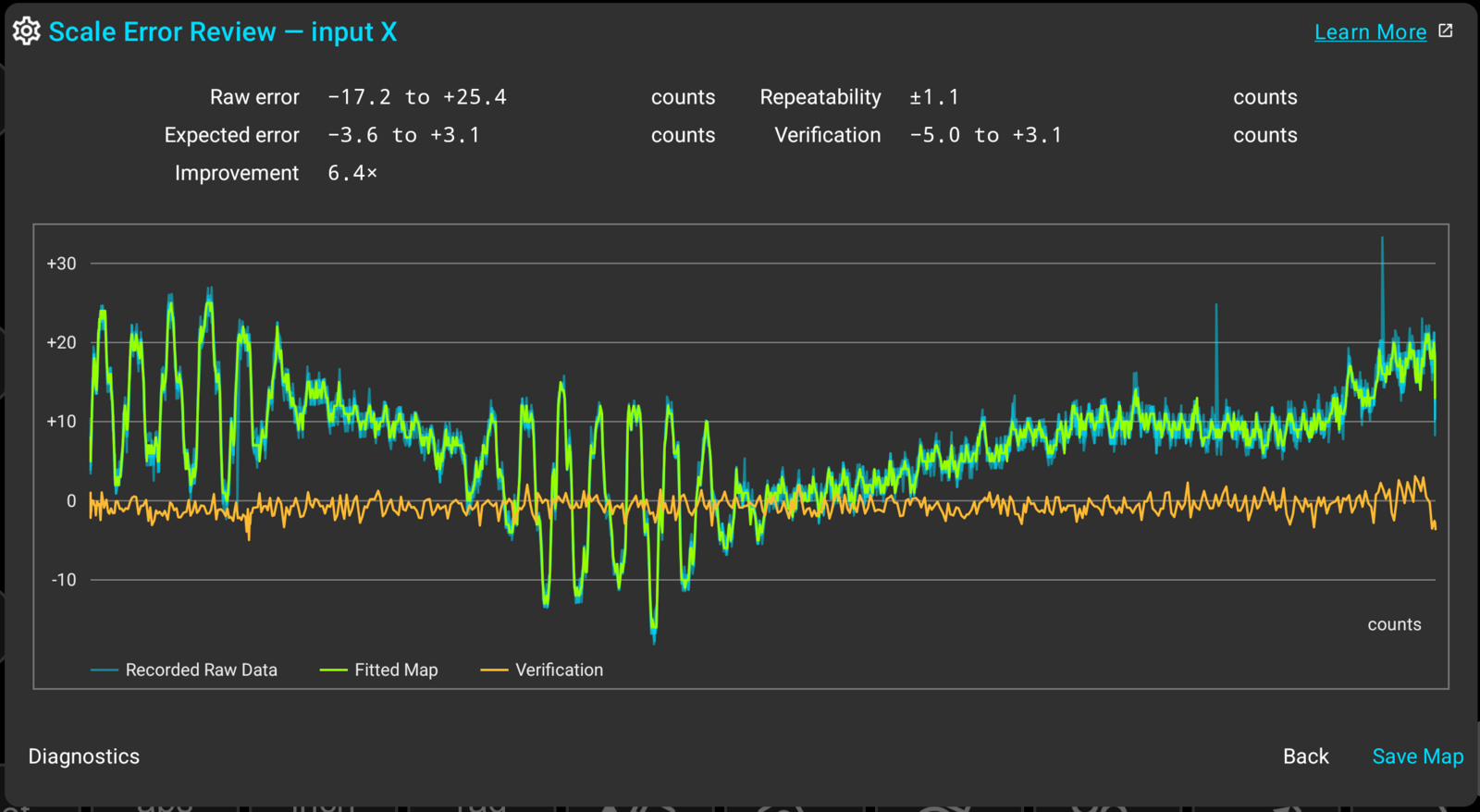
On our test lathe, a cross slide carrying 43 microns of error end to end came down to single digits, a 6.4× improvement measured against held-out data.
You can also enter a map by hand if you already have measurements. The editor takes typed values, pasted values, and imported CSV files, and exports what you've entered for backup or for copying to another machine. Maps travel with the adapter profile, so a shop can record one centrally and hand it out. When a recording does not come out clean, Error Map Diagnostics reports what the app found, which is usually a mounting or a cranking problem rather than a scale problem.
Recording a map requires a spare input for the reference scale. For the procedure, see "Creating an Error Map"; for what a map is and how the editor works, see "Error Correction and Backlash Maps"; and for how to find out whether your scales need one at all, read the magnetic scale accuracy guide.
Backlash Compensation
Where a rotary encoder measures a leadscrew rather than the table itself, the reading runs ahead of the real motion when you reverse direction, until the slack is taken up. TouchDRO now models that and takes it out of the reading. Backlash can be a single value where it is consistent, or a map where it varies along the travel, which is what a worn screw usually does.
Backlash maps are entered in the same editor as error correction maps, and changes take effect immediately with no restart. See "Backlash Maps".
Angle Vectoring
A scale doesn't always move along the axis you want to read. When it's mounted at an angle, its travel contributes to two axes at once, which until now meant doing trigonometry in your head or not using the scale at all. TouchDRO can now do that math for you, live, from an angle you enter.
On a lathe, set the compound over and TouchDRO folds its travel into the X and Z readouts as you crank. Enter the angle, choose which readouts it should contribute to, and turn it on from the function bar. This is what makes an angled compound genuinely useful: cutting a taper or a chamfer, you feed the compound and watch the diameter and the length move on the readout instead of tracking the compound's own travel and converting. Turn it off and the readouts go back to reading their own scales, while the angle stays saved for next time.
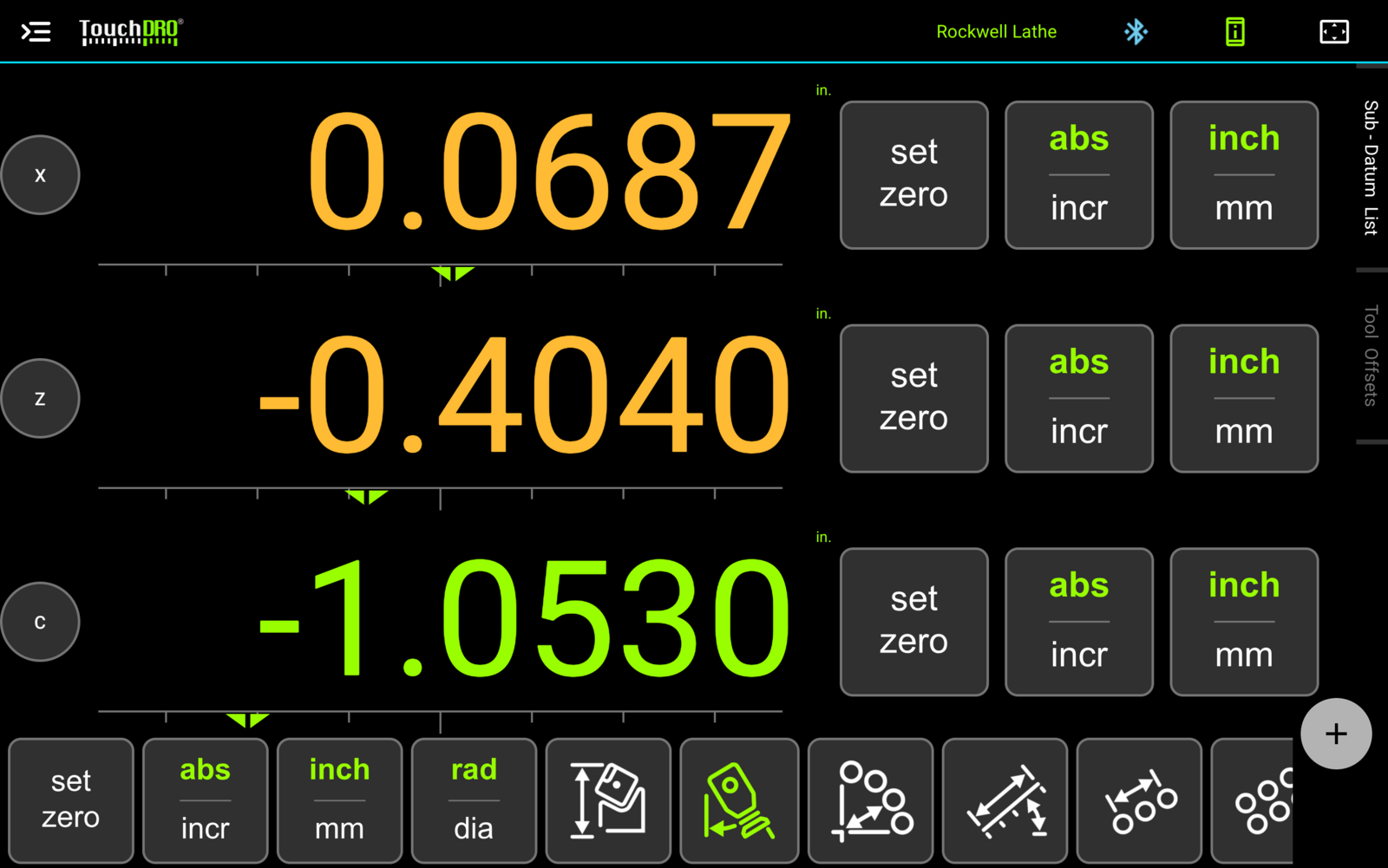
On a mill, a tilted head has the same problem in two directions. Enter the head's tilt and nod angles and TouchDRO projects the quill's travel into X and Y alongside Z, so plunging with a tilted head reads as the real movement of the tool rather than the movement of the quill. Tilt and nod are entered separately, each with its own switch for whether it contributes to X or Y, and TouchDRO checks that the pair is physically possible before accepting it.
See "Compound Slide Angle Compensation" and "Mill Head Tilt/Nod Compensation".
Calibration Belongs to the Adapter
This is the biggest change under the hood, and it removes a limitation many of you have run into. Calibration used to be tied to the machine profile, which meant one profile per setup: a second profile for the same machine meant calibrating all over again.
Calibration now lives with the adapter. The machine profile handles the display side, meaning axis layout, units, tools, datums, and what you see on screen, while the adapter remembers resolutions, direction, and encoder setup. The two are independent, and that opens up two things.
Multiple profiles for one machine, calibrated once. Set up different profiles for different kinds of work, one for roughing, one for finishing, one per operator, and switch between them freely. They all share the adapter's calibration, and nothing needs recalibrating when you switch.
One profile across multiple machines. Take a job set up on one machine and continue it on another. Connect to the second machine's adapter and your profile comes across intact, tools and datums and offsets included, while the readout picks up that machine's calibration automatically. An adapter is the same adapter whether you reach it over Bluetooth, USB, or WiFi, so its calibration follows it across all three.
Connecting is quieter too. TouchDRO recognizes your adapter, loads the right calibration without asking, and the readout goes live immediately instead of holding while it works things out. You'll only see a question when the situation is genuinely ambiguous. See "Machine Profiles" and "Adapter Details Dialog", and the upgrading section below for what happens to your existing setup.
Live Data Streaming
TouchDRO can now publish live machine data to your network, so other tools can watch what your machine is doing. Turn on Live Data Streaming from the menu, point it at your network, and TouchDRO broadcasts axis positions, feed rates, spindle speed, and probe state as they change. Typical uses are a shop dashboard on a second screen, logging a job for later review, or feeding a monitoring system that tracks how much a machine is used.
There are two ways to receive the data. Over TCP, TouchDRO listens on a port on your tablet (5800 by default) and anything on your network can connect and start reading, several clients at once. Over MQTT, TouchDRO publishes to a broker you already run, under a topic you choose, which suits an existing home-automation or shop-monitoring setup.
You choose what gets sent and how it looks: JSON or delimited text, which fields to include, units and decimal places independent of what's on screen, timestamps on or off, and how often data goes out, on a fixed interval, only when something changes, or both.
Two more things worth knowing before you wire it into something. Streaming runs while TouchDRO is open and in the foreground, so it stops if you leave the app or the screen sleeps. The TCP listener is unauthenticated, which is reasonable for read-only position data but does mean anyone on the same network can read it. See "Live Data Streaming".
Settings Backup
Setting up a machine profile takes a while, and none of that work is worth doing twice. TouchDRO can now write a profile's settings out to a file and read them back later, which puts a profile back after a tablet is replaced or the application is reinstalled, carries a working setup across to a second tablet, or gives a similar machine a head start.
"Export settings" sits under "Backup" at the bottom of the Application Settings screen, and it doesn't depend on the profile having Plus. Importing shows you what the file holds before any of it is applied, listing the settings it will change and the count, and nothing is written until you press "Apply". Note that a settings file is a backup of how a profile is configured rather than of the work stored in it: workspaces, sub-datums, the tool library, and probe profiles are exported separately. See "Backing Up and Restoring Settings".
Also in This Release
TouchDRO can now connect to an adapter over WiFi, by IP address and port, alongside Bluetooth and USB. This is intended for custom and network-connected adapters; select WiFi as the connection type in settings. See "Connecting to a Scale Adapter".
Upgrading From an Earlier Version
Because calibration moved from the machine profile to the adapter, your existing setup is migrated automatically the first time you open a configuration after updating. Your readings will not change. Every resolution, direction, and filter setting moves across exactly as it was, and there's nothing to recalibrate.
Most setups migrate silently. If you shared one Bluetooth adapter across two machine profiles, TouchDRO either merges them into one adapter, where the calibrations matched, or keeps them as two separate adapter profiles, where they didn't. Either way, each configuration keeps exactly the numbers it had.
A small number of older setups have inconsistencies that TouchDRO can't safely resolve on its own. If yours is one of them, you'll be asked a short question or two on startup. The default answer always leaves your readings alone, and you can close the app mid-question without losing your place.