
Legacy DIY DRO Adapter Build
This page is a legacy reference for building a scratch-built TouchDRO-compatible DIY DRO adapter that can connect four optical or magnetic DRO scales using quadrature signals.
Skip to main content- Legacy DIY DRO Adapter Build Guide
- DRO Adapter Build Options
- DRO Adapter Parts Overview
- Schematic and Bill of Materials
- Uploading TouchDRO Firmware into ESP32
- DRO Build Highlights
- Next Steps
DRO Adapter Build Options
There are a few different generations of the DIY DRO design, dating back to 2012. The most recent version is best, since it has all of the improvements and tweaks that we've been making to the software.
For completeness, let's go over the different versions in case one of them fits your scenario better:
Current Version – ESP32 with V3 Firmware
The newest DIY version uses the popular ESP32 DevKitC module pre-programmed for the TDK-40 DIY kit and runs the TouchDRO V3.x firmware. It is designed specifically for optical and magnetic DRO scales and rotary encoders, supports the latest TouchDRO 2-way communication protocol, and is pin-compatible with the module that ships with the TouchDRO TDK-40 4-axis DIY DRO kit.
Legacy Version – ESP32 with V1 Firmware
The previous generation of the DIY DRO design used an ESP32 DevKit1 module (now discontinued, but clones are available from China) and was designed primarily for iGaging EZ-View DRO and Shahe "Remote Display" scales. It can work with optical and magnetic scales as well. To support (and automatically detect) different scale protocols, we had to make some compromises, so this firmware has a slower refresh rate.
If you want to use capacitive scales, you can find the information about this adapter here: DIY DRO for iGaging and Shahe Scales.
Original Version – MSP430
The first generation of DIY adapters was based on a Texas Instruments MSP430 Value Line Launchpad module. It used two different firmware versions, one for iGaging EZ-View scales, and another for optical and magnetic scales. Although this might have been a cutting-edge design in 2012, it's effectively obsolete at this point. There is really no good reason to build your DRO using this design.
You can find more information here: DIY Adapter for Capacitive Scales.
DRO Adapter Parts Overview
ESP32 – The Brain of the DRO
The part that does all of the work in this DRO is the ESP32 DevKitC development module. It contains the microcontroller that runs the code and sends the data over Bluetooth, the USB-to-UART bridge that lets you upload the code to the microcontroller (ESP32), and all of the necessary support circuitry needed to run the ESP32.
If you’d rather skip firmware flashing and basic bring-up, you can use the pre-programmed ESP32 module for the TDK-40 DIY kit, which comes with TouchDRO Plus firmware and drops into a compatible carrier board such as the TDK-40 main board.
Input Buffer – Protection for ESP32
One important thing the ESP32 can not do [well] is talk to the scales. The inputs on the microcontroller can safely handle around 3.3 V; higher voltage will quickly (and permanently) damage the processor. This means that we can't connect DRO scales directly to ESP32 inputs, since most optical and magnetic scales output 5 V signal levels. Instead, we need some protection and level translation between the scales and the ESP32 inputs.
A suitable input buffer for this build is an 8-bit HCT bus device such as SN74HCT245 or SN74HCT541 (Texas Instruments). These are not pin-compatible with each other, so you will need to follow the correct data sheet and pinout for whichever part you actually use:
For SN74HCT245, tie pin 1 (DIR) to GND so the transceiver always passes signals from the scale side (A bus) to the ESP32 side (B bus), and tie pin 19 (OE\) to GND to keep the outputs enabled.
For SN74HCT541, there is no DIR pin and the direction is fixed from A inputs to Y outputs. In this case, tie both output enable pins (OE1\ on pin 1 and OE2\ on pin 19) to GND so that all outputs stay enabled, connect the scale lines to the A pins, and route the Y outputs to the ESP32.
Resistors and Capacitors – Input Conditioning
Each input line should have a 4.7 kΩ series resistor and a 47 kΩ pull-up resistor to 5 V. The series resistor protects against voltage spikes, and the pull-up ensures correct logic levels for open-drain and differential outputs. Add a 0.1 µF capacitor between 5 V and GND near each scale input for noise suppression.
Finally, to reduce noise on the power supply lines, it's a good idea to add a bypass capacitor for each input, and next to each of the buffer ICs.
Prototyping Board
You will need a prototyping PCB to assemble this whole thing together. There are many options, and if you've done other electronics projects, you probably already have a preference for the style. We will use a stripboard since it's more beginner-friendly.
Female DB9 Connectors
Your DRO scales likely came with male DB-9 (also called D-Sub 9) connectors. You can choose to simply desolder the connectors and wire the scales directly into the board, but this is very inconvenient. It's much better to just use a set of matching female DB9 connectors.
To wire the connectors to the board you will need some multi-strand wire.
Schematic and Bill of Materials
The final circuit will look something like the schematic below.
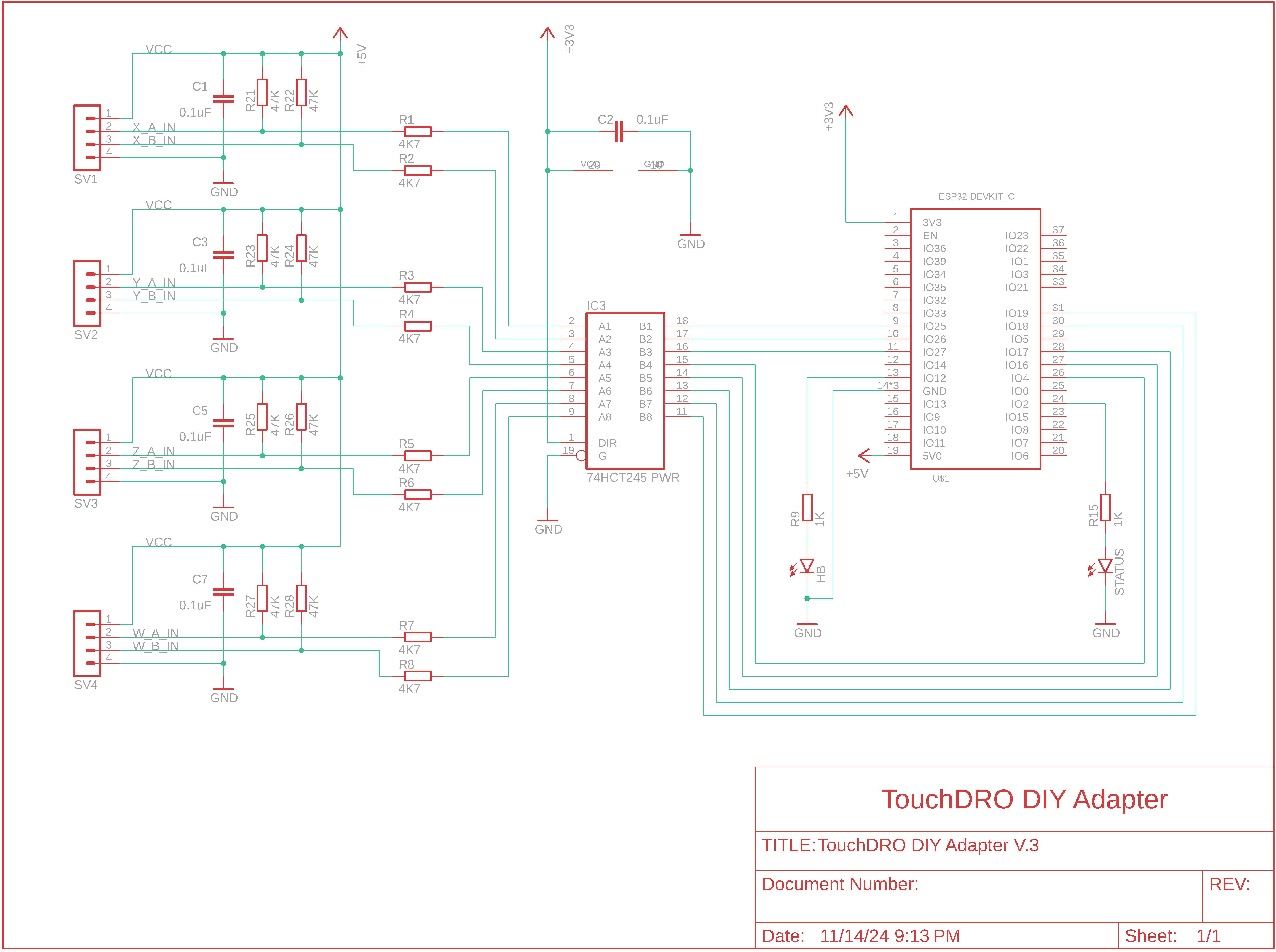
Bill of Materials
| Item | Quantity | Source | Description |
|---|---|---|---|
| ESP32 DevKitC 32E (4MB) | 1 | Mouser or pre-programmed module from TouchDRO | Main microcontroller |
| SN74HCT245 or SN74HCT541 | 1 | 245, 541 | 8-bit HCT buffer / transceiver for interfacing 5 V scale outputs to ESP32 (see notes above for pinout differences) |
| 4.7 kΩ resistor | 2 per axis | Mouser.com | Series input protection resistors |
| 47 kΩ resistor | 2 per axis | Mouser.com | Pull up/down resistors |
| 0.1 µF ceramic capacitor | 1 per axis + 1 per buffer IC | Mouser.com | Noise bypass capacitors |
| DB9 Female Connector | 1 per axis | Amazon.com | Scale input |
| PCB | 1 | Amazon.com | Prototyping board |
| 28 AWG solid wire | 10–20" (250–500 mm) | — | Interconnect wire |
| DIP-20 IC Socket | 1 | — | For the buffer IC |
| 40-pin female header | 1 | — | To make a socket for ESP32 |
| 4-pin male header | 4 | — | For scale inputs |
| "DuPont" jumper wire | 8 | Amazon.com | For DB9 connectors |
Uploading TouchDRO Firmware into ESP32
This legacy page focuses on the hardware for a full DIY quadrature-only adapter. For firmware downloads and detailed flashing instructions, please use the main DIY guide rather than this page.
The up-to-date firmware link, prerequisites, and esptool.py commands are here:
Use that guide to flash either the free legacy firmware or set up a pre-programmed TDK-40 module. Once the module connects cleanly to the TouchDRO app, come back here for the legacy buffer, wiring, and schematic details.
DRO Build Highlights
Building the circuit is best done in stages.
Connecting Scale Inputs to the Buffer
Start by hooking up the scale inputs to the power supply and to the buffer IC. Your result should look similar to the photo below.
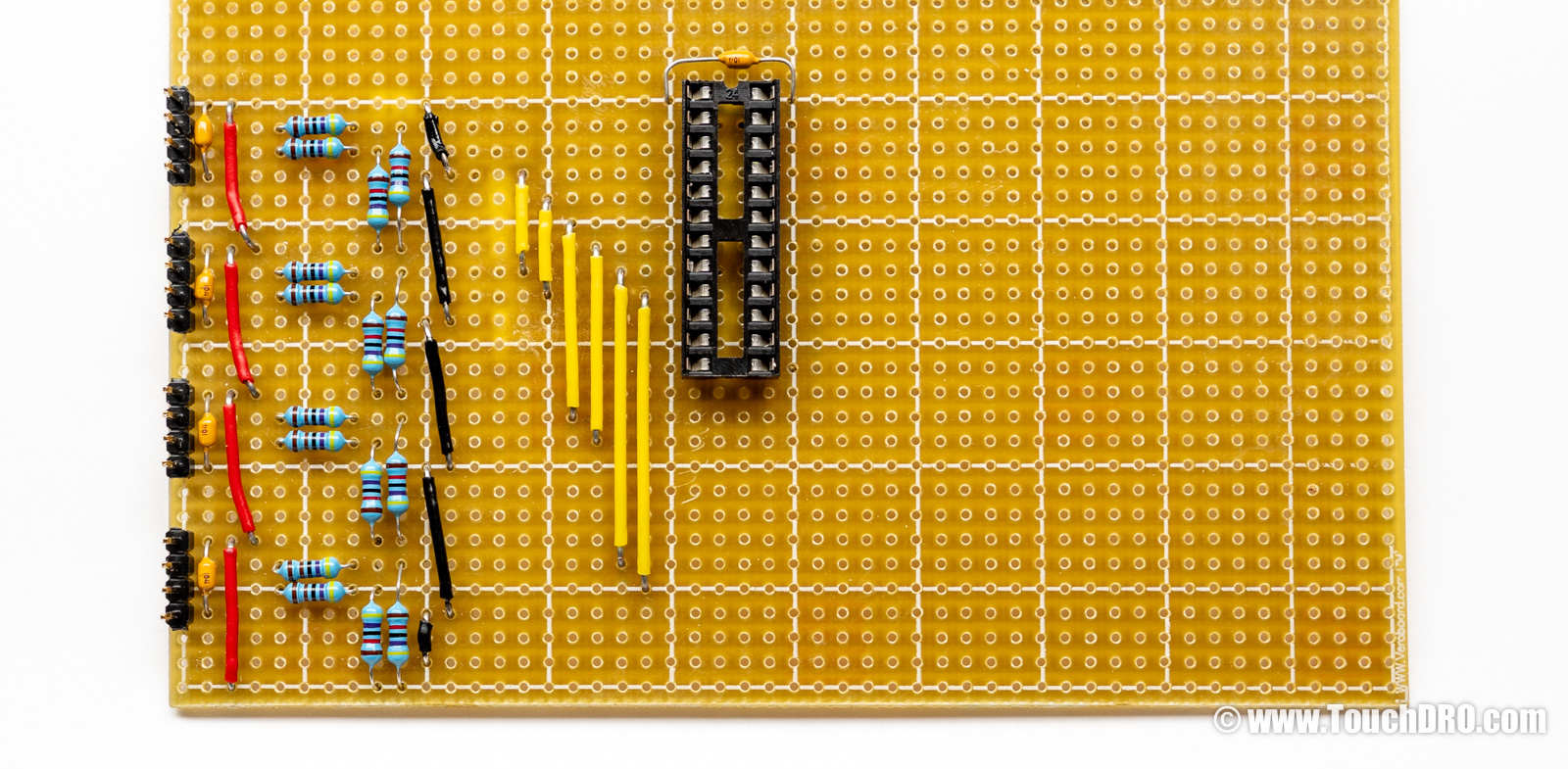
Note the following:
- The bottom-most row is our 5 V rail; the row right above it is ground.
- Red wires are connected to the 5 V line.
- Black wires are connected to ground.
- Yellow wires are connecting the A and B input lines to the input side of the line buffer.
On the back side, you will need to cut some traces and add jumpers depending on which buffer IC you are using:
- SN74HCT245: tie pin 1 (DIR) and pin 19 (OE\) together and then connect them to GND. This forces a fixed direction from the scale side to the ESP32 side and keeps the outputs permanently enabled.
- SN74HCT541: tie pin 1 (OE1\) to GND and pin 19 (OE2\) to GND. Direction is fixed internally from A inputs to Y outputs, so you only need to make sure both output-enable pins are held low.
The result will look similar to the photo below. (Photo shows SN74HCT245; SN74HCT541 will look slightly different—see the pinout in the TI datasheet.)
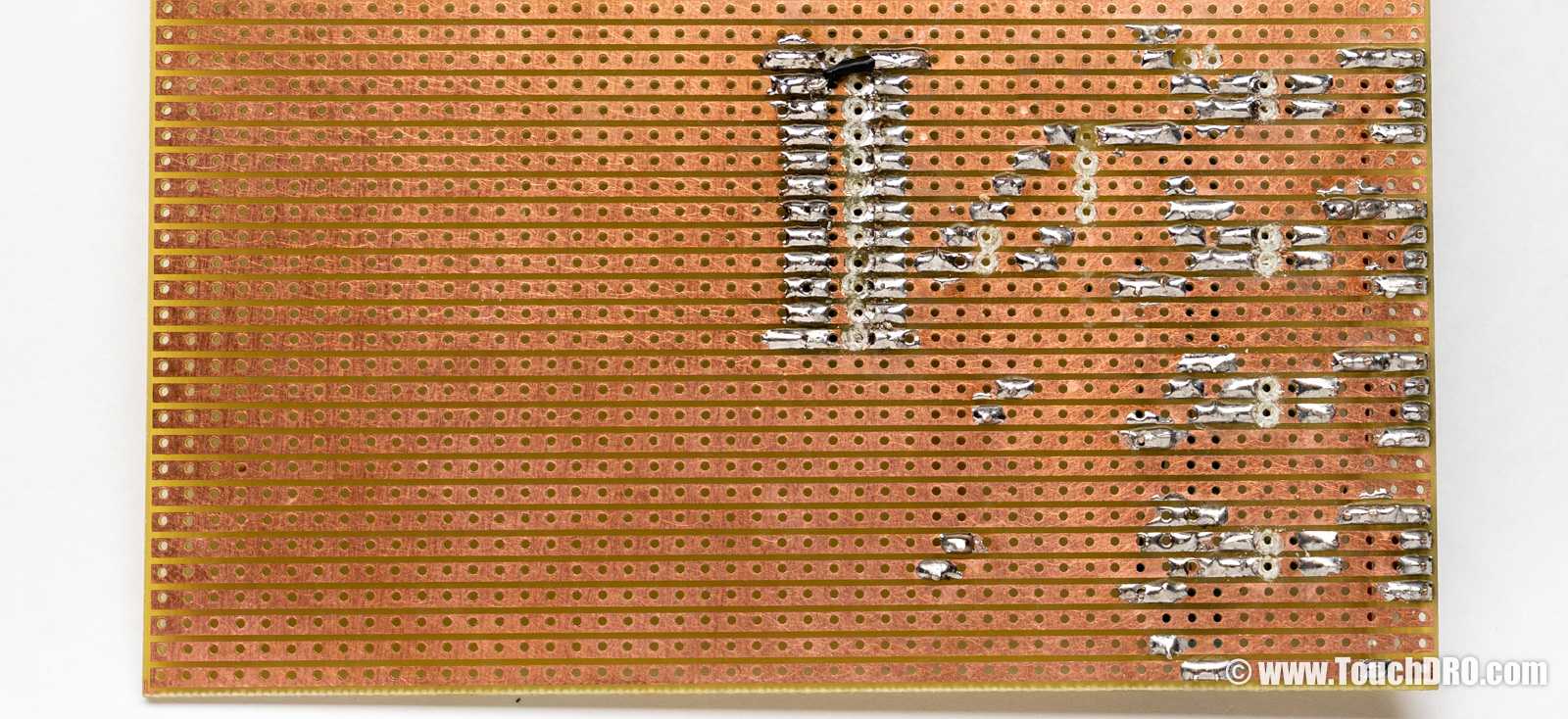
Now it's a good time to check your connections and make sure there are no bridges. Using an ohm meter, check the following:
- Pin 20 of the buffer IC and the first pin of each scale input header are connected to the 5 V rail.
- Pins 1 and 19 of the buffer IC are connected to ground to enable unidirectional output.
- The fourth pin of each scale input header is connected to ground.
- Ground and 5 V lines are not shorted (check for continuity between power rails).
- Each A and B input line shows approximately 47 kΩ resistance to 5 V (pull-up) and 4.7 kΩ in series to buffer inputs (IC pins 2–9).
- Pins 2–9 (input side) are not shorted to pins 11–18 (output side) except via the internal buffer logic.
If everything checks out, we can hook up the ESP32 module to the buffer outputs.
Connect the Buffer Outputs to the ESP32 Module
Since we don't need many of the ESP32 pins, let's pull out the unused pins from the pin header to simplify wire routing. Leave the following pins: 1, 9–11, 13, 14, 19, 24, 26–28, and 30–32. The headers should look like the ones in the photo below.
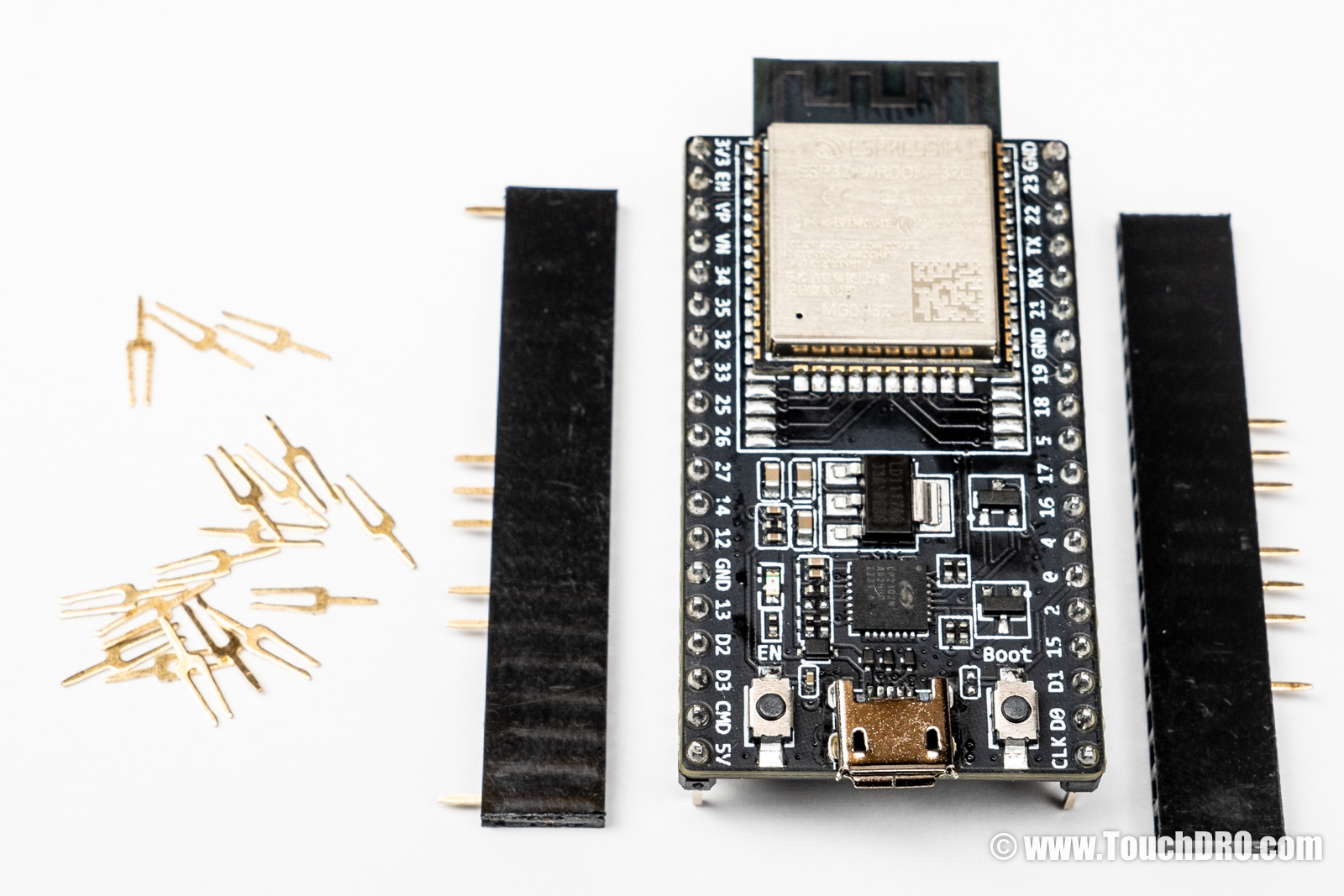
Now we can solder the headers and route the buffered scale signals. The end result will look like the photo below.
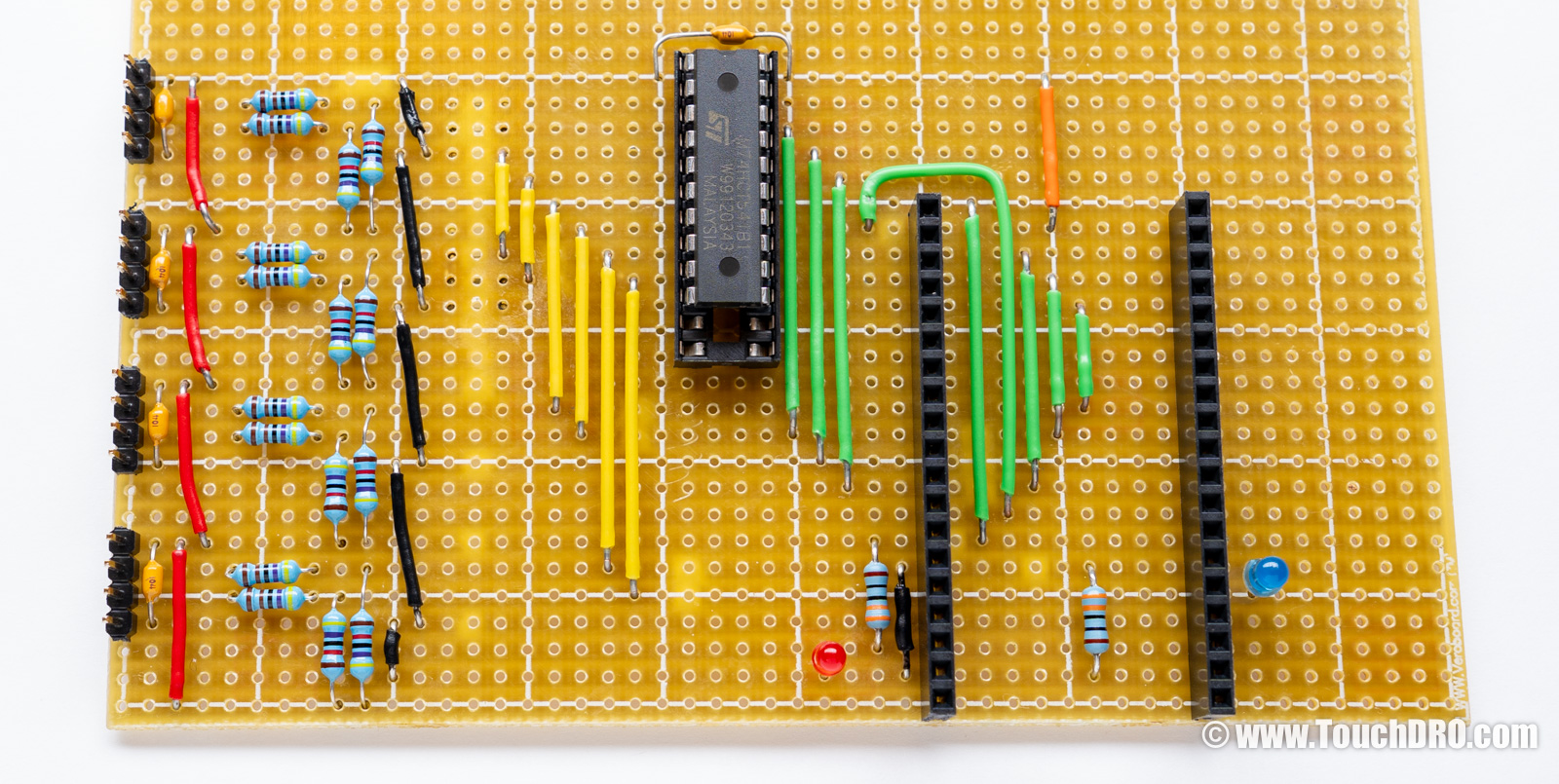
- The green wires are for buffered scale inputs. Note that the outputs on the buffer IC are offset by one pin – input 1 enters the IC into the second pin from the top, but exits from the third pin on the opposite side.
- The orange wire connects the SN74HCT245/541 to the 3.3 V rail.
- The black wire next to one of the resistors connects the ground rail to the ESP32's ground.
- The two current limiting resistors in the schematic are marked as 1 kΩ. This is a starting point; we used 330 Ω resistors to increase the brightness of the LEDs.
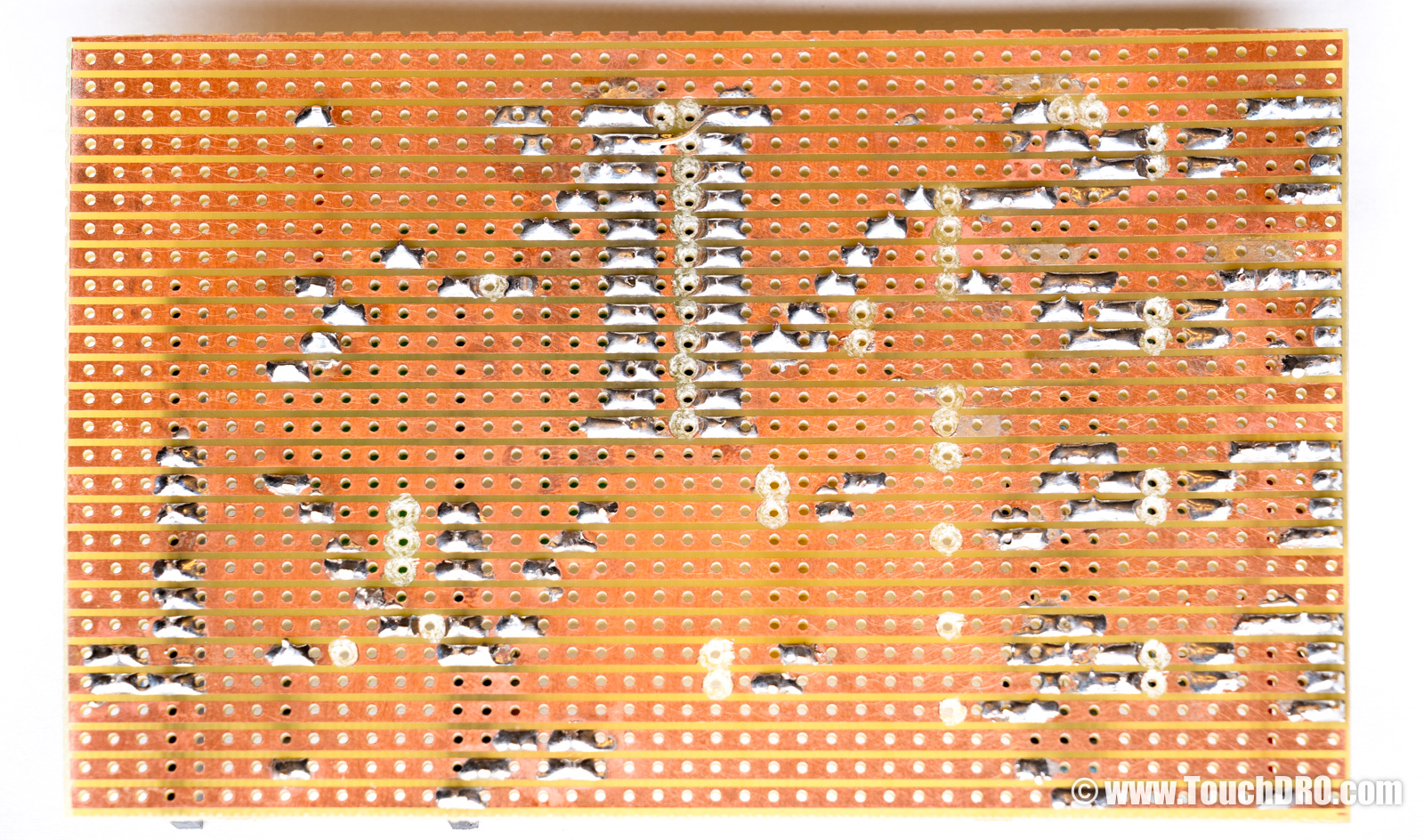
You will need to cut some more traces. The bottom side should look like this when you're done:
Basic "Smoke" Tests
Check your work against the schematic. In particular, make sure that the 3.3 V rail is not connected to 5 V, or you can quickly damage the ESP32 module.
If everything looks correct, power up the adapter and connect the TouchDRO app to it. Change the display format in the app settings to show microns (4 decimal places in inch mode, or 3 in mm mode).
Using one of the jumper wires, short the A line of the X input to ground. The last digit on the DRO should change. Now repeat this for all other lines and inputs (shorting one line at a time).
To check the W input, change the input label for the Z axis to "w" (after you check the "z" input).
If one of the inputs doesn't respond, check the wiring, resistance across the series resistors, and inspect the underside for any bridges.
You're Done!
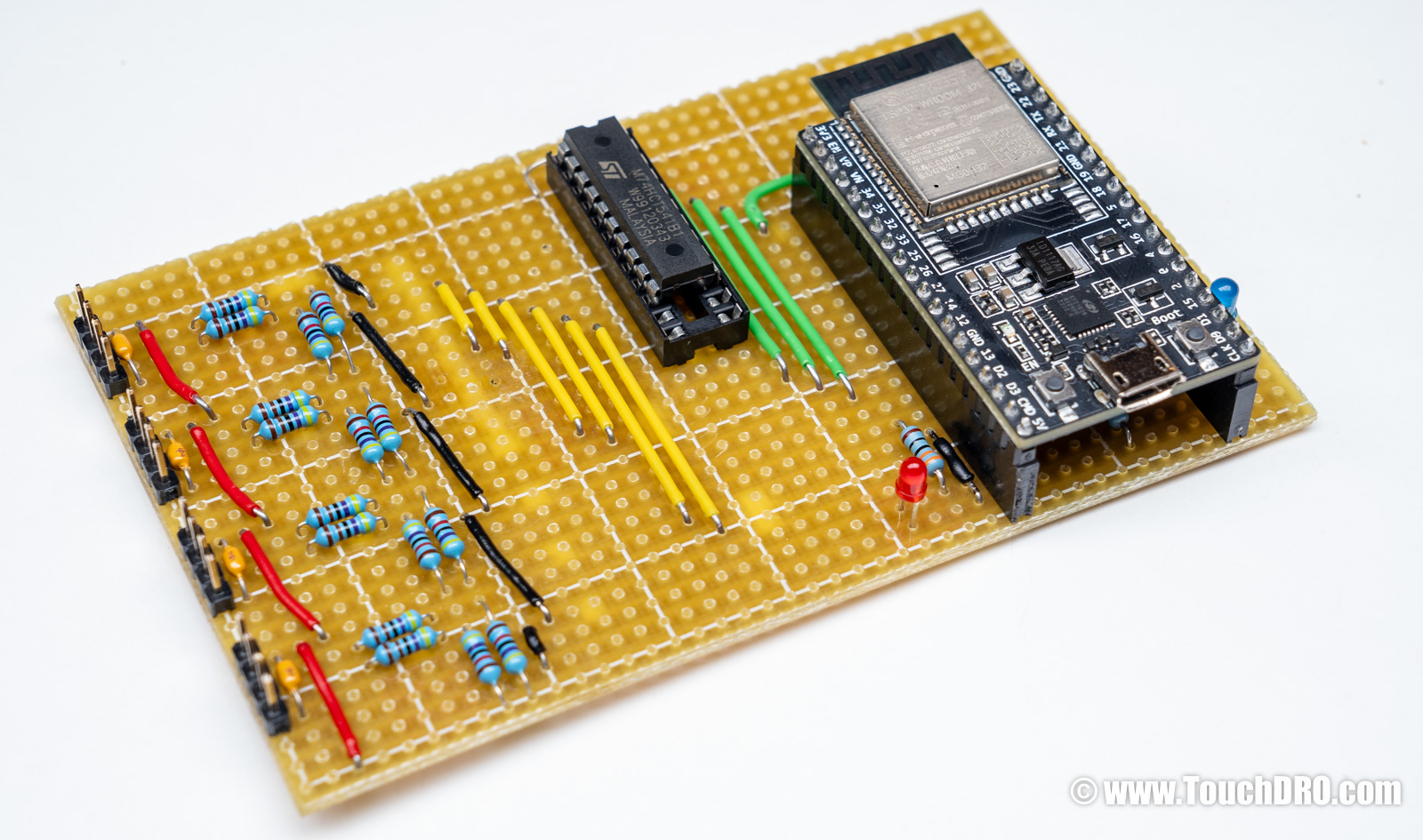
Congratulations! At this point you have a working DIY DRO adapter. To finish your DRO setup, you will need to build the DB-9 pigtails to match your scales' pinouts, and mount everything into a suitable enclosure.
Next Steps
At this point you have a working DIY DRO adapter. A good next step is to hook up the scales and make sure that the readings are stable and repeatable. If the DRO works as expected, you will need to do the following:
- Build, buy, or scavenge a suitable enclosure. A basic ABS project box from Amazon is a solid option.
- Mount the DRO onto your milling machine or lathe.
- Configure the TouchDRO application to match your setup. You can find more info here: TouchDRO Initial Configuration.
- To get the best accuracy out of your scales, it's a good idea to calibrate them in place. The information on how this is done is here: Digital Readout Calibration.
Once you are done with those steps, your DRO will be ready for use. If you later decide to move away from a scratch-built adapter, consider upgrading to the TouchDRO TDK-40 DIY kit or a pre-assembled TouchDRO adapter for a more robust, supported setup.